This article illustrates the layout of the checkout page on iCHEF POS, including enabling/disabling the loyalty points program and selecting a payment module.

Checks
This page shows the information of checks.
When customers want to pay separately, stores can use the Split Bill feature in the iCHEF POS App. The order details will be listed according to the split method. For more on how to use Split Bill, please refer to: Split Bill Instructions.
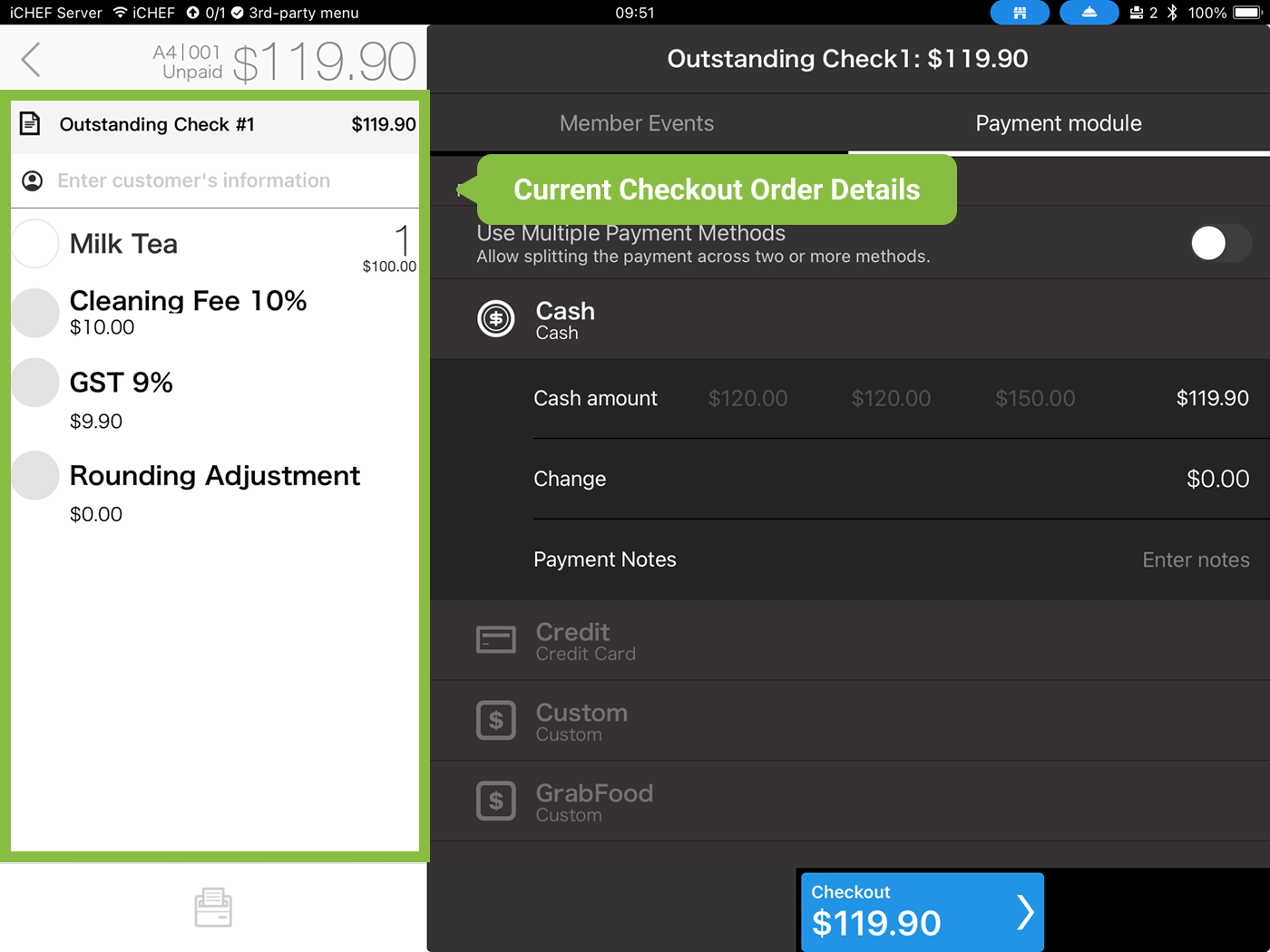
You are free to tap on any of the outstanding checks to checkout.
Print Billing Info
The billing details include “consumed items,” “applied discounts,” and the “final payment amount.” To print the billing details, click the receipt printer icon at the bottom left. For more on billing details, please see: Billing Details Instructions.

Loyalty Program
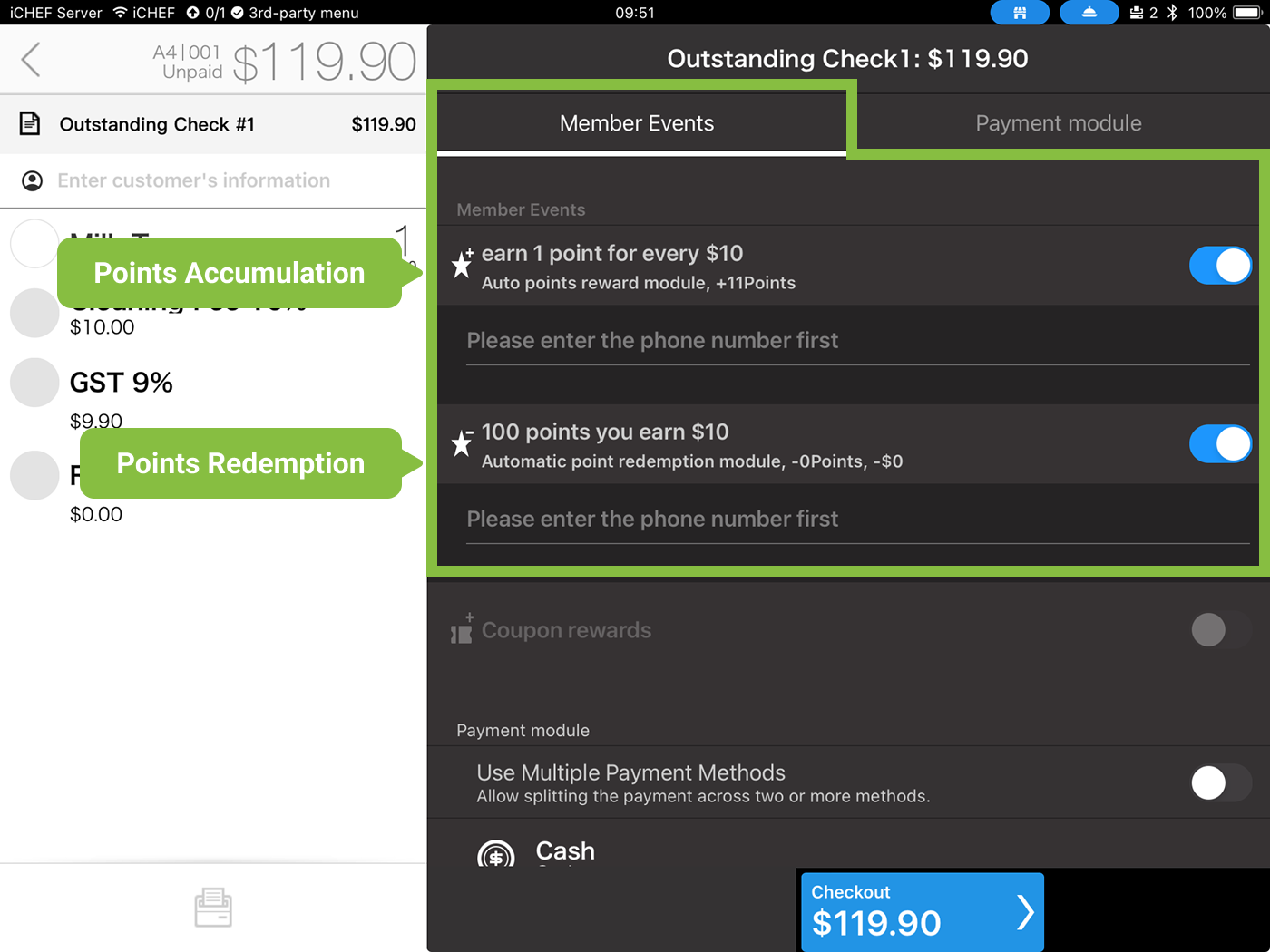
If the store has set up a points redemption campaign in the iCHEF backend, the ongoing campaign will appear in the “Member Activities” section on the right side of the checkout page. Before completing checkout, you can adjust the campaign applied to the order. For more on member activities, please see: Points Campaign Instructions.
Payment Module
The “Payment Modules” section shows the payment options set in the backend under Checkout Settings > Payment Module Settings. These modules fully record the payment method for each transaction.

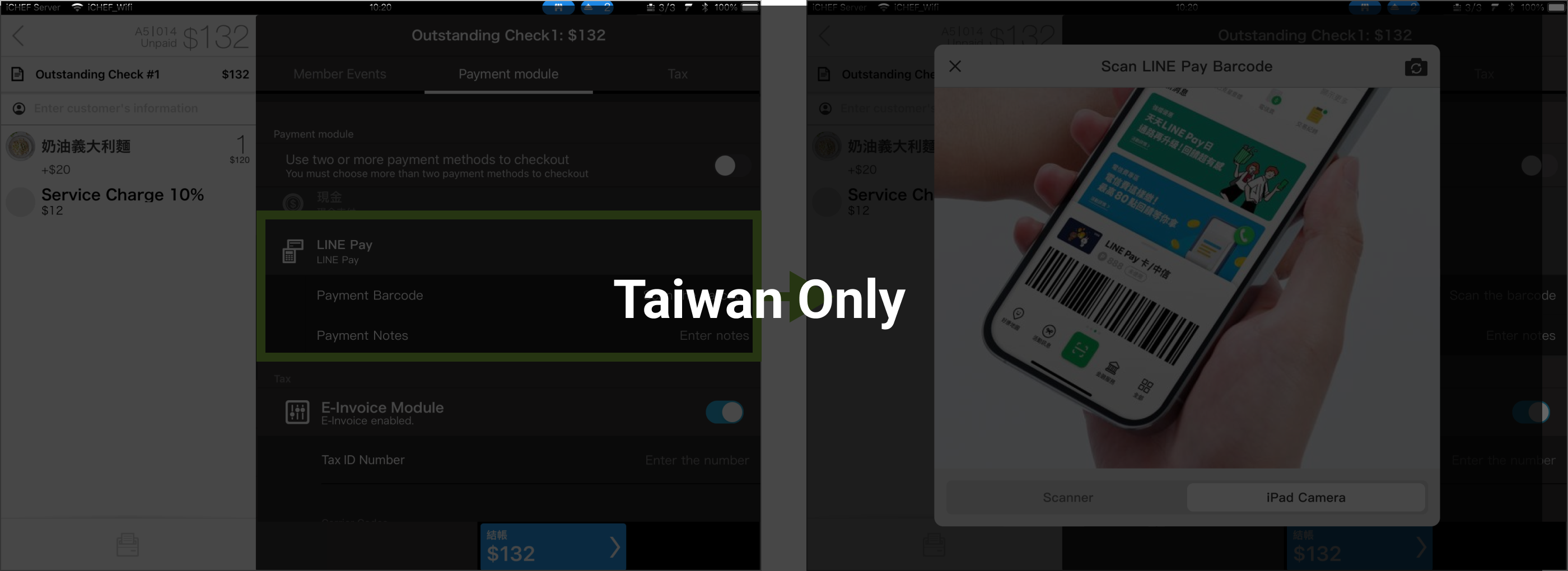
(Taiwan only) Besides the default Cash and Credit Card payment modules, iCHEF also supports mPOS Card Reader integration and mobile payment. At checkout, you can scan customers’ payment barcode directly using the iPad camera or scanner. (Learn more: Multiple Payment Methods)
Electronic Invoice Module (Taiwan only)
iCHEF is a Ministry of Finance-certified electronic invoice value-added center, so you can issue electronic invoices during checkout via the iCHEF POS App, supporting Business IDs, carriers, donation codes, and other extended services. (Learn more: Electronic Invoice)

If your customer has a carrier code or donation code, you can simply scan the barcode with your iPad’s camera or wireless barcode scanner, and the data will be entered automatically.

Checkout
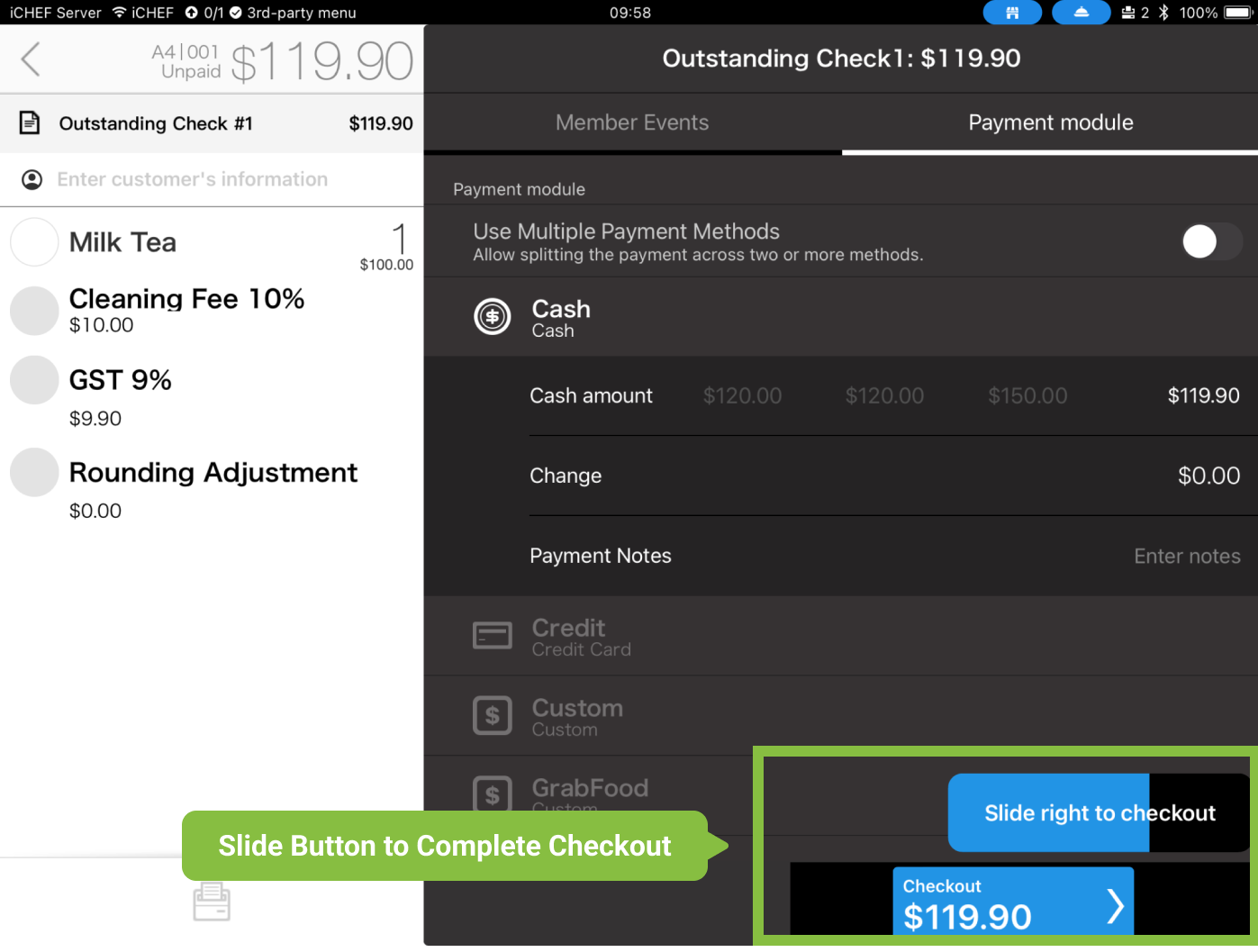
Slide the [Checkout] button from left to right to complete checkout.