
After a payment is completed, you can easily issue a proof of payment via iCHEF POS. With a simple setup in the backend, a receipt or invoice will be issued upon checkout.
Based on your GST settings, iCHEF POS will issue either an invoice or a receipt upon checkout completion.
Non-GST Registered: a receipt
GST Registered: a GST tax invoice
Setup Print Timing
You can decide whether to print out the receipt automatically after checkout.
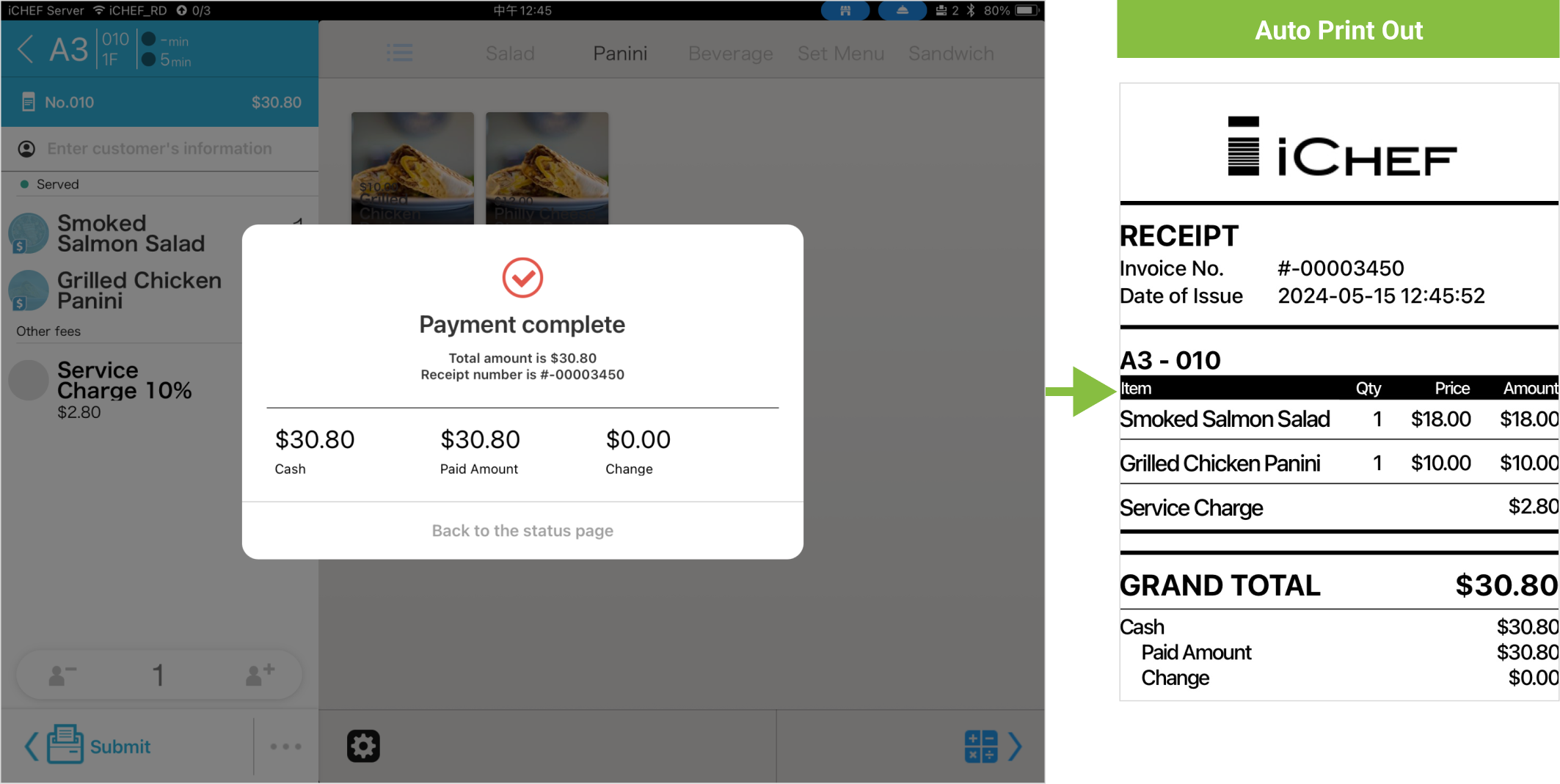
Auto-print Out
Receipts will be auto-printed out right after checkout.
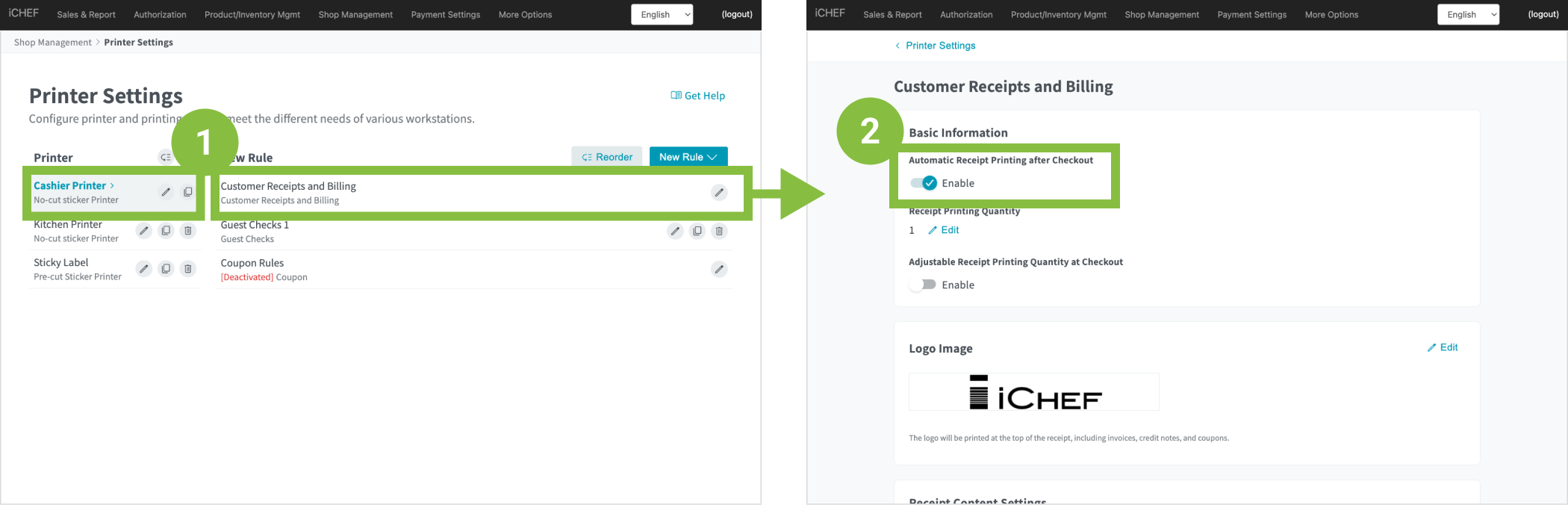
➤ iCHEF Backend: Shop Management > Printer Settings
- Select [Cashier Printer] > [Customer Receipts and Billing]
- Toggle on [Automatic Receipt Printing after Checkout]
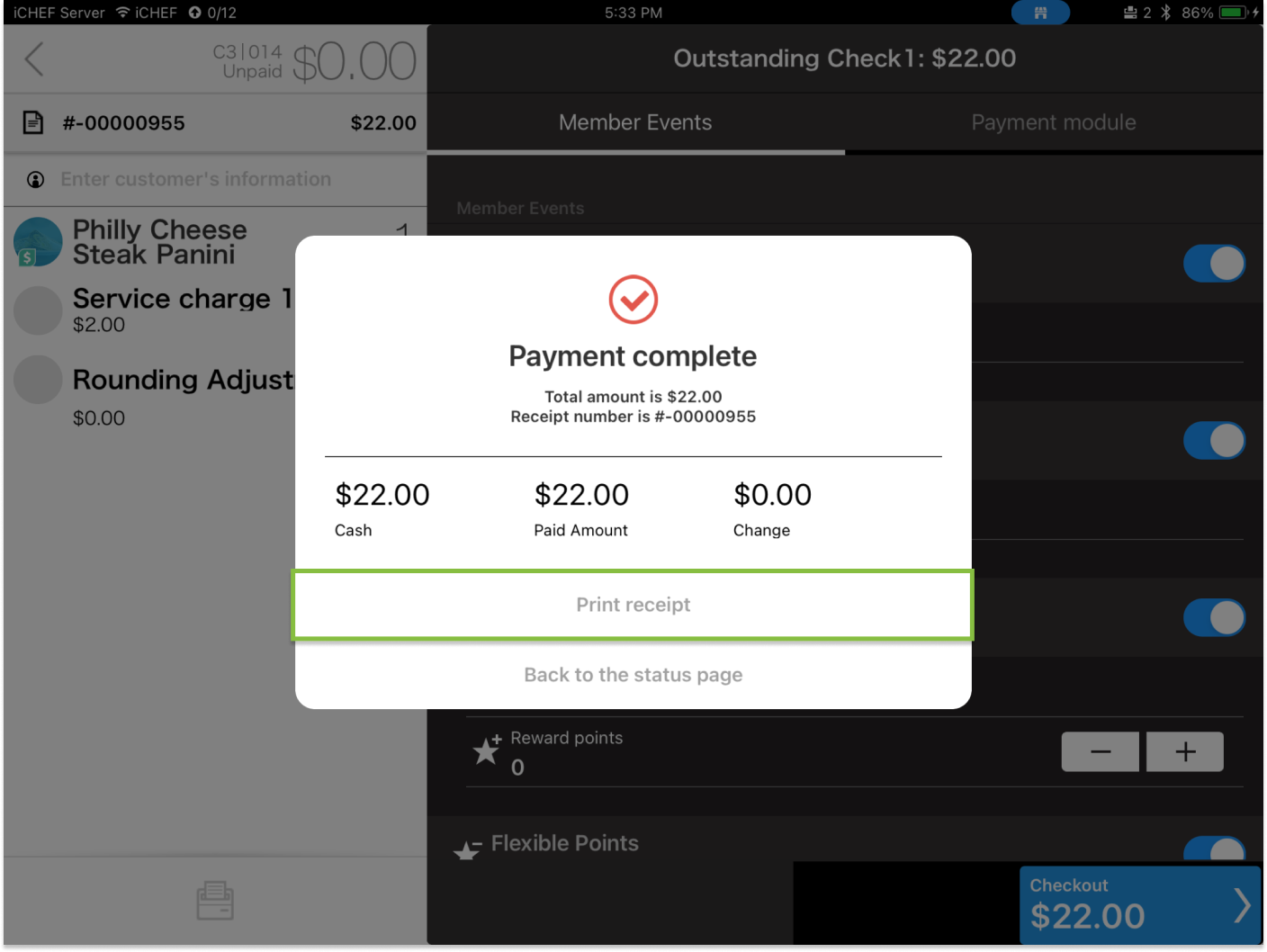
Manual Print Out
You choose if a receipt prints after each checkout.
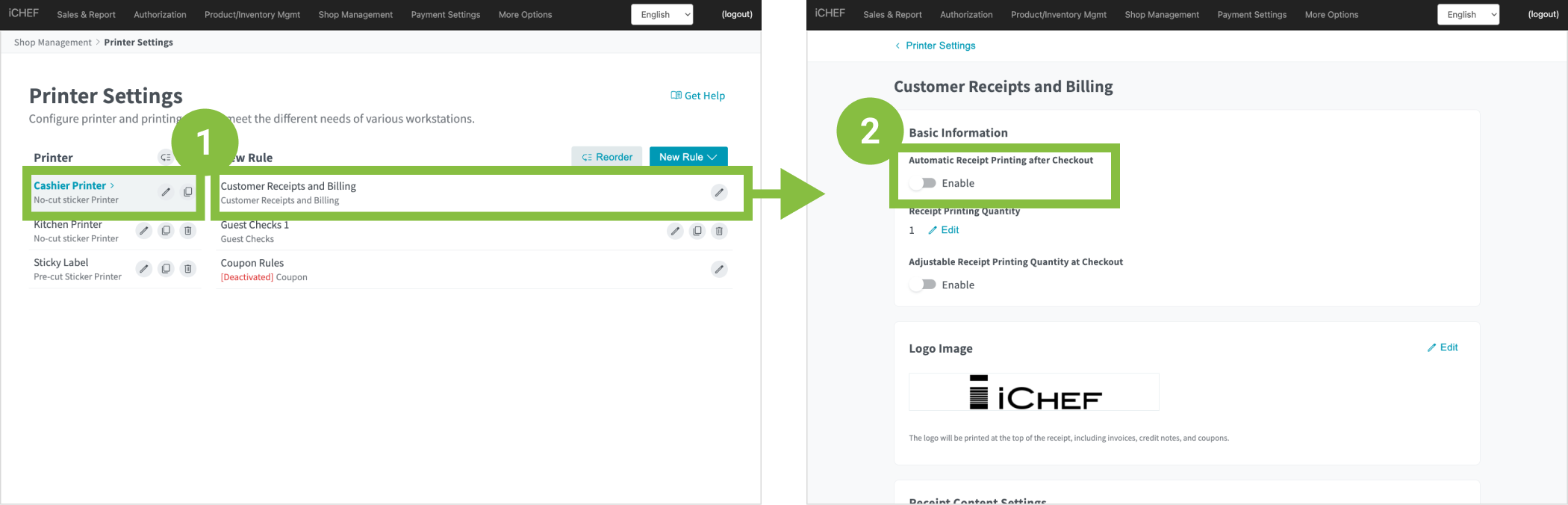
➤ iCHEF Backend: Shop Management > Printer Settings
- Select [Cashier Printer] > [Customer Receipts and Billing]
- Toggle off [Automatic Receipt Printing after Checkout]
- Learn more about: Customize Printer Settings
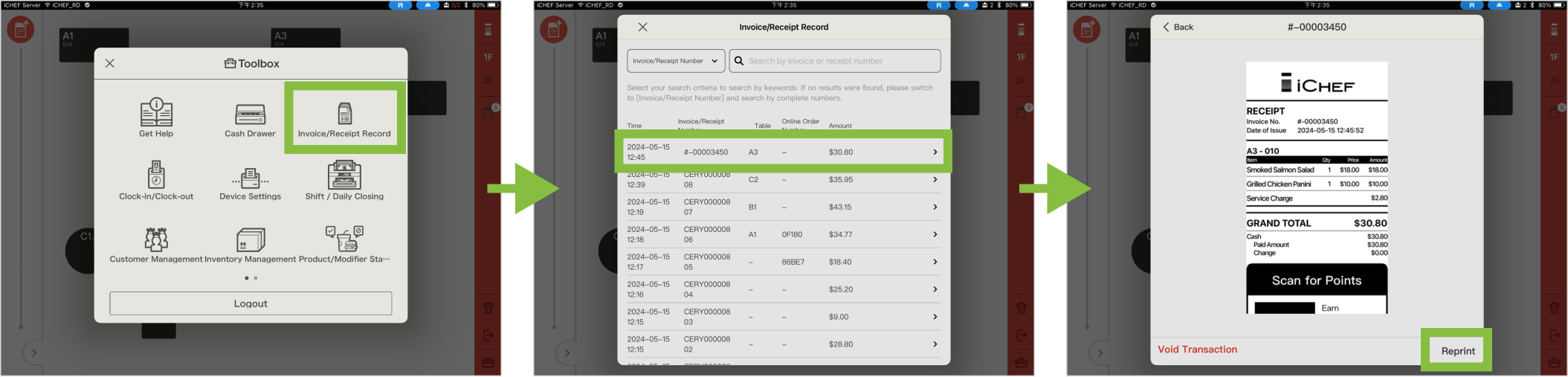
Reprint A Receipt / Invoice
➤ iCHEF POS app: Toolbox > Invoice/Receipt Records
- Select the invoice/receipt of the order
- Tap [Reprint]
Send E-Receipt / Invoice
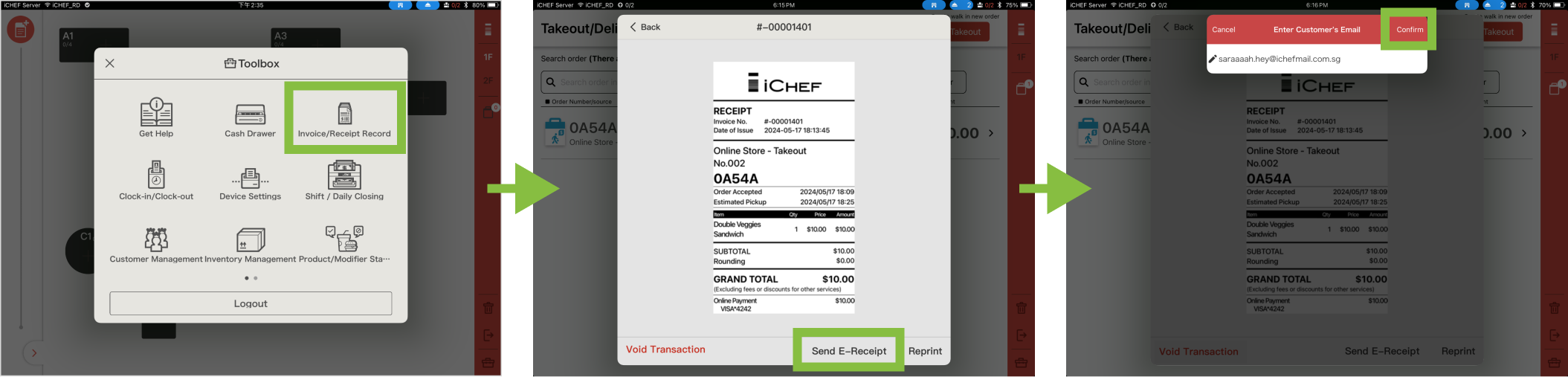
When customers order through Mobile Ordering (Takeout) or Mobile Ordering (Dine-in) and pay online, an e-receipt will be generated. You can send the e-receipt via the iCHEF POS app if needed.
➤ iCHEF POS app: Toolbox > Invoice/Receipt Records
- Select the invoice/receipt of the order
- Tap [Send E-Receipt]
- Enter email address
- Tap [Confirm] to send the receipt
Learn More
- About printer settings at checkout: [Printer Settings] Set up Printing Rules
- About issuing tax invoices: Invoicing Customers (IRAS)