
A credit note is issued for refunds or customer credits. It always references the original receipt or tax invoice, including the return reason and the original invoice details.

Void Transaction
If the order was paid via Stripe, the payment will be refunded directly by Stripe after issuing the credit note.
➤ iCHEF POS app: Toolbox > Invoice/Receipt Record
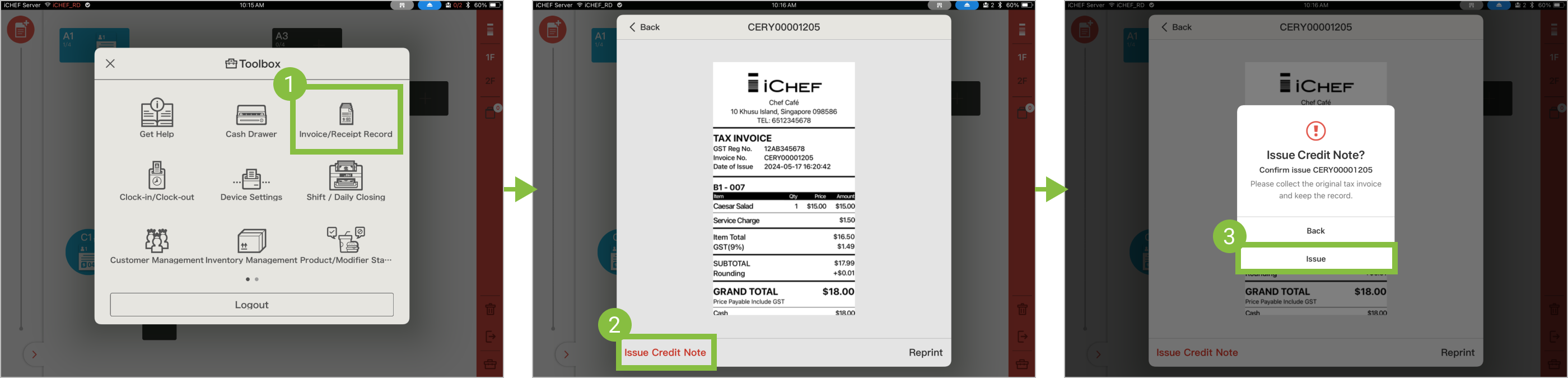
- Go to Toolbox > Invoice/Receipt Record
- Select the transaction you want to refund and tap [Void Transaction]
- Tap [Issue]
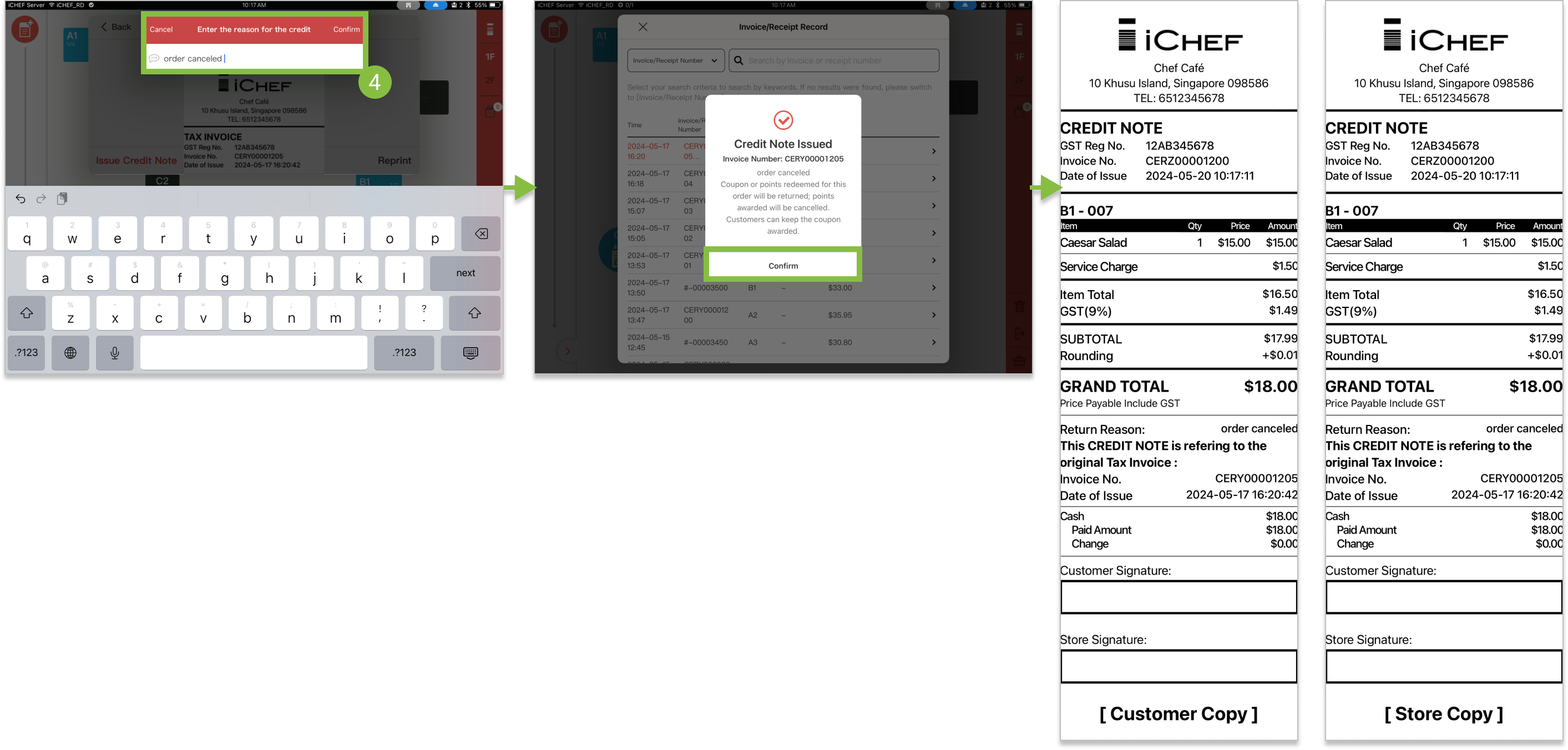
- Enter the reason for the refund and tap [Confirm]
- After printed, sign for both parties
- More about: How to search transaction records
➤ iCHEF POS app: Toolbox > Invoice/Receipt Records
- Select the invoice/receipt of the order
- Tap [Reprint]

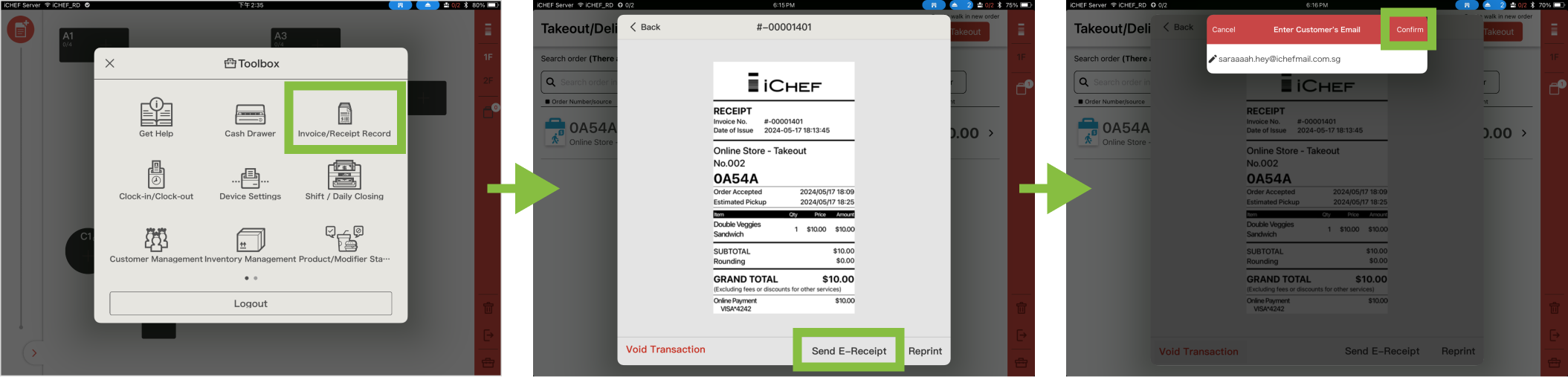
When customers order through Mobile Ordering (Takeout) or Mobile Ordering (Dine-in) and pay online, an e-receipt will be generated. You can send the e-receipt via the iCHEF POS app if needed.
➤ iCHEF POS app: Toolbox > Invoice/Receipt Records
- Select the invoice/receipt of the order
- Tap [Send E-Receipt]
- Enter email address
- Tap [Confirm] to send the receipt
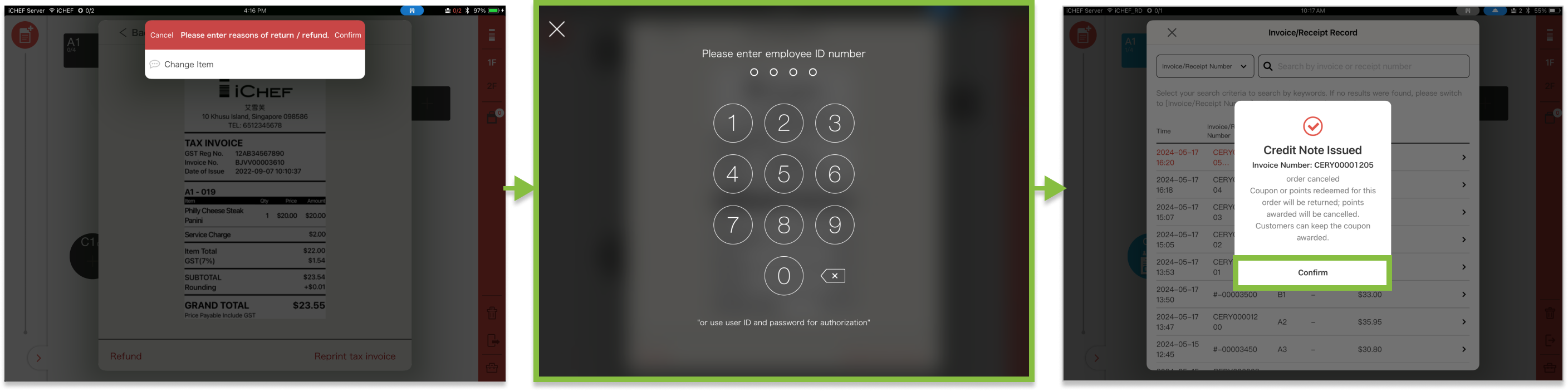
When authorization verification is enabled, issuing credit notes will require an authorized POS passcode. Enabling the verification can help you to track sensitive operations.
Get Started in 5 Steps
- Go to Authorization > Edit Authorization
- Find [Account Processing] > [Void Transaction]
- Check the group to give permission
- [Update Menu] in the iCHEF POS app to complete

Learn More
- About issuing credit notes: When to issue a credit note (IRAS)
- About authorization of iCHEF: Configure the Authorization