
Modifier Management
“Notes offer two setting modes: Single Note, which allows single selection, and Note Group, which is composed of multiple Single Notes with selectable rules to ensure required notes are not missed during ordering.”
Create a Modifier
You can select multiple customized modifiers for an item. Each modifier can only be selected once.
- Please go to Product/Inventory Management > Note Management> for all Single Notes.
- Click [+ Add modifier]
- Fill in the modifier name and price increment

- Click [+ Add menu item] and select the applicable items

You can also add the modifiers on the page of item settings. The changes will be synced.
- Go to Product/Inventory Mgmt > Items
- When creating or editing the items, click [+ Add modifiers] to select

Tip: Note amounts support negative values, but negative notes are rarely used. If your store offers specific product discounts, it’s recommended to use Promotions to apply discounts instead.
Create a Modifier Group
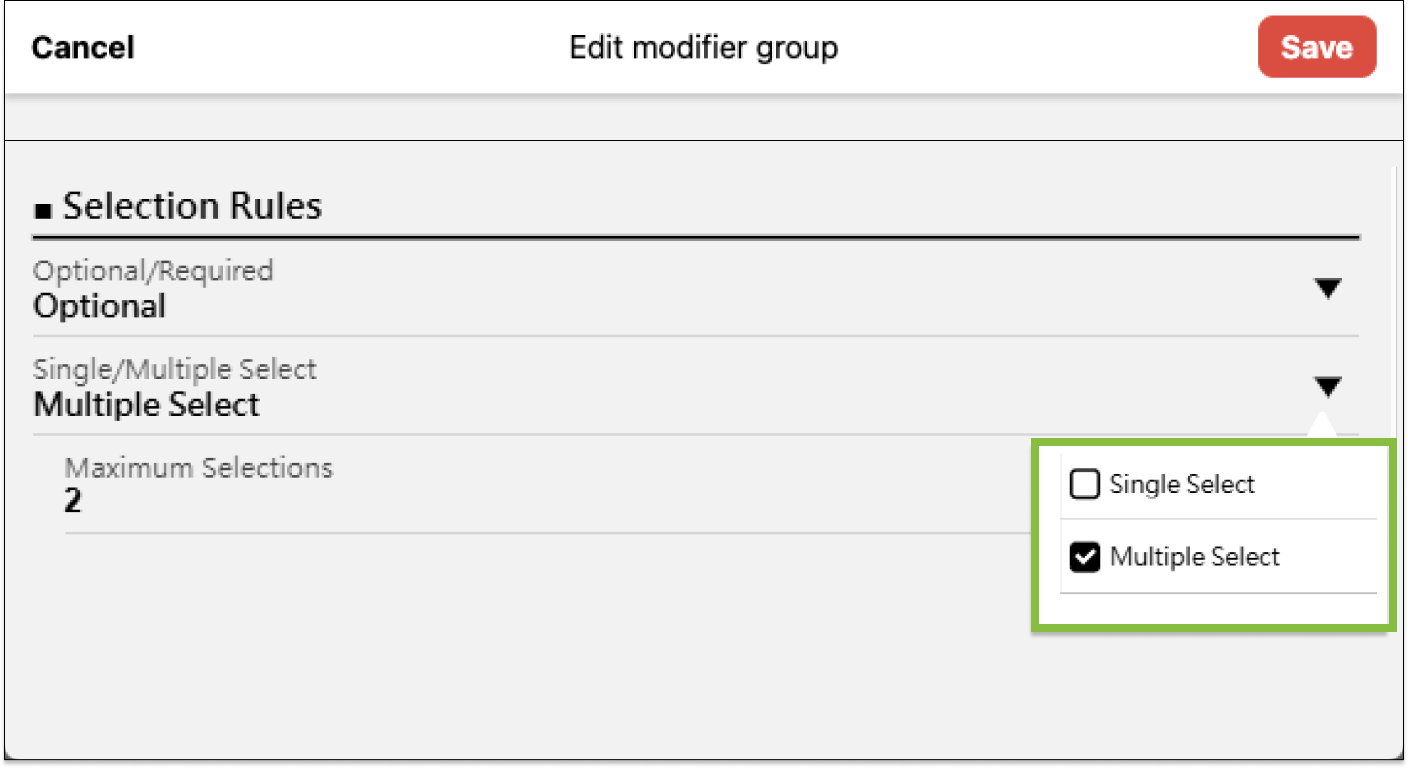
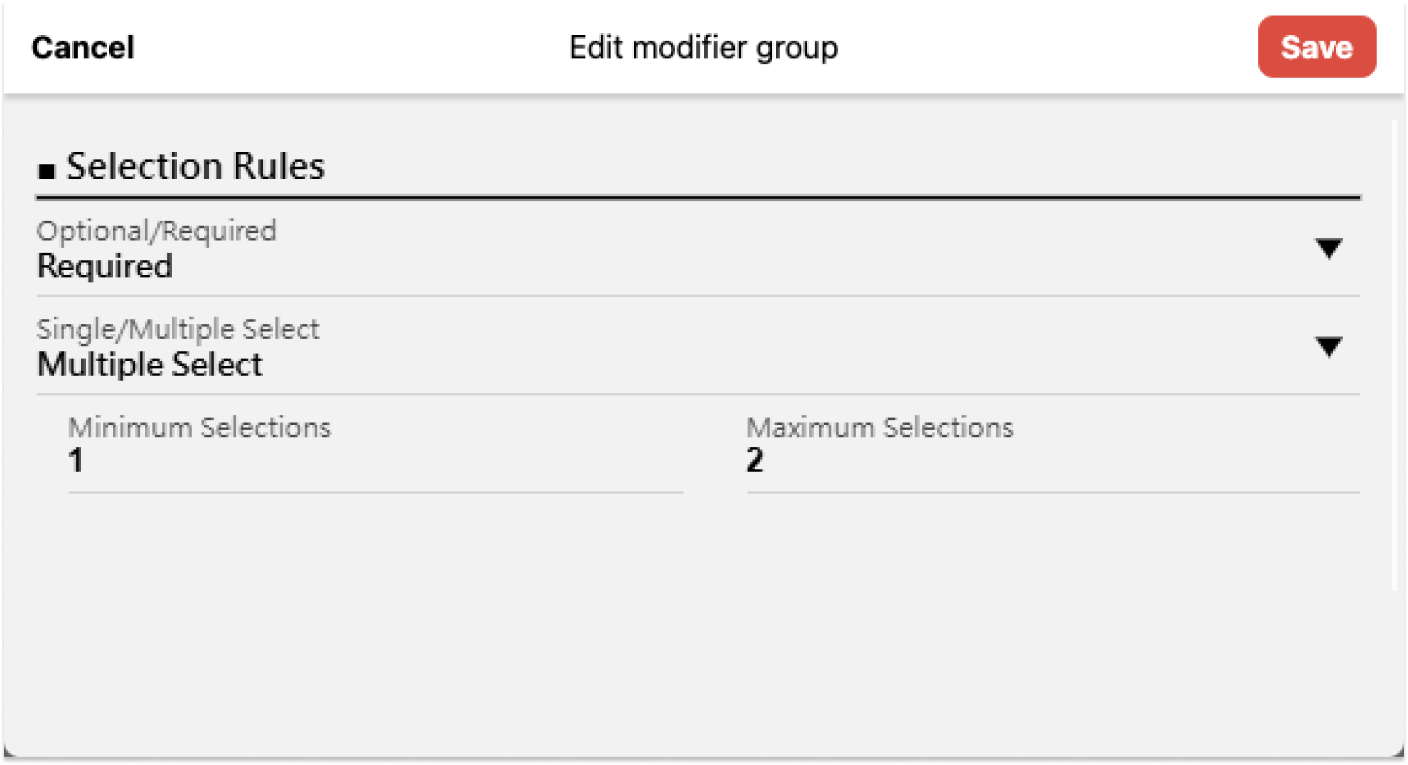
Note Groups consist of multiple Single Notes. Using Selection Rules, you can set the required or optional number of notes—for example, choosing a sweetness level for black tea (Regular, Half, or No Sugar). Before adding a Note Group, please ensure the Single Notes in the group have been created.
- Please go to Product/Inventory Management > Note Management > Note Groups.
- Click [+ Add group]
- Enter the name of modifier group
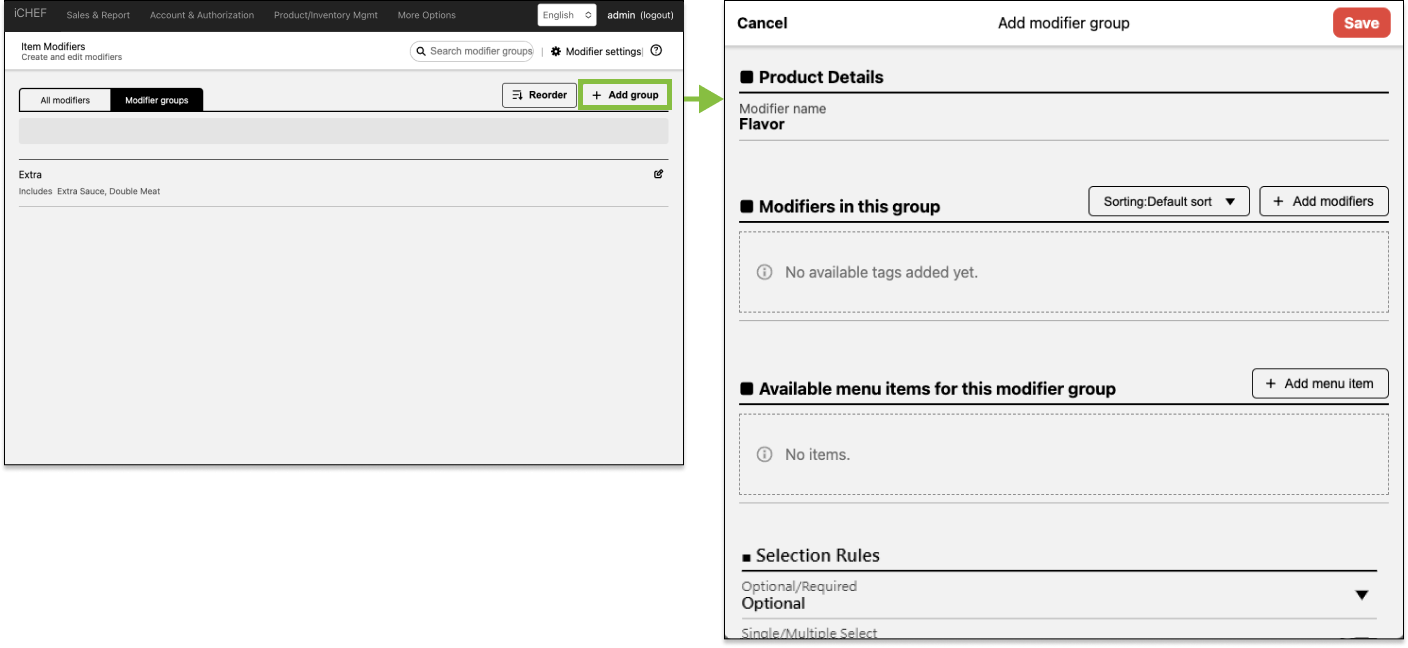
- Click [+ Add modifiers] and select the desired modifiers

- Click [+ Add menu item] and select the applicable items
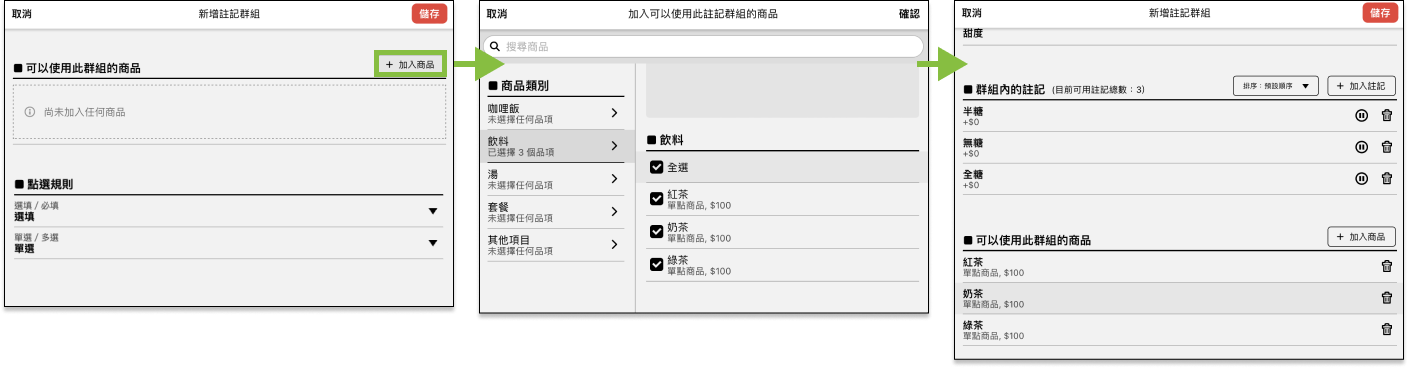
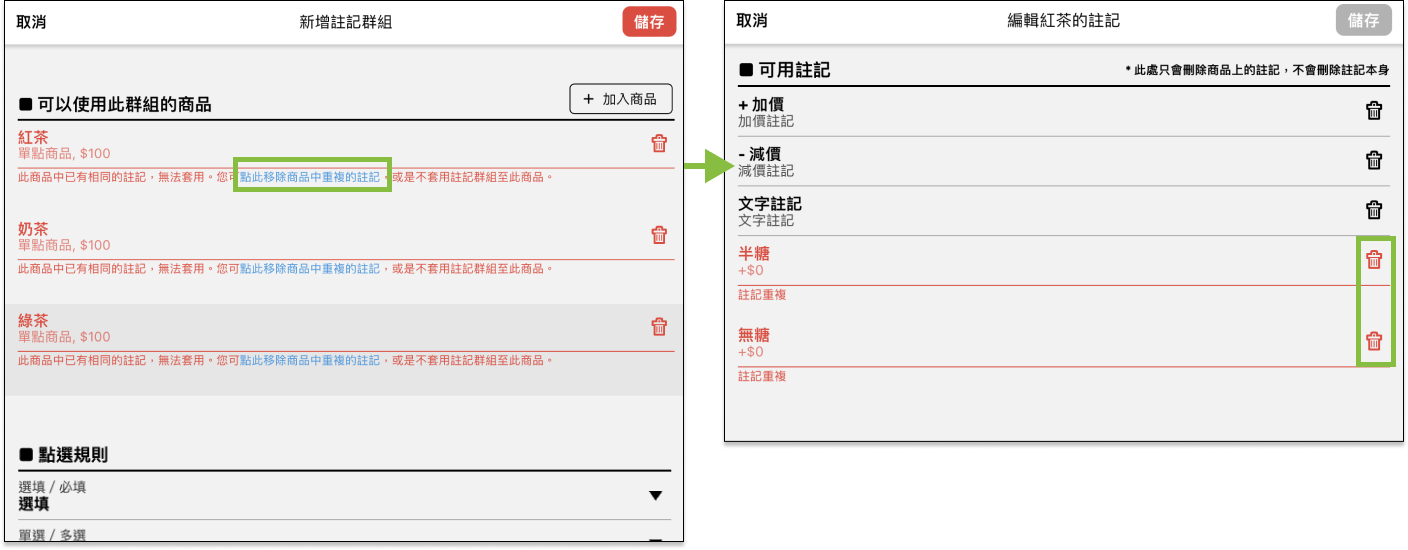
The modifiers applied to a single item cannot be the same. When one of the modifiers in a modifier group has been applied to the item, please remove the repeated modifier and re-apply the modifier group to the item.
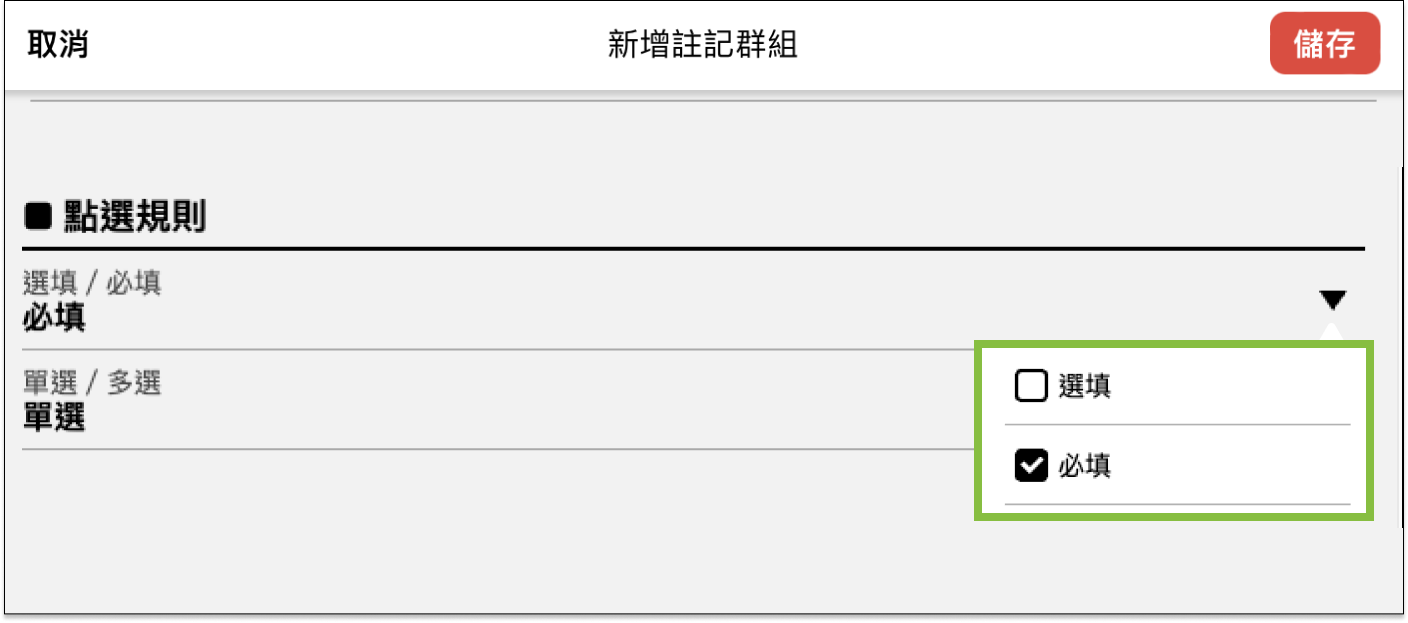
- Note Group Selection Rules are divided into “Optional/Mandatory” and “Single Select/Multiple Select.” Below are two common example rules for reference.

Other Note Operations
Arrange the Order of Modifiers
The order of the modifiers at the backend is consistent with that displayed on the ordering page of iCHEF POS and the receipt.
- Please go to Product/Inventory Management > Note Management.
- Click [Reorder] for the [All modifiers] or [Modifier groups] tab

- Drag the modifiers or modifier groups one at a time to adjust the order and click [Save] to complete

In the item settings, you can arrange the order of modifiers for a single item:
- Go to Product/Inventory Mgmt > Items
- When editing an item, select [Custom sort] for the sorting option
- Drag a modifier up and down to arrange its order

Manage Modifiers
- Please go to Product/Inventory Management > Note Management.
- Click on the [All modifiers] or [Modifier groups] tab
- Click the pen icon to adjust the settings

Edit
Adjust the original settings of the notes.
Duplicate
If the new note is very similar to an existing one, use the copy button to duplicate it and then edit the copied note as needed.
Disable/Enable
When a note is disabled, it will not appear in the iCHEF POS, Mobile Ordering, or third-party delivery platforms. This action does not delete the note, and it can be re-enabled in the future without any data interruption.
Permanently Delete
If a note will never be sold again, it can be permanently deleted. Deleted notes cannot be recovered. Although the note data remains searchable, creating a new note with the same name will not continue the previous data records.