When waiting for a table on-site, customers can view the menu and place their orders. After they are seated, you can send the order to the kitchen with a tap. This can reduce their waiting time and improve their dining experience.
Step 1: Add to the Wait List
When the restaurant is full, you can ask customers for their phone numbers, names and number of guests to add them to the wait list.
- Click the button of [Add to Wait List]
- Enter the customer’s phone number, name and number of guests
- If the customer has signed up as a member with this phone number, iCHEF POS will identify and fill in the information automatically. In this case, you only need to enter the number of guests.

Step 2: Pre-Ordering
When customers are waiting in line for a table, you can give out menus for them to view and order before being seated.
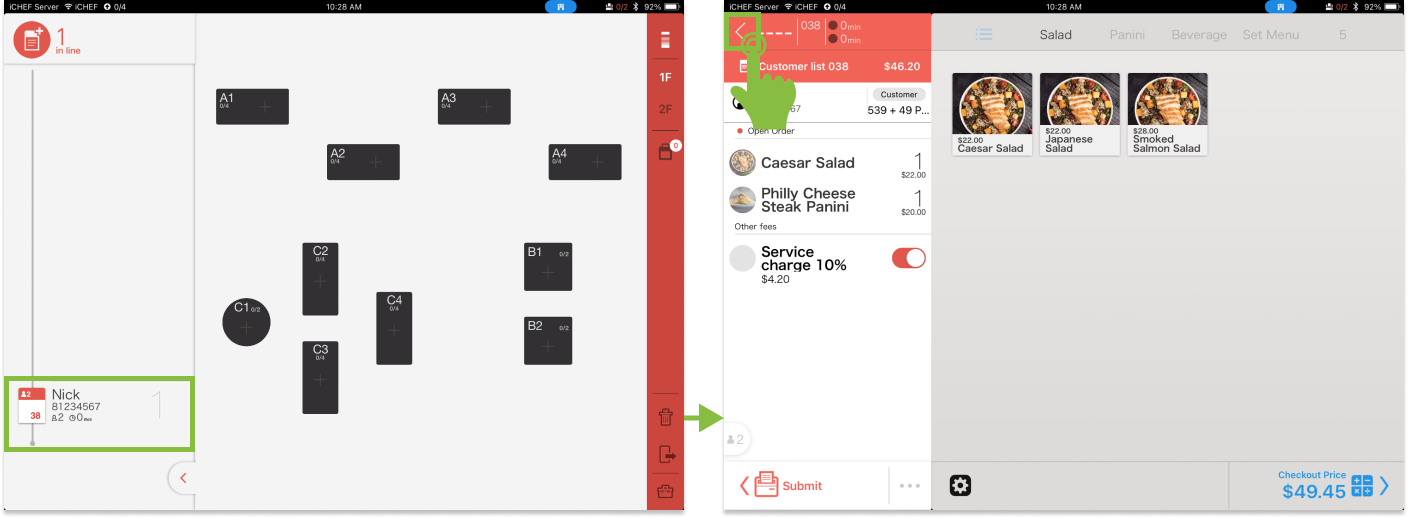
- Click on the order in the waiting area
- On the ordering page, add the items to the ordering list
- Click the [<] button to save and go back to the main page
Step 3: Seat Customers and Send Orders
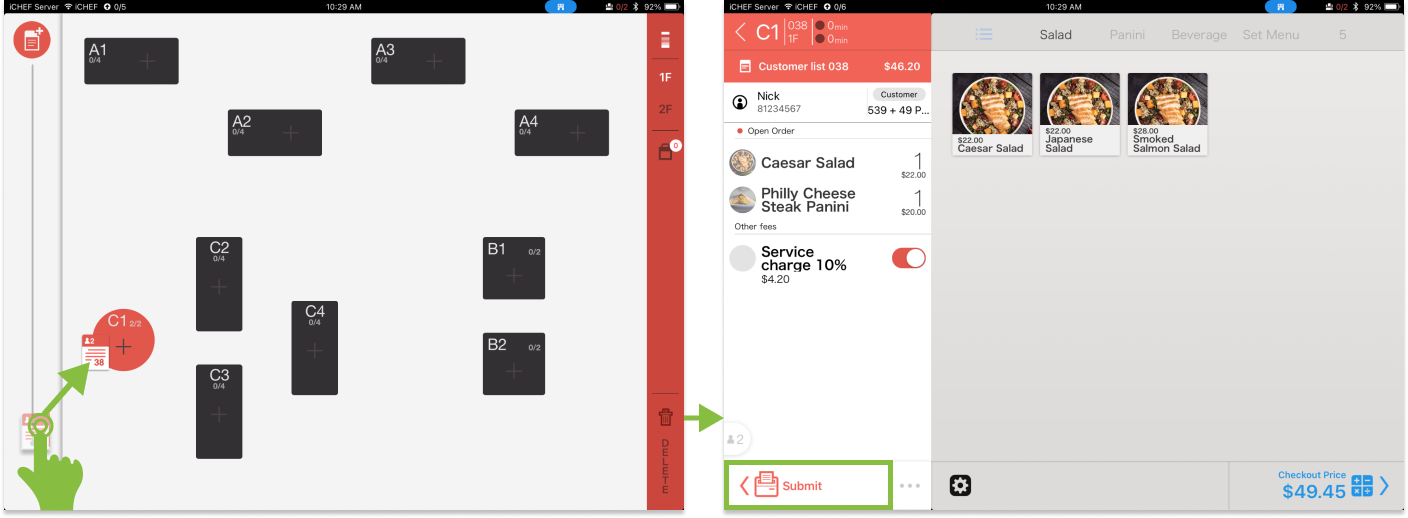
When there is a free table, drag the order in the waiting area to that table, and then click [Submit] for the kitchen to start preparing the meals.
- Drag the order in the waiting area to a free table in the dine-in area (the order will turn into a dine-in order automatically)
- Click the order to enter the ordering page, and then click [Submit]