
Integrate with GrabFood allows you to manage menu & orders in iCHEF POS system. The integration process takes 5 steps:
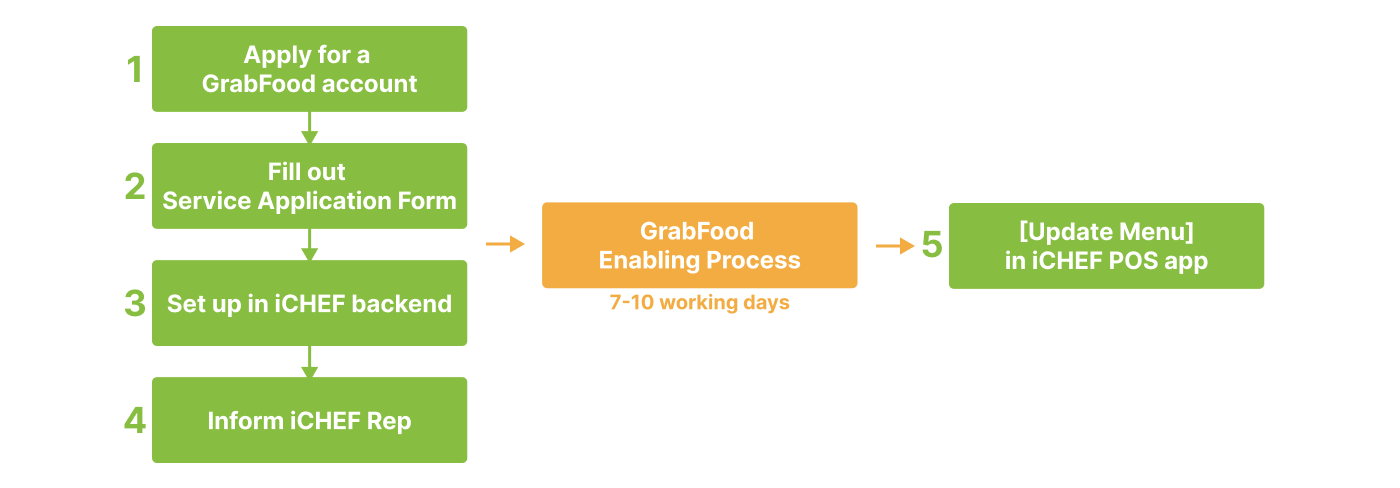
Step 1: Apply for a GrabFood account
Go to Partner with Grab to sign up as a merchant-partner. If you already have an account, please skip to step 2.
Step 2: Fill out Service Application Form
- Fill out the Service Application Form
- After submitted, you will receive a unique GrabFood Merchant ID.
This ID is required when setting up in iCHEF backend.

Step 3: Set up on iCHEF backend
Create a custom payment method
- Go to Payment Settings > Payment Module
- Click [+ Add module] > [Custom payment module]
- Name the payment method as GrabFood

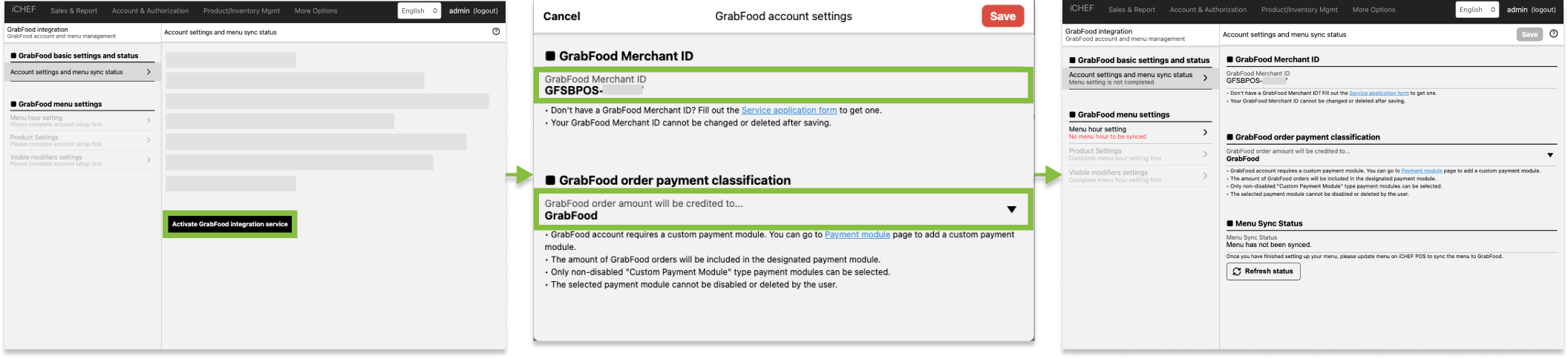
Activate GrabFood Integration
- Go to Integration Settings > GrabFood Integration
- Click [Activate GrabFood Integration Service]
- Enter [GrabFood Merchant ID]
- Select the payment method to classify the revenue
- Click [Save] to activate
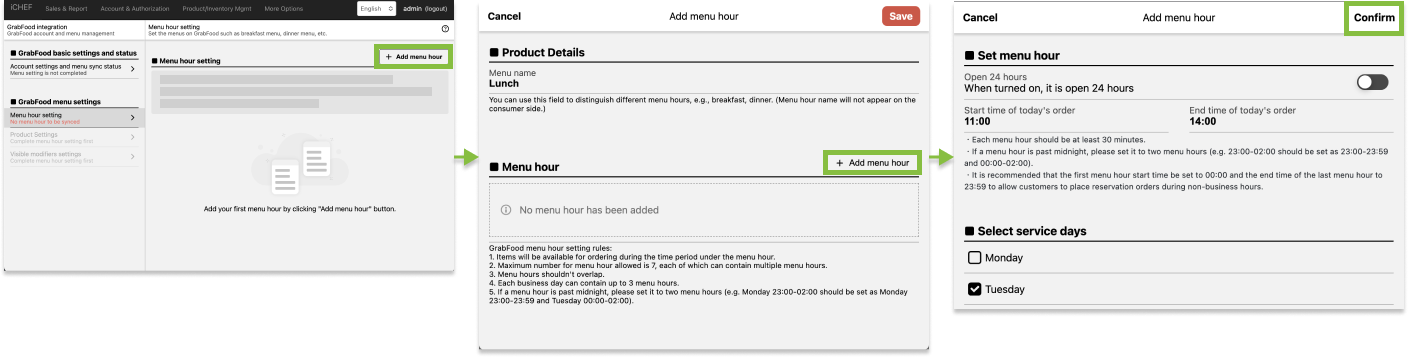
Menu Hour Settings
- Go to Integration Settings > GrabFood Integration > Menu Hour Settings
- Set up menu hours
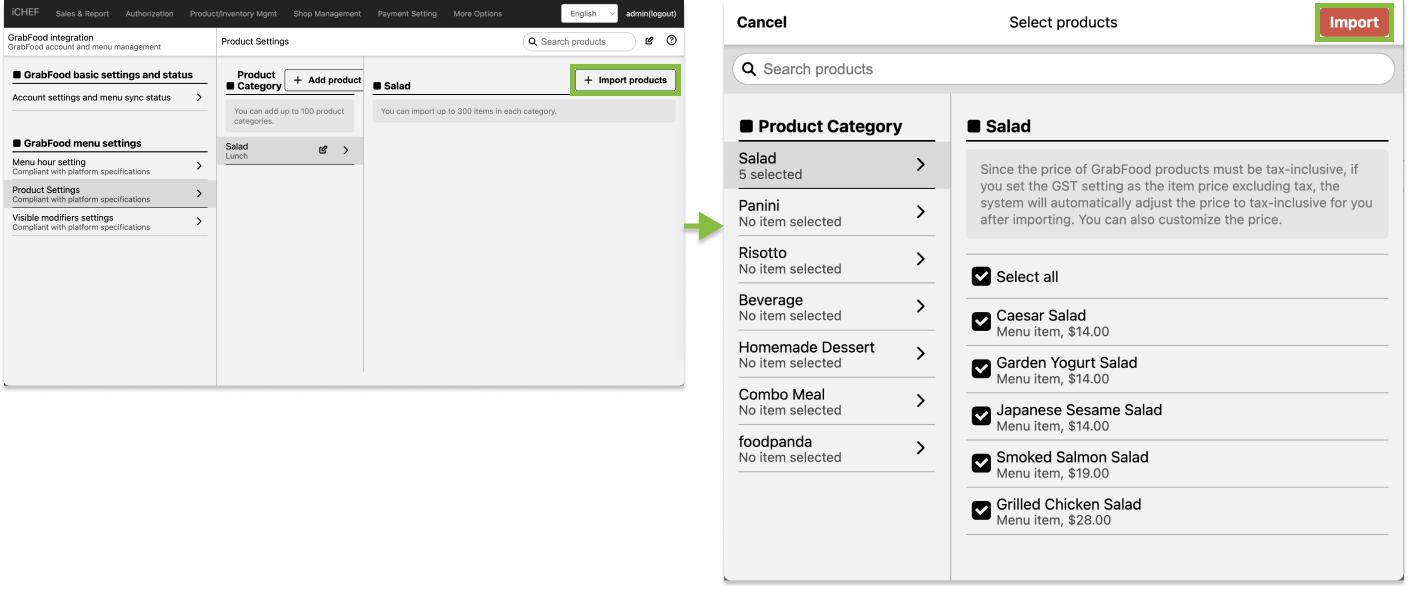
Product Settings
- Go to Integration Settings > GrabFood Integration > Product Settings
- Click [+ Add product category] to create an item category

- Import the items
- Repeat the steps to complete your menu on GrabFood
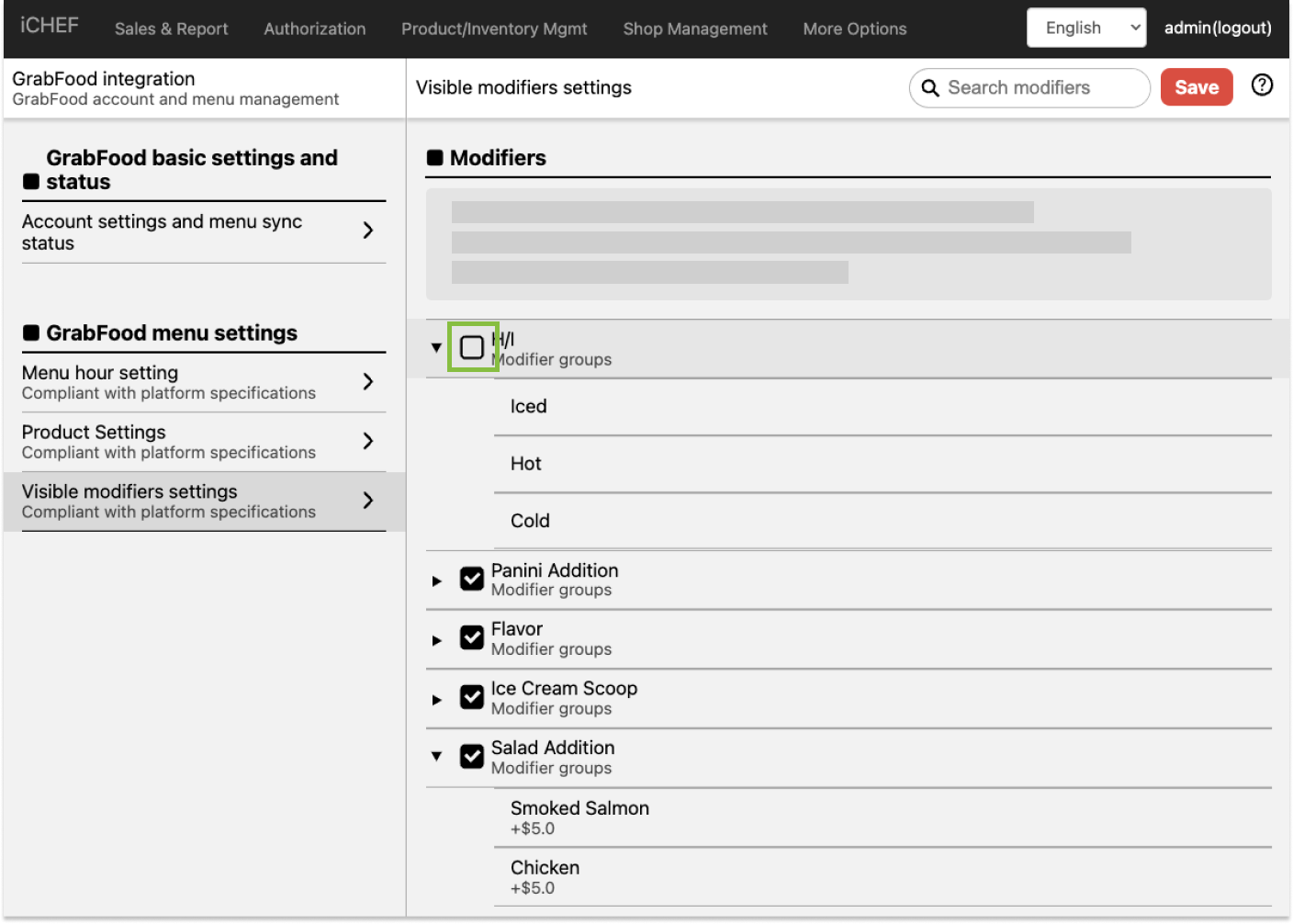
Visible Modifiers Settings
All the modifiers will be imported and enabled by default. You can disable the modifier that you don’t want to display on GrabFood by clicking to uncheck.
Step 4: Inform iCHEF Rep
After completing all menu settings on iCHEF backend, please inform iCHEF team to continue the integration process from the part of GrabFood.
It takes 7-10 working days for GrabFood to complete the integration process.
You will receive a notification from GrabFood when the integration is completed. Please [Update Menu] in iCHEF POS app, and you are ready to get orders from GrabFood!
