
Some of your products have sold out unexpectedly? Want to reserve limited items for in-store customers? You can simply update the status of items and modifiers through the POS! The information of sales status can be synced on-line and on-site to easily avoid overselling! What’s more, you can add authorization management and records to track the log of changes.
Statuses and supported platforms
This feature is only applicable to iCHEF POS App and online store mobile ordering. For third-party delivery platforms, the settings of Online Off can only be operated in their system due to the limitation of system integration.
✅:Available;❌:Not Available
| Status | On-Site POS | Online Store Mobile Ordering (Takeout/Dine-In) | Third-Party Delivery Platforms |
|---|---|---|---|
| Available | ✅ | ✅ | ✅ |
| Online Off | ✅ | ❌ | ✅ |
| Sold Out | ❌ | ❌ | ✅ |
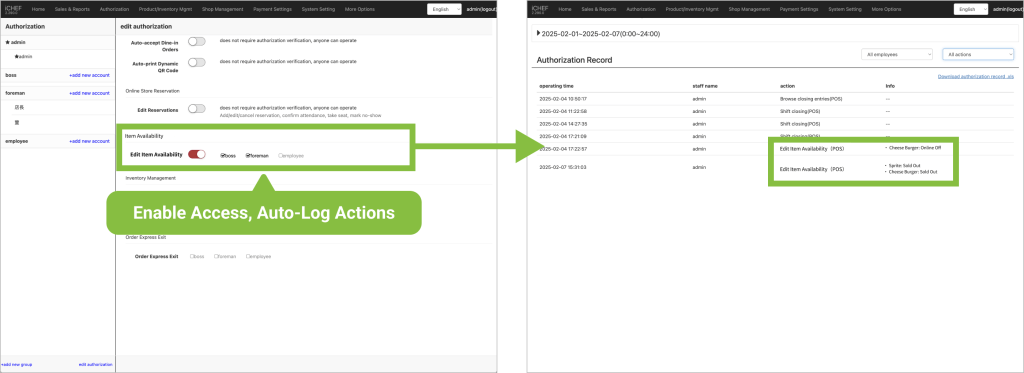
Intend to authorize only a few employees to perform the operations or keep a log of every operation? No problem! Before launching this function, remember to manage the settings of authorization in the backend to enable the system to monitor and track the operations for you!
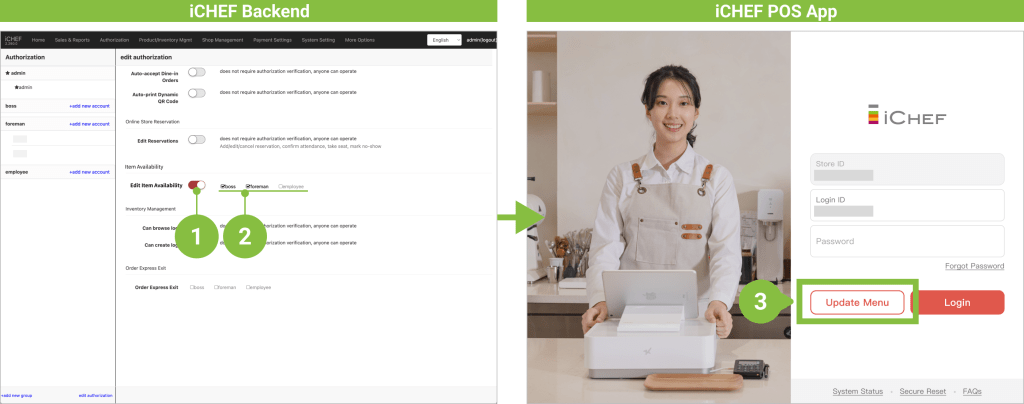
- Step 1: Go to the backend, find [Account & Authorization] > [Item Availability] and turn on [Change Status].
- Step 2: Select the account groups you want to grant the authorization.
- Step 3: Update menu on iCHEF POS App to apply the settings.
Change Item Availability on POS
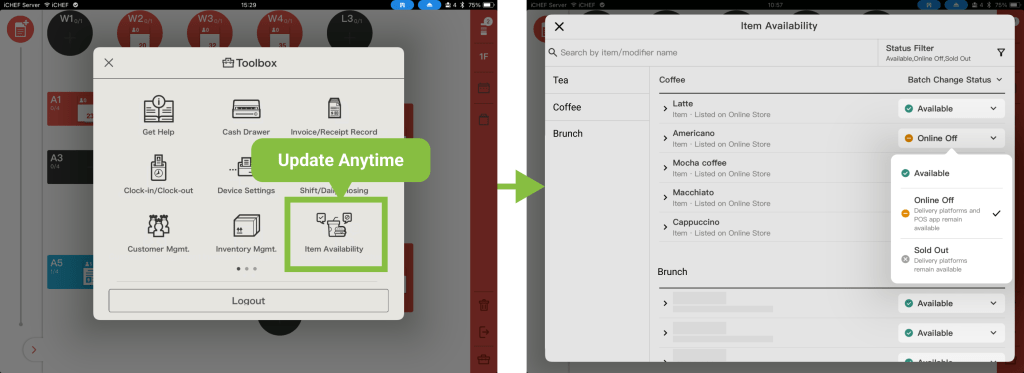
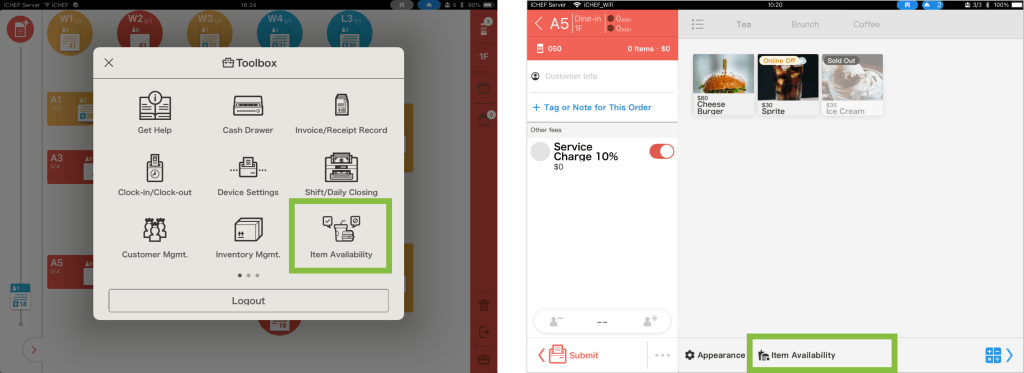
On iCHEF POS App, you can go to the page for Item Availability via the toolbox or the ordering page. Find the items and edit their statuses, and the system will save all of the changes automatically and update immediately.
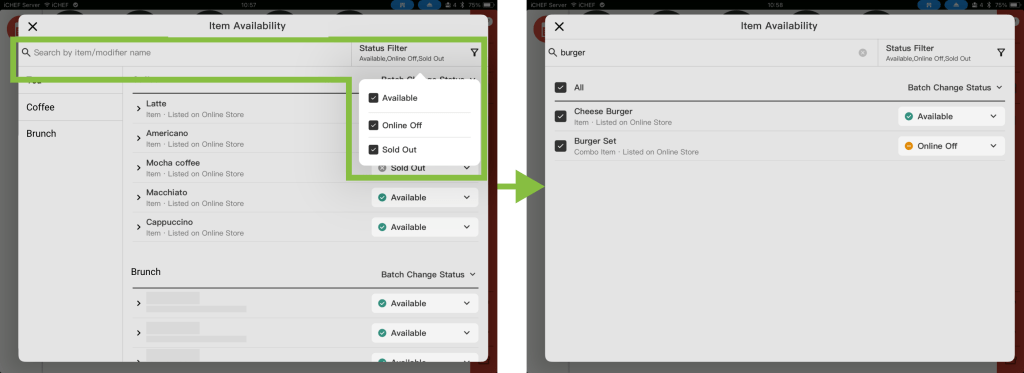
❶ Search for the items
You can view or search for the name of certain item/modifier from the categories to find the items you want to adjust. Or, you can search for all of the items that are in the same status by applying filters.
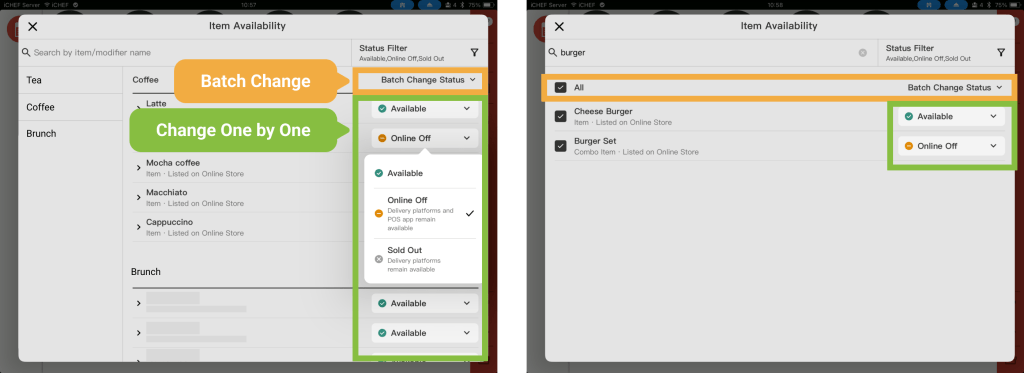
❷ Edit items’ statuses
After finding the desired items/modifiers, you can change their statuses one by one, or adjust the items of the same category/status/search at one time through the function of batch change.
For the items that are set as sold out, the system will not automatically restore their statuses the next day. To restore the statuses of these items, please edit their statuses again.
Labels on platforms
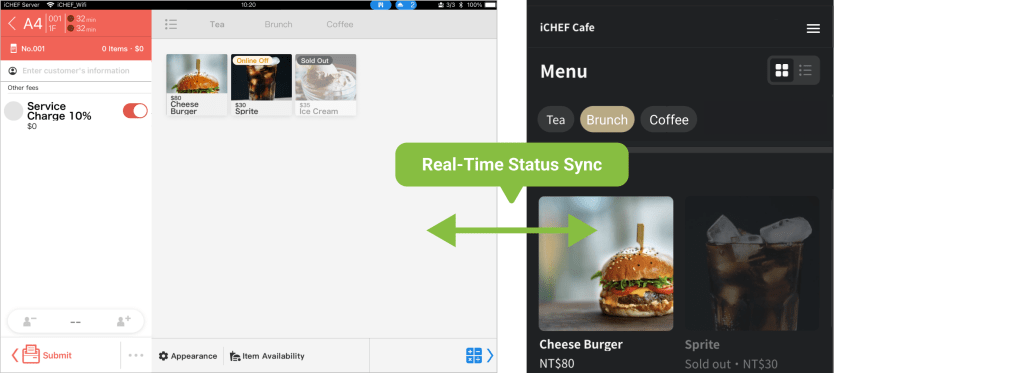
After you change the statuses of items, the items that are sold out will be labelled as below on POS ordering page and the menu for online store mobile ordering. Please refer to the table below:
| Status | On-Site POS | Online Store Mobile Ordering (Takeout/Dine-In) |
|---|---|---|
| Available | • Label: None • Item: ✅ Selectable | • Label: None • Item: ✅ Selectable |
| Online Off | • Label: Online Off • Item: ✅ Selectable | • Label: Sold Out • Item: ❌ Not Selectable |
| Sold Out | • Label: Sold Out • Item: ❌ Not Selectable | • Label: Sold Out • Item: ❌ Not Selectable |
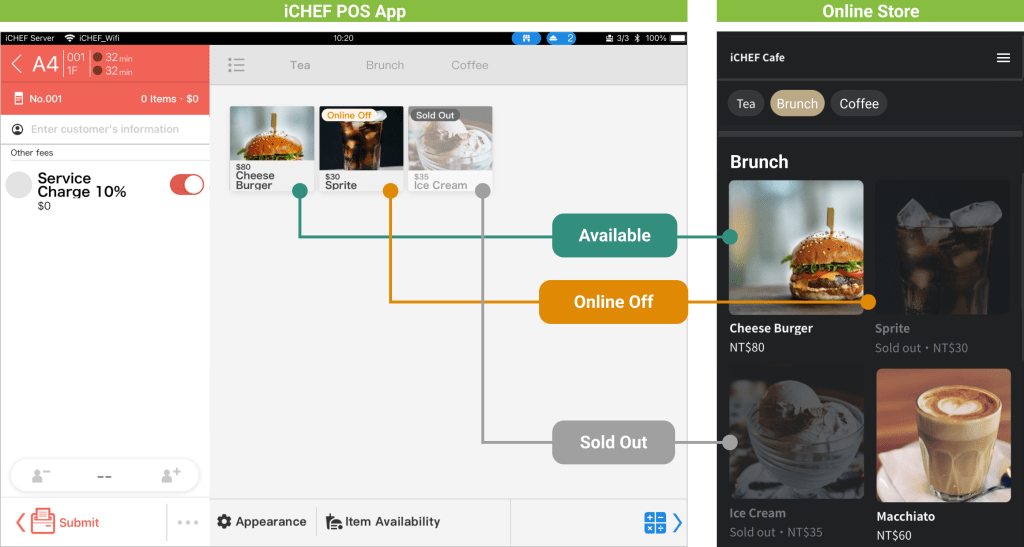
Aside from the menu in grid view, the menu in list view, the set menu items and modifiers will display the labels clearly.
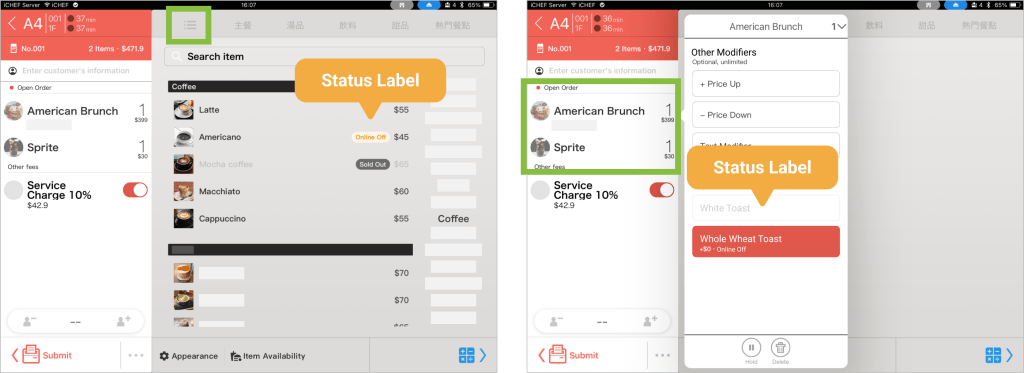
– If the rules for modifier groups (optional/necessary, single choice/multiple choice) cannot be applied due to the modifiers are set as unavailable, the system will automatically cancel the original rules.
– When an [Online Off] item is delisted from the Online Store, its status will remain [Online Off]. You can manually adjust the item’s actual sales status on the POS at any time.