
Customize your checkout screen by enabling different payment methods on iCHEF backend. iCHEF POS supports cash and credit cards (for recording purposes only) as default payment methods. You are free to add or disable your payment methods.
Payment Methods
Cash is the default payment method for iCHEF POS app. When performing fast checkout, the payment would be categorized as cash by default.

The payment method [Credit Card] is only for recording purpose. You still need a credit card terminal to process the payment.
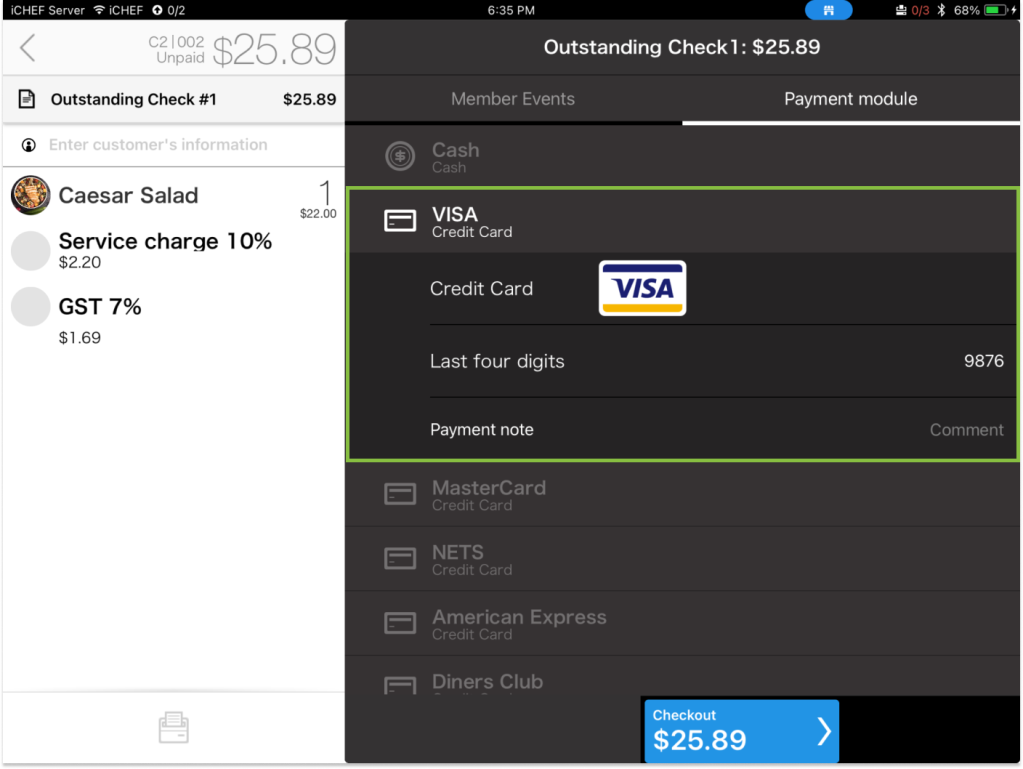
You can create a custom payment method to categorize revenue from different order sources. You might need a custom payment method under these scenario:
- Integrating with a third-party delivery platform
- Launching your own gift voucher
Add a Method
- Go to Payment Settings > Payment Module
- Click [+ Add module]
- Select a module and fill out the required information
- Click [Save] to complete

Disable a Method
When you are not accepting certain payment method anymore, disable the payment method to remove it from your checkout screen and your daily closing report.
- Go to Payment Settings > Payment Module
- Click on the payment method to disable
- Scroll to the bottom and click [Disable]
- Click [Confirm] to complete
You can enable the payment method again anytime you need it.
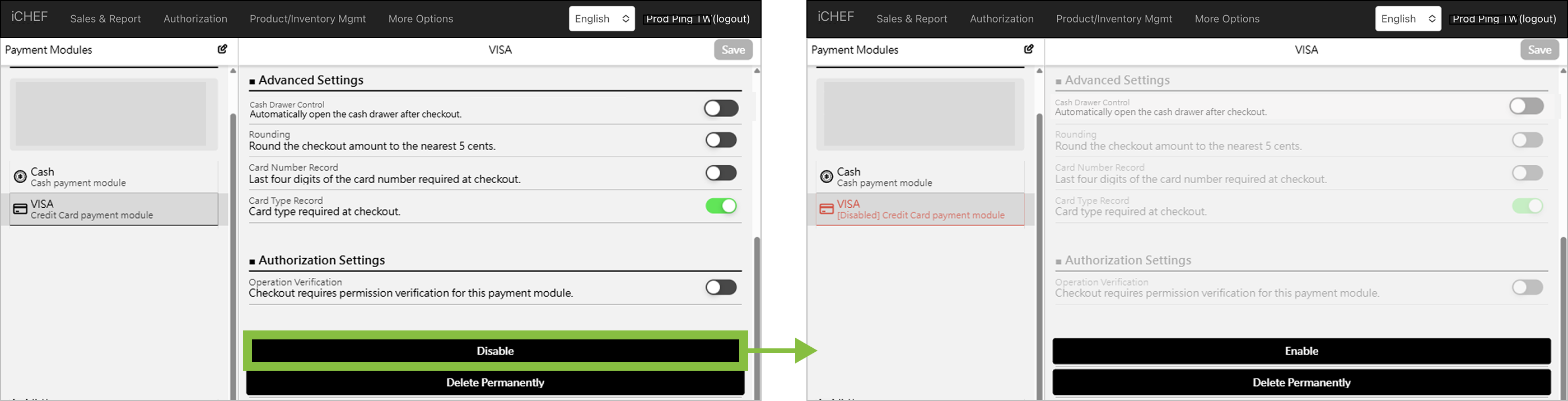
Both buttons will remove the payment method from checkout screen and daily closing report. However, you can’t undo [Delete permanently]. Even if you create an exactly same payment method again in the future, the system will take the data as a brand new payment method in the sales report.
Change Listing Order
- Click the [pen] icon
- Drag the [≡] icon to change order
- Click [Save] to complete
- [Update Menu] in iCHEF POS app to apply the changes

Settings Detail
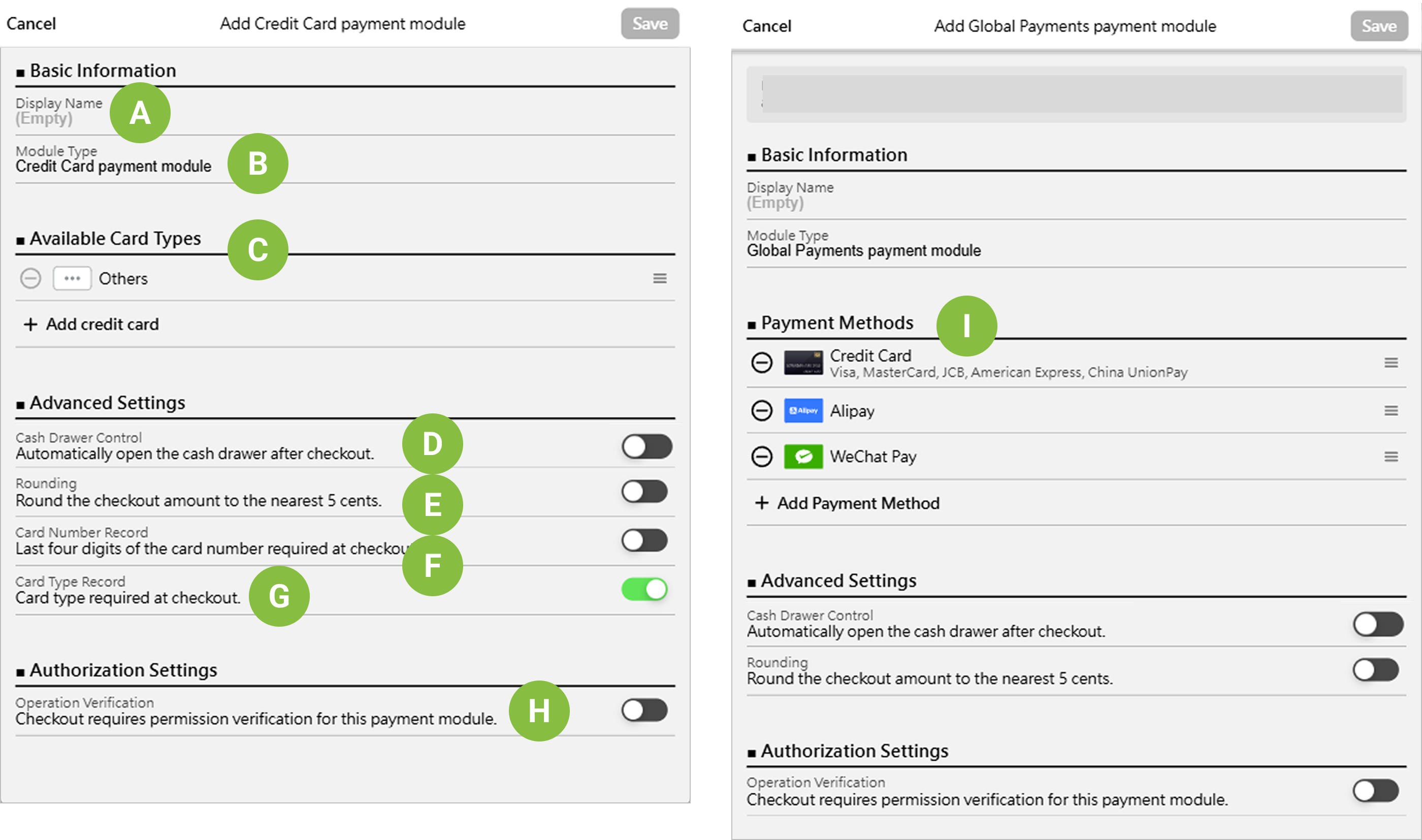
Display Name
Provide an easily recognizable name for the payment module. The custom name will be displayed on the POS checkout page, summary/closure process, and the backend sales reports.
Module Type
This is the system’s default payment module name and cannot be changed.
Available Card Types
The card options will be displayed on the POS checkout page to help you record the card type used by consumers for each credit card transaction.
Cash Drawer Control
This setting determines whether the cash drawer opens automatically after a consumer checks out using this payment module.
- On: Cash drawer opens automatically
- Off: Cash drawer does not open
Rounding (Applicable Region: Singapore)
During checkout, the system automatically recognizes the second decimal place and adjusts the amount according to the following rules to ensure it is closest to the nearest 5 cents. You can later check the adjusted amounts in the Checkout/Voided Record Report for easier management and verification.
Calculation Method
- If the second decimal place is 1 or 2: Deduct the corresponding amount to make the second decimal place 0.
- If the second decimal place is 3 or 4: Add the corresponding amount to make the second decimal place 5.
- If the second decimal place is 6 or 7: Deduct the corresponding amount to make the second decimal place 5.
- If the second decimal place is 8 or 9: Add the corresponding amount to make the second decimal place 0 and carry over to the first decimal place.
Calculation Examples
- Original checkout amount: 17.42. Afterrounding: Deduct 0.02, final checkout amount is 17.40.
- Original checkout amount: 12.89. After rounding: Add 0.01, final checkout amount is 12.90.
Card Number Record
Manage whether employees must enter the last four digits of the credit card number when checking out on the POS. The recorded credit card information can later be queried in checkout or voided records, which will help with future audits.
- On: The last four digits of the credit card number must be entered to complete the checkout.
- Off: The input field for the last four digits of the credit card number will still appear on the POS checkout page but is not mandatory.
Card Type Record
Set whether employees must select the card type when checking out with a credit card on the POS. The recorded credit card information can later be queried in checkout or voided records, which will help with future audits.
- On: The card type must be selected to complete the checkout.
- Off: The card type options will still appear on the POS checkout page but are not mandatory.
Operation Verification
Set that only authorized employees can use this payment module. This setting will be synchronized with accounts and permissions.Learn More
Payment Methods
The selected payment method will be displayed on the POS checkout page. Once a payment method is chosen, the system will automatically connect to the corresponding payment device and payment channel, ensuring a smooth checkout process.
Hong Kong Exclusive Payment Methods: “PayMe, Octopus Card”
PayMe and Octopus Card are only available for use in Hong Kong. When adding “PayMe,” you must enter the integration ID. If you have not received it or have lost it after applying, please contact Global Payments (contact information can be found on the back of the card reader).