
Before Settings
- Turn on take-out ordering (just open the browse menu).
- Enabled the feature status of [Member Area] : Online Store > Website Member Area.
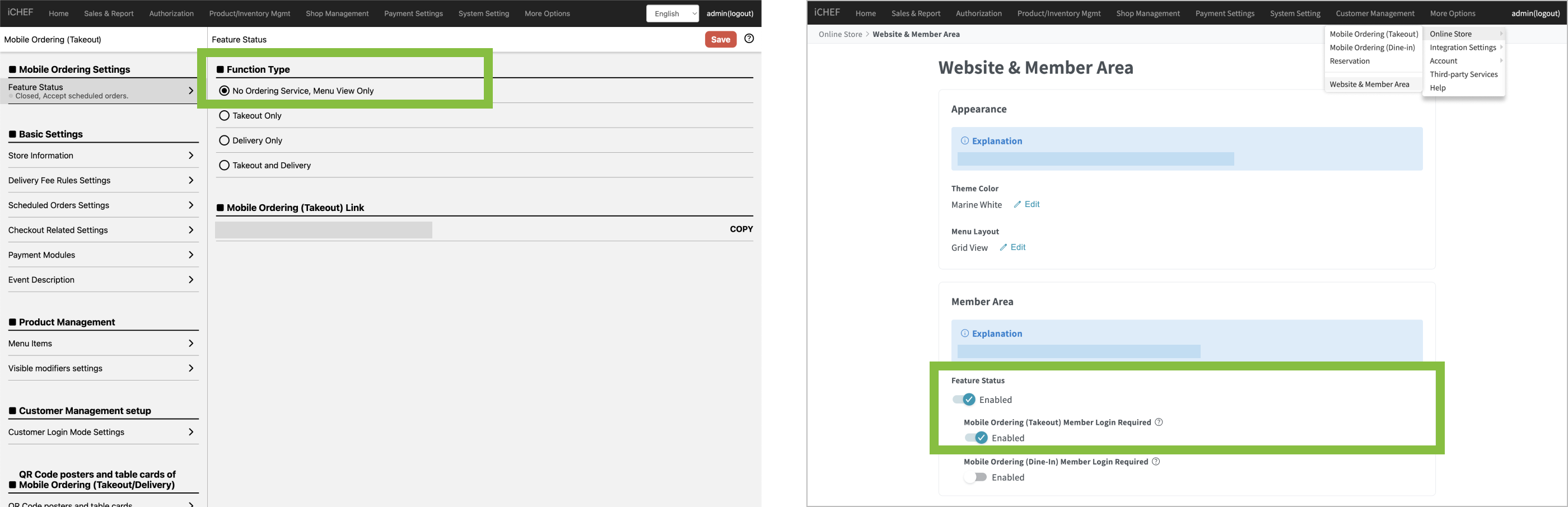
You can set up member login page without offering online ordering service. Simply leave [Service Type] as [No Ordering Service, Menu View Only].
How to Print QR Code Receipt
- Please go to Checkout to set up > the Points Campaign
- Click [Points Rewards Settings]
- Toggle on [Print the QR Code for Points]

Write down the benefits of collecting points to encourage customers joining your loyalty program and become a member!

Loyalty Points for Multi-Channel
Tap to open your points campaign, and toggle on the channel you want to include.

Print Behavior of QR Code Receipt
The QR code for points collecting will be printed when:
- The order meets your rewarding requirements
- The order came from a channel applying points campaign
- The order was placed without a member logging in

For Online Store orders, coupons are only available for Mobile Ordering (Takeout).
Notice
- If an order is voided, the QR code and the points claimed from this order will be voided as well. On the other hand, disabling or deleting a points campaign will not cause any impact on claimed points.
- The QR code generated for each order can only be claimed once. It is not signed and anyone who access to the claiming page can earn the points.
- If a consumer loses the transaction details with the collection QR code, the store can reprint the transaction details through the Toolbox Transaction Enquiry and Void Reprint, and the reprinted collection QR code will be the same as the original, so there will be no duplicate collection
- When disabling/deleting all points campaign, there won’t be any rewards QR code printing even though [Print the QR Code for Points] is toggled on. After you re-launch or create new points campaigns, the rewards QR code will be printed again.