
Automatic Points Redemption
Points redeemed for discounts will be calculated by the rules you set up. There is no redemption limit. You can decide at checkout on iCHEF POS.
- Go to Payment Setting > Points & Rewards
- Click [Create Campaign] and select [Create Automatic Points Redemption]
- Set up campaign information and redeem rules
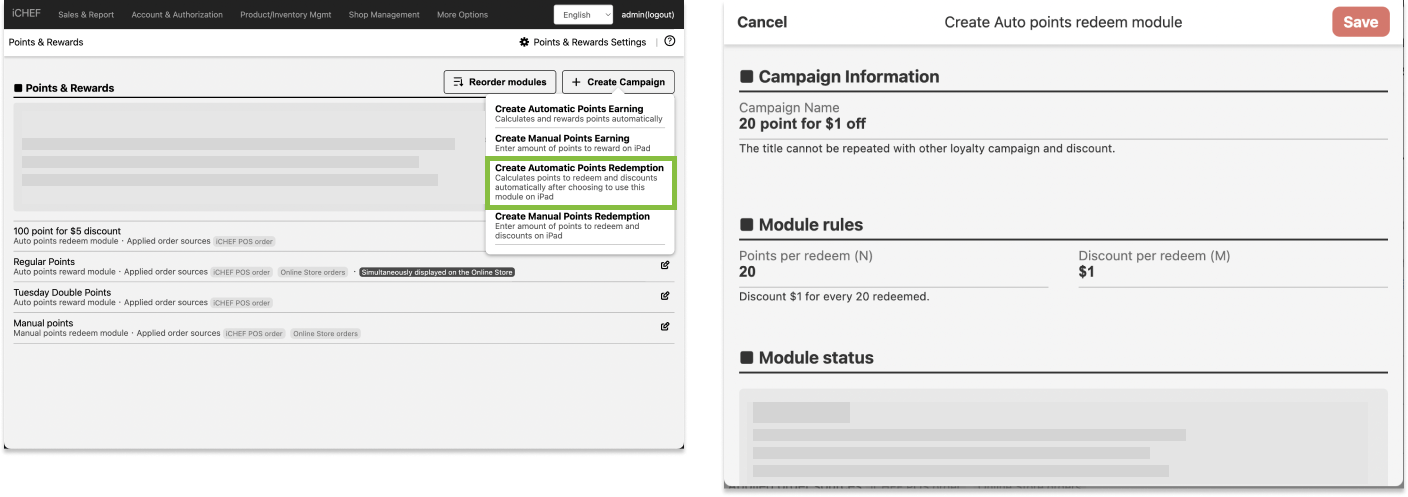
Basic Settings
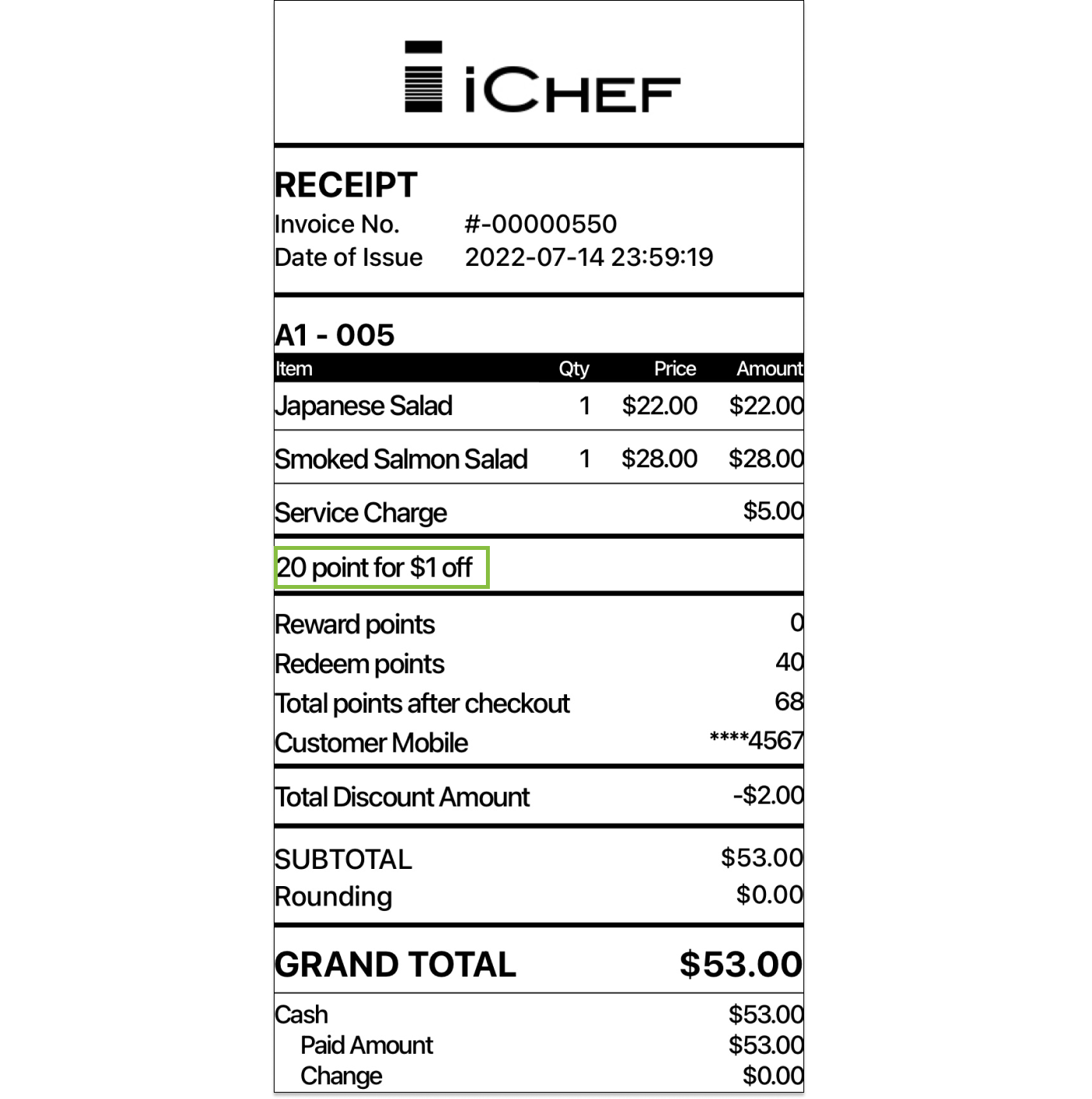
Campaign Title

A recognizable title can help you speeding up your checkout procedure.
iCHEF POS

Online Store
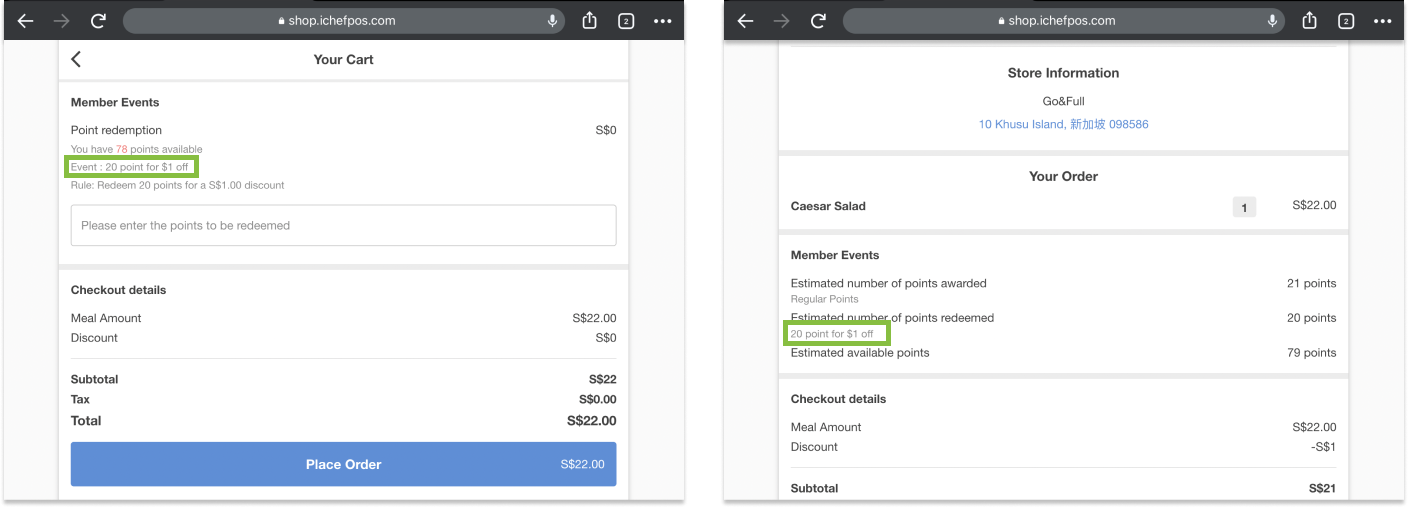
Receipt
Module rules
Set up Redemption Rules
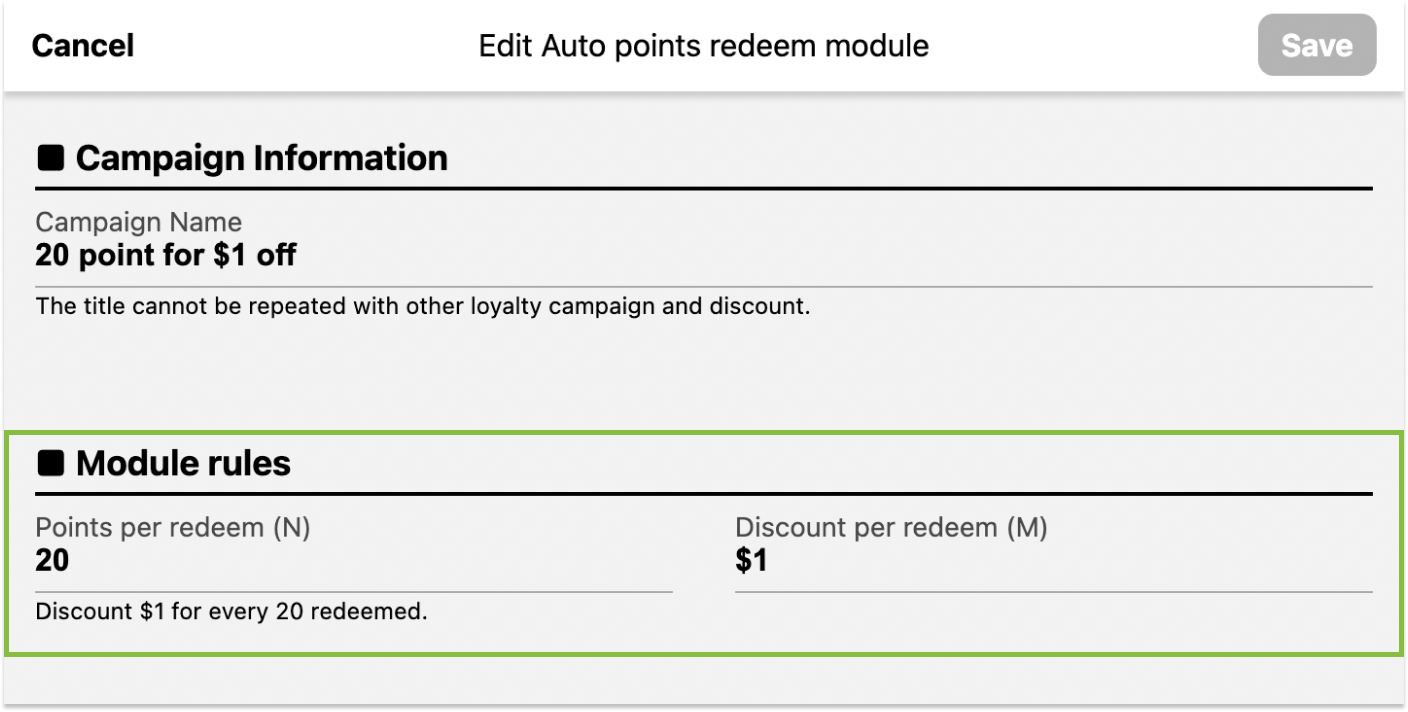
Redeem (N) points for a $(M) discount. For example:
| Column | Example |
|---|---|
| Points per reward (M) | 20 points |
| Price per reward (N) | $1 |
Every 20 point redeemed, the customer can get $1 discount. See how the points being redeemed:
- An order for a total of $15 : Redeem 40 points for $2 discount. Grand total becomes: $13.
- –
Applied order sources
You can apply points program to different order sources, such as iCHEF POS, Online Store.

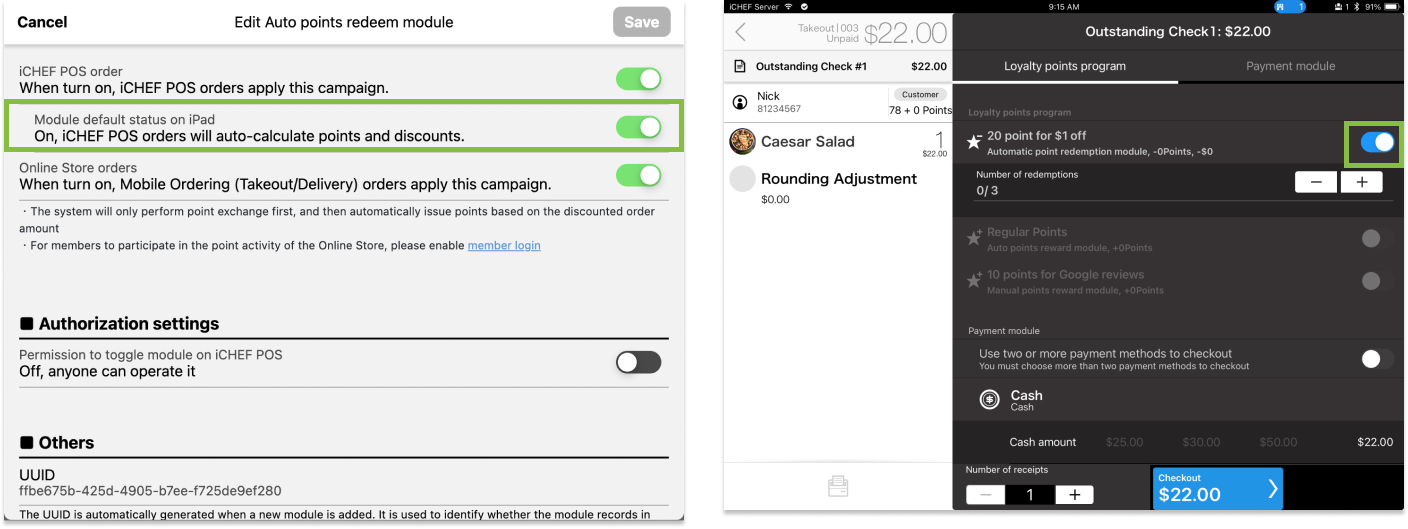
When toggled on, the campaign is applied to the orders created on iCHEF POS. You can reward points to your customers at checkout page of iCHEF POS.
Toggle on [The discount default status on iPad]
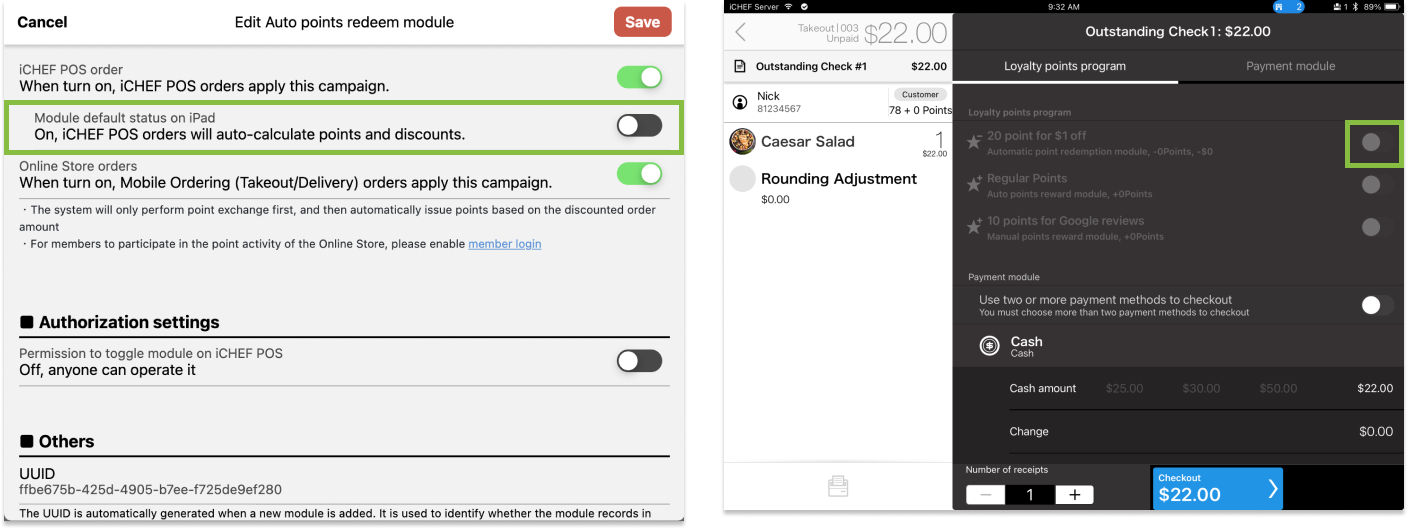
Toggle off [The discount default status on iPad]
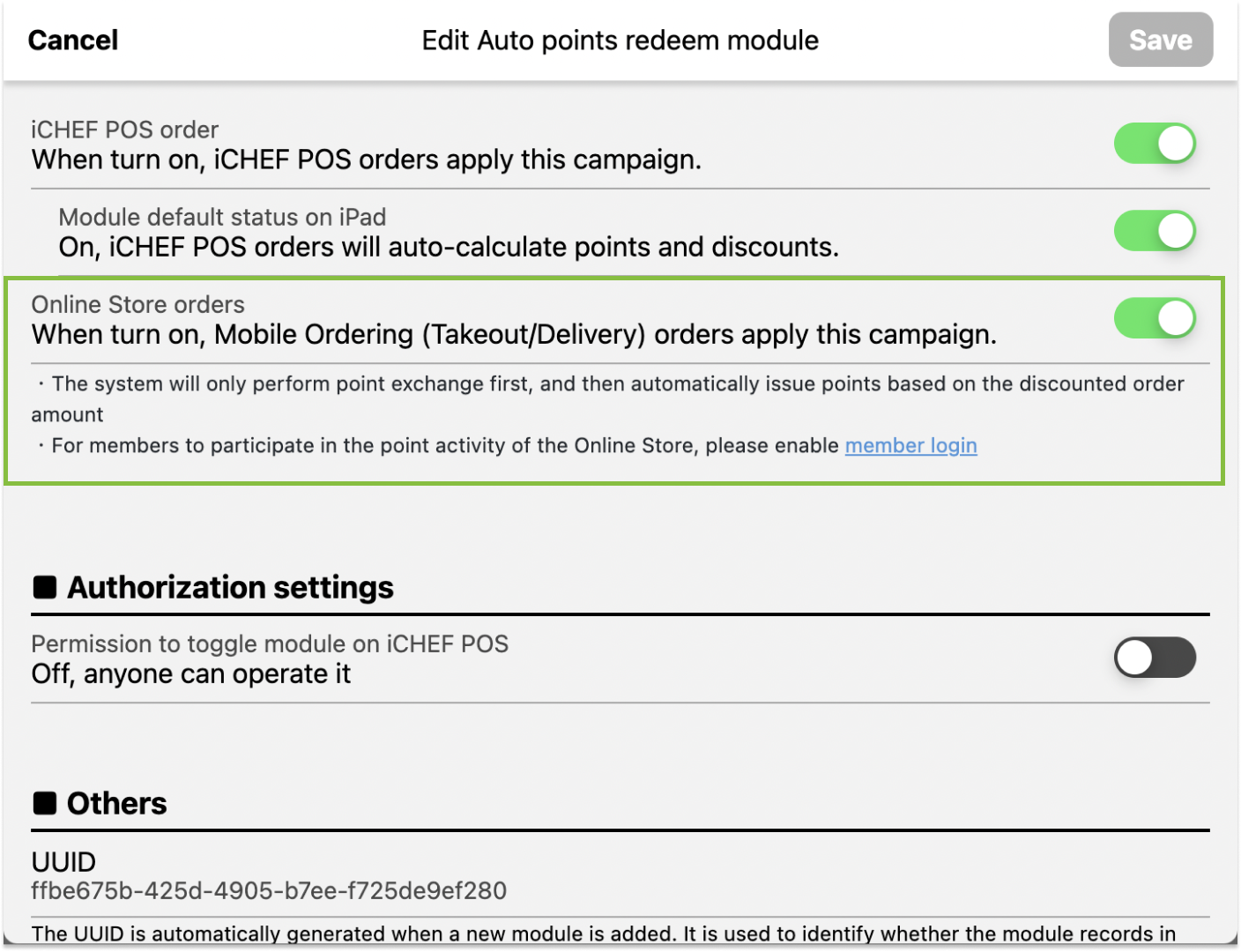
Online Store can apply maximum 1 points earning and 1 points redeem campaign.
Reward/redeem priority for Online Store is fixed as “Redeem Points First”. Customers can check points history in their account center.

At checkout, you can search membership by phone number, and redeem points on iCHEF POS to offer customers discounts.

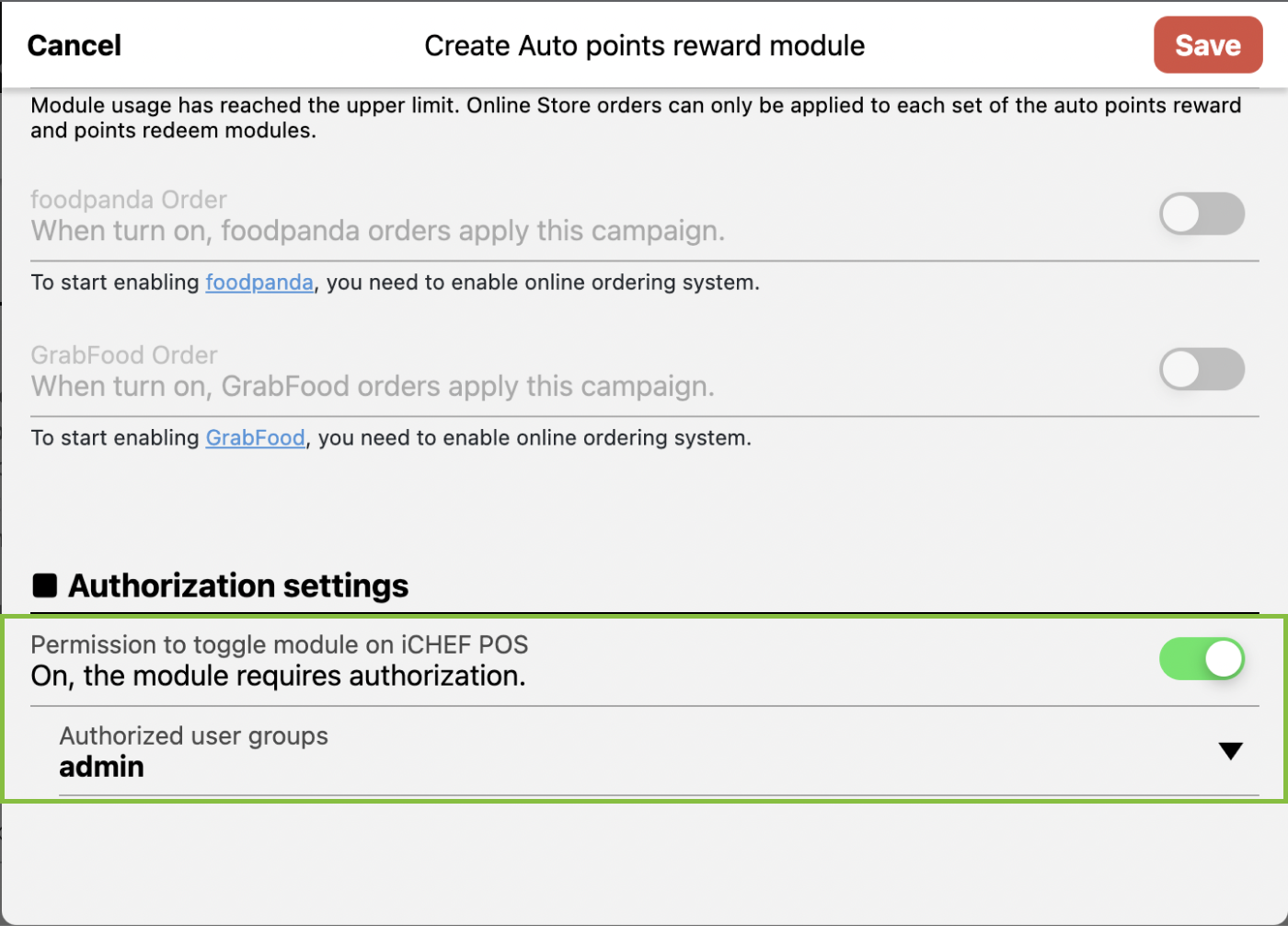
When toggled on, staffs will have to enter passcode to enable/disable loyalty program on iCHEF POS.
Toggle off
All staff can enable/disable discounts on iCHEF POS.

Toggle on
Staffs will have to enter passcode to enable/disable discounts on iCHEF POS.
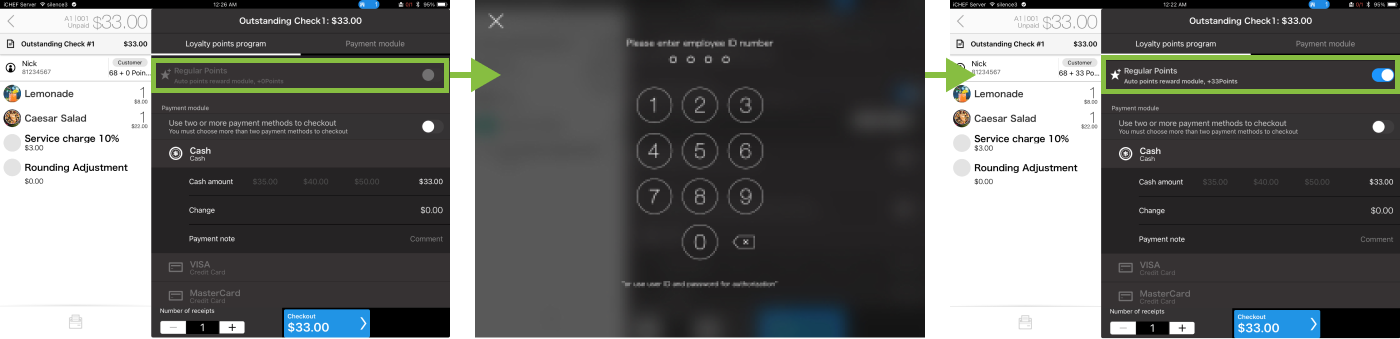
Loyalty Program Enabling/Disabling Record
To view toggling record, go to Sales & Report > Authorization Record, click [All actions] and select [Toggle points module].

Manual Points Redemption
You can decide the value of one single point. No matter how much a customer spends, you can redeem any amount of points for any amount of discount.
- Go to Payment Setting > Points & Rewards
- Click [+ Create Campaign] and select [Create Manual Points Redemption]
- Set up campaign information and redeem rules
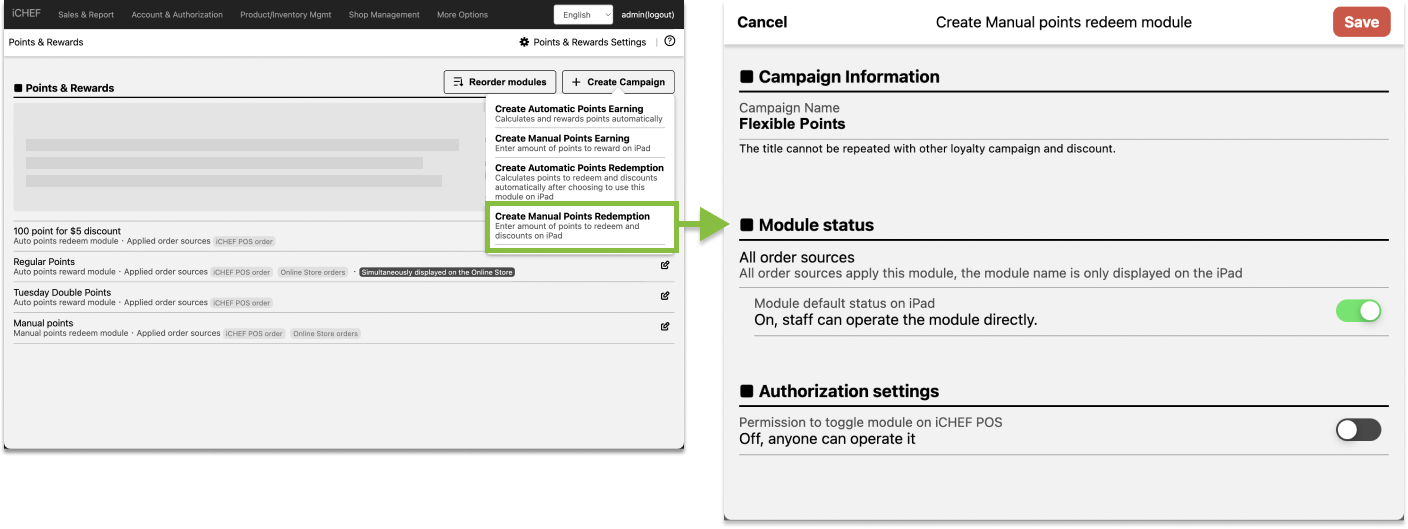
Basic Settings
A recognizable title can help you speeding up your checkout procedure.
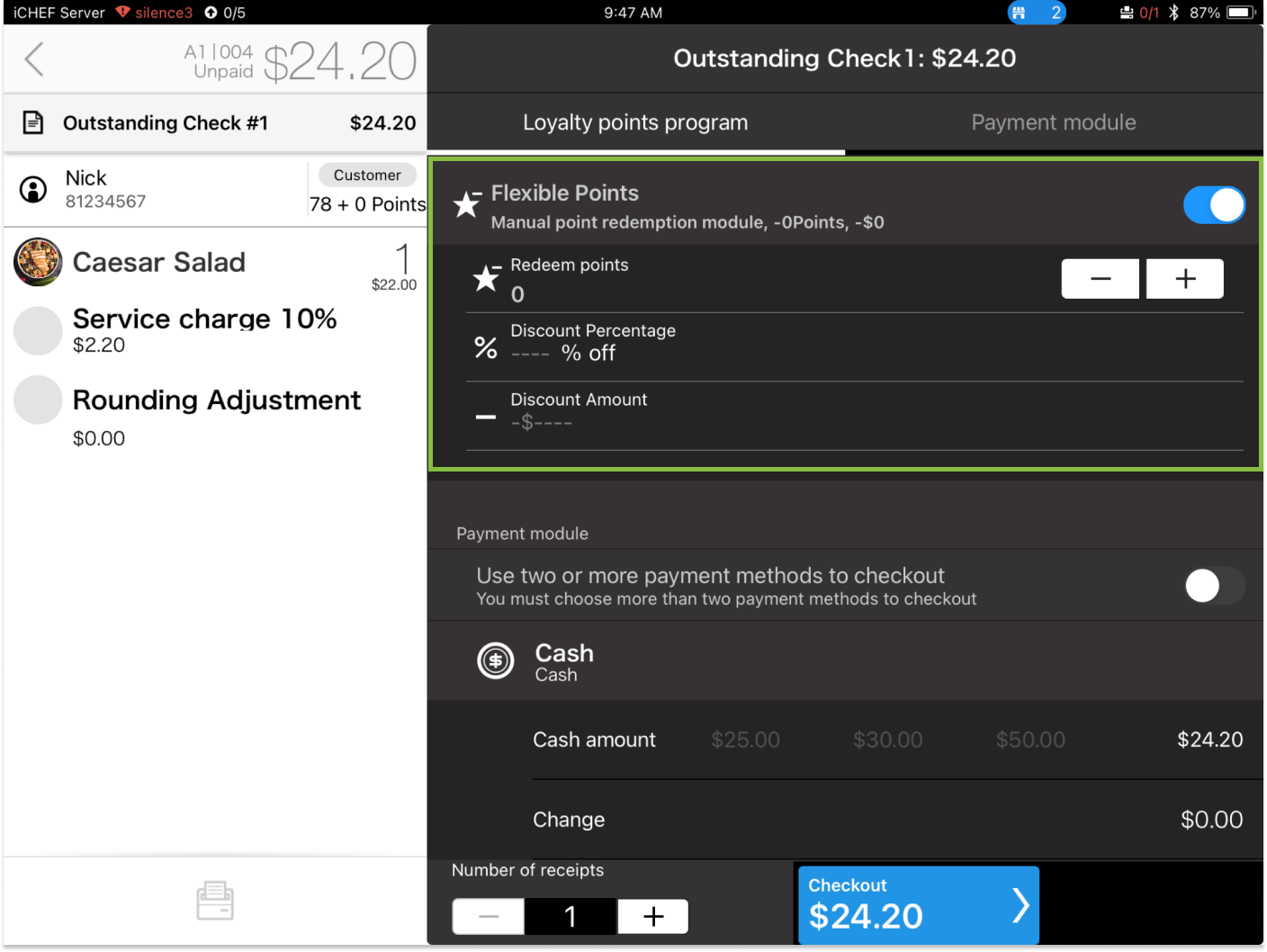
iCHEF POS
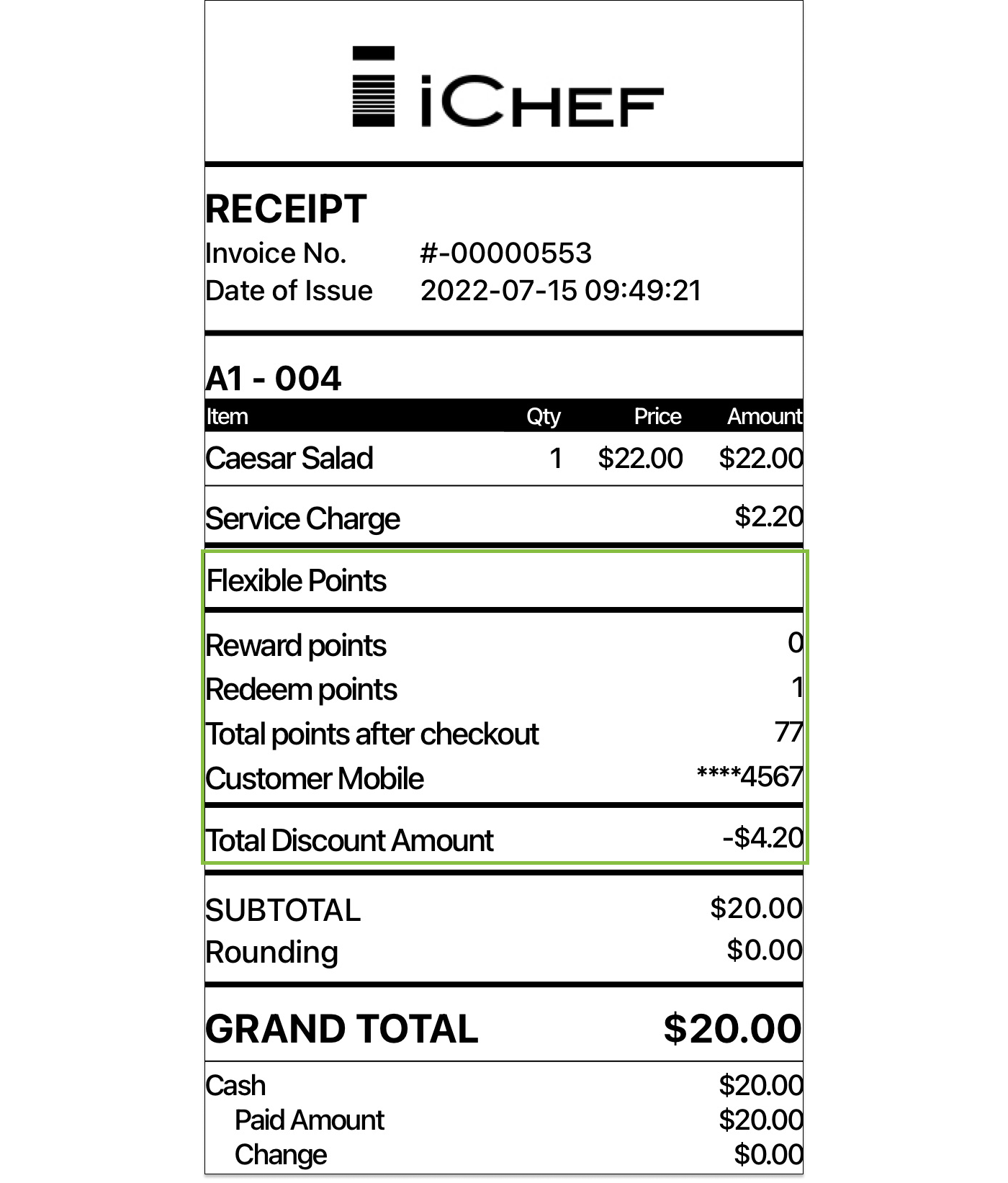
Receipt
Applied order sources
You can always redeem points manually on iCHEF POS as long as it’s an unpaid order.
Toggle on [Module default status on iPad]

Toggle off [The discount default status on iPad]
When toggled on, staffs will have to enter passcode to enable/disable loyalty program on iCHEF POS.
Toggle off
All staff can enable/disable discounts on iCHEF POS.
Toggle on
Staffs will have to enter passcode to enable/disable discounts on iCHEF POS.
Loyalty Program Enabling/Disabling Record
To view toggling record, go to Sales & Report > Authorization Record, click [All actions] and select [Toggle points module].