
The post-payment mode can help stores where “consumers can send their orders first, and then choose the payment method after the meal”, so that consumers do not need to choose the checkout method after delivering the order and when adding points, until they are full and leave the store, they can consolidate all the bills and choose online payment or on-site payment to complete the checkout.
Enable post-tie mode
- Please go to the cloud restaurant > and use the scan code to order > the checkout process
- Adjust the checkout mode to “post-payment”
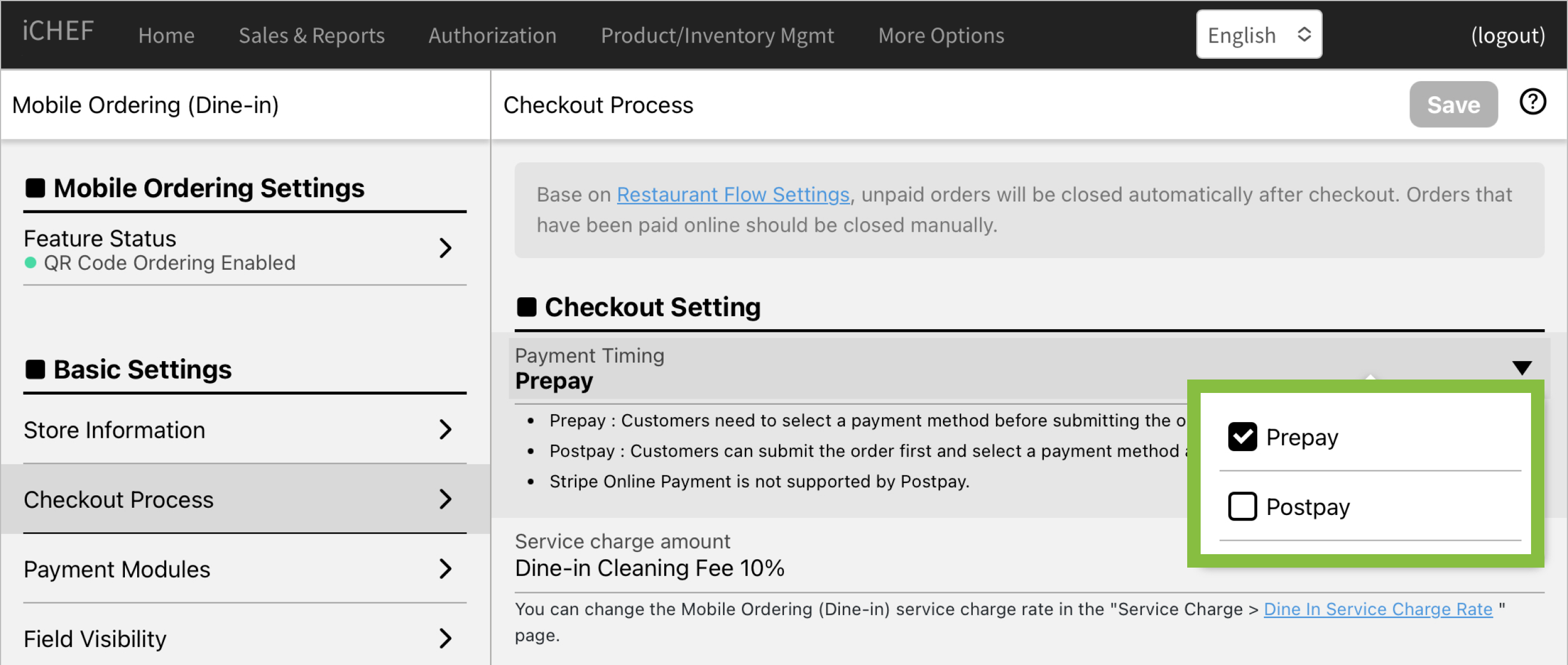
Due to Stripe restrictions, in order to use the post-settlement mode, you will need to adjust the Stripe payment module to “Deactivate”.
- Please go to the cloud restaurant > and use the QR code to order > checkout related settings
- Adjust the “Stripe Payments Module” to “Deactivated”
- Finally, log in to iCHEF POS “Apply New Profile” to set the internal QR code ordering to the post-settlement mode

Adjust the style of the table card
Customers have to pay before or after the meal when placing an order online.
Pay before or after the meal? It’s up to you! Once you switch the payment timing, the system will renew the table tent design accordingly.

- Go to Online Store > Mobile Ordering (Dine-in) > QR Code Table
- Click here to download all table cards”

The table card only adjusts the instructions that guide consumers to order, and the rest of the items (including the QR code) remain unchanged.
Shopper order-to-checkout process
After the post-payment mode is turned on by scanning the QR code for internal ordering, the process from consumer ordering to checkout is as follows:
- Ordering (adding items to cart)
- Order delivery (transfer of shopping cart items to iCHEF POS)
- Meal
- If you add points to the same order, you will go back to step 1
- Checkout

Instructions for sending orders
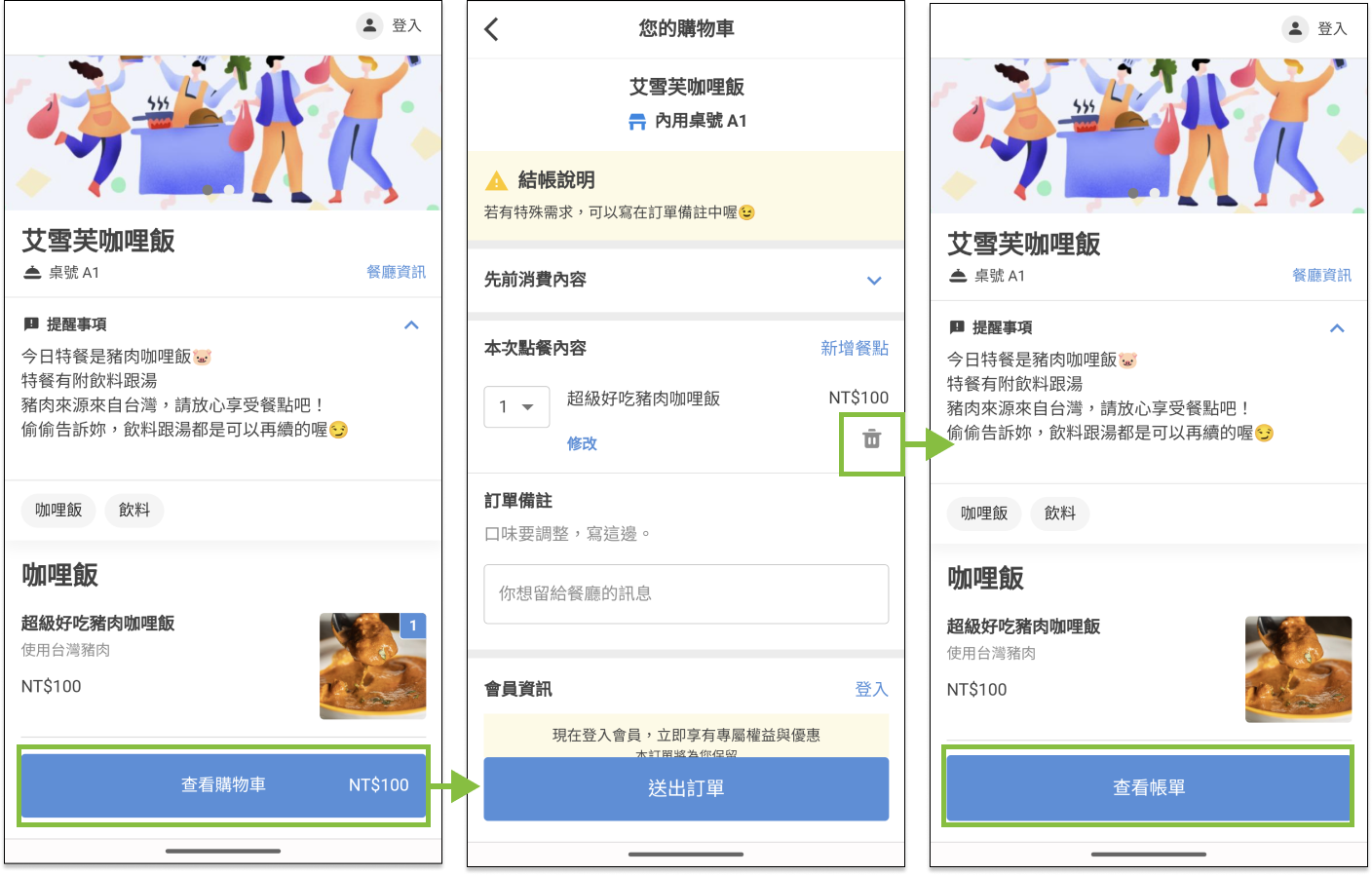
After the consumer has clicked on the product and entered the shopping cart, they only need to enter the “number of people” (the first order) to deliver the order.

The service fee of the post-settlement mode is calculated together when the final consumer pays, and the “order amount” in the shopping cart does not include the service fee for internal use.
Checkout instructions
After eating, consumers can use the same mobile device and click “View Bill” to complete the checkout.

Consumers are requested to use the same device as ordering and scan the QR code to enter the “ordering page”.
If there are items added to the shopping cart that have not yet been delivered, the view bill on the order page will be temporarily hidden, at this time, you only need to delete all the items in the shopping cart, and then return to the order page, you can click View Bill.
Instructions for consumer payment bills
After clicking “View Bill”, you will enter the payment bill page, which will summarize all the ordered products, and calculate the meal amount and service fee, after the consumer confirms that the order content and amount are correct, you can click “Meal End and Payment” and select the payment method to complete the checkout.

Online payment (Taiwan only)
After selecting online payment, the page will jump to the Lanxin online credit card page, and consumers need to follow the instructions on the webpage to complete the payment.
Pay at Counter
After selecting on-site payment, the page will display the payment information (including the table number) and direct the customer to the counter to complete the checkout.
In order to match the order information of iCHEF POS with the consumer, when the store performs the following operations for the order, the online payment of the order will be hidden, and the consumer can only pay at the counter in the form of on-site payment.
- Add a product or annotation
- Adjust the discount offer
- Split Bills
- Redeem points
The store confirms the checkout
When the consumer completes the payment, the successful checkout screen will guide the consumer to take the next step, including showing the successful checkout screen, going to the counter to collect the invoice/receipt… Wait.

In addition, the store can also check the table status page to see if the “blue coin” appears in the order.
