
Cutter lock often occurs when the printer jams; this is an automatic safety protection mechanism. After removing the jammed paper and resetting the cutter, the printer will resume normal operation.
Release cutter lock
Supported order printer models vary by restaurant location with iCHEF.Learn More
Cutter Error LED Light Display

Remove Jammed Paper
When the cutter lock indicator lights up, it is usually due to a paper jam. Please open the paper roll front cover to remove the jammed paper. (If the front cover cannot be opened smoothly, do not force it open; instead, try manually resetting the cutter to restore functionality.) After repositioning the paper roll in the paper tray, restart the printer’s power to release the cutter lock.
Manually Release the Cutter
The mC-Print3 does not provide a manual cutter reset knob. Please try turning off the power and restarting the printer, allowing the printer to release the cutter. If the cutter is still locked and the paper lid is still unable to open normally, please contact iCHEF customer service. Do not force to open the paper lid.
Cutter Error LED Light Display

Remove Jammed Paper
When the cutter lock indicator lights up, it is usually due to a paper jam. Please open the paper roll front cover to remove the jammed paper. (If the front cover cannot be opened smoothly, do not force it open; instead, try manually resetting the cutter to restore functionality.) After repositioning the paper roll in the paper tray, restart the printer’s power to release the cutter lock.
Manually Release the Cutter
The mPOP does not provide a manual cutter reset knob. Please try turning off the power and restarting the printer, allowing the printer to release the cutter. If the cutter is still locked and the paper drawer is still unable to open normally, please contact iCHEF customer service. Do not force to open the paper drawer.
Cutter Error LED Light Display

Remove Jammed Paper
When the cutter lock indicator lights up, it is mostly due to a paper jam. Please open the paper roll top cover to remove the jammed paper. (If the top cover cannot be opened smoothly, do not force it open; you may try to restore it by manually resetting the cutter.) After repositioning the paper roll in the paper tray, restart the printer power to release the cutter lock.
Manually Release the Cutter
- Turn off the power.
- Remove the cutter cover.
- Rotate the manual cutter knob in any direction until the cutter moves to the ready position.
- Put the cutter cover back into its original position.

Cutter Error LED Light Display

Remove Jammed Paper
When the cutter lock indicator lights up, it is mostly due to a paper jam. Please open the paper roll top cover to remove the jammed paper. (If the top cover cannot be opened smoothly, do not force it open; you may try to restore it by manually resetting the cutter.) After repositioning the paper roll in the paper tray, restart the printer power to release the cutter lock.
Manually Release the Cutter
- Turn off the power.

- Open the cutter top cover protector ⓐ
- Rotate the manual cutter knob ⓑ in either direction until the cutter ⓒ moves to the ready position ⓓ.
- Put the cutter cover back into its original position.

Cutter Error LED Light Display

Remove Jammed Paper
When the cutter lock indicator lights up, it is mostly due to a paper jam. Please open the paper roll top cover to remove the jammed paper. (If the top cover cannot be opened smoothly, do not force it open; you may try to restore it by manually resetting the cutter.) After repositioning the paper roll in the paper tray, restart the printer power to release the cutter lock.
Manually Release the Cutter
- Turn off the power.
- Remove the cutter cover.
- Rotate the manual cutter knob in any direction until the cutter moves to the ready position.
- Put the cutter cover back into its original position.

Cutter Error LED Light Display

Remove Jammed Paper
When the cutter lock indicator lights up, it is mostly due to a paper jam. Please open the paper roll top cover to remove the jammed paper. (If the top cover cannot be opened smoothly, do not force it open; you may try to restore it by manually resetting the cutter.) After repositioning the paper roll in the paper tray, restart the printer power to release the cutter lock.
Manually Release the Cutter
Please first turn off the printer power, remove the cutter cover, and use the knob to return the cutter to the starting position.
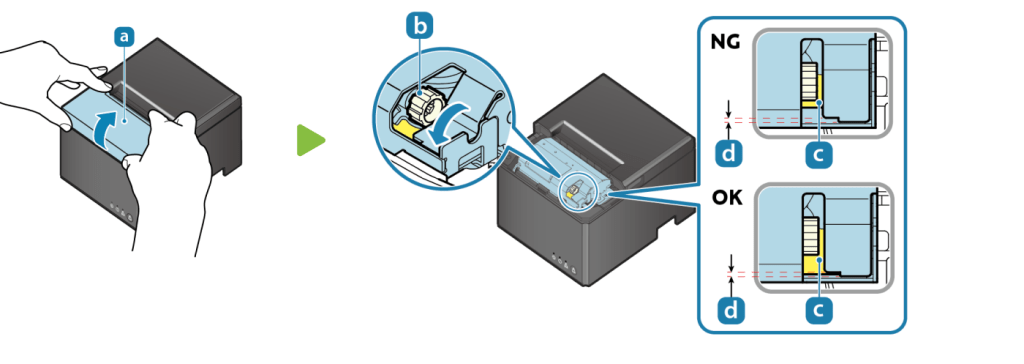
After the cutter returns to the starting position, open the paper roll cover, remove the jammed paper, and finally reinstall the cutter cover.
