
This article details all of the settings regarding the rules for checkout one by one, clearly illustrating how the tickets will look like after these settings are applied.
Print Types
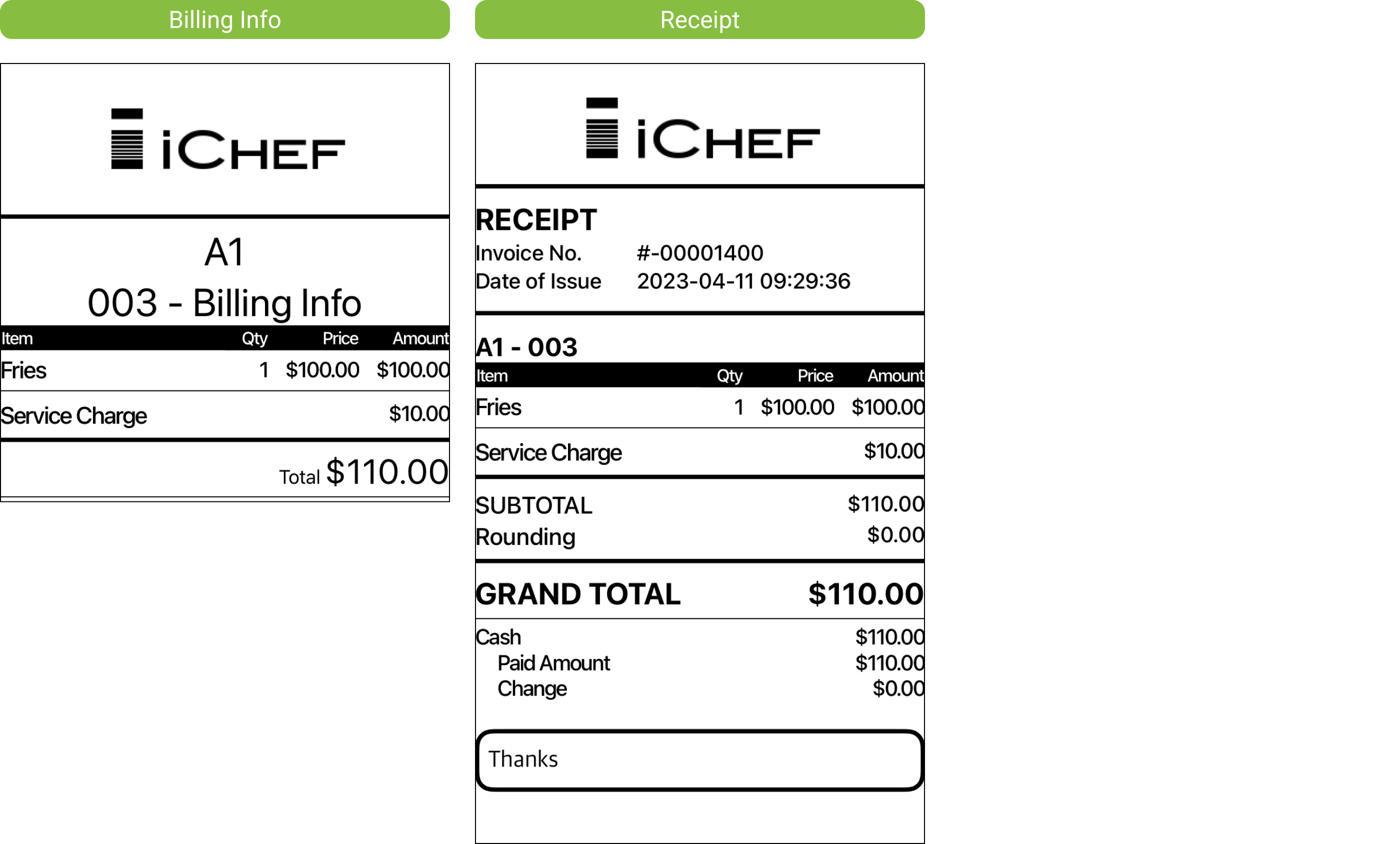
Billing Info
Billing info lists all of the purchased items and total discount amount. You can provide the customers with billing info instead of guest check. For full description, please refer to: [Order Management] Print Billing Info
Receipts
You can provide this ticket after the customers check out as the proof of payment.
Taiwanese E-invoice (for Taiwan only)
iCHEF supports the issuance of E-invoice. You can provide this ticket after the customers check out as the proof of payment. For full description, please refer to: [Invoice & Receipt] What is an invoice/receipt?
Shift/Daily Closing Record
Perform a shift/daily close out to wrap up a shift or a day of business. The Shift/Daily Closing Record will be printed under the “Customer Receipts and Billing” rule. For more details, please refer to: [Accounting] Sales Record & Management
How to Edit
Every store ID has one set of “Customer Receipts and Billing” rule by default, and it cannot be deleted.
- Go to Shop Management > Printer Settings
- Select the printer for the “Customer Receipts and Billing” rule
- Click the
 icon
icon
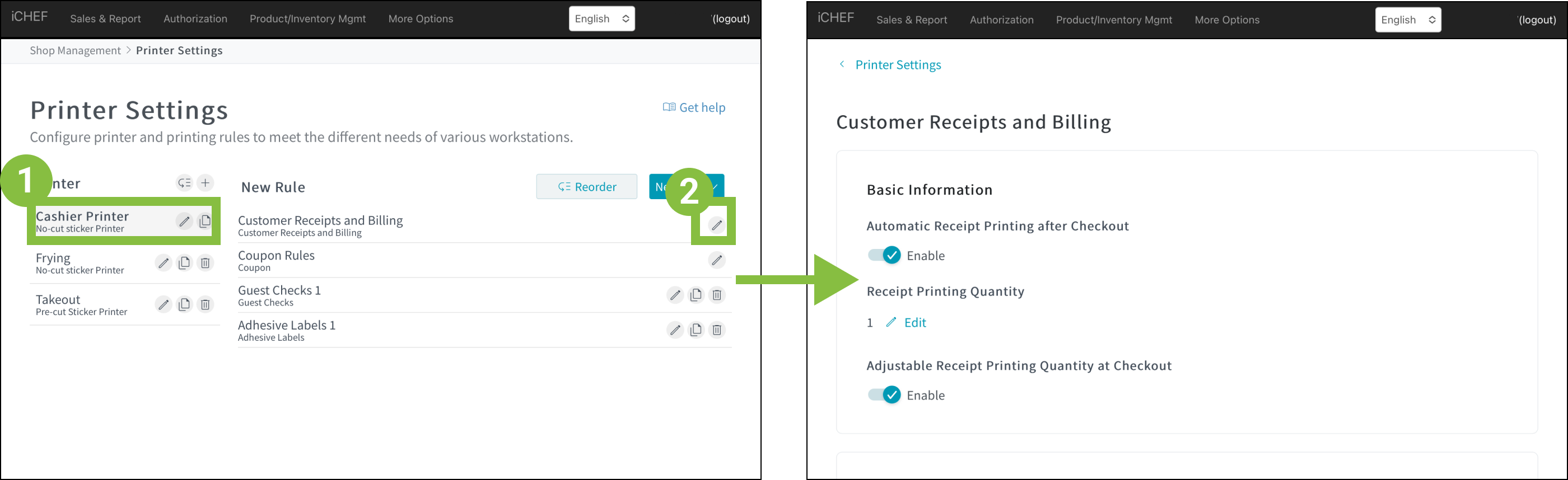
Settings of Rules
Basic Information
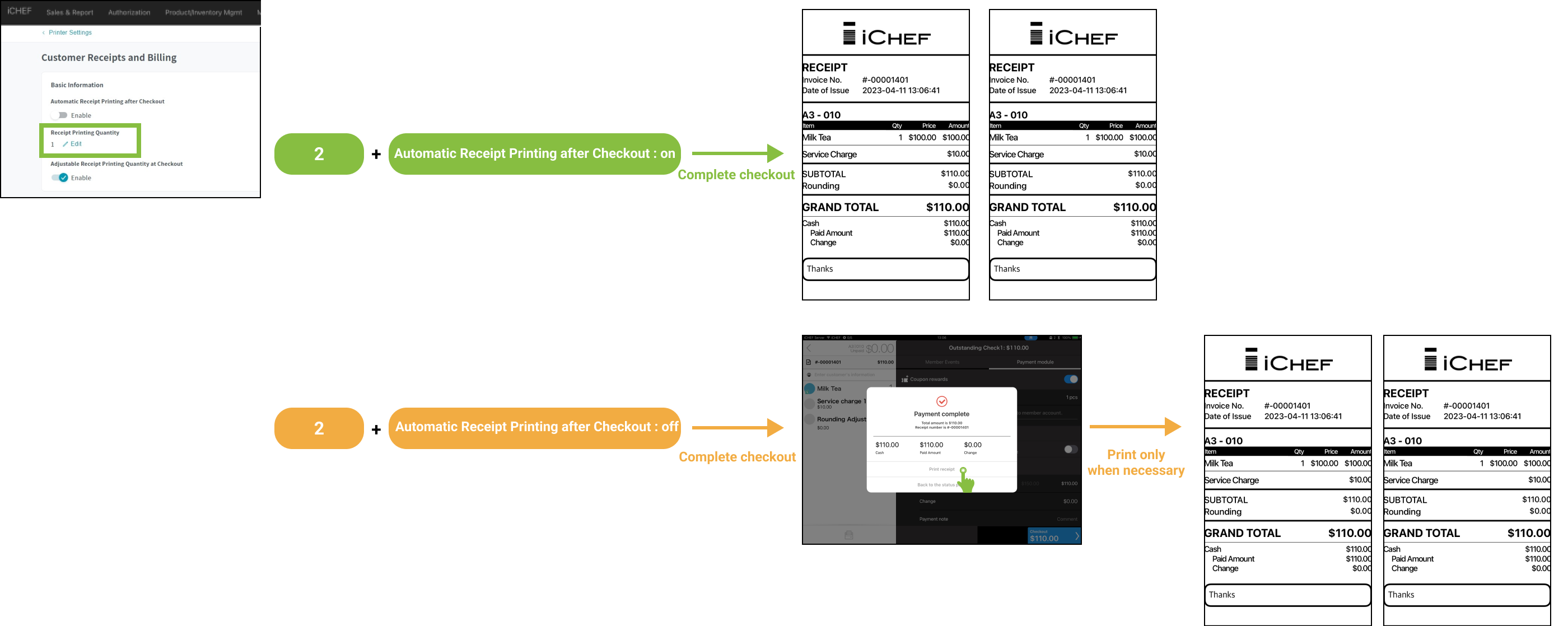
Automatic Receipt Printing after Checkout

When the “Auto-print transaction details” setting is turned “On” and electronic invoice is issued:
- If only the tax ID is entered: The invoice will be printed along with the transaction details, and a separate transaction detail printout will not be generated.
- If only stored in the delivery method (carrier): The invoice will not be printed, and the transaction details will be automatically printed.
- If both the tax ID and the delivery method (carrier) are entered: The invoice and transaction details will not be printed.
When the “Auto-print transaction details” setting is turned “Off” and electronic invoice is issued:
- If only the tax ID is entered: The invoice will be printed along with the transaction details. At the successful checkout window, you can choose whether to print the transaction details.
- If only stored in the delivery method (carrier): The invoice will not be printed. At the successful checkout window, you can choose whether to print the transaction details.
- If both the tax ID and the delivery method (carrier) are entered: The invoice will not be printed. At the successful checkout window, you can choose whether to print the transaction details.
Receipt Printing Quantity
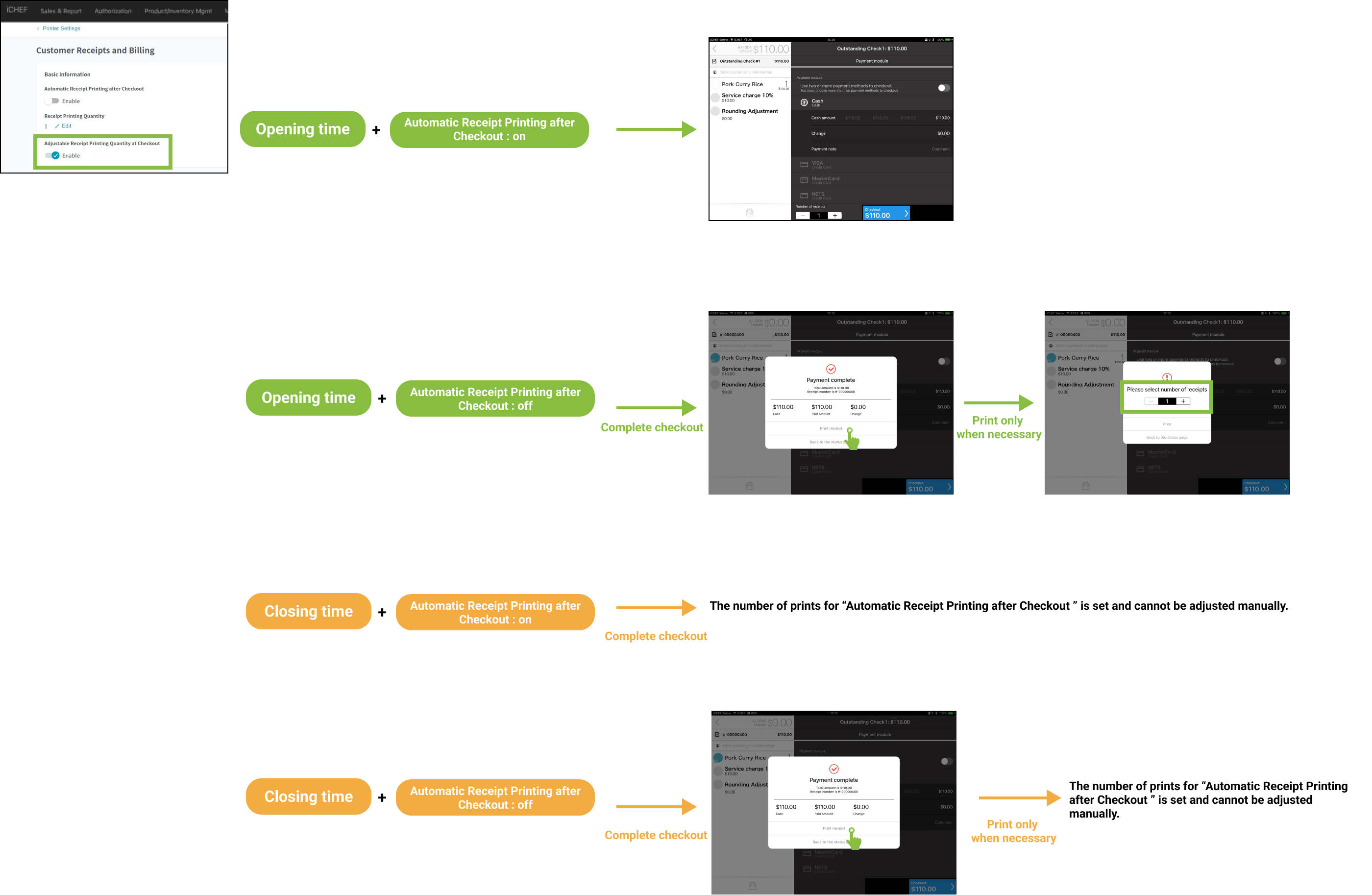
Adjustable Receipt Printing Quantity at Checkout
Logo Image
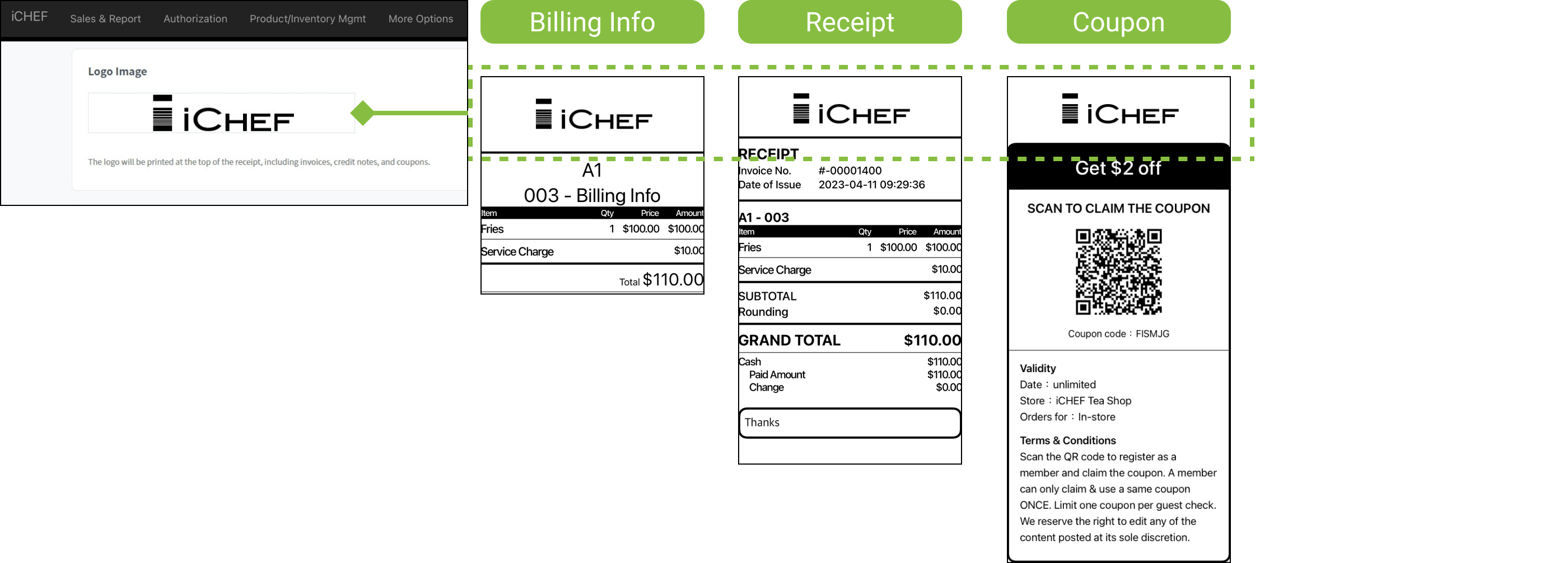
Image size and format
- Size: 408 x 60 px or above
- Format: PNG and JPG only
- Color: Black and white
Easy design of logo
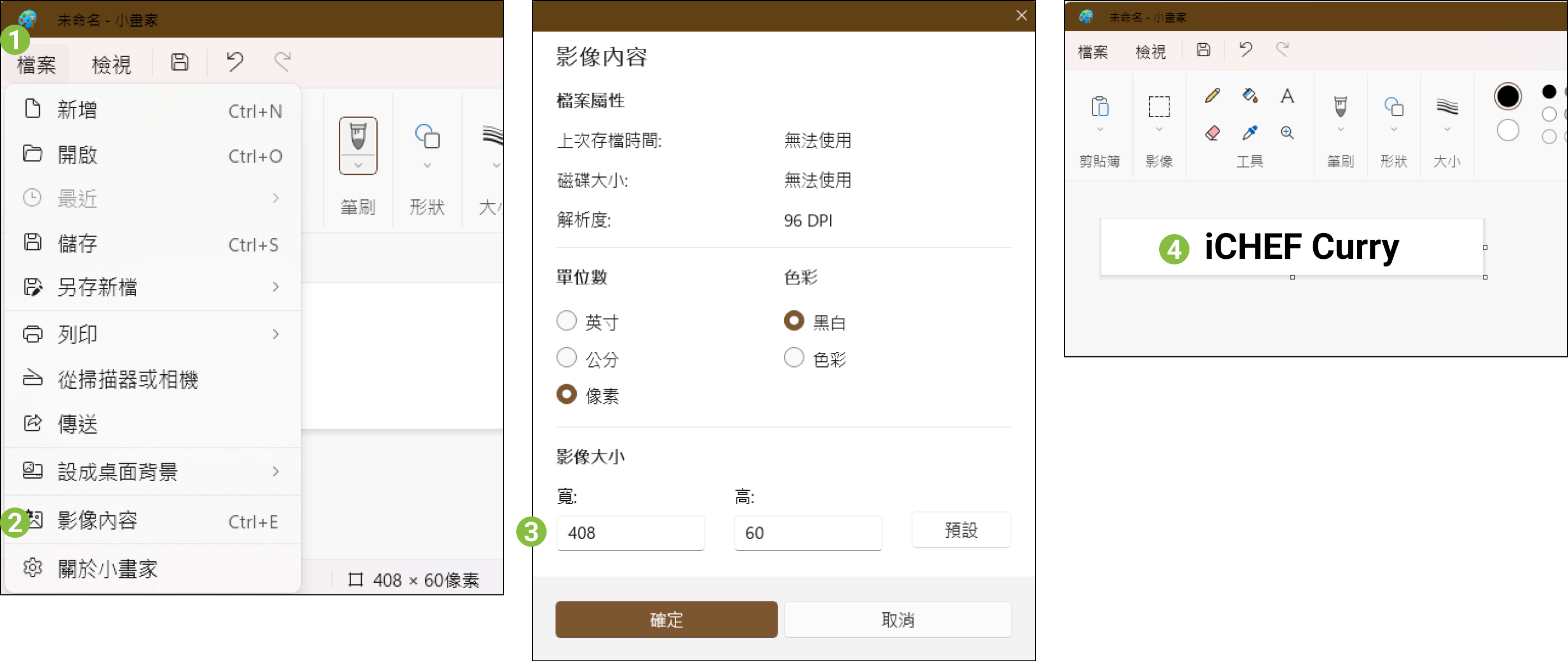
- Open MS Paint on your computer.
- Click [File] > [Image Properties], and adjust the image size to 408 x 60 px.
- Select the [Text] tool, enter your restaurant’s name and place the text box in the center.
- Click [File] > [Save As] to save the image to your computer.

- Download a blank image with a white background.
- Open the downloaded file and enable the image preview function on MAC.
- Click the pencil icon.
- Click the [Text] tool, enter your restaurant’s name in the center and adjust the font size properly.
- Close the window for image editing, and the image you just edited will replace the original one and be saved to the computer.

Receipt Content

QR Code for Points
For detailed settings of QR Code for Points, please refer to: [Loyalty point program] QR Code for Points.
