This setting allows you to configure the timing of printing, corresponding area, content and display of kitchen ticket to facilitate the meal preparation and serving in your restaurant!
Not sure about which printer to set up printing rules for?More about how to set up printers.
Add and Edit
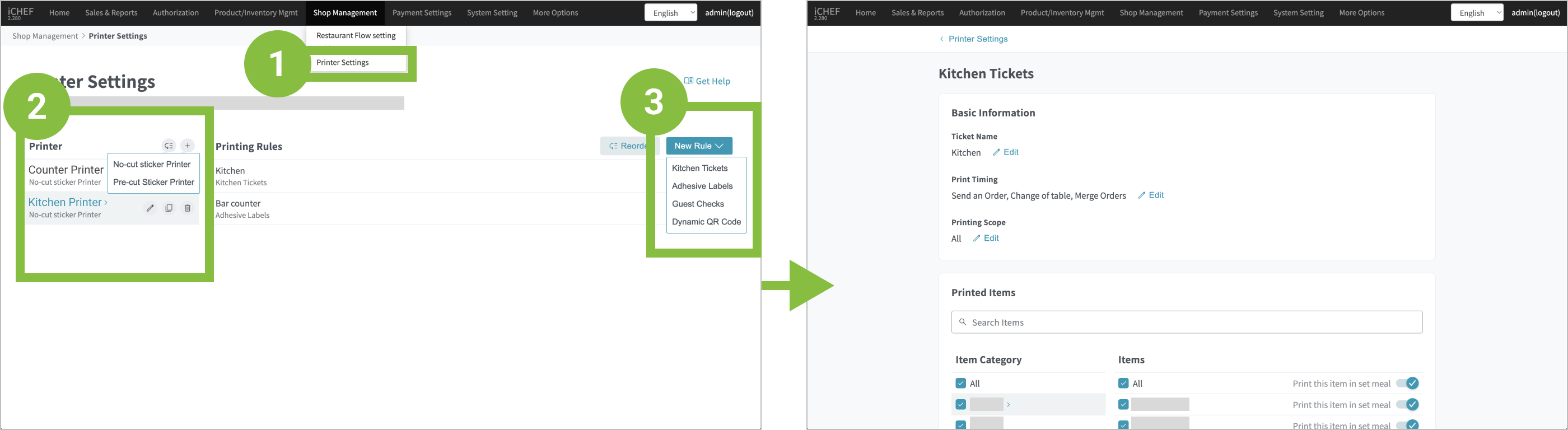
- In the backend: Go to [Shop Management] > [Printer Settings].
- Select a printer: The settings for kitchen ticket can only be added to a no-cut sticker printer.
- Start setting: Click [New Rule] or [Edit] the kitchen ticket rules which you have already added.
Settings of Rules
After entering the page for setting up kitchen ticket , please follow the instructions shown to set up relevant conditions, which are detailed as below.
Basic Information
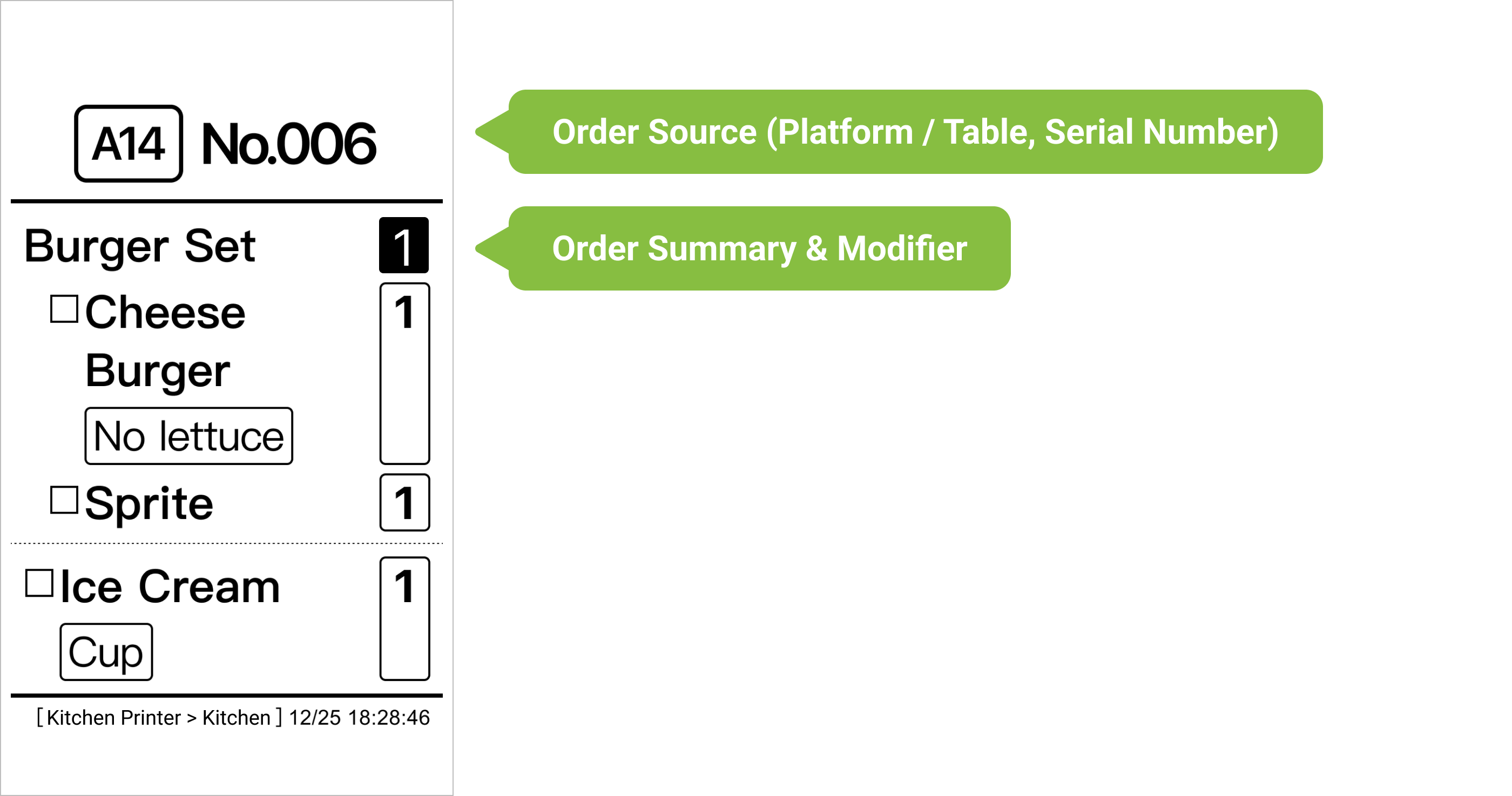
- Ticket Name: It will be displayed in the backend and the bottom of the printed order for you to identify the printer for which you are setting up rules.
- Print Timing: Orders will be printed only under the selected conditions.
- Printing Scope: Orders will be printed for the selected areas.


Printed Items
All of the items are selected by default. Please deselect the items which are not to be printed on the orders.
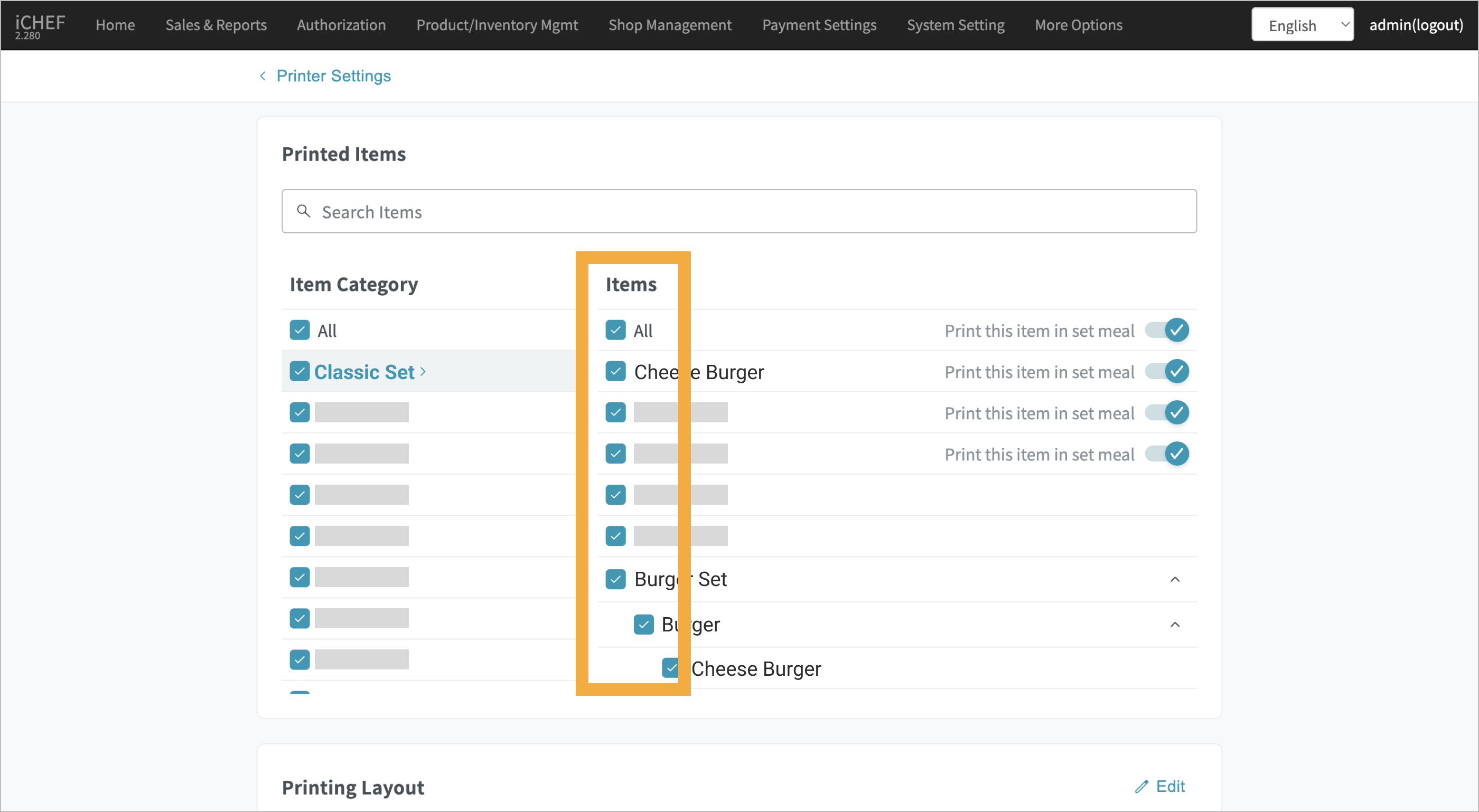
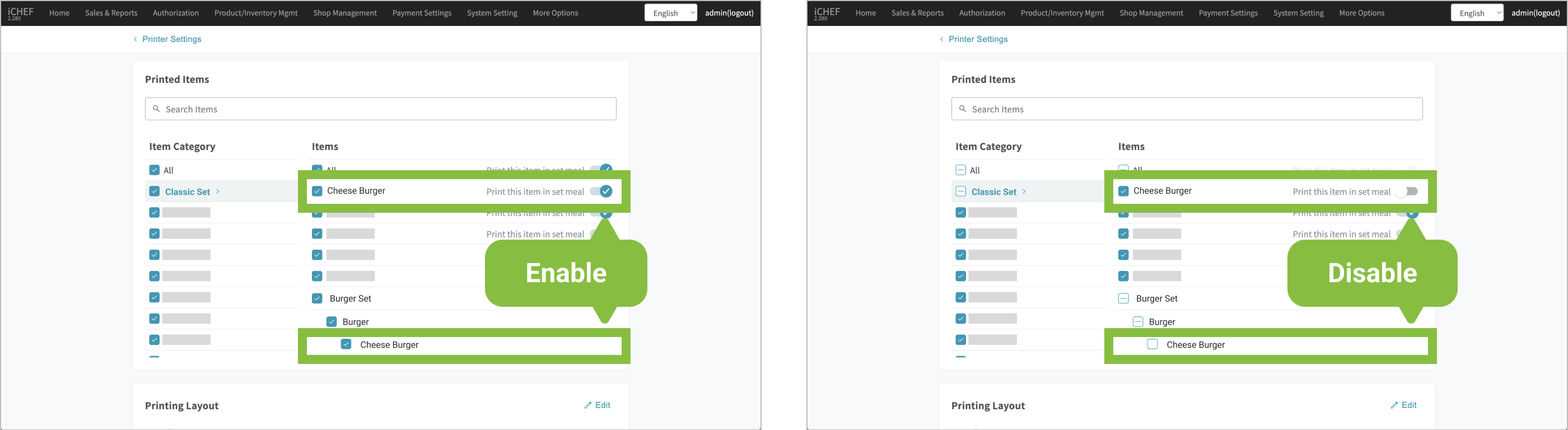
When this item is included in other set menus, the system will display and enable this switch by default.
- Enabled: This item will be printed on the orders no matter it is ordered as a menu item or included in a set menu.
- Disabled: This item will be printed on the orders only when it is ordered as a menu item. When it is included in a set menu, the system will deselect it automatically.
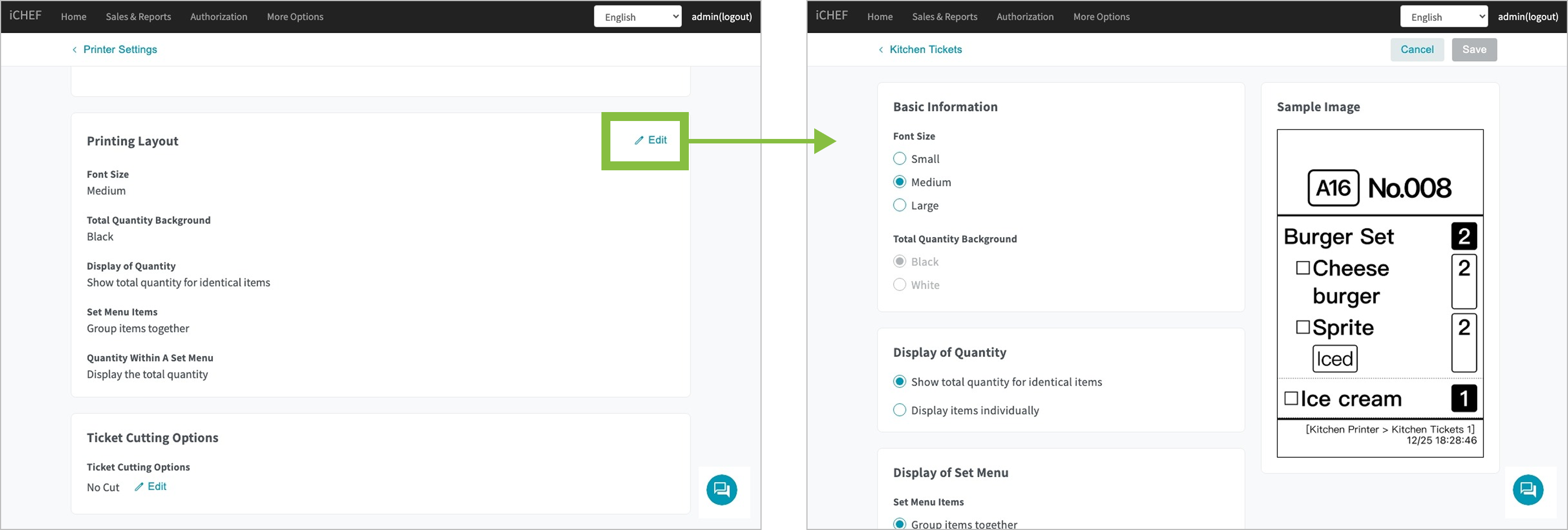
Printing Layout
You can select the font size and display of items that suit your store the best.
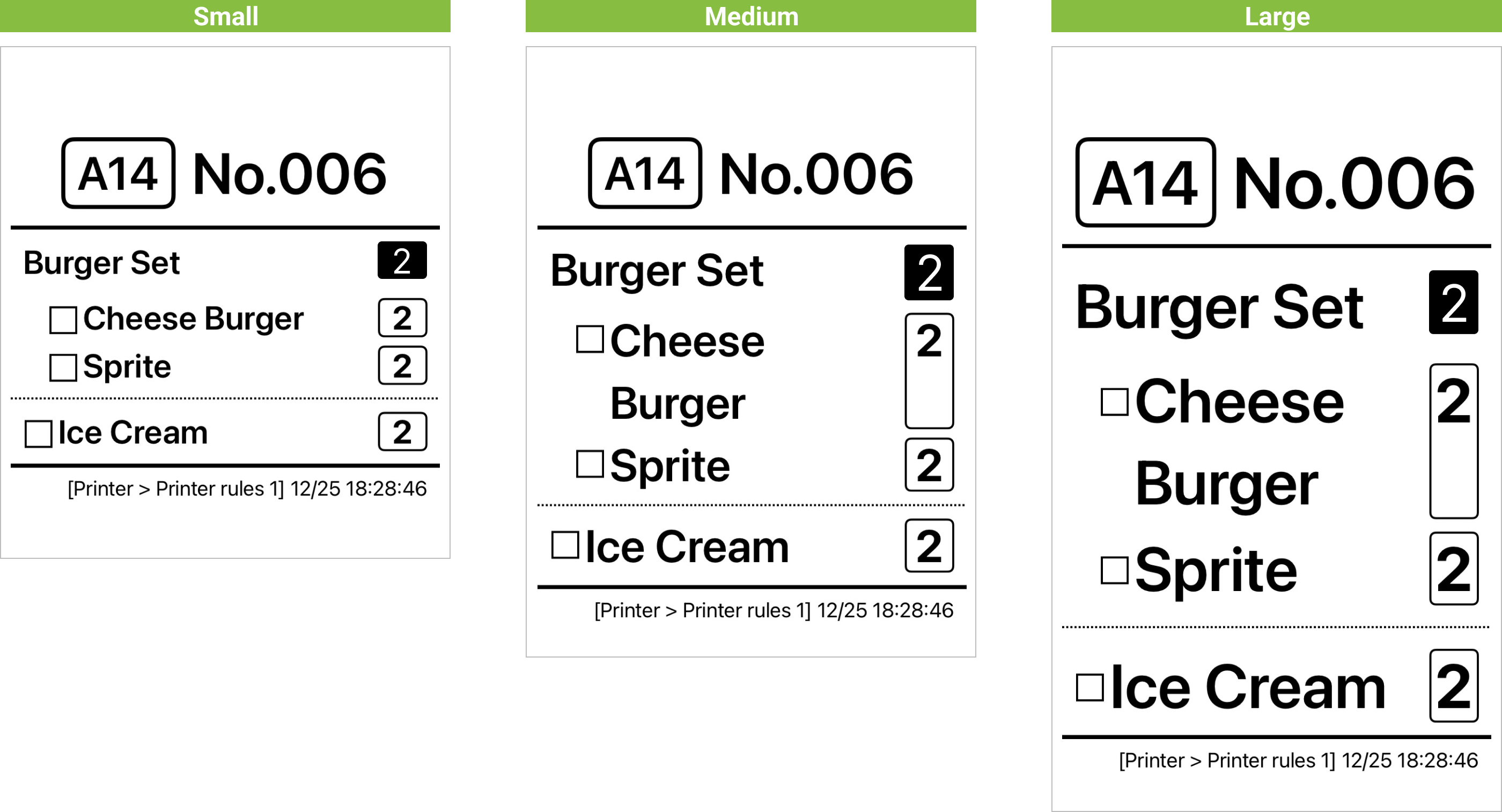
There are three sizes of font as illustrated below. The content will be printed in the font size you select.
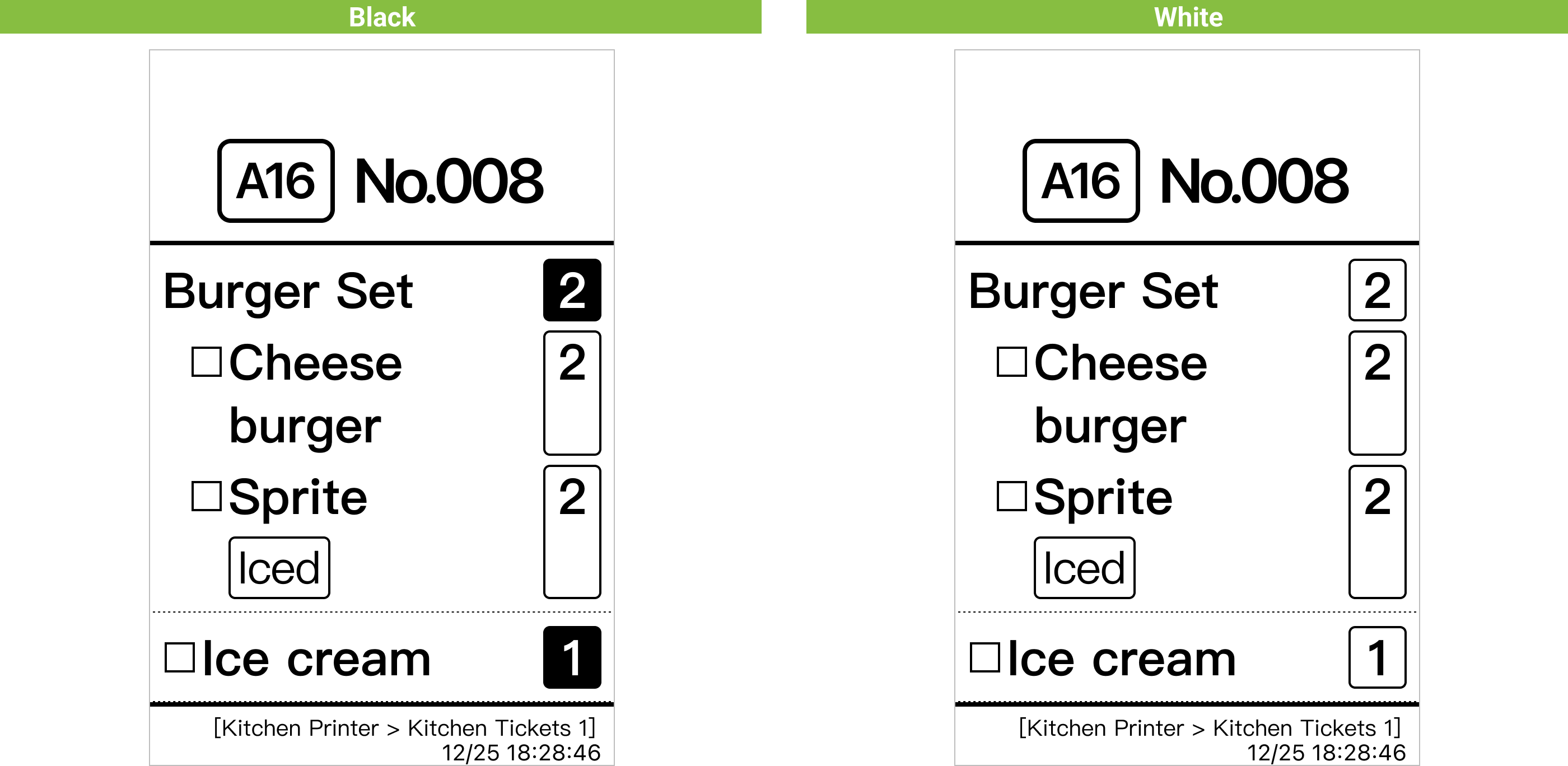
The default background color for the total quantity is black, but merchants can adjust it as needed.
- Total Quantity: Group identical items for you to check the total quantity needed.
- Individually: Display identical items separately for you to check the items one by one.

What is the definition of “identical items?
For menu items, their modifiers are all the same; for set menus, the sub-items and their modifiers are all the same.
- Categorized: Print the items of a set menu altogether.
- Separated: Print the items of a set menu separately for you to check them one by one.
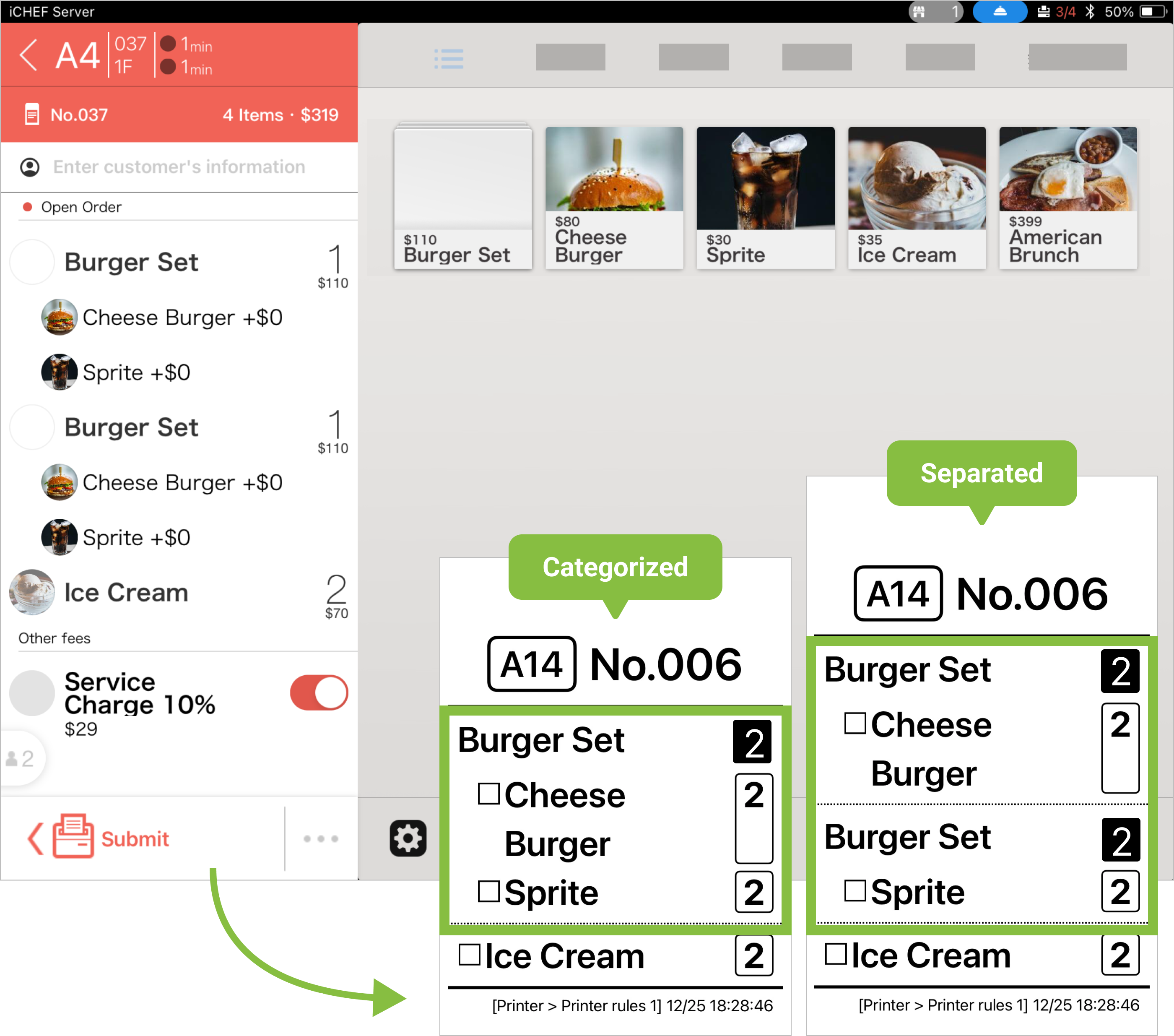
This item will only be displayed when the “Display of Quantity” is set to “Show total quantity for identical items.”
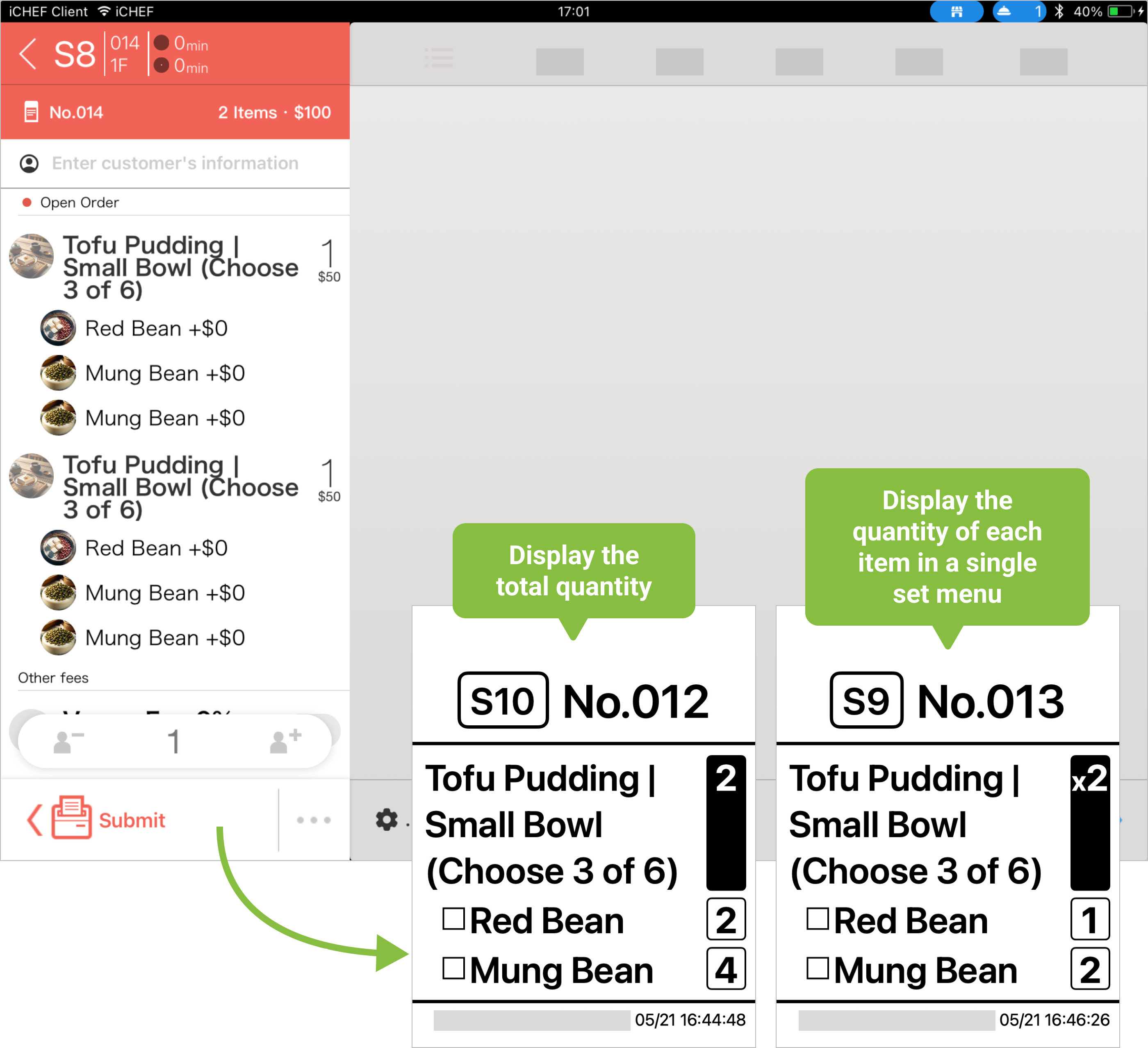
- Display the total quantity: All items in the set menu are summed together regardless of individual containers.
- Display the quantity of each item in a single set menu: Items in the set menu are separated by container, and only the quantity within each container is shown.
Example
The image below uses a tofu pudding shop as an example. The shop’s small bowl of tofu pudding offers a “set item multiple choice” option, allowing customers to select any 3 out of 6 available toppings, with the option to choose the same topping more than once.
When there are two bowls of tofu pudding in the same order, using “Display individual quantity for each set” allows you to clearly see the topping selections for each bowl.
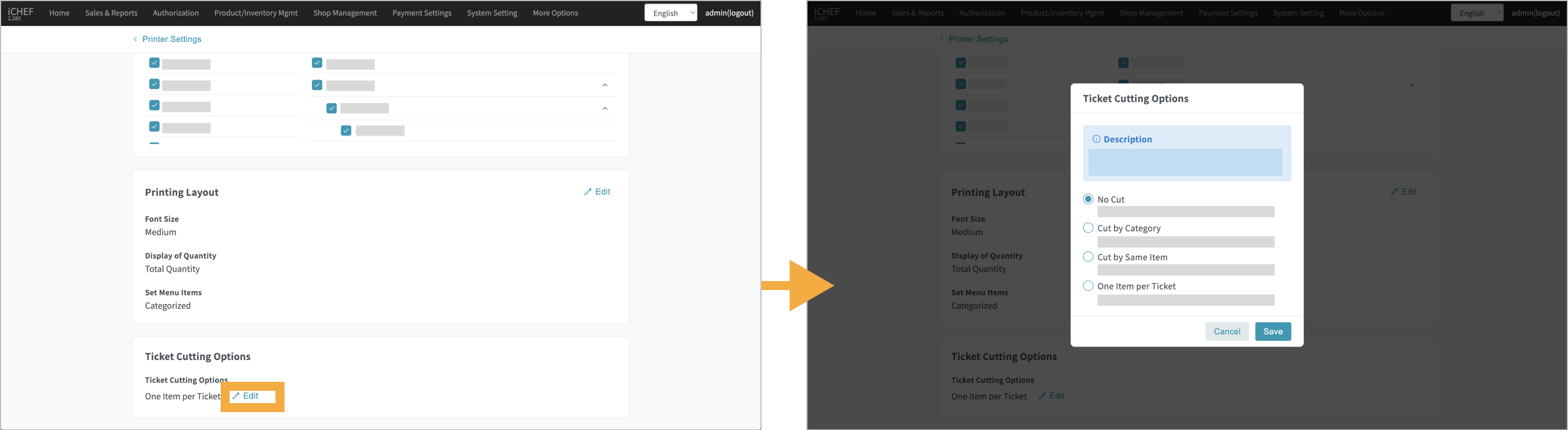
Ticket Cutting Options
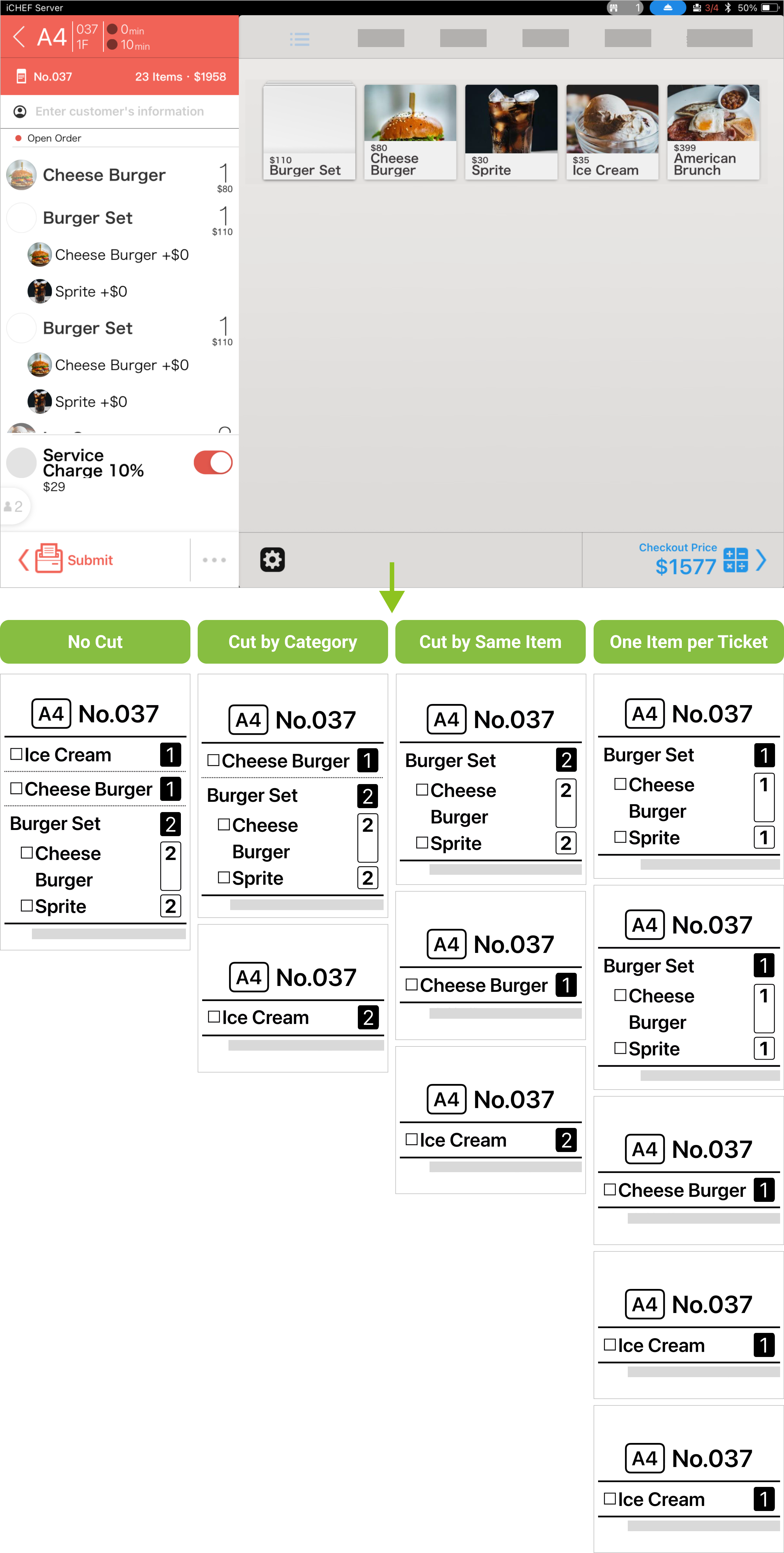
You can adjust the way of ticket cutting according to how the kitchen staff organize their work, and the printer will cut the ticket as you configure.
- No Cut: Applicable when all of the meals are prepared altogether by one workstation.
- Cut by Category: Print items of the same category according to the settings in [Product Management] on one ticket.
- Cut by Same Item: Print the same items on one ticket for the kitchen to prepare them altogether.
- One Item per Ticket: Print each item separately for the kitchen to prepare and check them one by one.