
If you need to reserve specific tables during operation, you can hold the table in iCHEF POS app. Simply long-press on the table, select the duration, and it will be marked and start counting down automatically! This makes it easy for employees to identify tables when seating guests.
Holding a table is as simple as following 3 steps:

Step 1: Long-Press on the Table
On your floor plan, black tables indicate available seats. To reserve a specific table, simply long-press on the “+” icon on table.

Step 2: Select a Duration
After the table turns gray, you can select a duration from 60 to 240 minutes or select “Forever” and manually cancel it depending on your needs.

Complete!Holding the Table
When holding a table, the table will be displayed as red. And depending on the selected duration, the display will differ as follows:
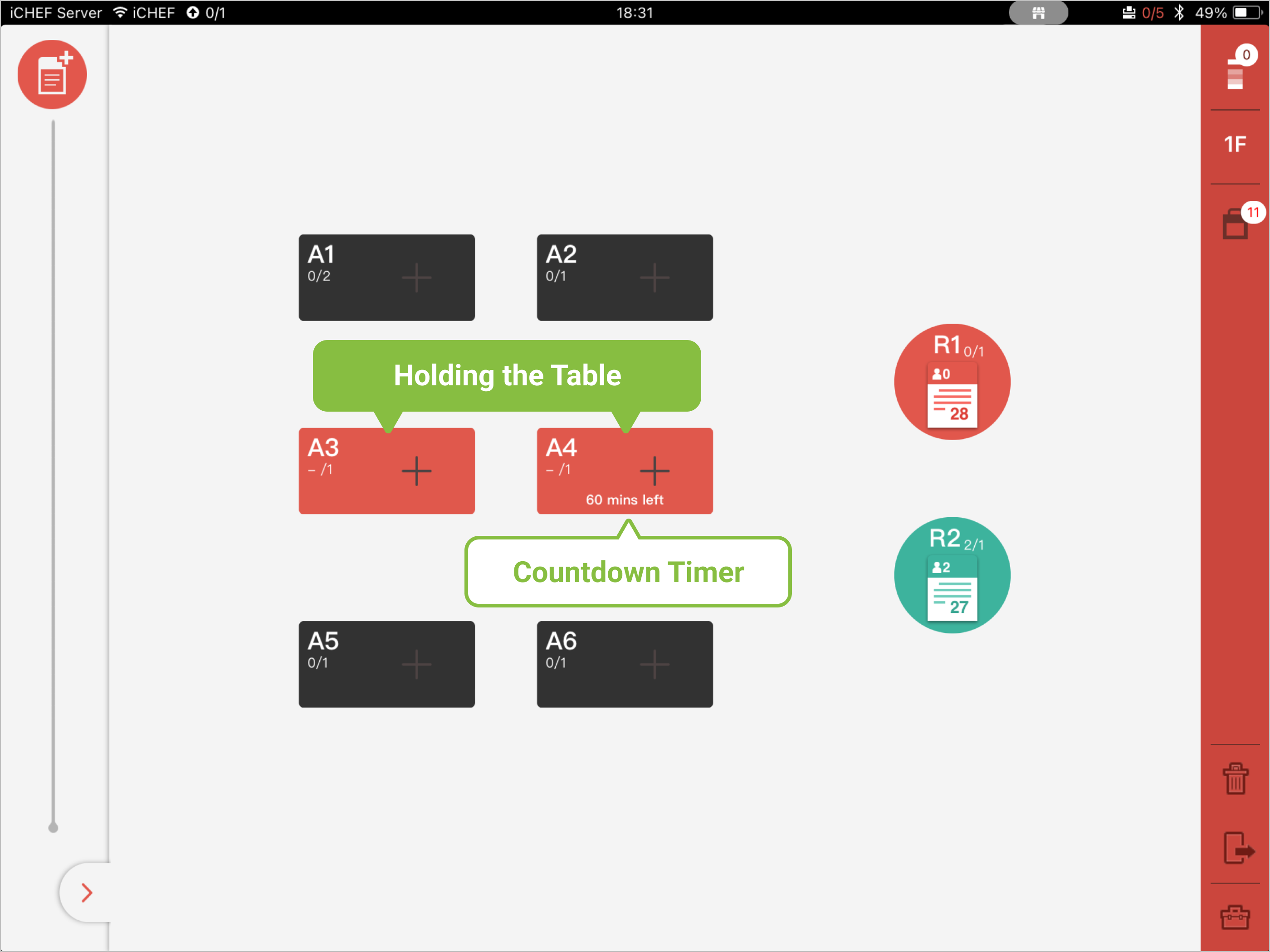
- Forever : No holding time on the table.
- Hold for 60-240 minutes: A countdown timer will be displayed on the table.
Step 3: Release the Table
When the holding time is up, the table will automatically become available again.
You can also manually release the holding table anytime by long-pressing the table again.
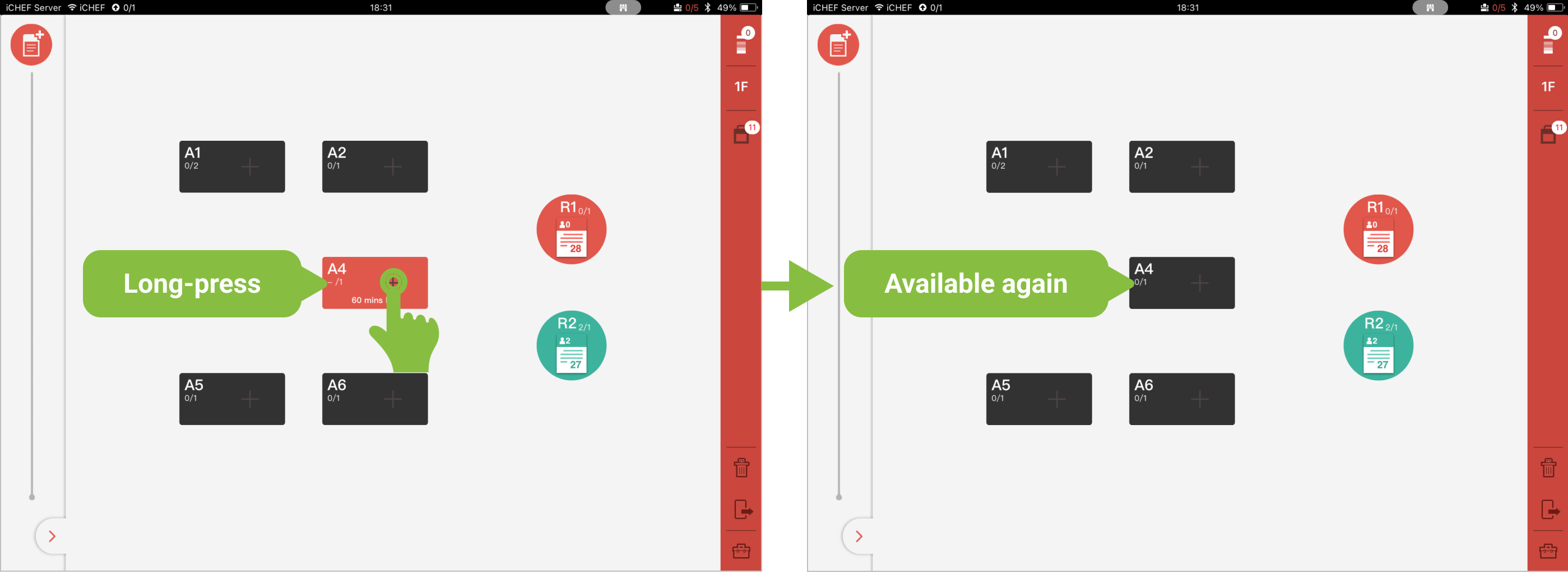
- Forever : Long-press the table again to release.
- Hold for 60-240 minutes: The table will be released when the time’s up or long-press the table again to release.