
After purchasing the Online Store [Reservation Service Module], you can return to [Reservation] and follow the backend steps to complete the settings, then go to the iCHEF POS App and [Update Menu], and it will be activated instantly!
For restaurants already using Mobile Ordering (Takeout), the system will automatically import data, further accelerating your activation.

➤ Backend Path:Online Store > Reservation
Step 1: Edit Business Information
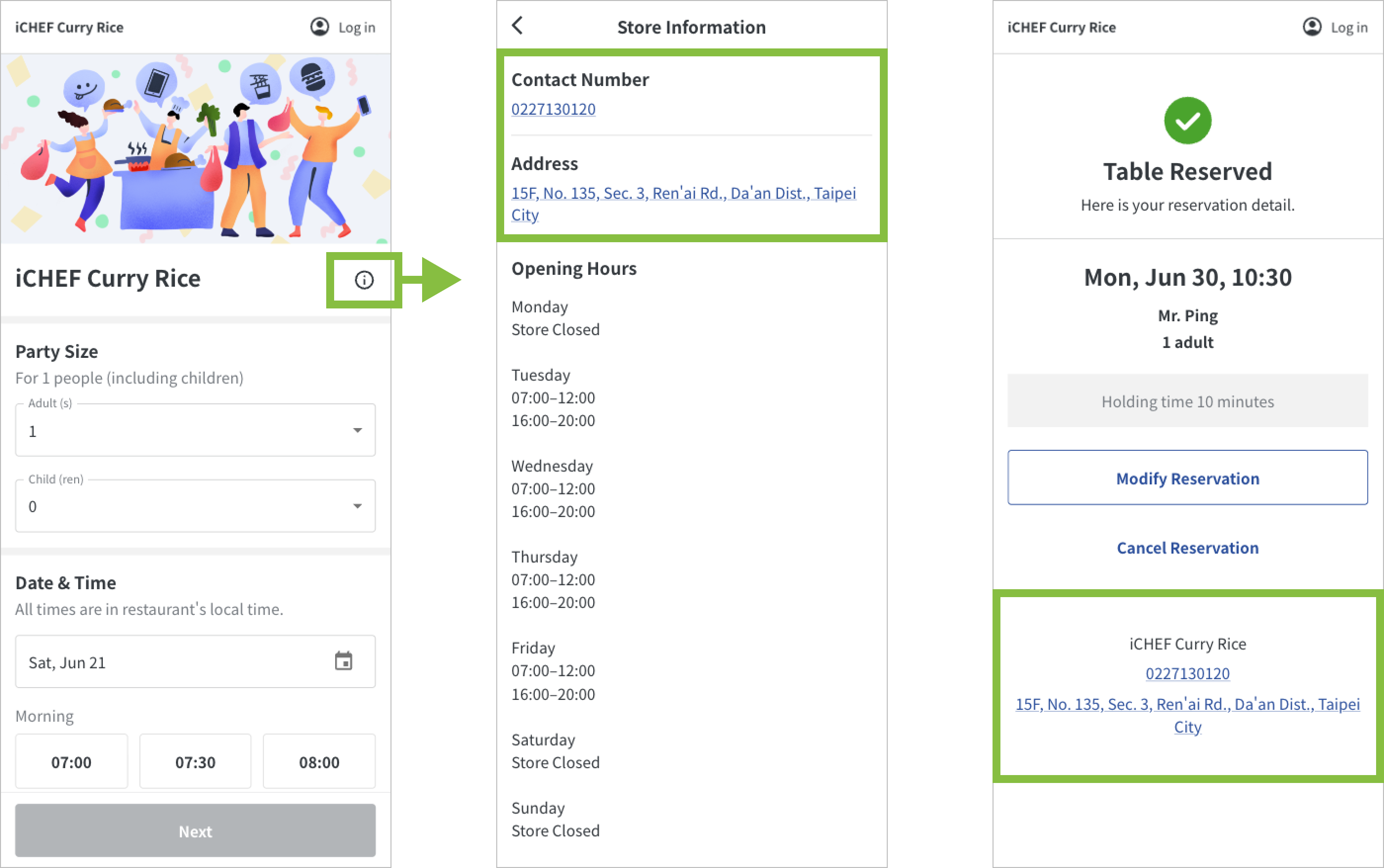
Tap the [Start Using Reservation] button below to begin sequentially setting up your restaurant’s business information. Once set, this information will be displayed on the reservation website’s [Home], [Restaurant Information], and [Reservation Information] for customers to view.

- Store Information: Please enter the store name, contact number, and store address. (Default: Imports Mobile Ordering (Takeout) business information).
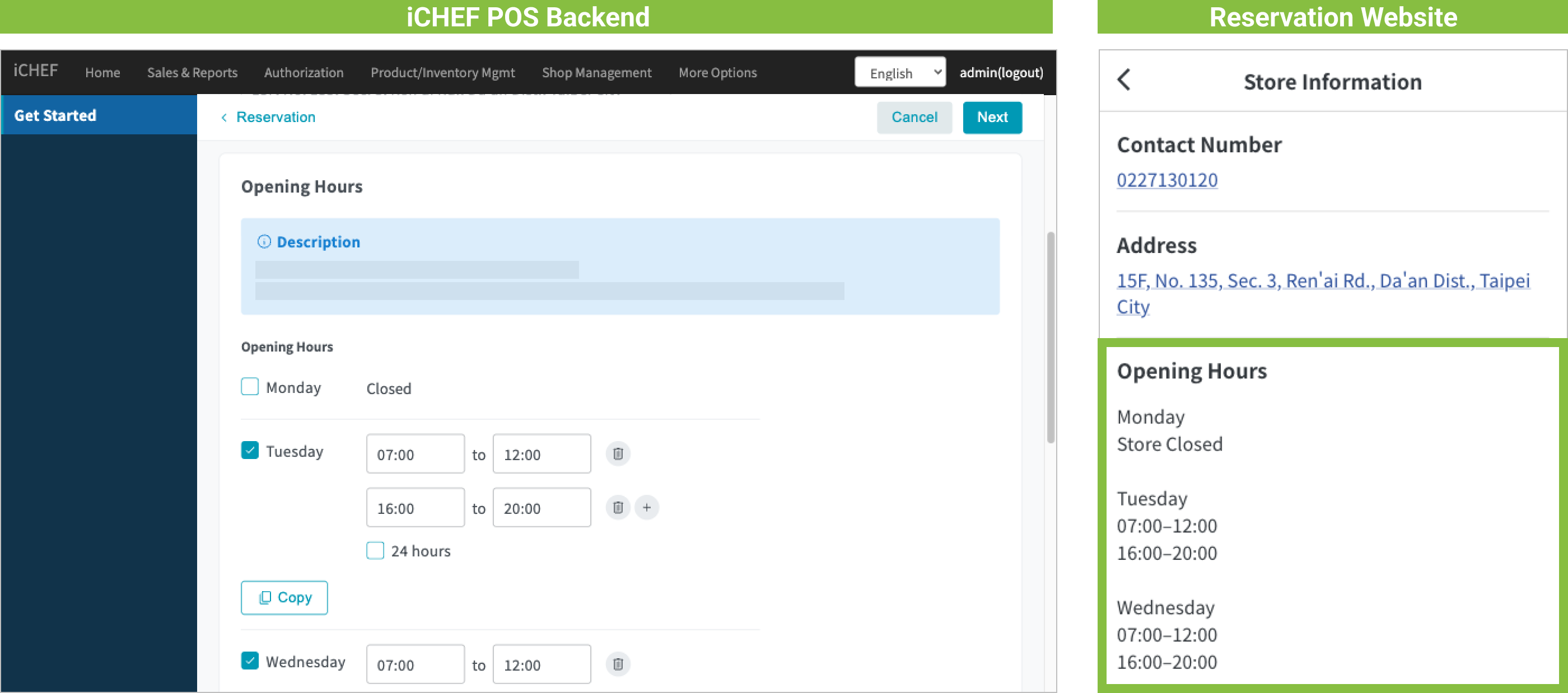
- Business Hours: Please check and enter times according to your restaurant’s weekly business hours. (Default: Imports Mobile Ordering (Takeout) business information).
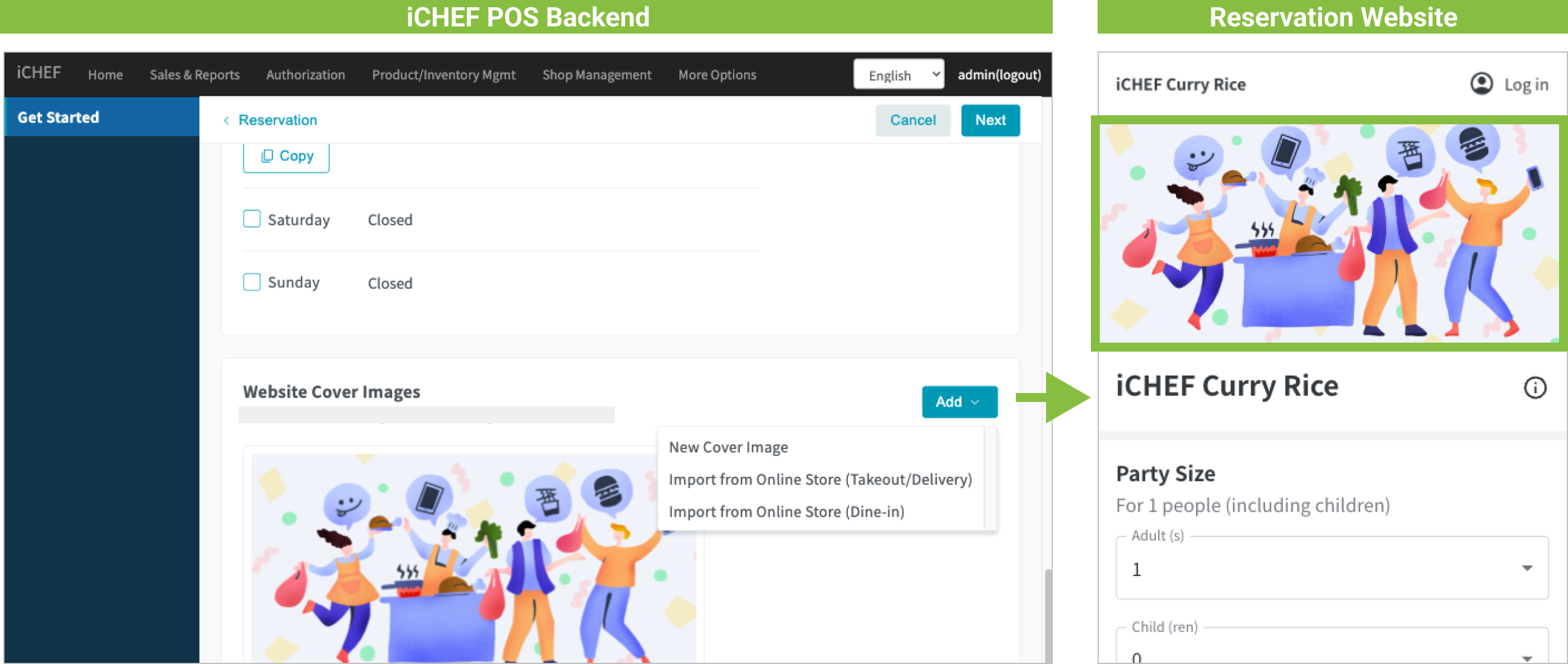
- Website Cover: Default is a system image. You can directly upload your restaurant’s feature images, or import cover images from Mobile Ordering (Takeout) or Mobile Ordering (Dine-in). If multiple images are uploaded, the website will display them in a carousel.
After activation, you can still further configure more store business information.
Step 2: Set Reservation Rules
To allow the system to arrange tables according to your rules, please set up your restaurant’s Reservation Rules here in the next step.
- Table Arrangement: The system will use this to determine table usage, leaving only time slots available for customers to choose.
- Table Usage Duration: Default is 120 minutes. When re-selecting the time, please ensure to account for customer dining time and table cleanup time. Check [Add Holiday Rules] to additionally set specific table usage duration for holidays.
- Seat Hold Time: Default is enabled and set to 10 minutes. You can uncheck to disable this feature.


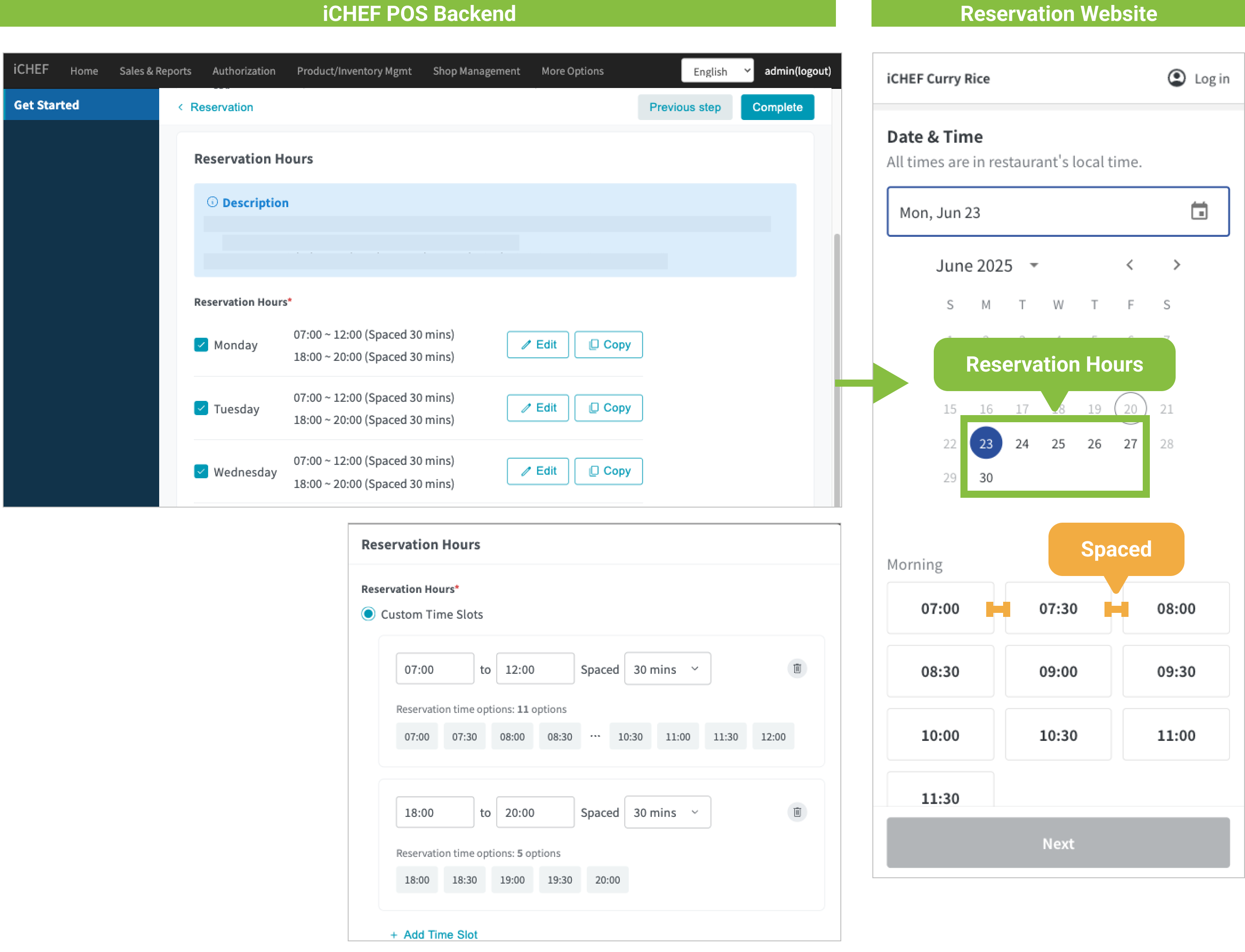
- Reservable Dining Time Slots:
- Check your reservable [Days of the Week].
- Set reservable [Time Slots]: From the time the first group of guests starts dining ~ to the time the last group of guests starts dining.
- Set Option Interval: Default is 30 minutes, adjustable based on in-store operational needs. How long each time option should be spaced.
After activation, you can further configure more [Reservation Rules].
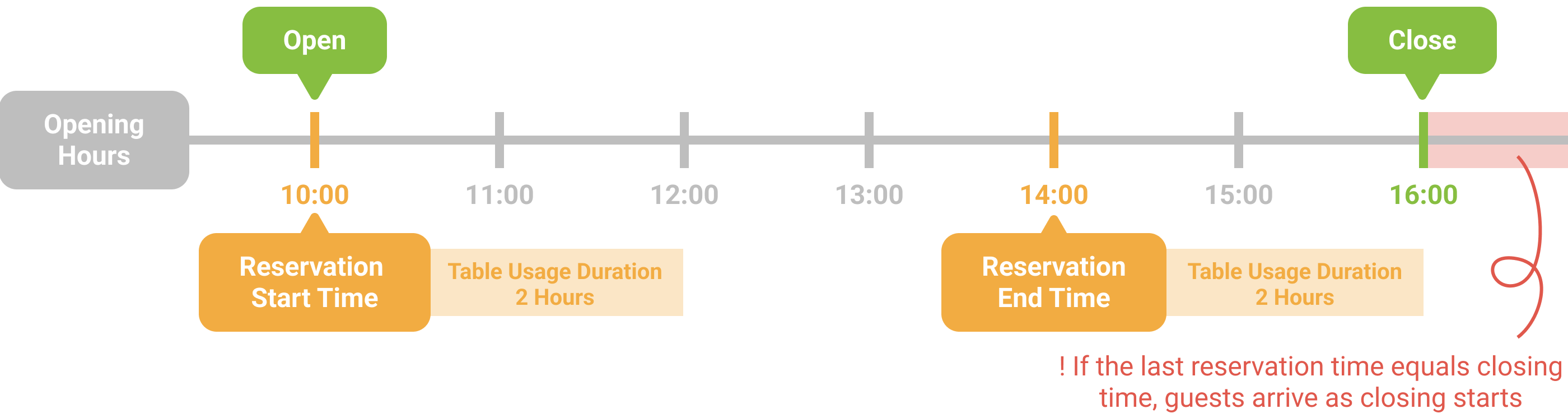
Within “Business Hours”, setting “[Reservable Dining Time Slots]” example is as follows: Business hours 10:00-16:00, dining time 2 hours.
- My start reservation slot (= start business hour): 10:00
- My last reservation slot (= end business hour – dining time 2 hours): 14:00
After completing the two activation steps, the backend will take you to the [Feature Status] page. Please see the next step to complete activation.
Please log into your in-store iCHEF POS App after Update Menu, and you can start using POS to Add Reservation!

Next, you might also need to:
- Adjust Table Availability
- Allow customers to make [Online Reservation]
- Add reservation links on Google (requires [Online Reservation] to be enabled first)