
Click the hyperlink to jump to the relevant section:
You can purchase the Socket Mobile Bluetooth Barcode Scanner (S700/S720) by placing an order under [iCHEF backend > Account > Purchases] The wireless barcode scanner will be delivered along with the accessories including a mobile phone strap, a charging wire, a card of connection guide by iCHEF, and an official manual by the supplier. (*S720 Only: Includes a charging base.)
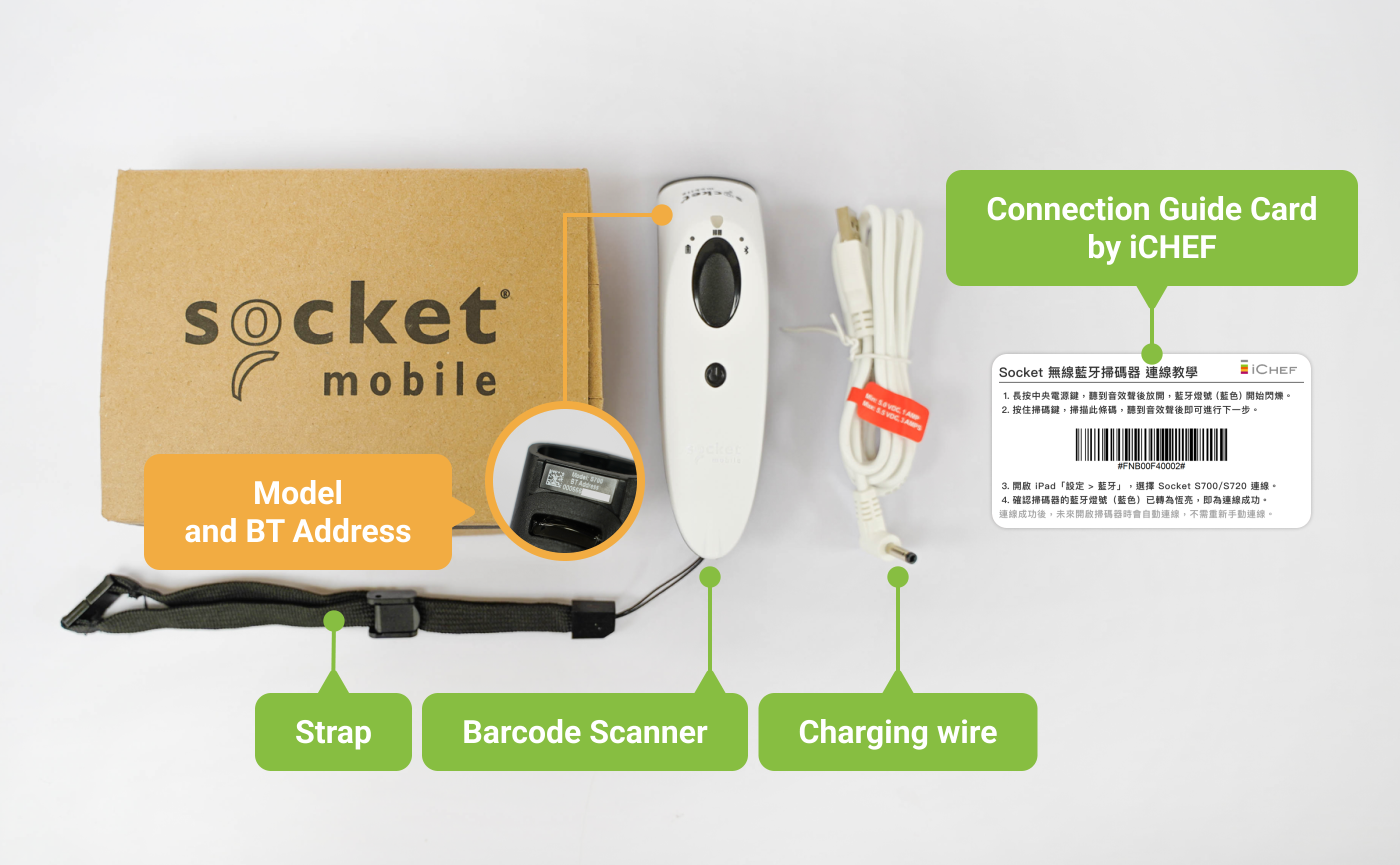
As the official manual illustrates multiple ways of connection, please refer to our connection guide and UI instructions.
Connection Guide
As the scanner is connected with the iPad through Bluetooth, please turn on the Bluetooth function on your iPad and pair it with iCHEF POS before starting the connection.
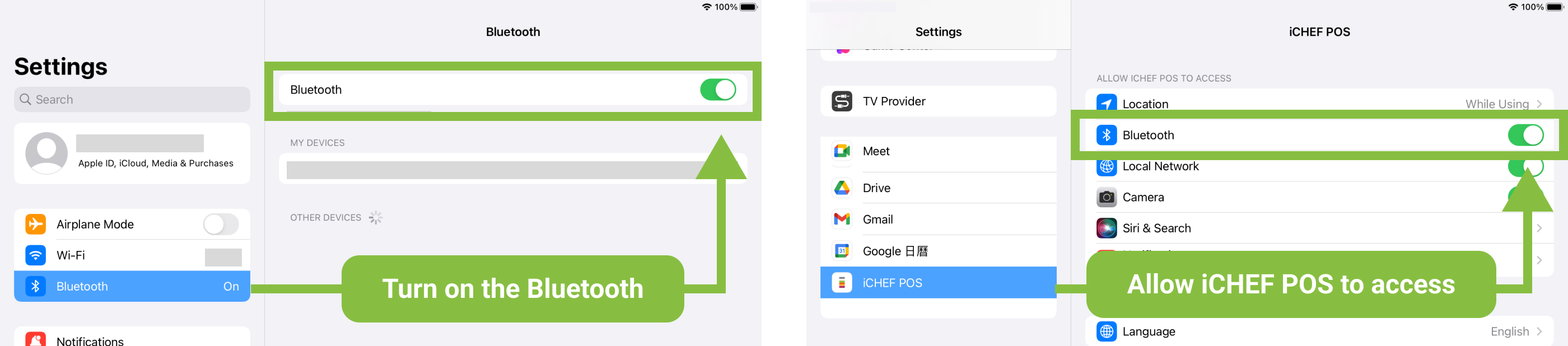
➤ iCHEF POS App Path: Toolbox > Device Settings > Barcode Scanner > Socket Mobile Bluetooth Scanner

Please follow the steps to complete the connection as illustrated below:

You can proceed to the connection test under the settings page to confirm if the barcode scanner is working properly.
Once connected, the barcode scanner will automatically reconnect in the future.
Reset
When connection fails or when you switch to a different iPad, you can reset the barcode scanner to reconnect it with your iPad.
- Step 1: Open [Settings > Bluetooth] on your iPad, find [Socket S700/S720] and click the information icon on the right and then [Reset this device].
- Step 2: Press and hold the scan button to scan this reset barcode. Release it when you hear a sound effect, and the barcode scanner will be turned off automatically.
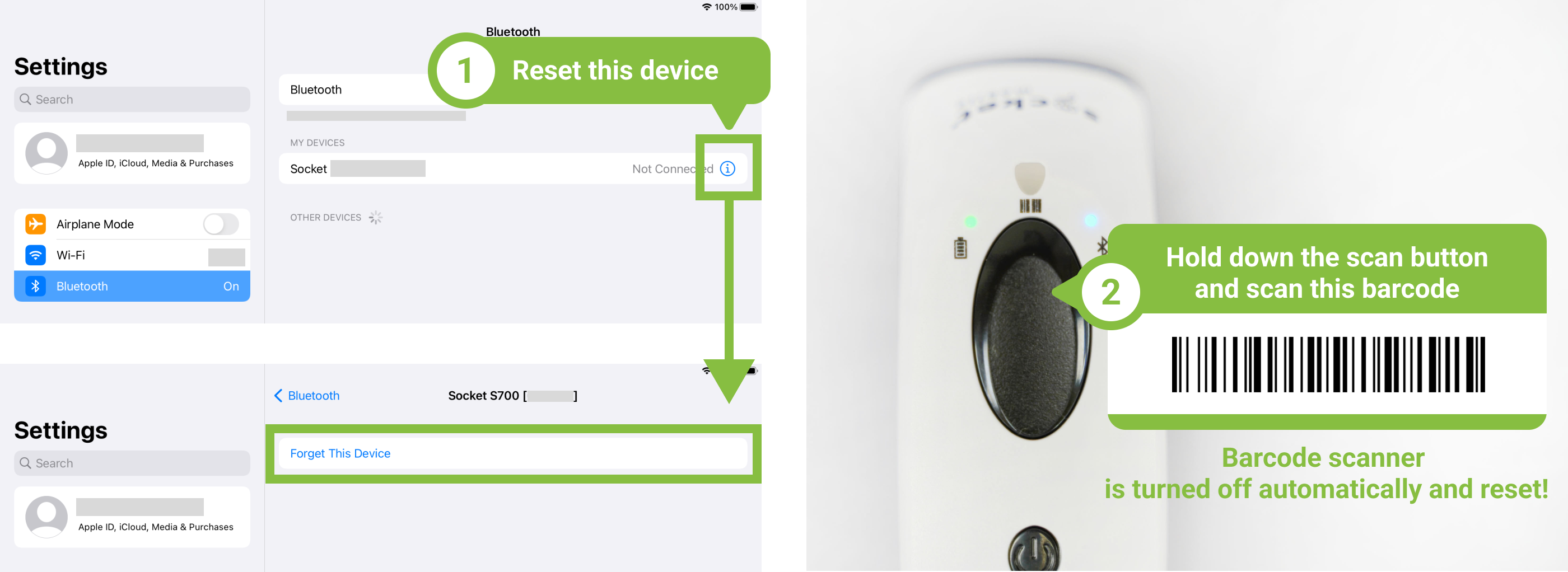
Now, you can reconnect the scanner with your iPad.
Connection status and light indicators
Connection status
The connection status of barcode scanner is shown on the system status bar at the top of the screen in iCHEF POS App as well as the section under [Toolbox > Device Settings].

| Status | System Status Bar | Status under [Device Settings] | Instructions |
|---|---|---|---|
| Not connected |  |  | Not connected with iPad |
| Connected |  |  | Connected with iPad |
The connection may fail due to one of the following reasons. The barcode scanner will reconnect automatically after the troubleshooting:
- The barcode scanner is turned off: Please turn on the barcode scanner, and it will reconnect automatically.
- The barcode scanner is too far from the iPad: Please keep the distance under 100 meters.
- The iPad’s Bluetooth function is turned off: Please go to [Settings] > [Bluetooth] on your iPad to make sure this function is on.
- The Bluetooth function for iCHEF POS is turned off: Please go to [Settings > iCHEF POS] on your iPad to make sure this function is on.
Light indicators

- Power (plugged in)
| Light | Instructions |
|---|---|
| Yellow|Flashing | Charging |
| Green|Always On | Fully Charged |
- Power (unplugged)
| Light | Instructions |
|---|---|
| Green|Always On | Battery power 25% ~ 100% |
| Yellow|Always On | Battery power 10% ~ 25% |
| Red|Always On | Battery power <10% |
| Red|Flashing | Low battery power |
- Scanning
| Light | Instructions |
|---|---|
| Green|Flashing once | Successful |
| Red|Flashing once | Failed |
| Red|Always On | Power on |
- Bluetooth
| Light | Instructions |
|---|---|
| Off | No connection |
| Blue|Flashing once per second | Pairing and waiting for connection |
| Blue|Flashing twice per second | Connecting |
| Blue|Always On | Connected |
Getting Started
After the connection is complete, you can use the scanner to scaninvoice carrier and mobile payment codes at checkout.
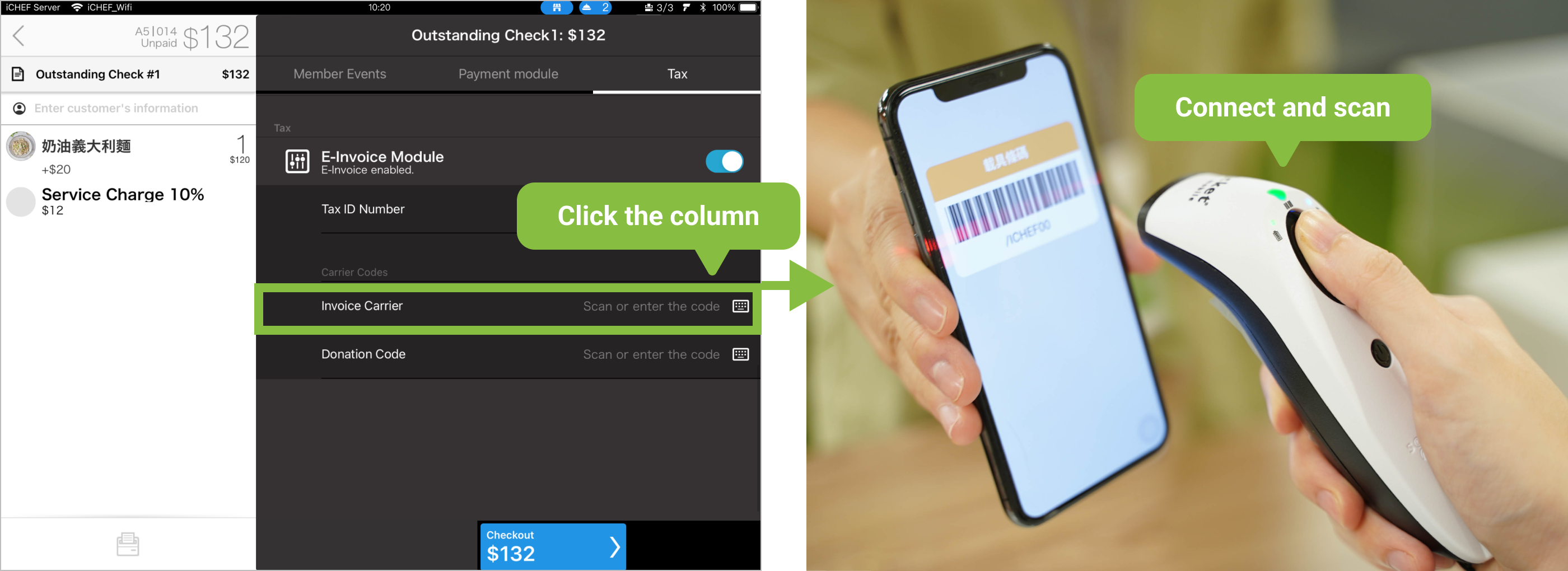
The S700 only supports scanning 1D barcodes and cannot scan QR codes; the S720 supports both 1D barcodes and mobile payment QR codes.
Check the device information on the connection screen to see if it’s a Socket S700 or a Socket S720.
