After obtaining the Global Payments card reader, go to the iCHEF backend to activate the Global Payments payment module and complete the POS connection settings. You can then officially start using the Global Payments card reader for checkout!
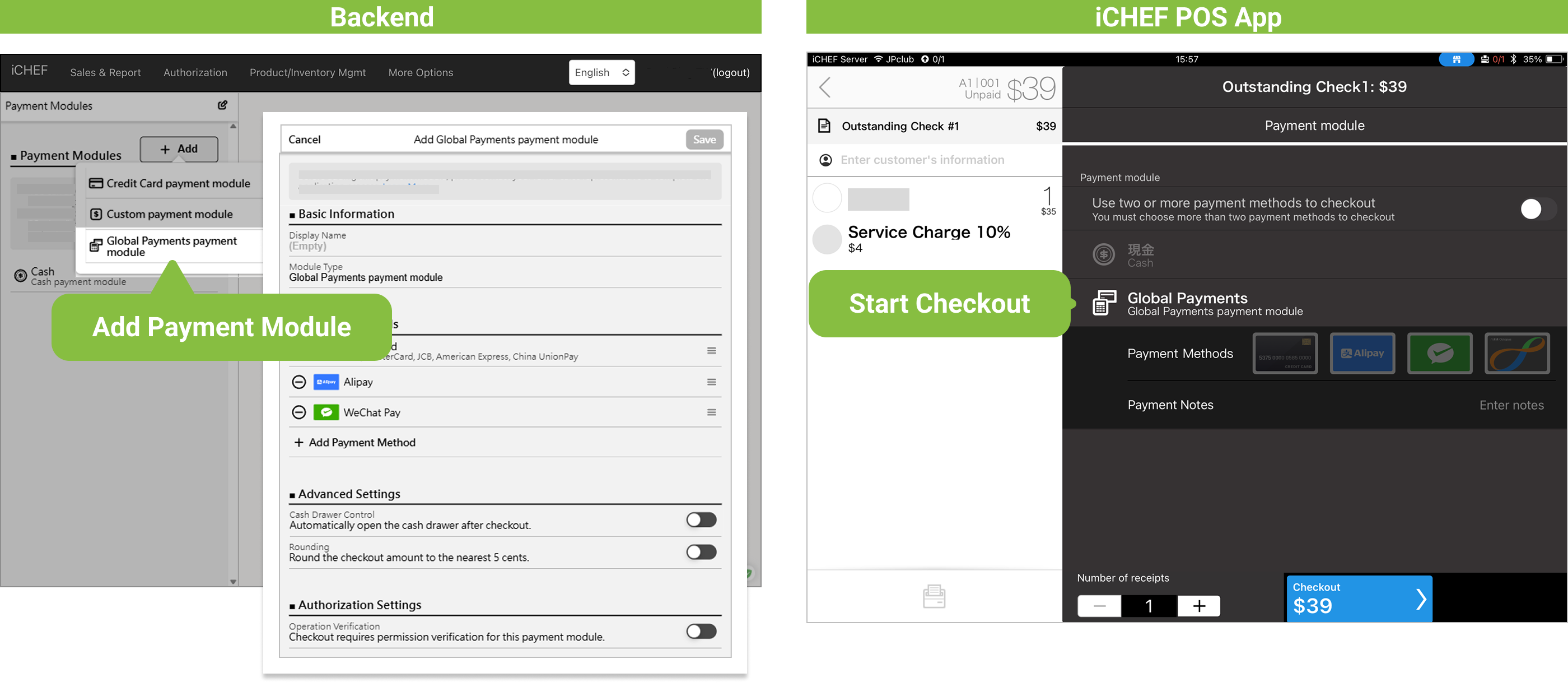
1. Add Payment Module
➤ iCHEF Backend:Payment Settings > Payment Modules
- Click “+ Add”
- Select “Global Payments Payment Module”
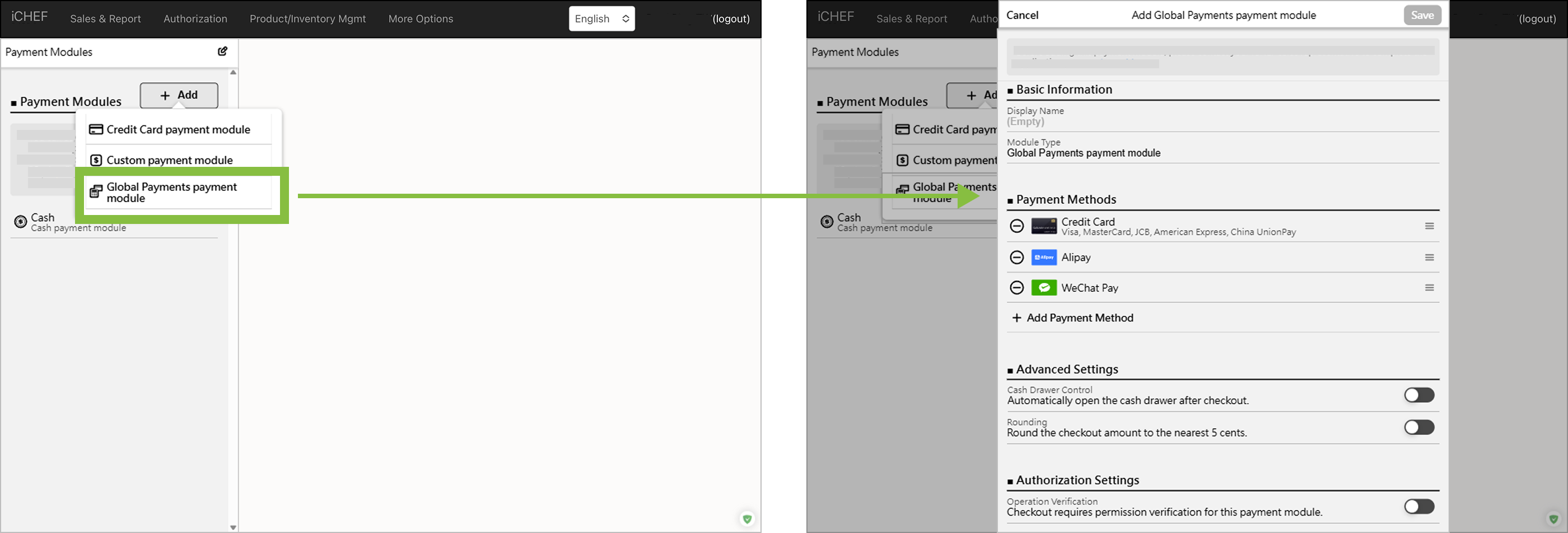
Display Name
Provide an easily recognizable name for the payment module. The custom name will be displayed on the POS checkout page, summary/closure process, and the backend sales reports.
Module Type
This is the system’s default payment module name and cannot be changed.
Payment Methods
The selected payment method will be displayed on the POS checkout page. Once a payment method is chosen, the system will automatically connect to the corresponding payment device and payment channel, ensuring a smooth checkout process.
Hong Kong Exclusive Payment Methods: “PayMe, Octopus Card”
PayMe and Octopus Card are only available for use in Hong Kong. When adding “PayMe,” you must enter the integration ID. If you have not received it or have lost it after applying, please contact Global Payments (contact information can be found on the back of the card reader).
Cash Drawer Control
This setting determines whether the cash drawer opens automatically after a consumer checks out using this payment module.
- On: Cash drawer opens automatically
- Off: Cash drawer does not open
Rounding (Applicable Region: Singapore)
During checkout, the system automatically recognizes the second decimal place and adjusts the amount according to the following rules to ensure it is closest to the nearest 5 cents. You can later check the adjusted amounts in the Checkout/Voided Record Report for easier management and verification.
Calculation Method
- If the second decimal place is 1 or 2: Deduct the corresponding amount to make the second decimal place 0.
- If the second decimal place is 3 or 4: Add the corresponding amount to make the second decimal place 5.
- If the second decimal place is 6 or 7: Deduct the corresponding amount to make the second decimal place 5.
- If the second decimal place is 8 or 9: Add the corresponding amount to make the second decimal place 0 and carry over to the first decimal place.
Calculation Examples
- Original checkout amount: 17.42. Afterrounding: Deduct 0.02, final checkout amount is 17.40.
- Original checkout amount: 12.89. After rounding: Add 0.01, final checkout amount is 12.90.
Operation Verification
Set that only authorized employees can use this payment module. This setting will be synchronized with accounts and permissions.Learn More
After adding, please log in to iCHEF POS with “Update Menu” and pair the card reader to start using it.
2. Pair Card Reader with iCHEF POS
When the checkout page displays the payment modules for Global Payments, you can start to connect the POS to your card reader.
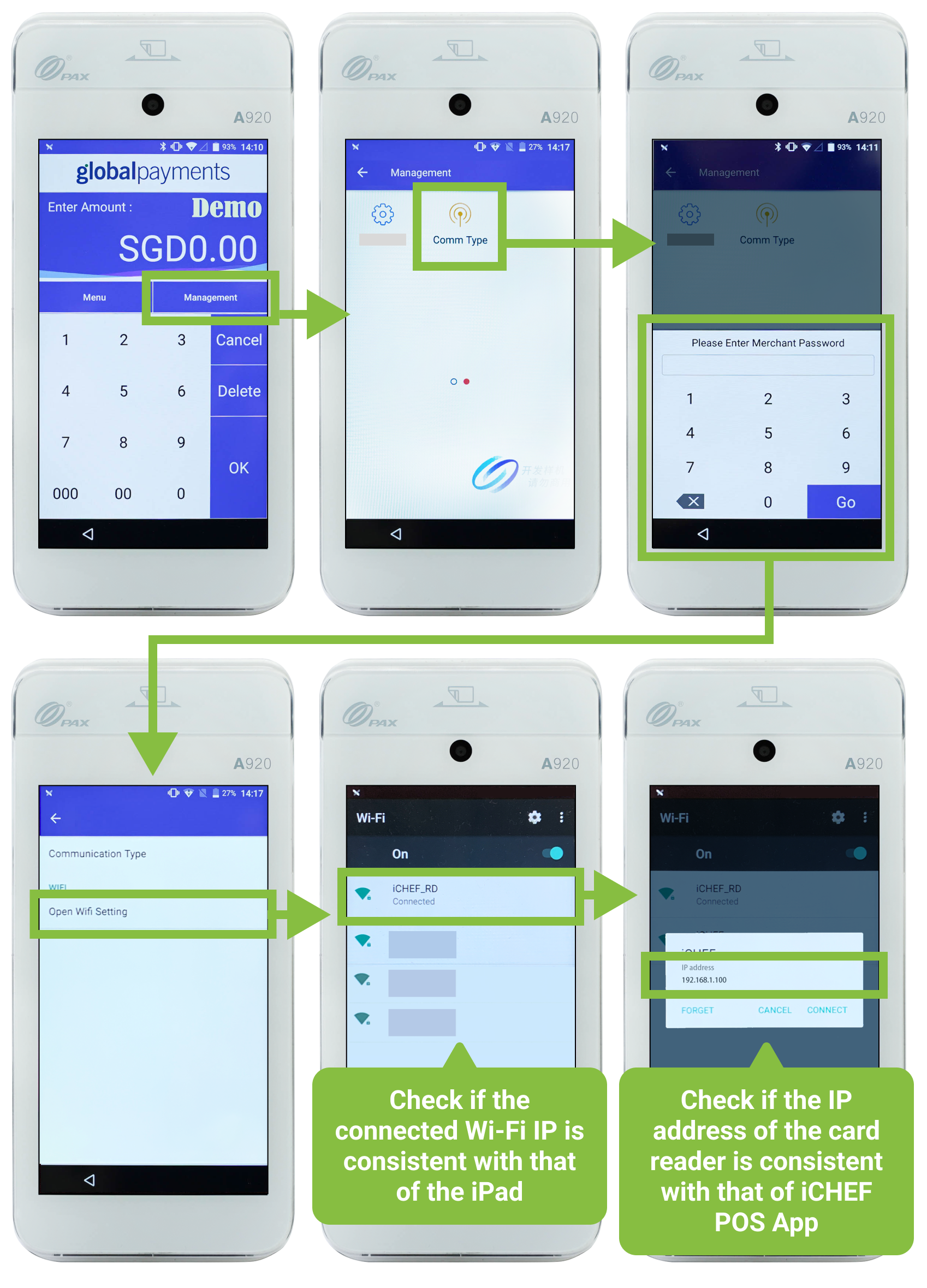
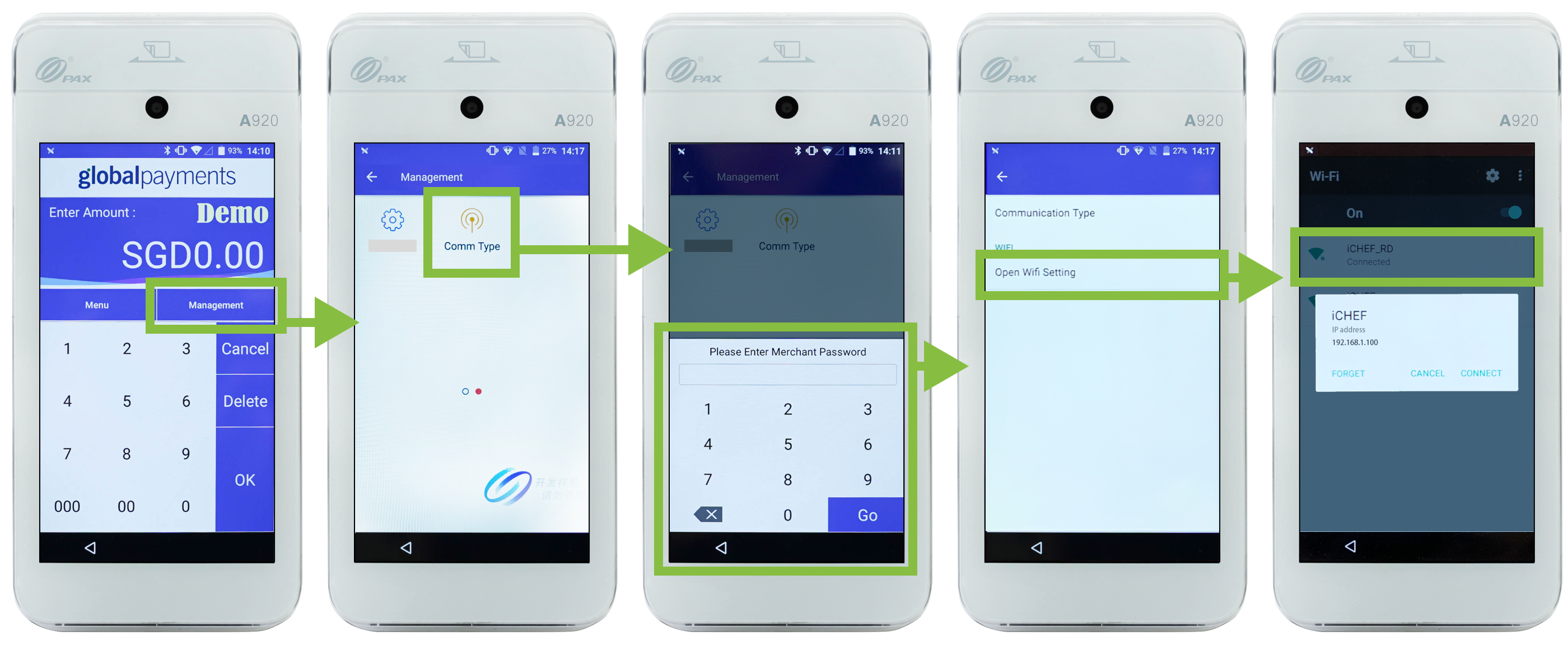
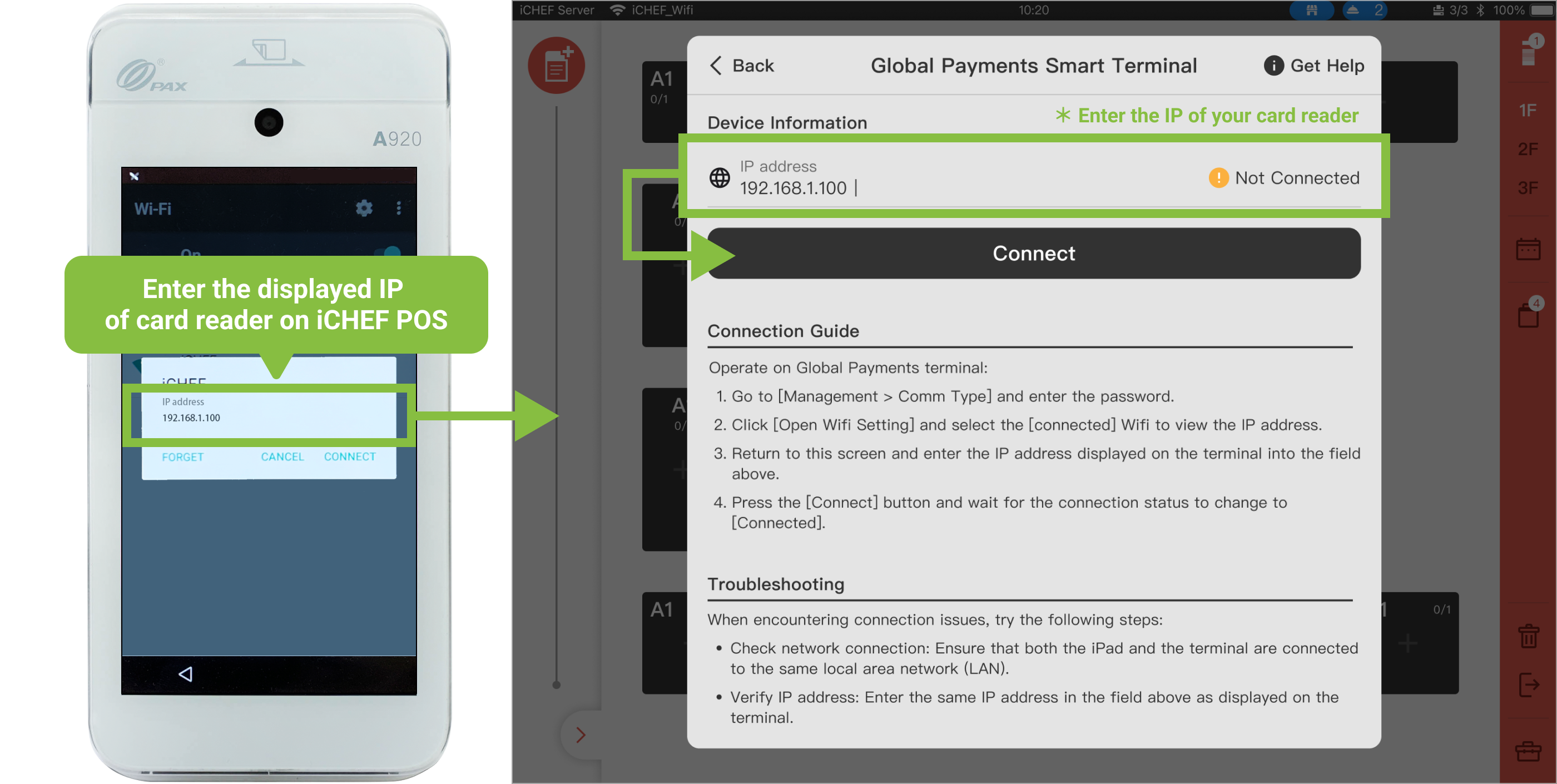
Step 1: Check the card reader’s IP
Operate on Global Payments terminal:
- Go to [Management > Comm Type] and enter the Merchant password.
- Click “Open Wifi Settings” and select the “Connected” Wi-Fi to view the IP address.
Step 2: Connect the card reader to iCHEF POS
➤ iCHEF POS App UI: [Toolbox] > [Device Management] > [mPOS Card Reader] > [Global Payments Smart Terminal]
- Enter the displayed IP address in the device information column.
- Press [Connect] and wait for the connection status to change to [Connected].
Connection Troubleshooting
Connection status and indication:
| Status | Indication |
|---|---|
 | iCHEF POS App is not connected with the card reader. |
 | iCHEF POS App is successfully connected with the card reader, and you can now use the card reader for checkout. |
 | Connection fail. Please check your network and IP address. |
If connection fails, please try the methods below:
- Check network connection: Ensure that both the iPad and the terminal are connected to the same local area network (LAN).
- Check IP address: The IP address entered in the connection column must be consistent with that of the card reader.
Check Steps:
- Go to [Management > Comm Type] and enter the Merchant password.
- Click [Open Wifi Setting]
- Check if the connected Wi-Fi IP is consistent with that of the iPad on which you install iCHEF POS App.
- Select the “Connected” Wi-Fi to check whether the IP address is the same as the iCHEF POS App connection setting.