
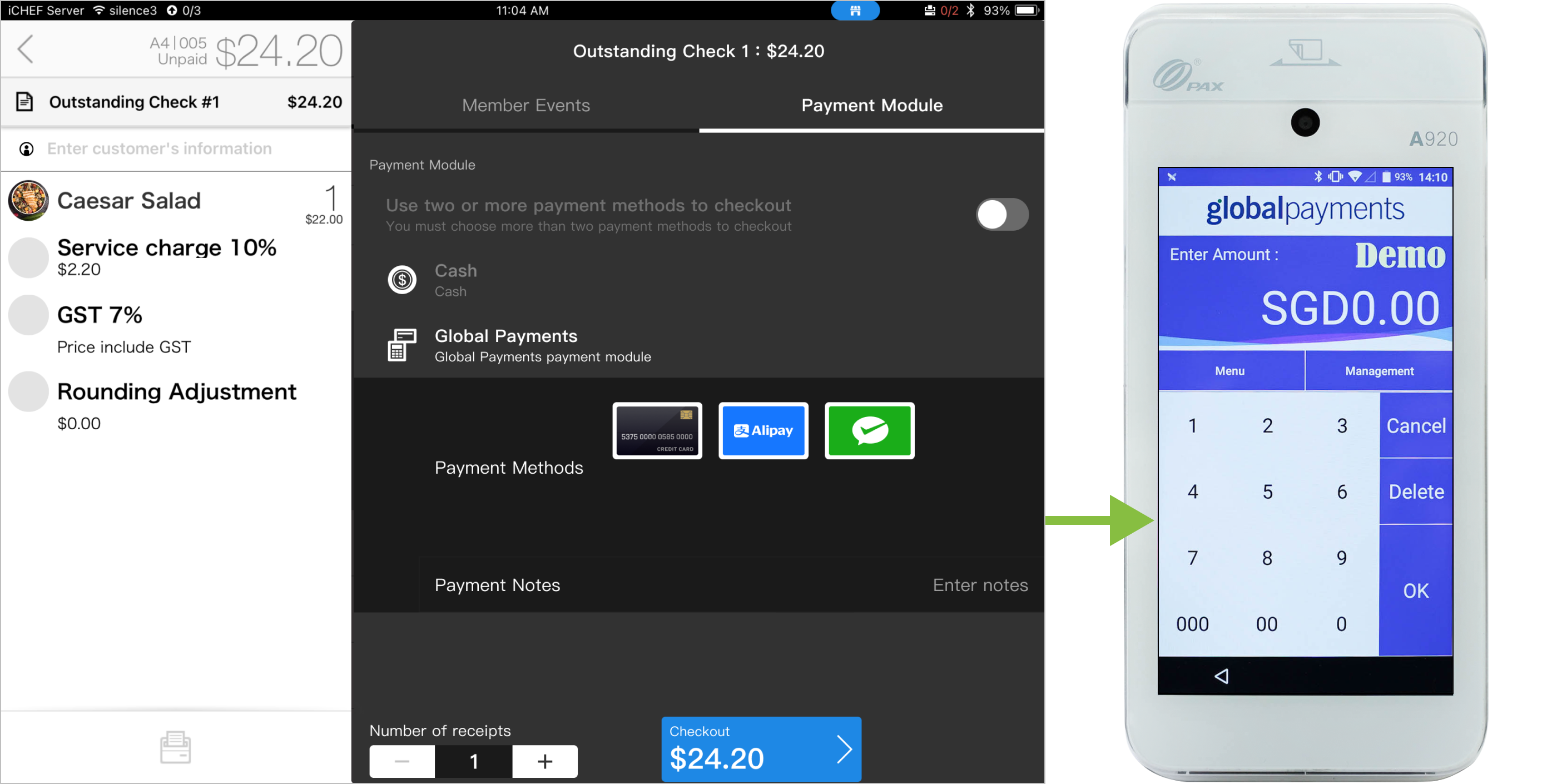
After connecting the card reader for Global Payments with iCHEF POS, you can select [Global Payments payment module] for checkout, and the card reader will enter the amount automatically and complete the process.
Notice
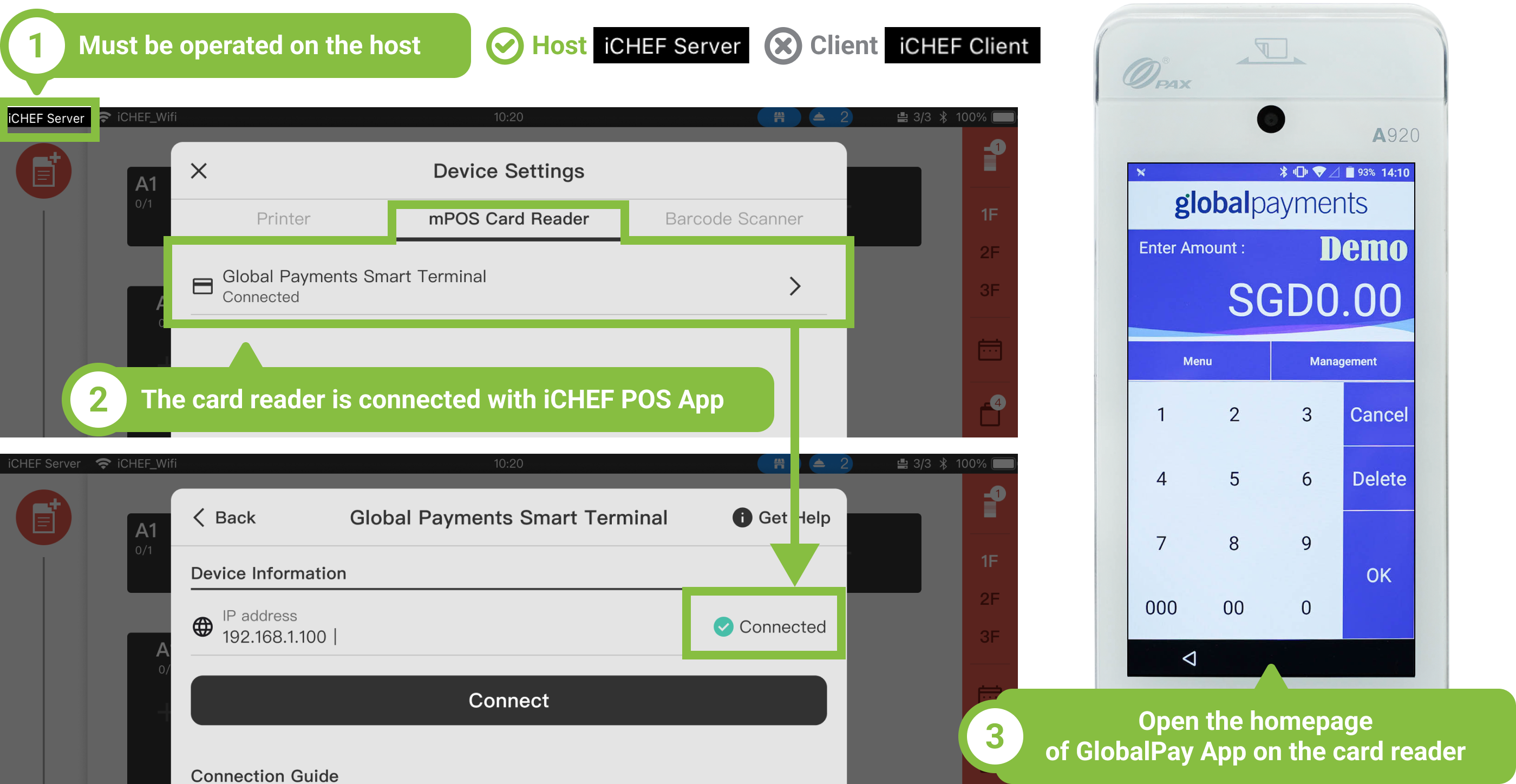
- iCHEF POS App must be operated on the iPad as the host.
- iCHEF POS App must be connected with the card reader.
- On Global Payments Smart Terminal, the homepage of GlobalPay App must be opened.
- Global Payments cannot be applied simultaneously with other payment platforms.
Checkout process
Step 1: Select Payment Module
In the checkout page, select [Global Payments Payment Module] under the tab of [Payment Module].

Step 2: Select Payment Method
Select the payment method desired by the customer and swipe the [Checkout] button, and the card reader for Global Payments will switch to the selected payment method automatically.
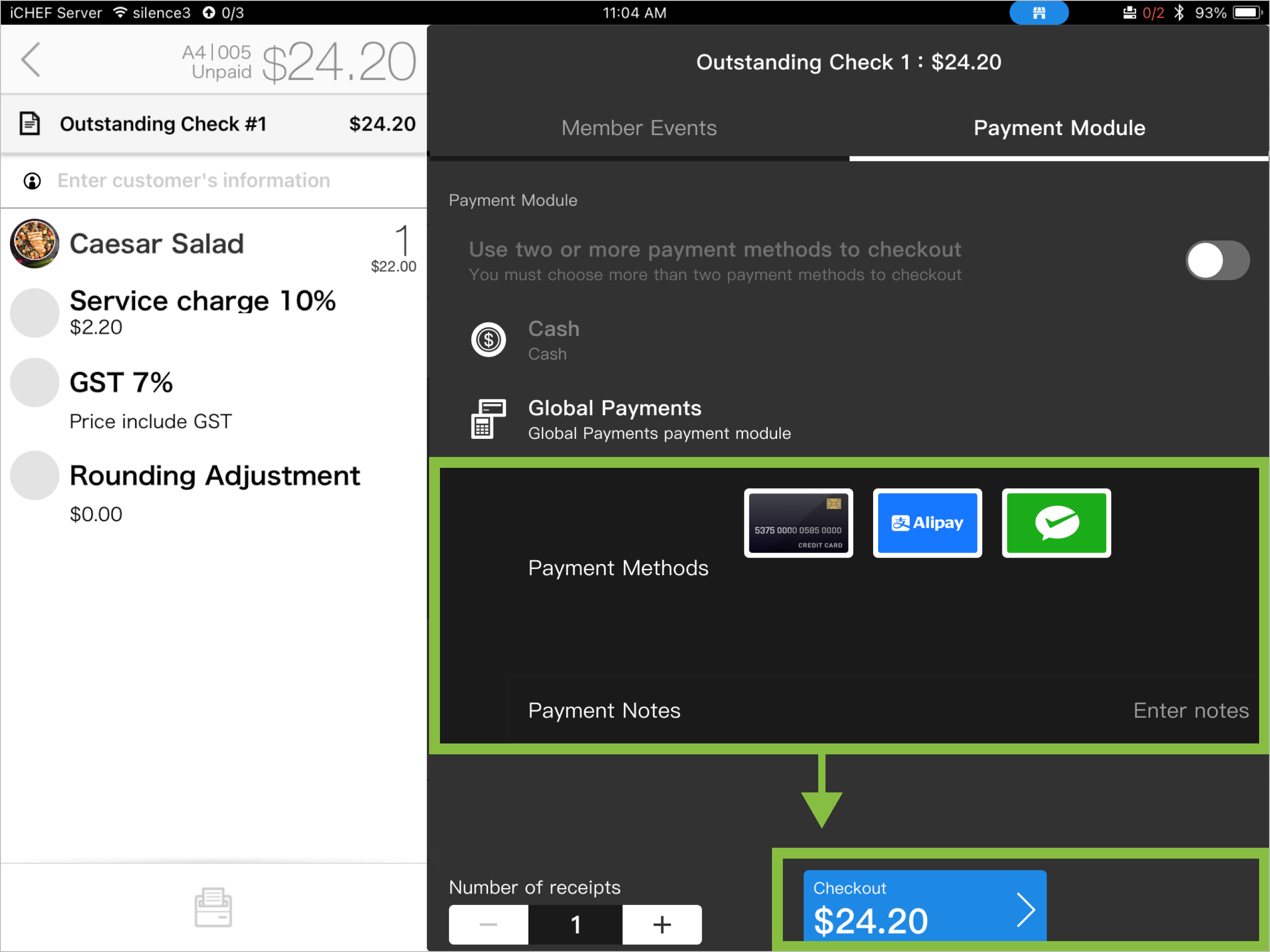
Illustration for the payment methods and operation
| Icon | Payment Methods / Regions | Hong Kong | Singapore | Operation |
|---|---|---|---|---|
 | Credit Card | ✓ | ✓ | Tap on, insert, swipe |
 | Alipay | ✓ | ✓ | Scan the payment barcode with the card reader’s camera |
 | WeChat Pay | ✓ | ✓ | Scan the payment barcode with the card reader’s camera |
 | PayMe | ✓ | Ask customers to scan the payment barcode shown on the card reader. | |
 | Octopus | ✓ | Ask customers to tap their cards or devices on the card reader. |
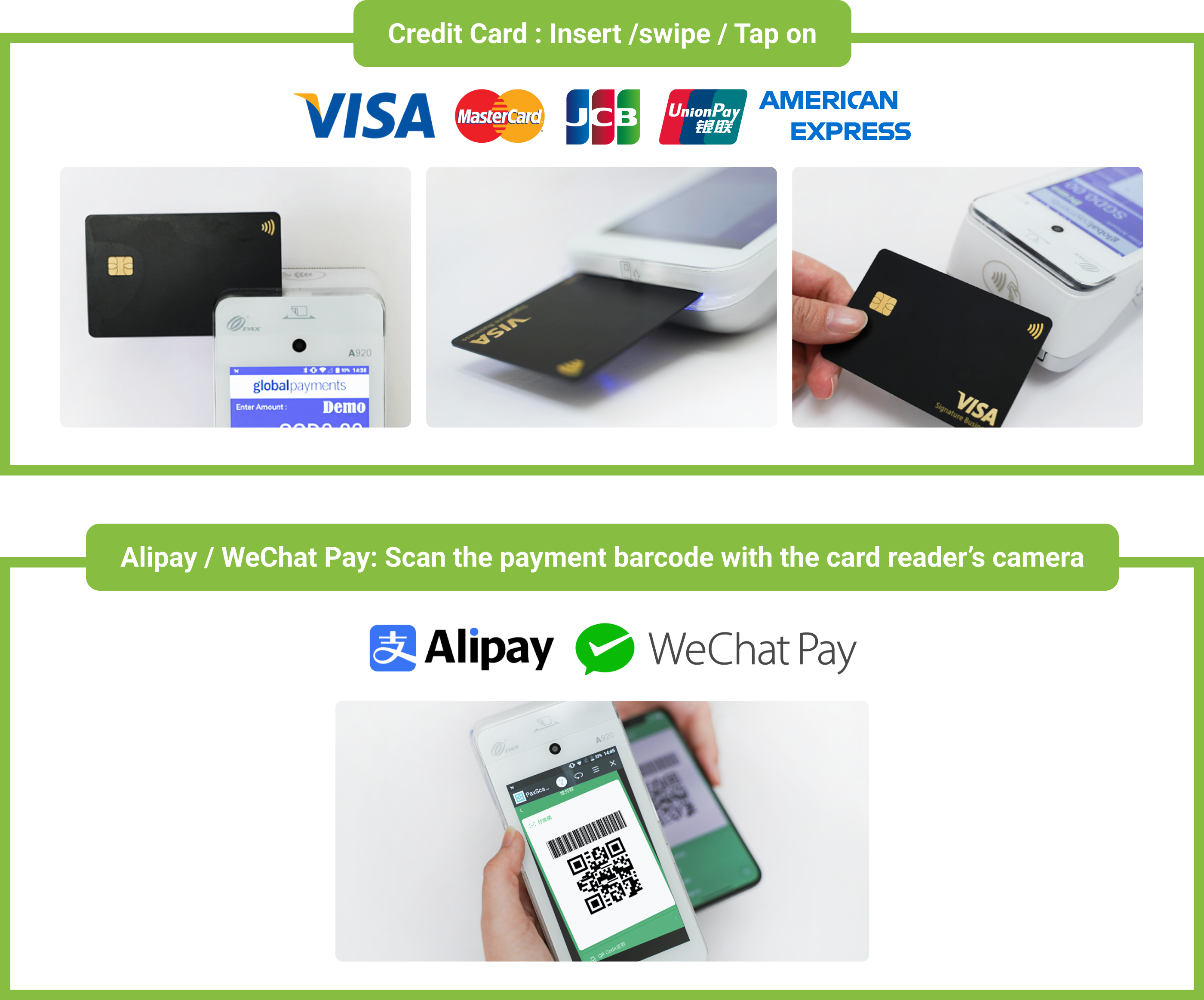
Please operate on the card reader. According to the operation corresponding to different payment method, tap the [X] or [◁] icon to cancel the transaction.

If the card reader is disconnected, please check the connection status or manually confirm the transaction.
Complete the checkout
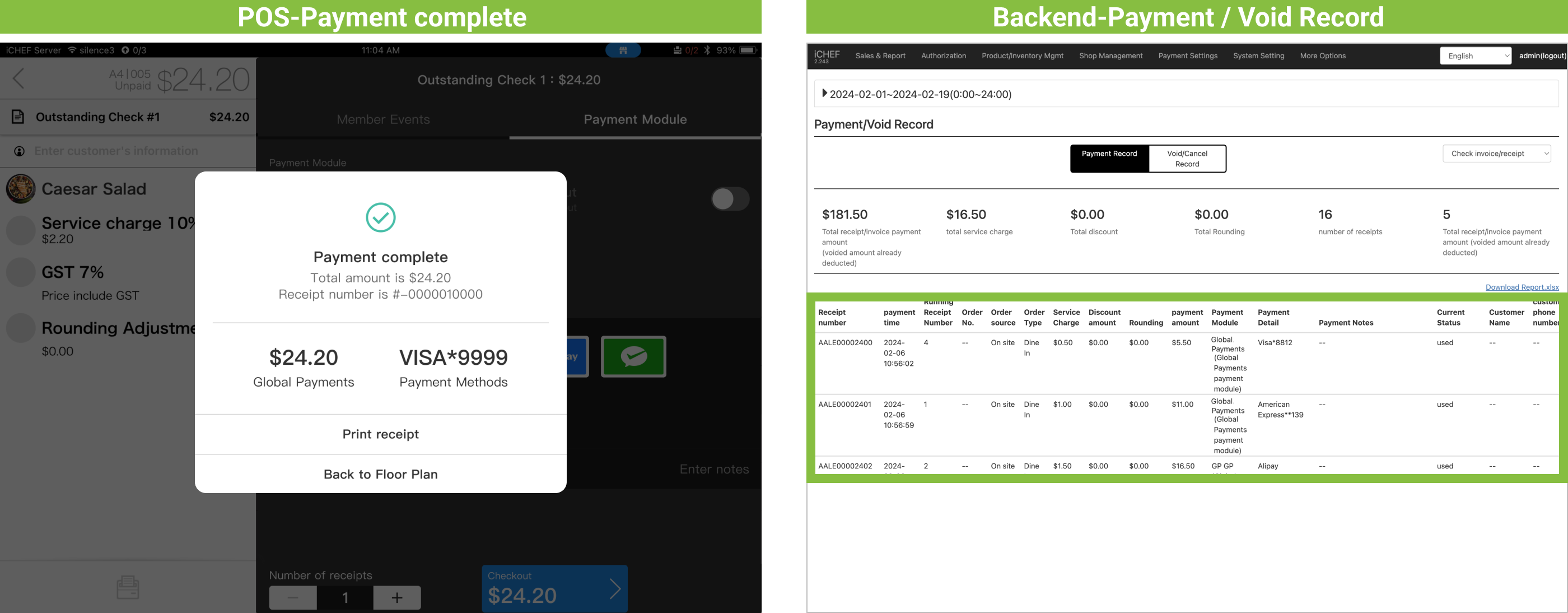
It is done when the message of “Checkout Completed” appears. The reports under [Payment / Void Record] in the backend will record it at the same time.
Refund the transaction
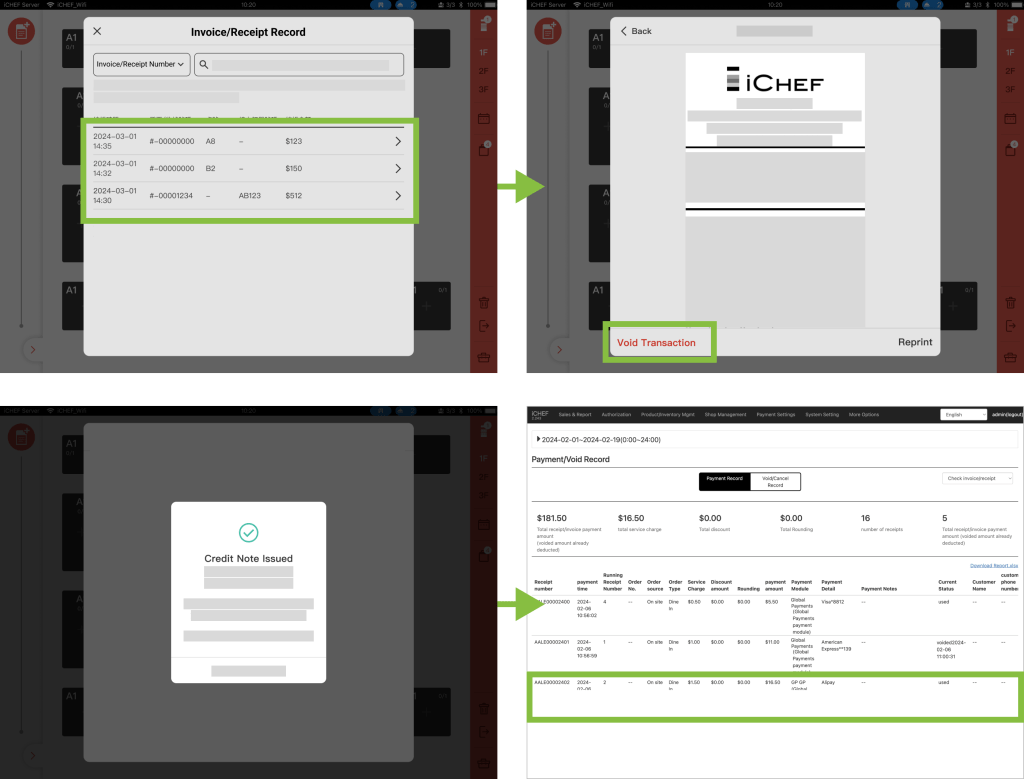
To refund the completed transaction, please have the original invoice at hand and follow the steps below:
➤ iCHEF POS App UI: [Toolbox] > [Transaction Enquiry and Voiding]
- Check the list of transaction records or search by entering the invoice/receipt number.
- In the invoice page, click [Void Transaction] and check the refund info.
- After the credit note is issued, the records in the report will be updated as [Voided].
If the following situations occur, please contact the customer service of Global Payments for refund:
– The transaction cannot be found on the card reader. (Possibly because shift closing for the card reader is completed.)
– The transaction was confirmed manually.
Check the instructions for manual refund / voiding