
When performing shift closing / daily closing on iCHEF POS App, you can check the actual payment amount to complete accounts tallying.
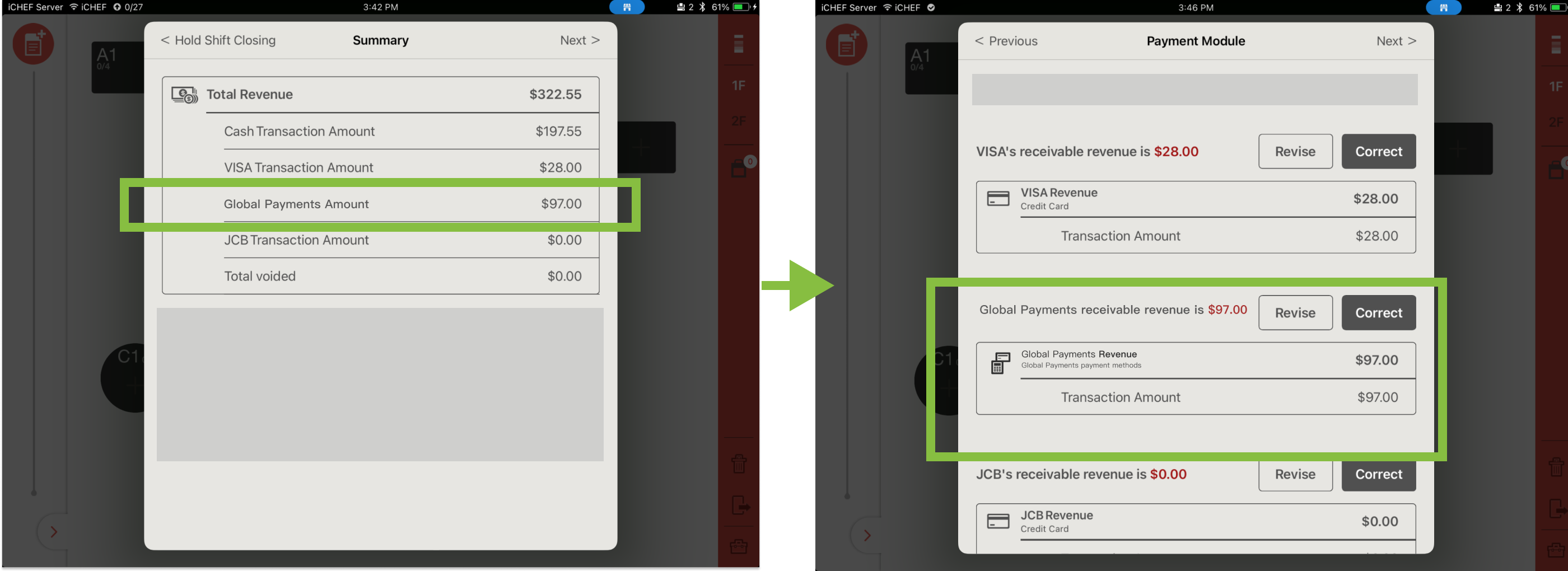
Check the revenue through Global Payments
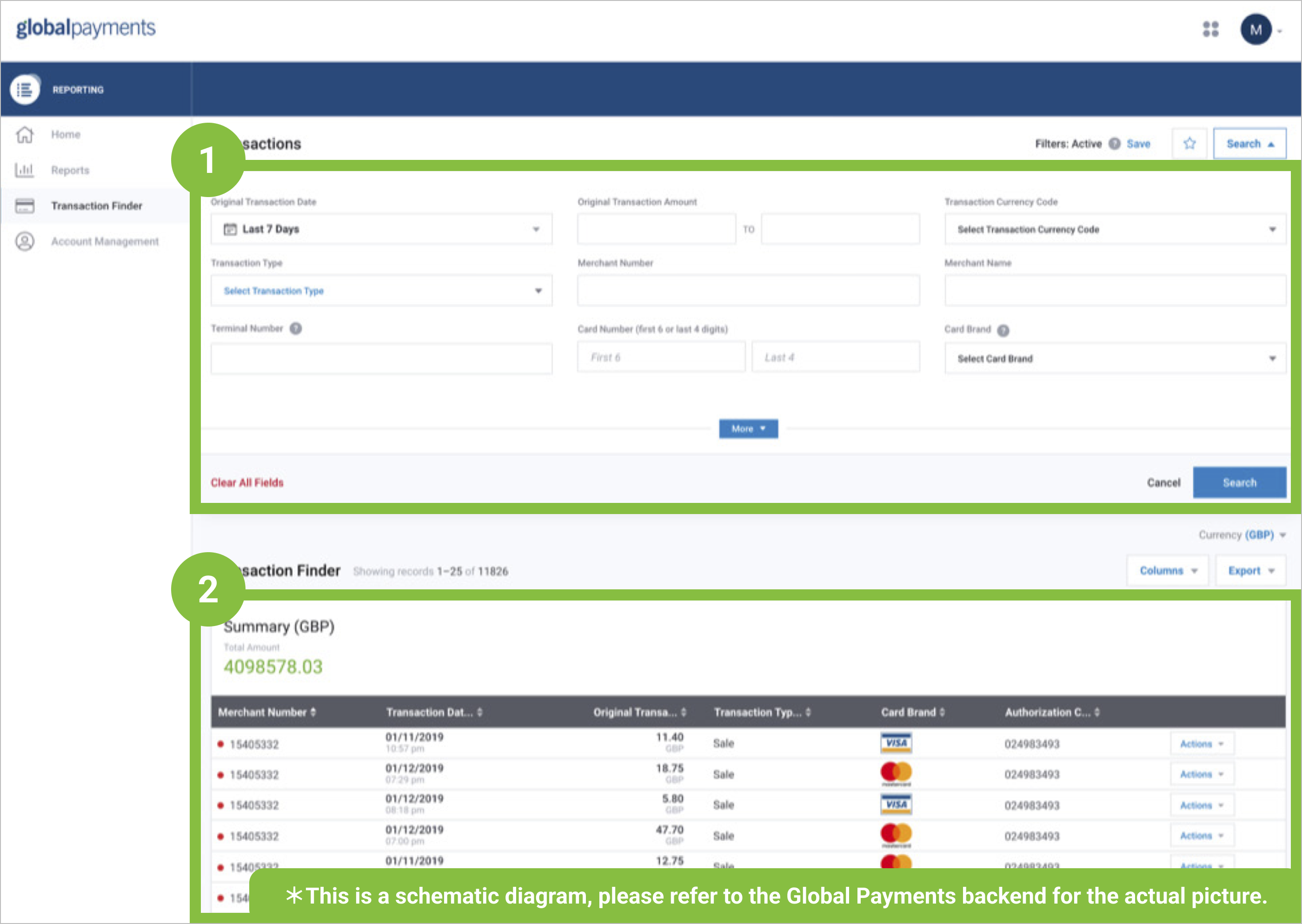
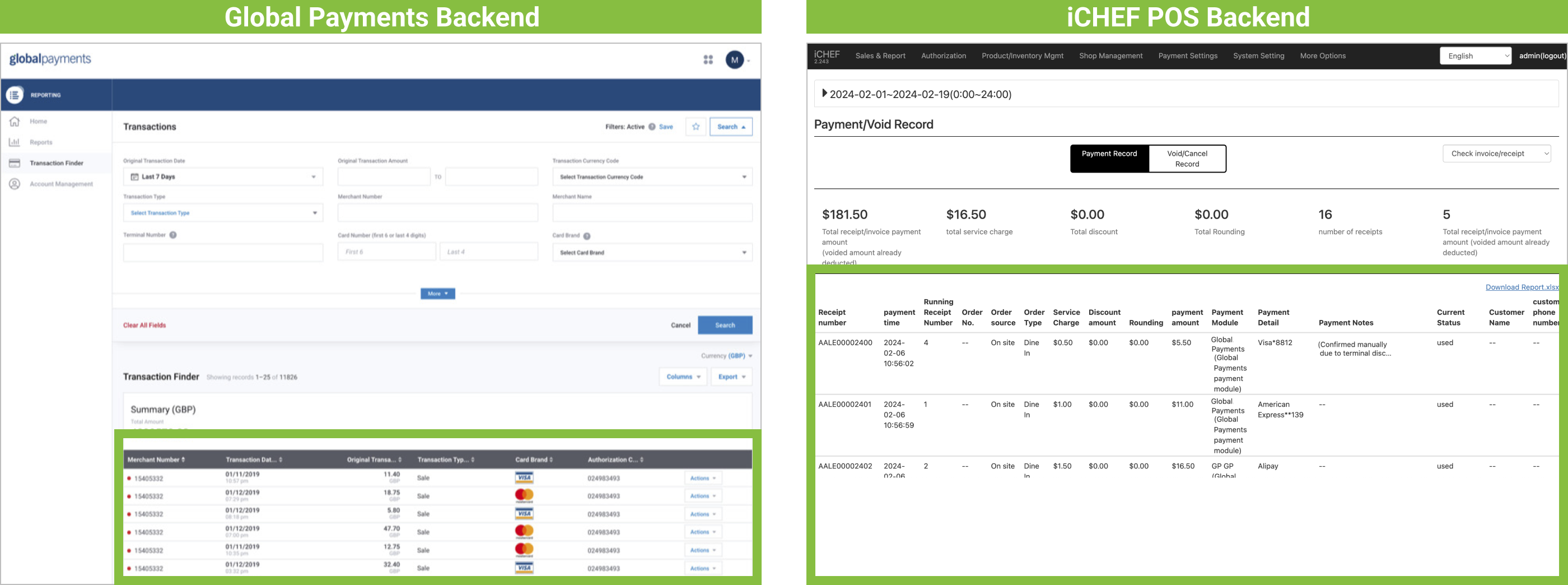
➤ Global Payments UI: Backend > Transaction Finder
- Step 1: Apply one or more of the filters and click [Search].
- Step 2: The system will show the total amount of the transactions that match the filters and the records.
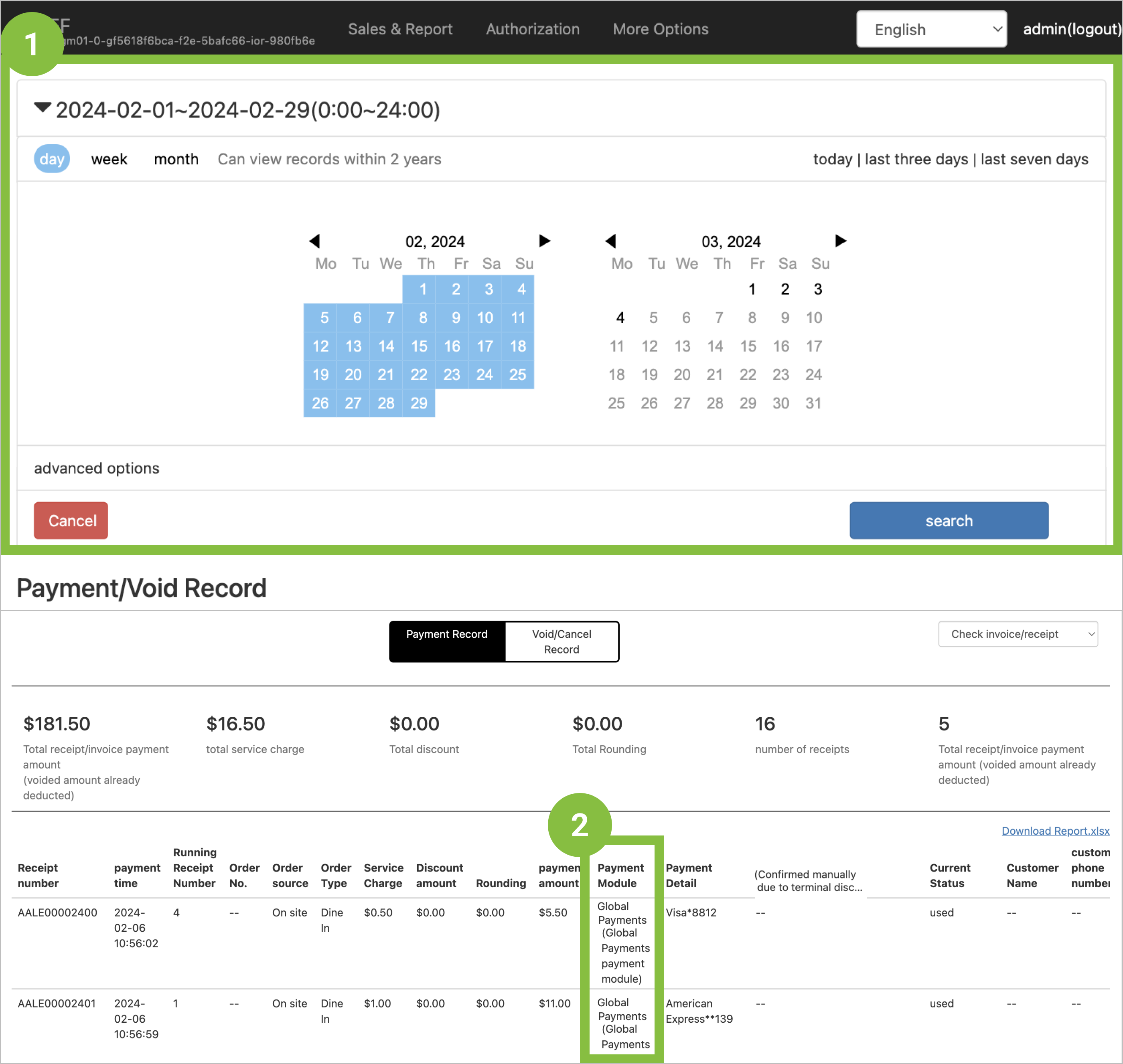
Check the revenue through iCHEF POS
➤ iCHEF POS UI: Backend > [Sales & Report] > [Voided Payment Records]
- Step 1: Apply one or more of the filters and click [Search].
- The system will show the total amount of the transactions that match the filters and the records. Please check the transactions processed through Global Payments as noted in the [Payment Module] column.
After completing the shift closing on iCHEF POS App, you can check the transaction summary of Global Payments in [Sales & Report] > [Revenue & Variance].
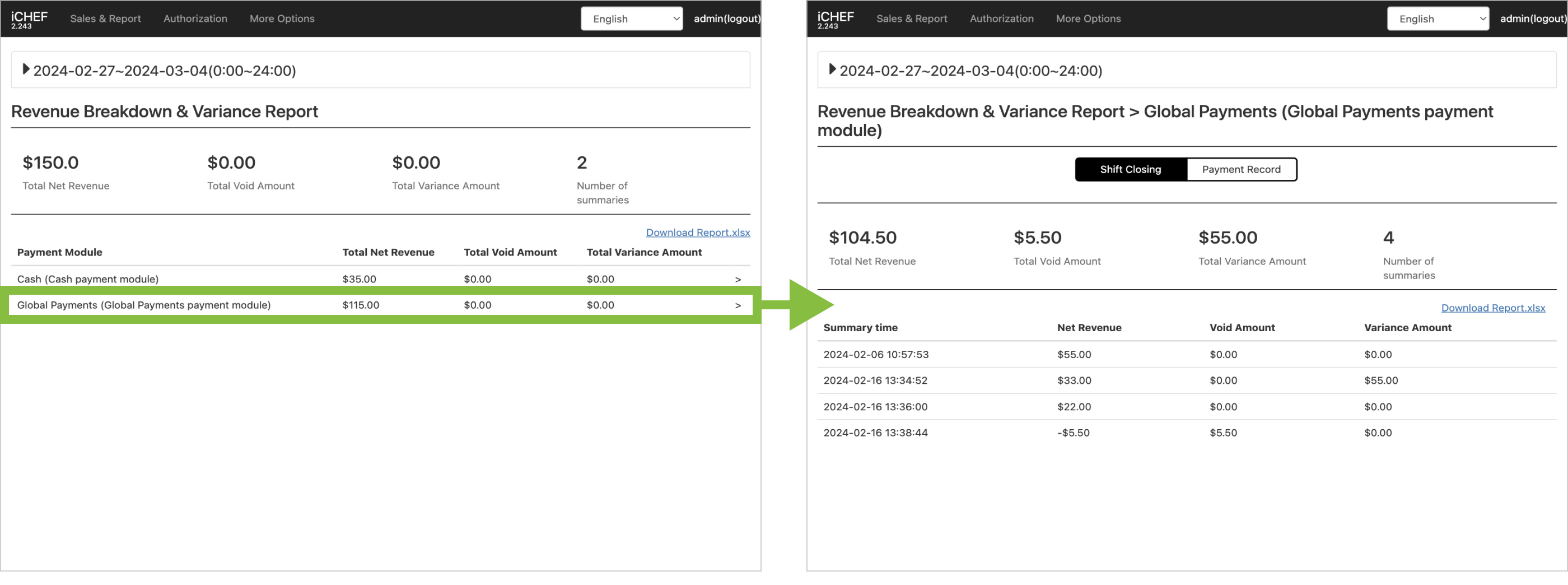
Check the variance
If there is any variance, please compare each of the transaction records in the backend of Global Payments with that in the backend of iCHEF POS.
Reminder: Please balance the account of the day through Global Payments Smart Terminal after the daily closing.
After you balance the account, Global Payments will remit the money to your store’s bank account. (The transfer requires 1 working day for HSBC accounts
and 2 working days for other bank accounts.)