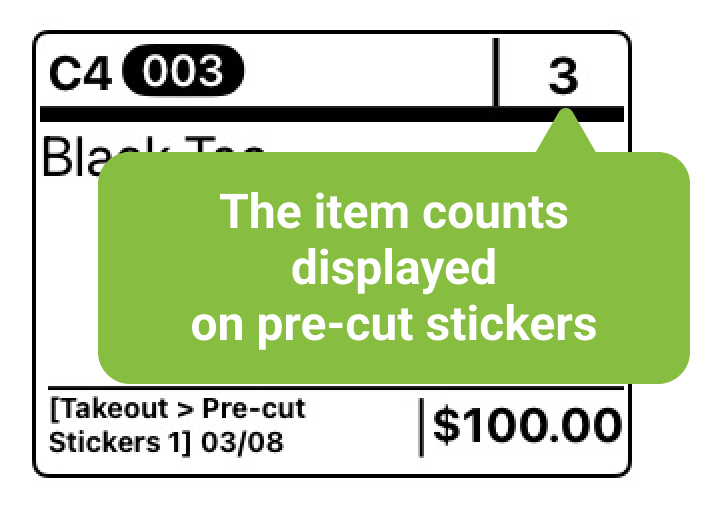
When creating orders and processing checkout on iCHEF POS, you can view the counts of menu items and set menus directly in the screen, checking the order details with customers in a convenient and labor-saving way!

Enable the display of item counts
Set up items in the backend
➤Backend location: Products/Inventory Management > Product Management > Total Quantity Settings
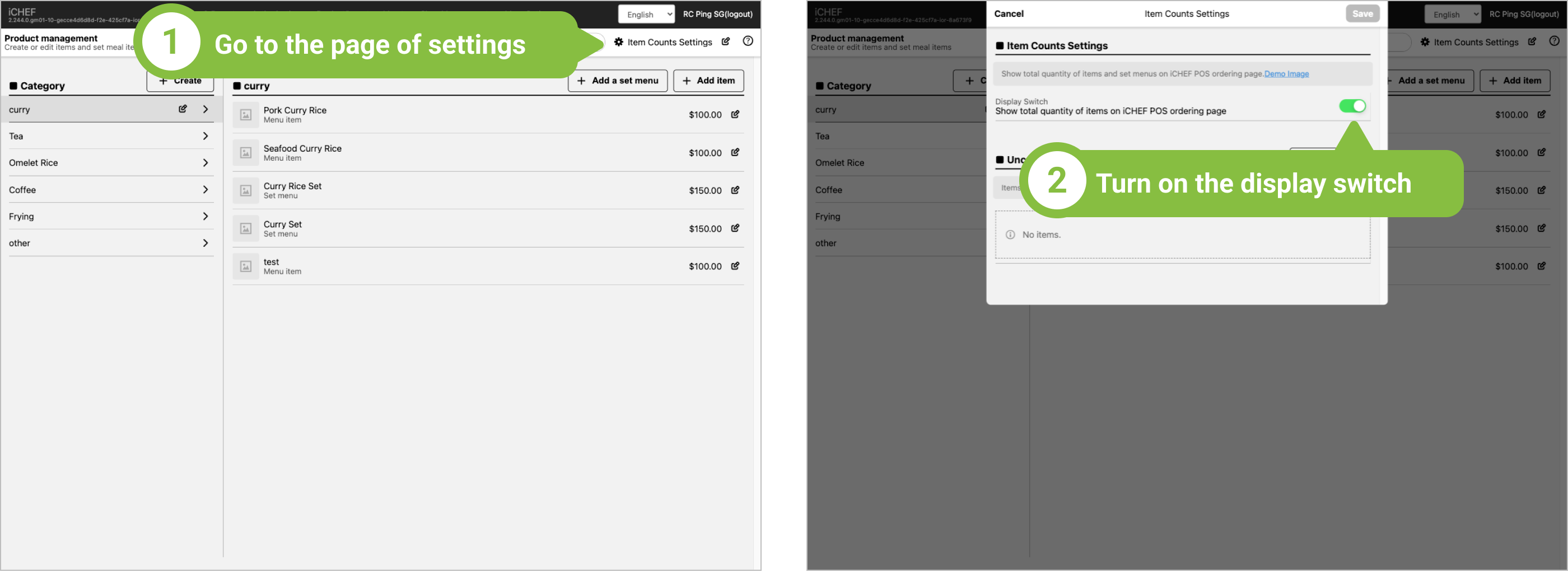
Step 1: Turn on the display switch.
Go to [Item Counts Settings] and turn on [Display Switch].
Step 2: Add uncounted items
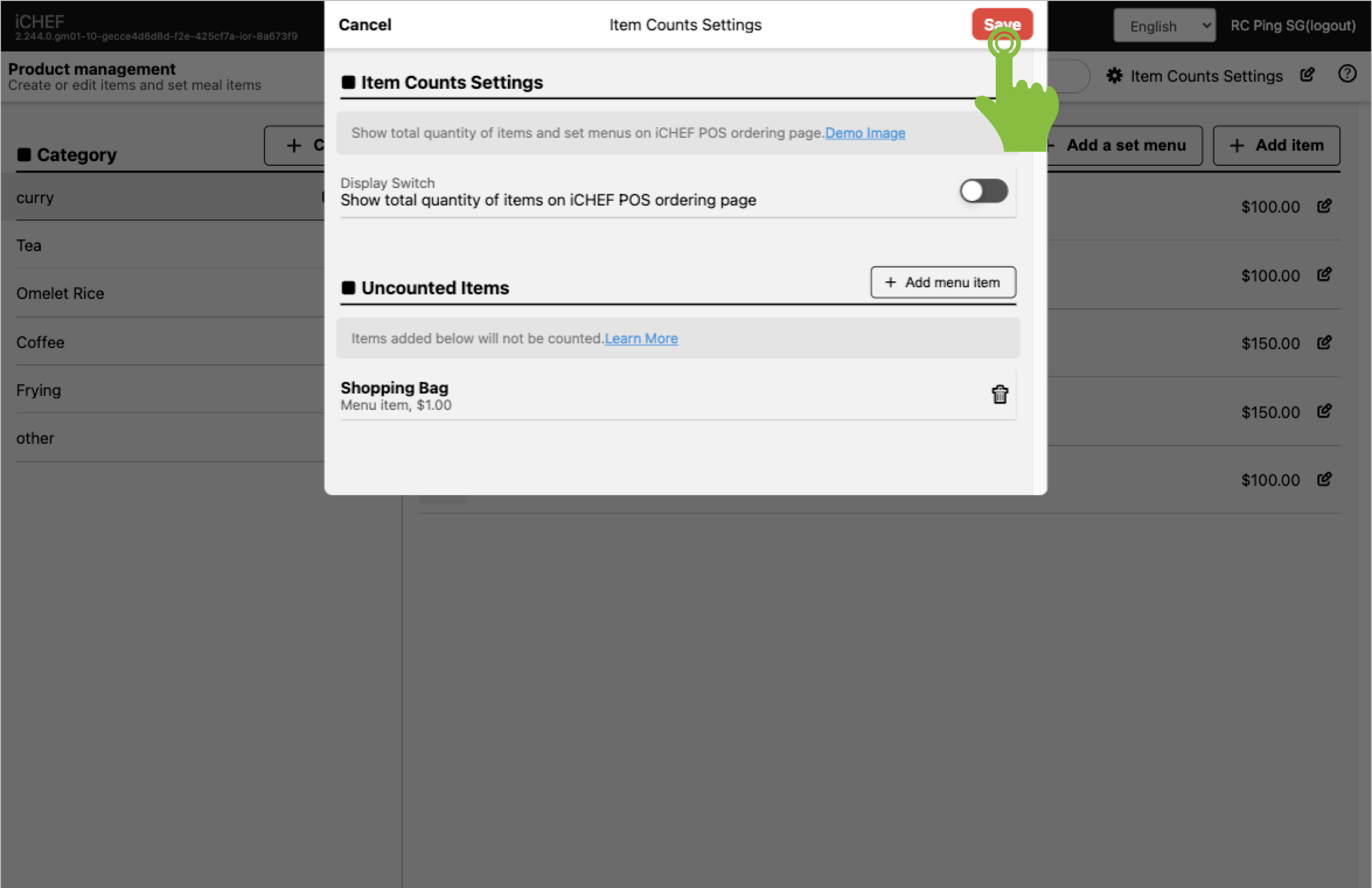
The items counts are calculated by the menu items and set menus. If there are items that do not need to be counted, such as plastic bags and disposable tableware, you can add them to the uncounted items.

For example, after you set the bags as one of the uncounted items, the system will not include the number of bags when calculating total items.

Step 3: Save the settings.
Click [Save] to complete the settings in the backend.
POS 套用新設定檔
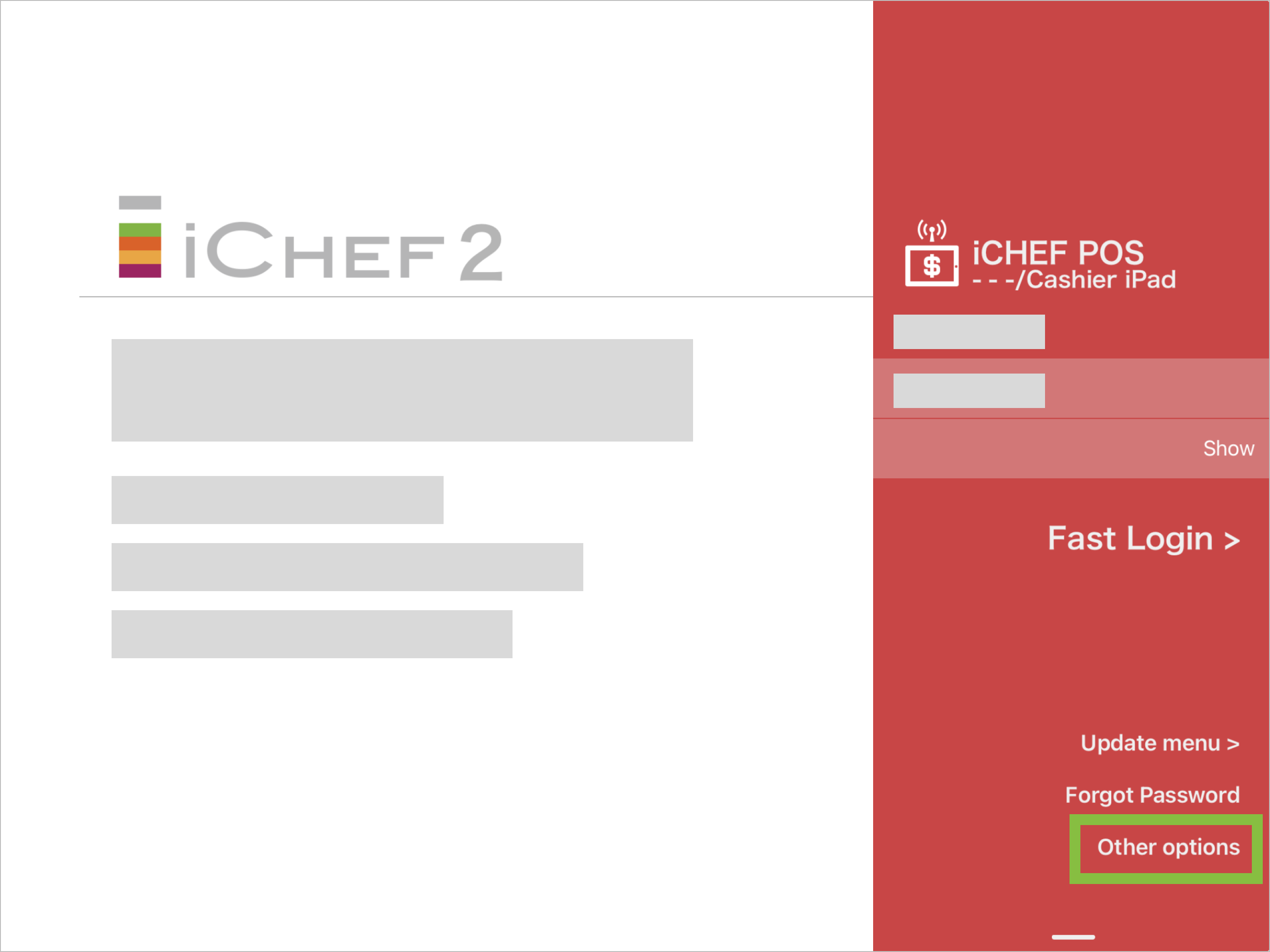
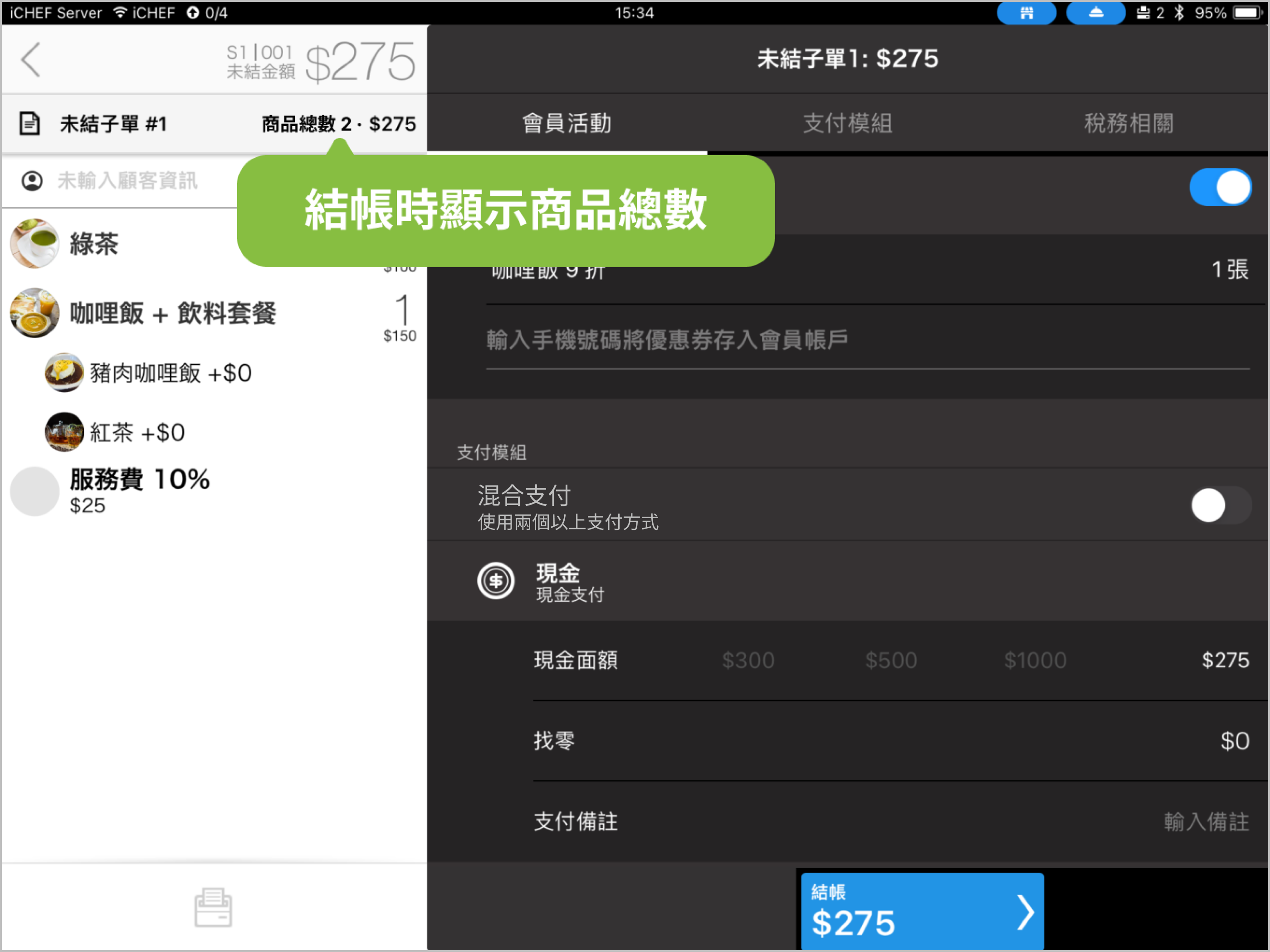
Update menu on the iCHEF POS APP of your store, and you can view the item counts in the pages of ordering and checkout.
Other tips
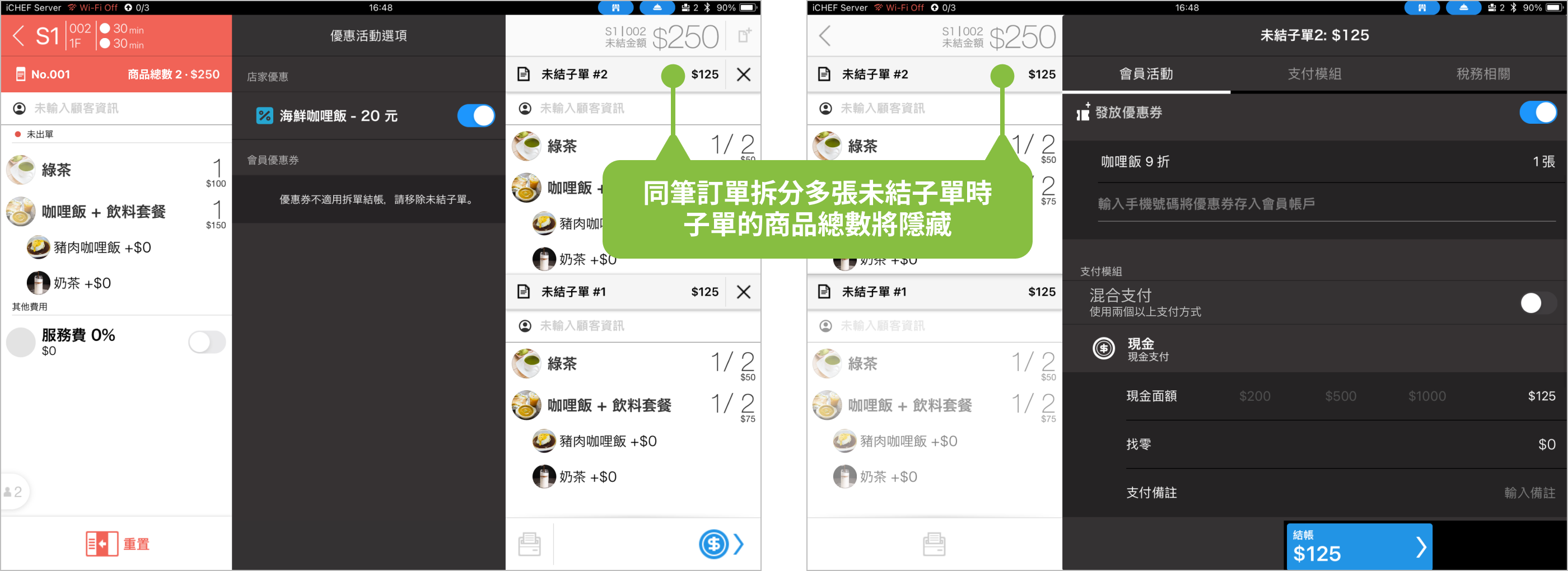
If an order is divided into several checks (splitting the bill or adding items after checkout), the item counts will not be displayed on the checks.
When using GoDEX printer to print the pre-cut stickers, the order’s item counts are marked on the top right corner of the sticker for your staff to collect items more efficiently.
When using GoDEX printer to print the pre-cut stickers, the order’s item counts are marked on the top right corner of the sticker for your staff to collect items more efficiently.You can also set up the uncounted items for the pre-cut stickers printed by GoDEX. However, this function will not be synced with the settings of item counts display on iCHEF POS.