
[Dynamic QR Code] for Mobile Ordering (Dine-in) is unique to each customer group and supports ordering across multiple devices. The iCHEF POS App will generate and print it after a dine-in order is created.
The QR Code expires after checkout, so you don’t have to worry about malicious ordering or wrong ordering by other groups of customers.

Please update iCHEF POS to the latest version on the App Store, and then [Update Menu] to use “Dynamic QR Code”.
Print dynamic QR Code after accepting orders
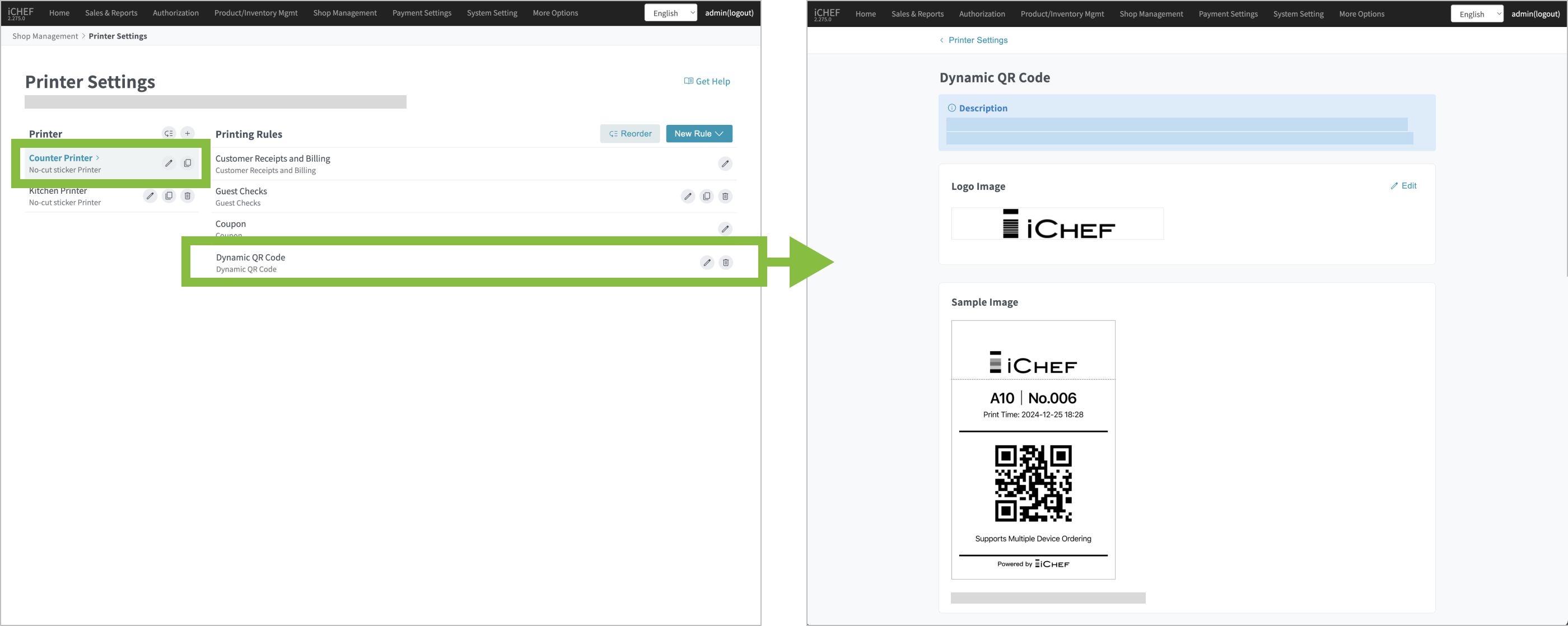
After you activate the function of Mobile Ordering (Dine-in), the settings of [Dynamic QR Code] will be automatically added to the default printer which is not deletable under [Shop Management] > [Printer Settings] .
After a dine-in order is created, you can print the dynamic QR Code for customers to scan and order items!
Manual Print
After updating the version of your POS and the menu, you can manually print the dynamic QR Code by clicking the […] icon in the bottom-left corner on the ordering page and select [Print Dynamic QR Code].
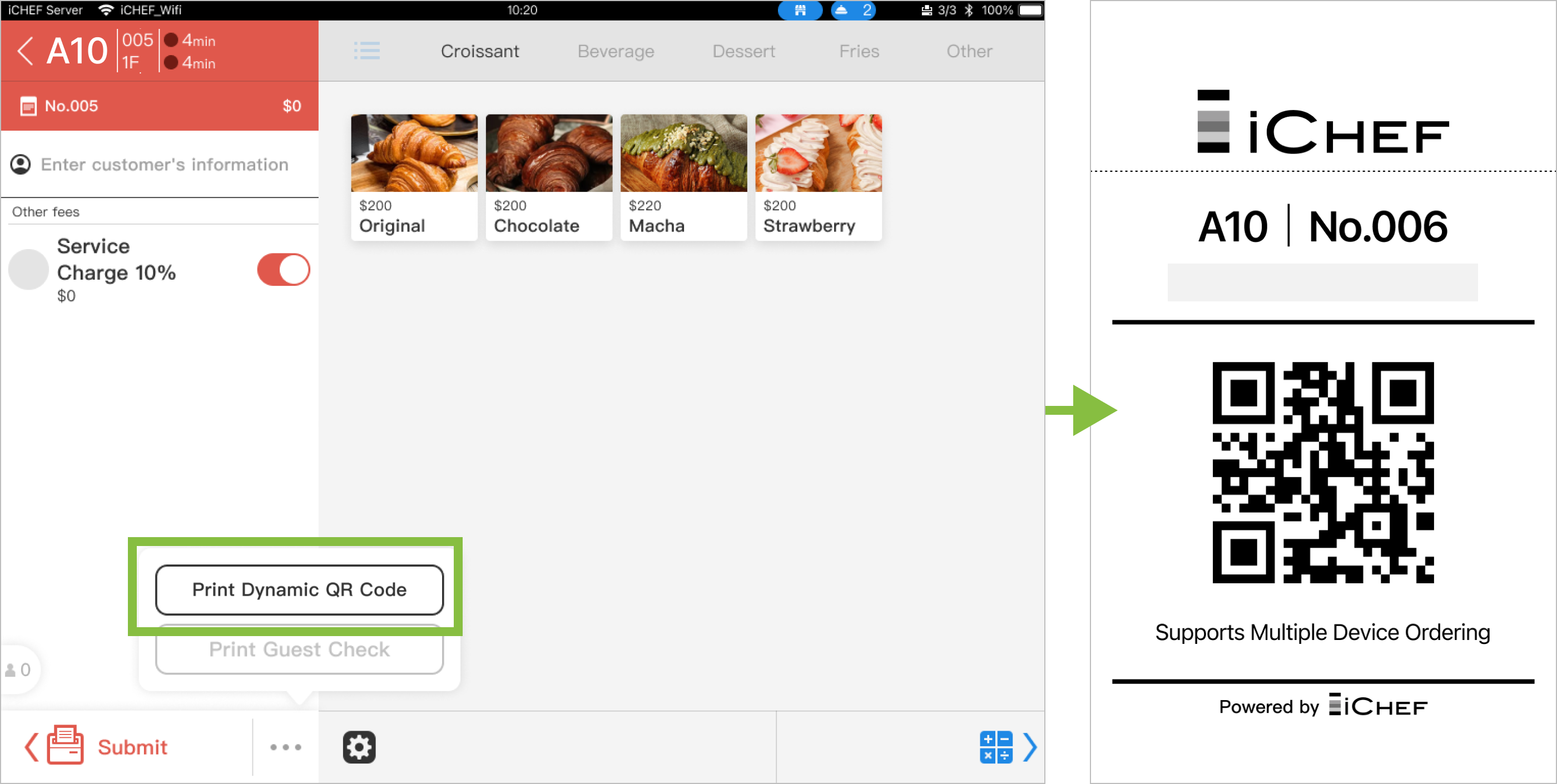
If customers accidently ruin or lose the dynamic QR Code, you can print it again in the same way. The system will not create another order under such circumstances.
Auto Print
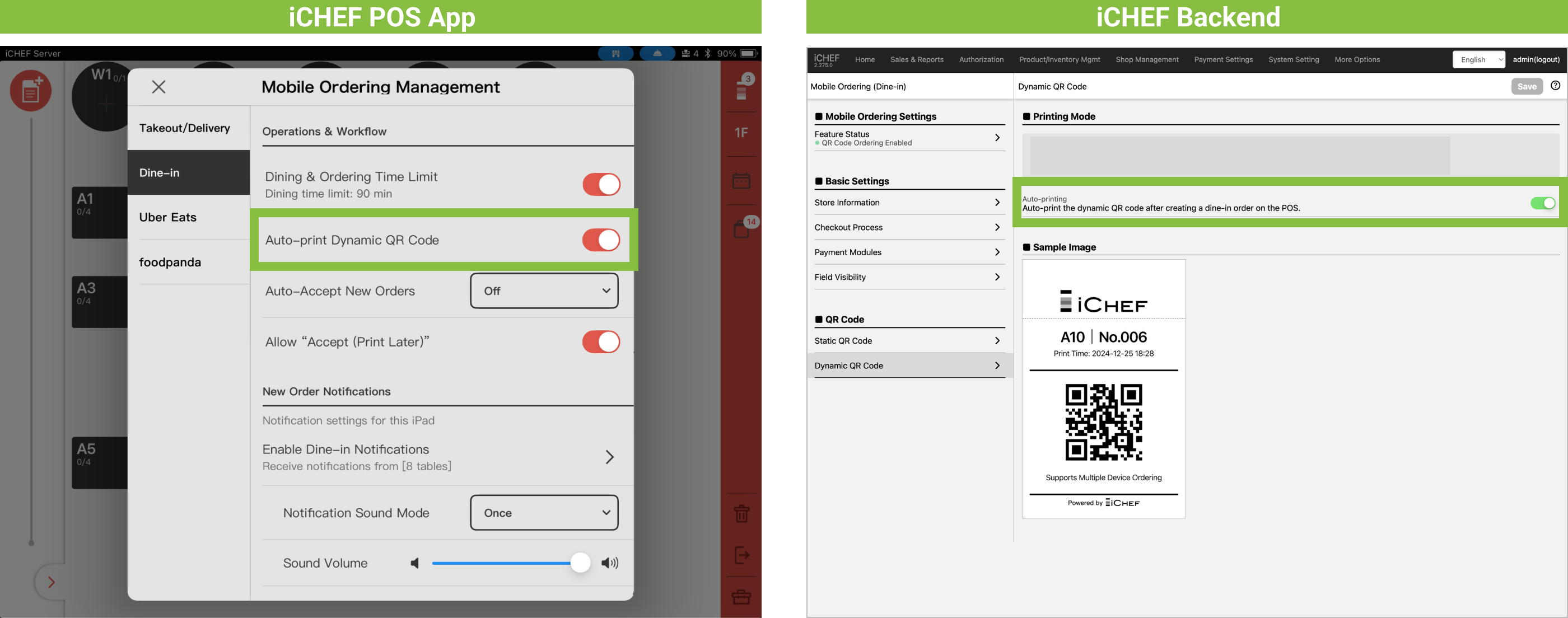
This function can be enabled on iCHEF POS App or in iCHEF’s backend. In this way, the system will generate and print a dynamic QR Code accordingly after a dine-in order is created, saving the time for manual print and facilitating your business operation!
➤ iCHEF POS App: [Toolbox] > [Mobile Ordering Management] > [Online Store – Mobile Ordering]
➤ iCHEF Backend: [Online Store] > [Mobile Ordering (Dine-in)]> [Dynamic QR Code]
Steps:
- Select the desired printer.
- Add a new rule.
- Select [Dynamic QR Code].

You have to add the settings of [Dynamic QR Code] to at least one printer to print the dynamic QR Code, and the selected printers must be no-cut sticker printer.
After the setup is complete, please [Update Menu] on the iCHEF POS App. You can then go to [Toolbox] > [Device Setting] to pair the receipt printer.

Exclusive order for each group of customers
The dynamic QR Code is exclusive for each group of customers and will expire after checkout. No matter the customers scan the QR Code, place order or order additional items with how many devices, all of the content will be merged to the same order.
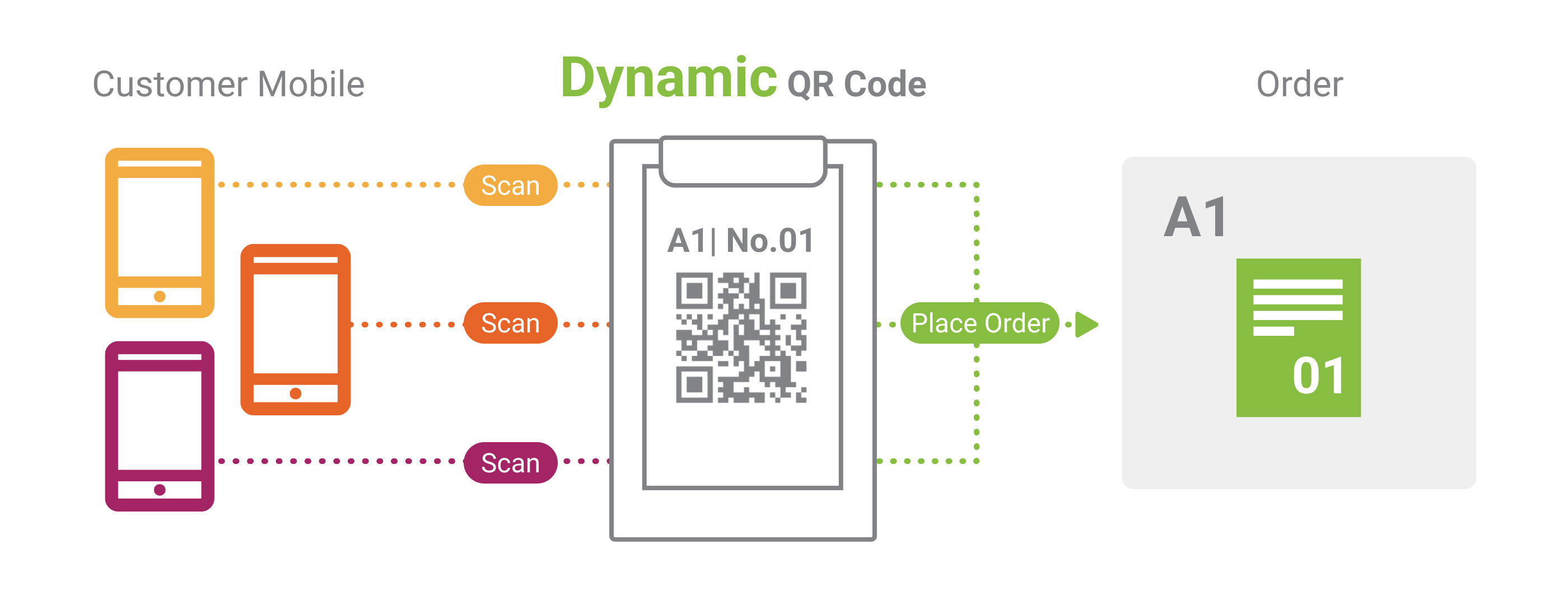
Multiple Device Ordering
The customers can type in their nicknames while ordering and see what others order, enjoying the special and fun interaction brought by mobile ordering via dynamic QR Code. (More about Customer Operation)

| Static QR Code | Order QR Code | |
|---|---|---|
| Form | Table card | Receipt |
| Instruction | It can be placed on the table for different groups of customers to scan and place orders. | It is exclusive for each group of customers. |
| How to print | iCHEF will generate a static QR Code for specific table from the backend. Download and print it, and then place it on the table. | iCHEF POS App will generate a dynamic QR Code accordingly after a dine-in order is created. Print it directly with the printer in your restaurant. |