
Want to leave a strong impression on your customers and increase brand exposure? As an iCHEF user, you absolutely cannot miss the 3 free features that are easy to manage!

❶ Take your brand with your customers
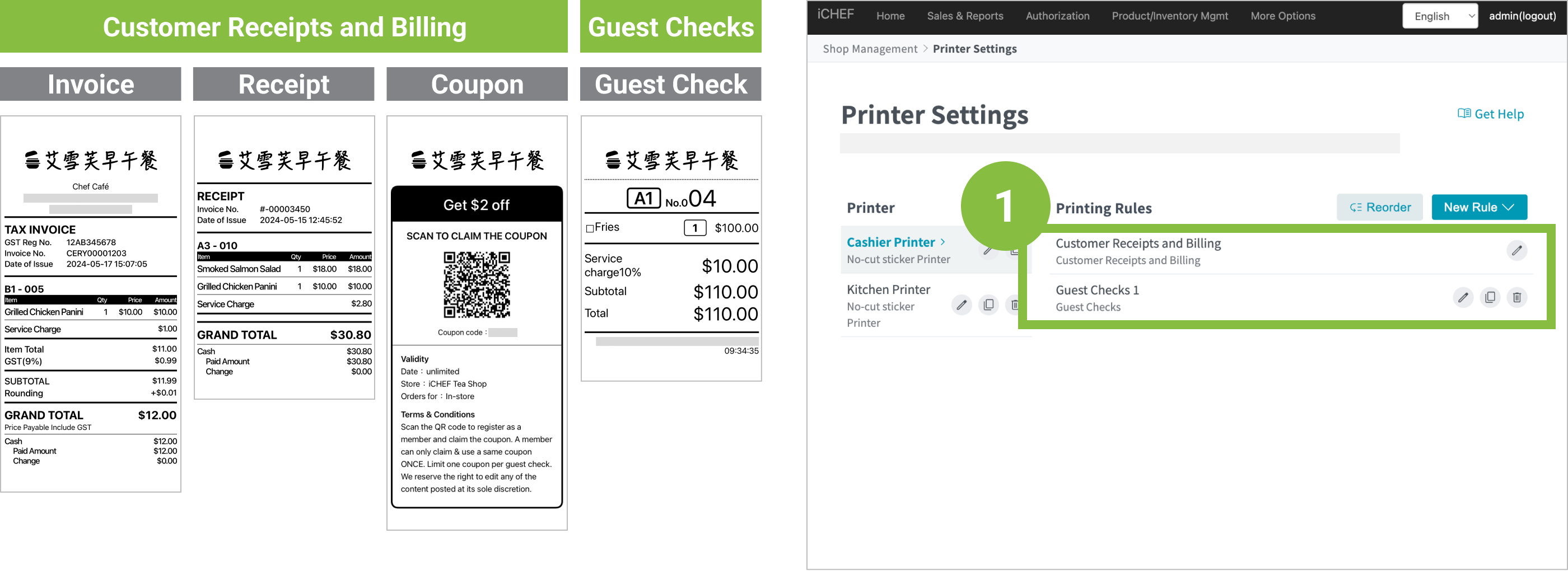
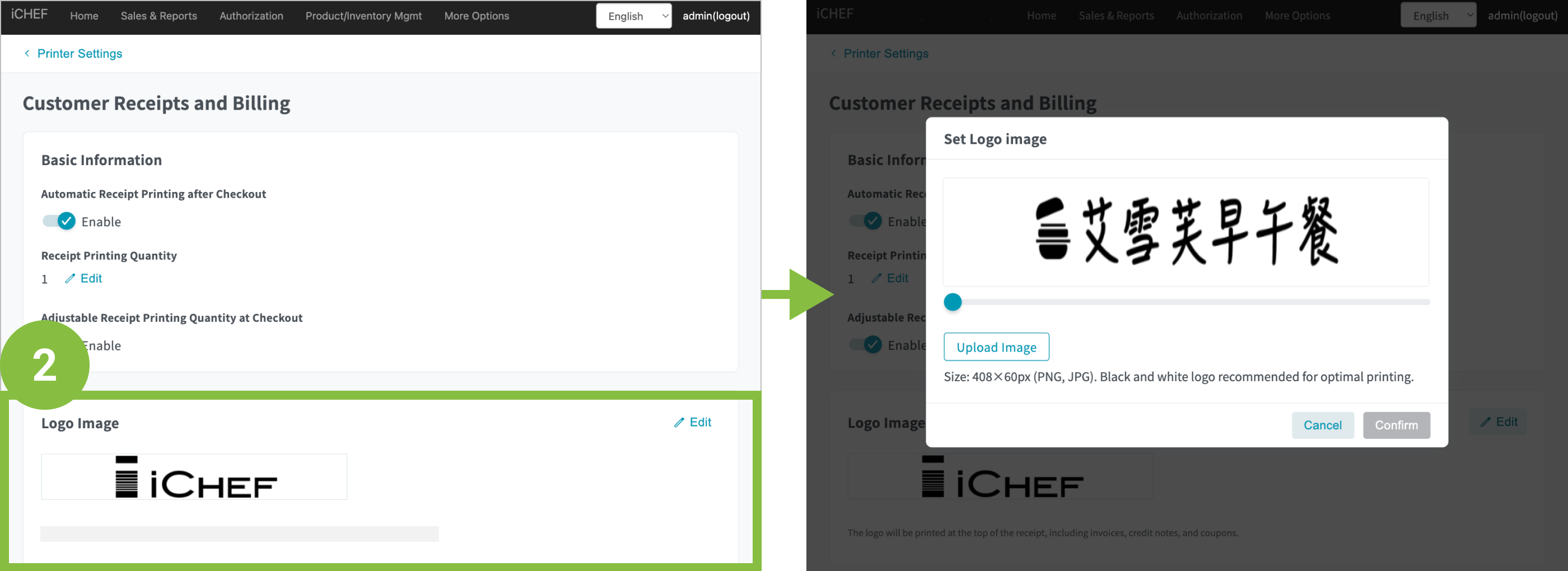
The headers of receipts, coupons and customer copies can all be replaced with your logo! This feature not only makes it easier for customers to recognize your brand, but also turns these invoices into a walking advertisement.
➤ Enable this function in 3 steps:
- Go to the backend and find [Store Management] > [Printer Settings] , and select the rule you want to adjust.
- Click [Edit] under [Logo Image], upload a Logo file and click [Save].
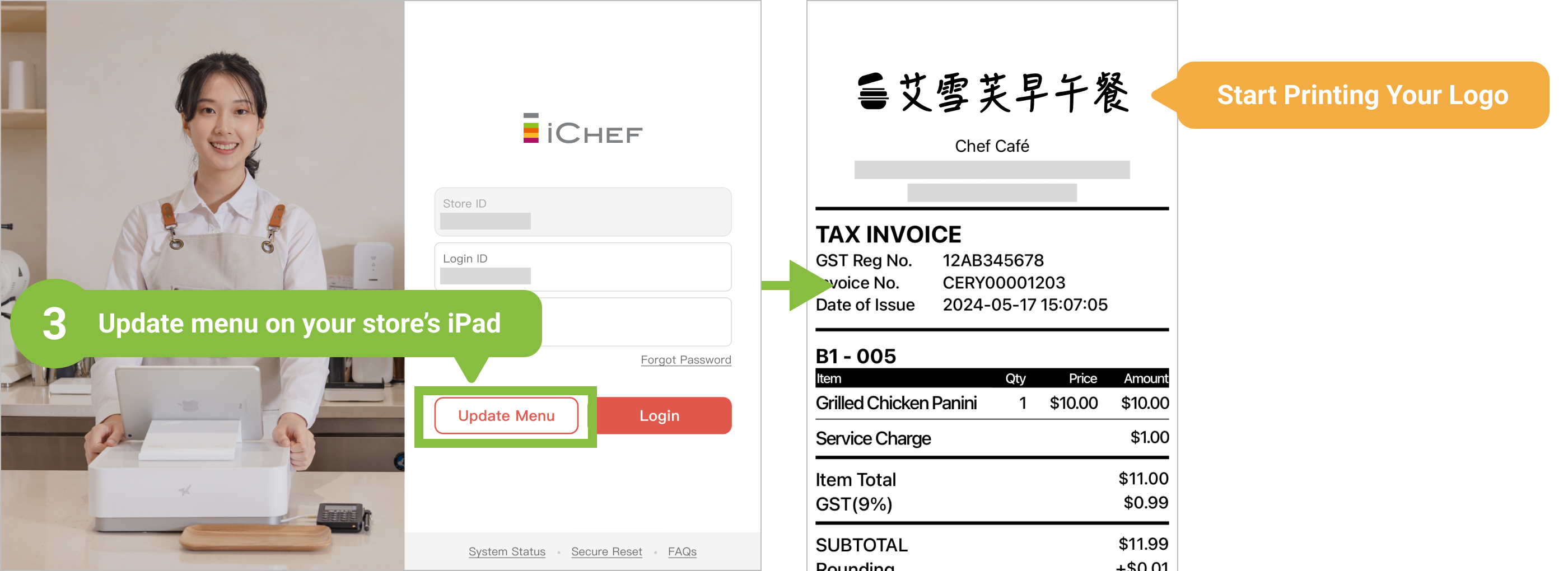
- Update menu on iCHEF POS App to apply the settings.
Building up an official website for your restaurant costs a lot of money, and it is hard to maintain. However, you can easily and efficiently have a website of your own restaurant with iCHEF and import the menu on your POS to the website with just one click!
➤ Enable this function in 4 steps:
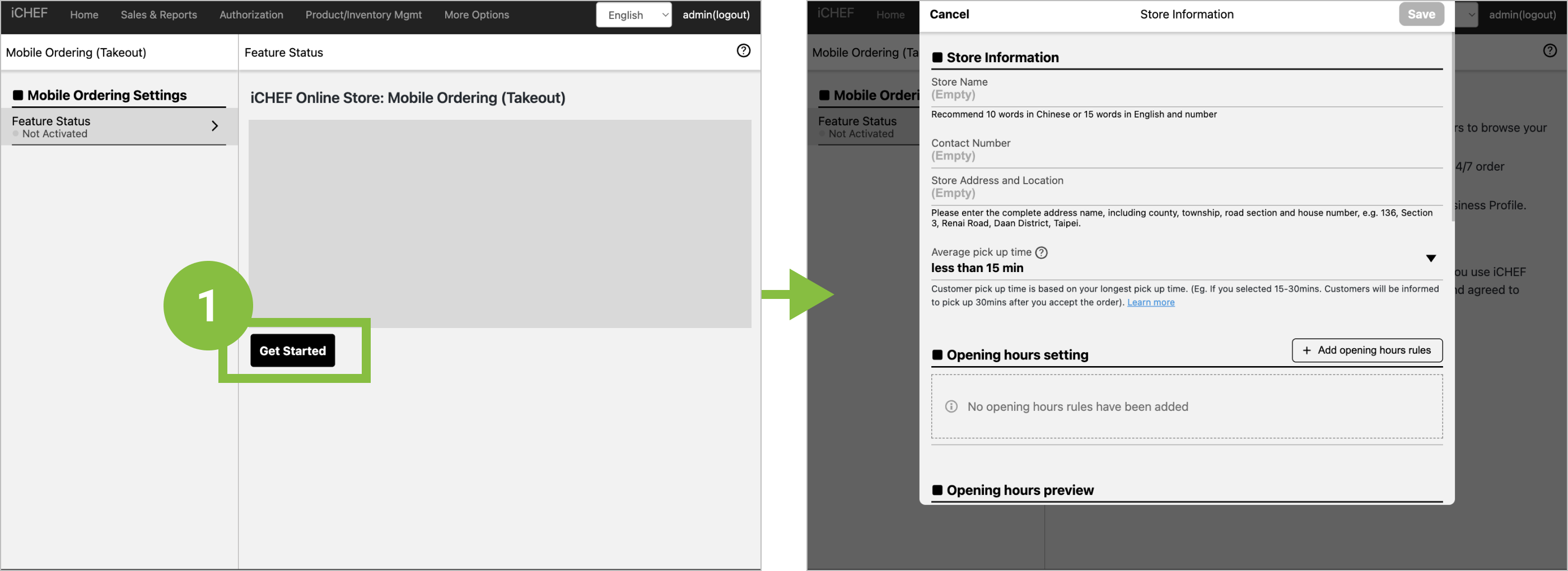
- Go to the backend, find [Online Store] > [Mobile Ordering (Takeout)]:click [Get Started], and fill in the basic business information as instructed.
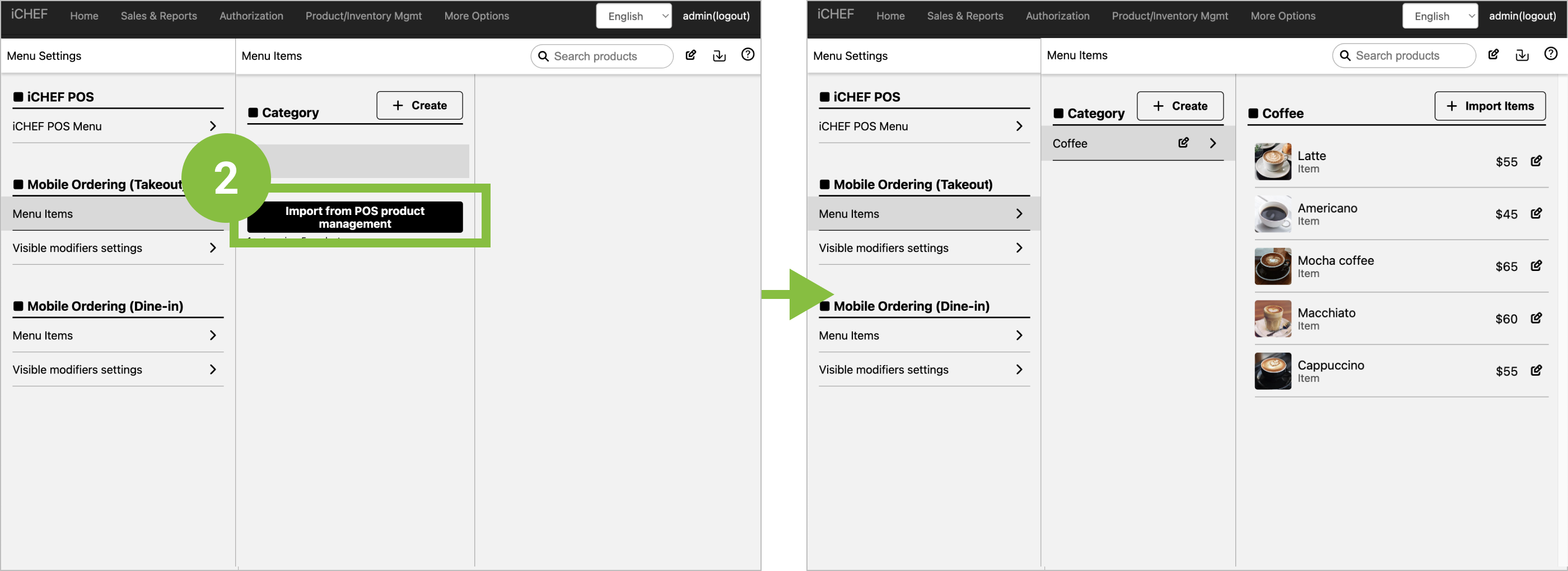
- Go to [Product/Inventory Mgmt] > [Menu Setting] > [Mobile Ordering (Takeout)], find [Menu Settings] and click [Import from POS Product Management].
- Update menu on iCHEF POS App.
- Back to the backend, find [Online Store] > [Mobile Ordering (Takeout)], and copy the URL under [Mobile Ordering (Takeout) Link]. Now you can paste the website on all of the social media you are using!

Further reading
・Set up the theme color and menu style to make the website fit your restaurant more.
・To adjust more settings for your menu? Learn more
➌ Appearance on Google
Nowadays, customers would search online when picking up a restaurant to dine in. Therefore, Google Business Profile become a must for most restaurants. Have you applied for it? If you already have a Google Business Profile, you can bind it with iCHEF and enjoy the convenient one-stop management of your appearance online in the backend.
➤ Bind your Google business profile with iCHEF in 3 steps:
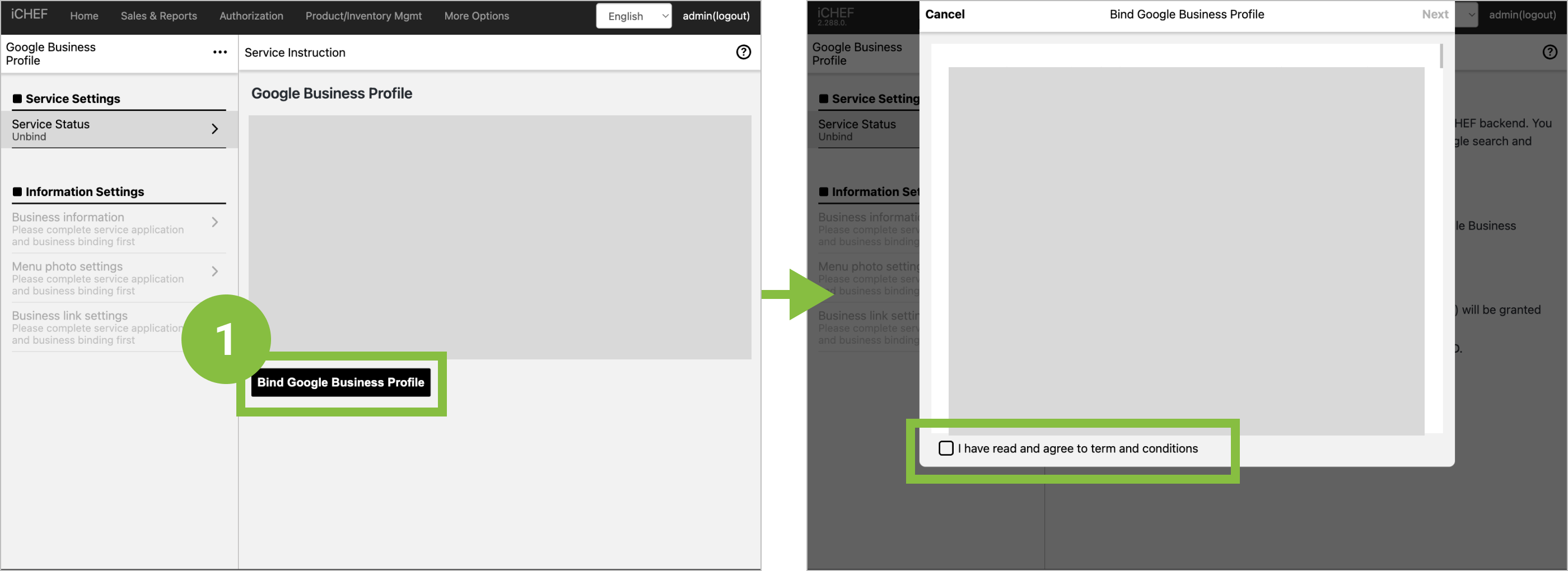
- Go to the backend, find [Integrated Settings] > [Google Business Profile], and confirm the terms of service.
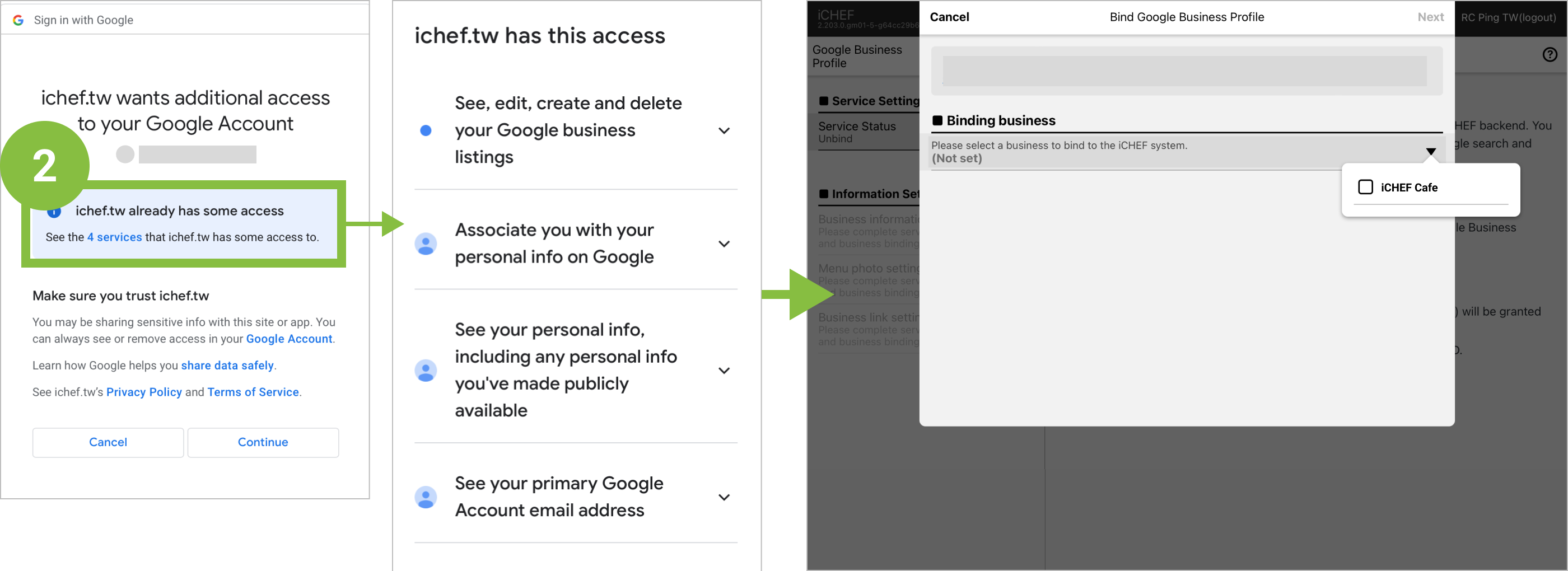
- Log into the account that is authorize to manage your Google business profile, agree the accesses and select the business profile which is to be binded with iCHEF.
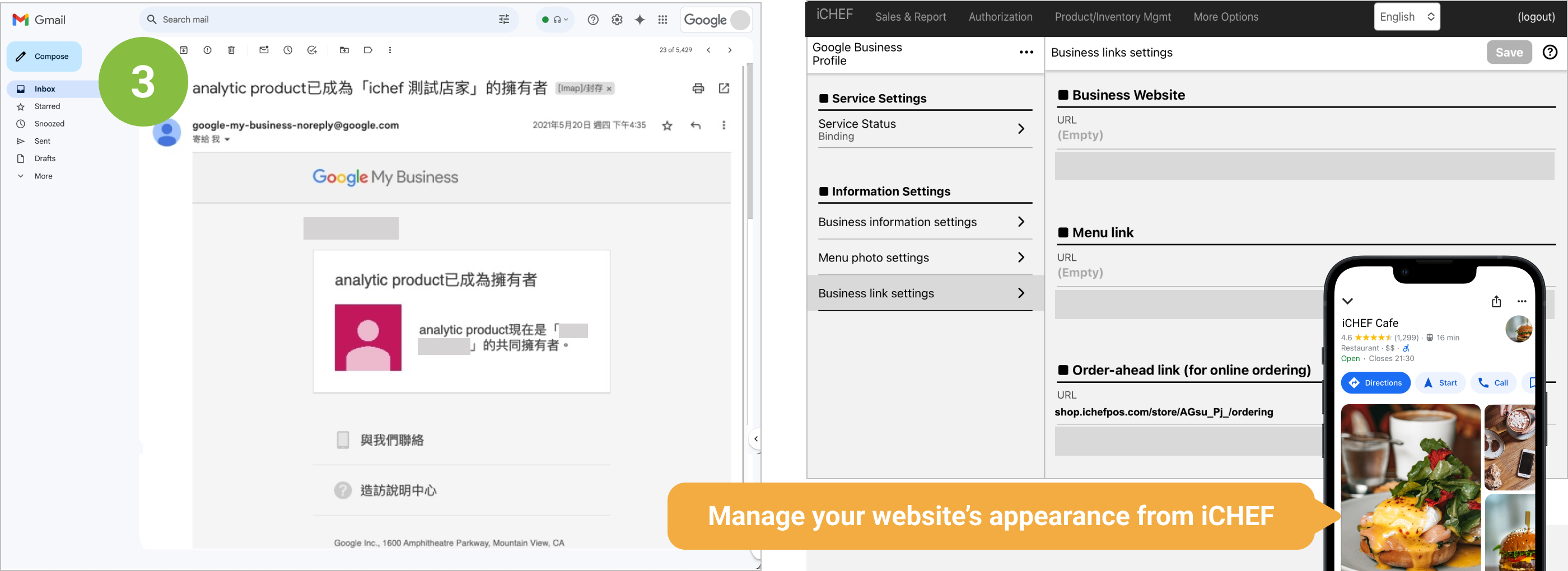
- When you receive an E-mail that notifies you of the authorization, the binding is complete. Now you can manage your website’s appearance from iCHEF’s backend.
Further reading
・You can add the link of your online menu to Google Business Profile!
・Have problems with the binding? Please refer to the detailed instructions.