
Restaurants can create a dedicated website through iCHEF Online Store, offering [Online Ordering] and [Online Reservation] services. Customers can start using these services simply by using the dedicated website link provided by the restaurant.
Below, we will explain the 3 steps to complete [Online Reservation] using iCHEF Online Store:

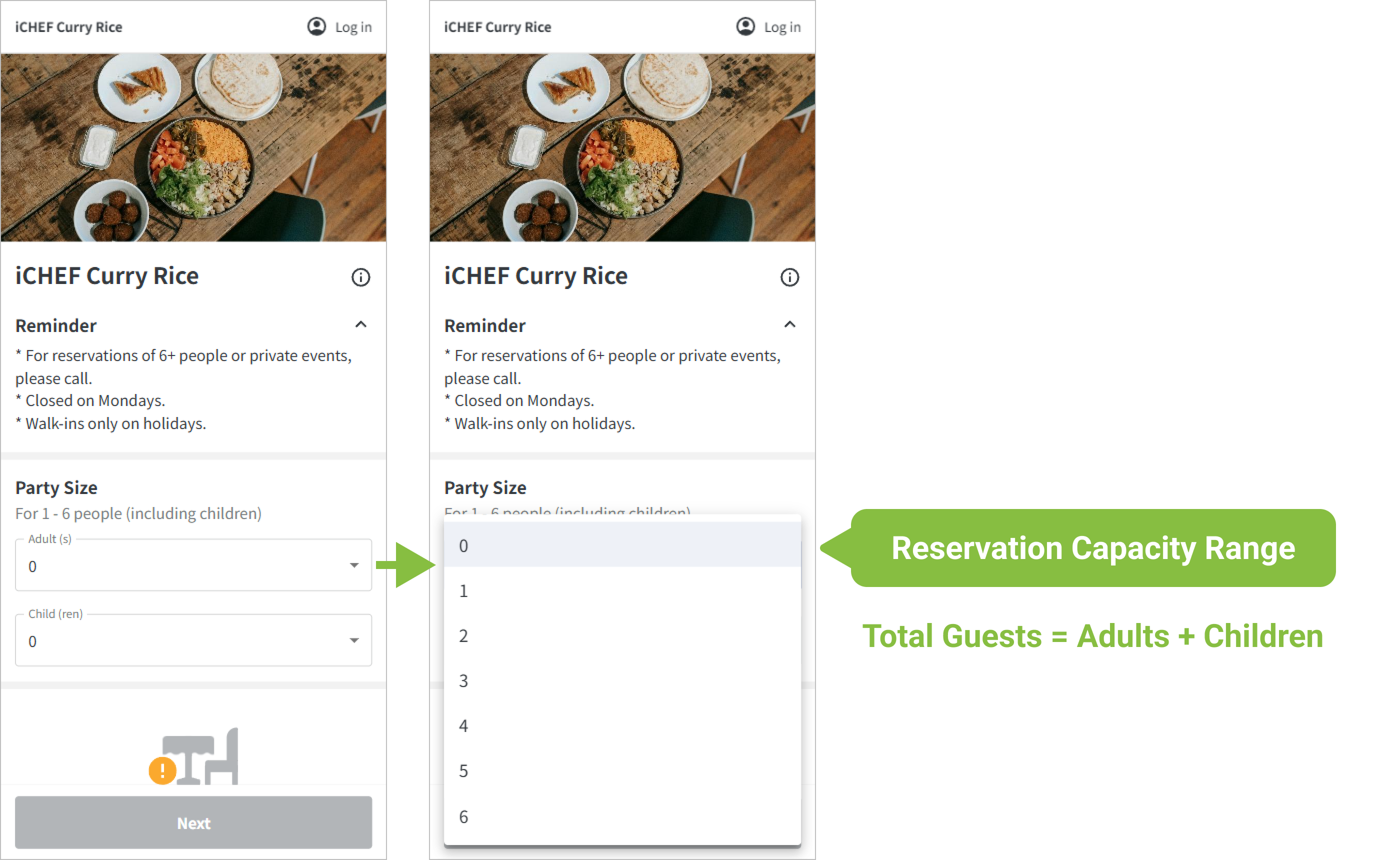
Step 1: Select Guest Count
The guest count menu will display the total range of guests reservable for this restaurant.
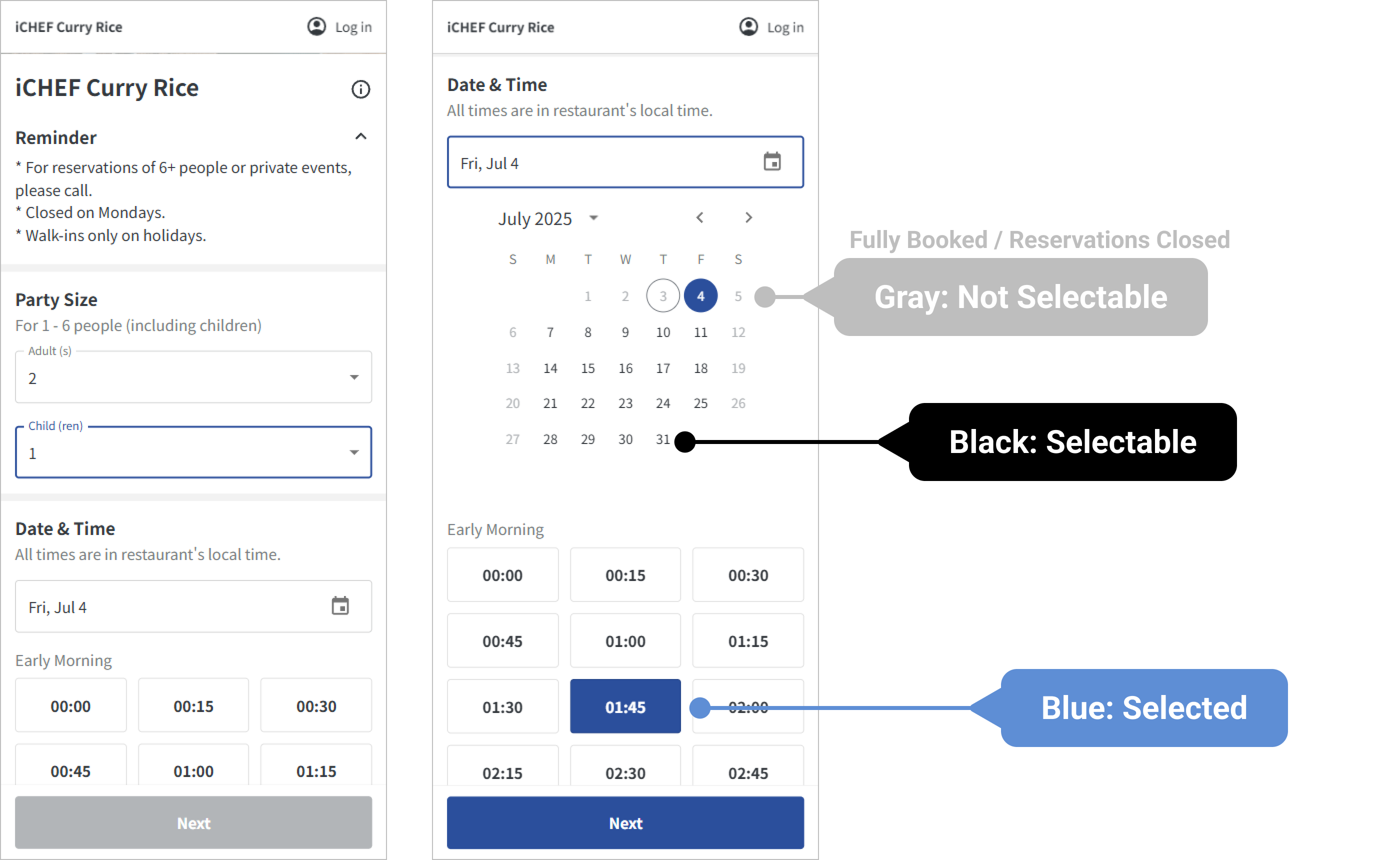
Step 2: Select Dining Date & Time
After selecting the guest count, the [Dining Date & Time] options will be filtered to match the selected guest count. Dates and times displayed in gray indicate that the slot is no longer available for reservation.
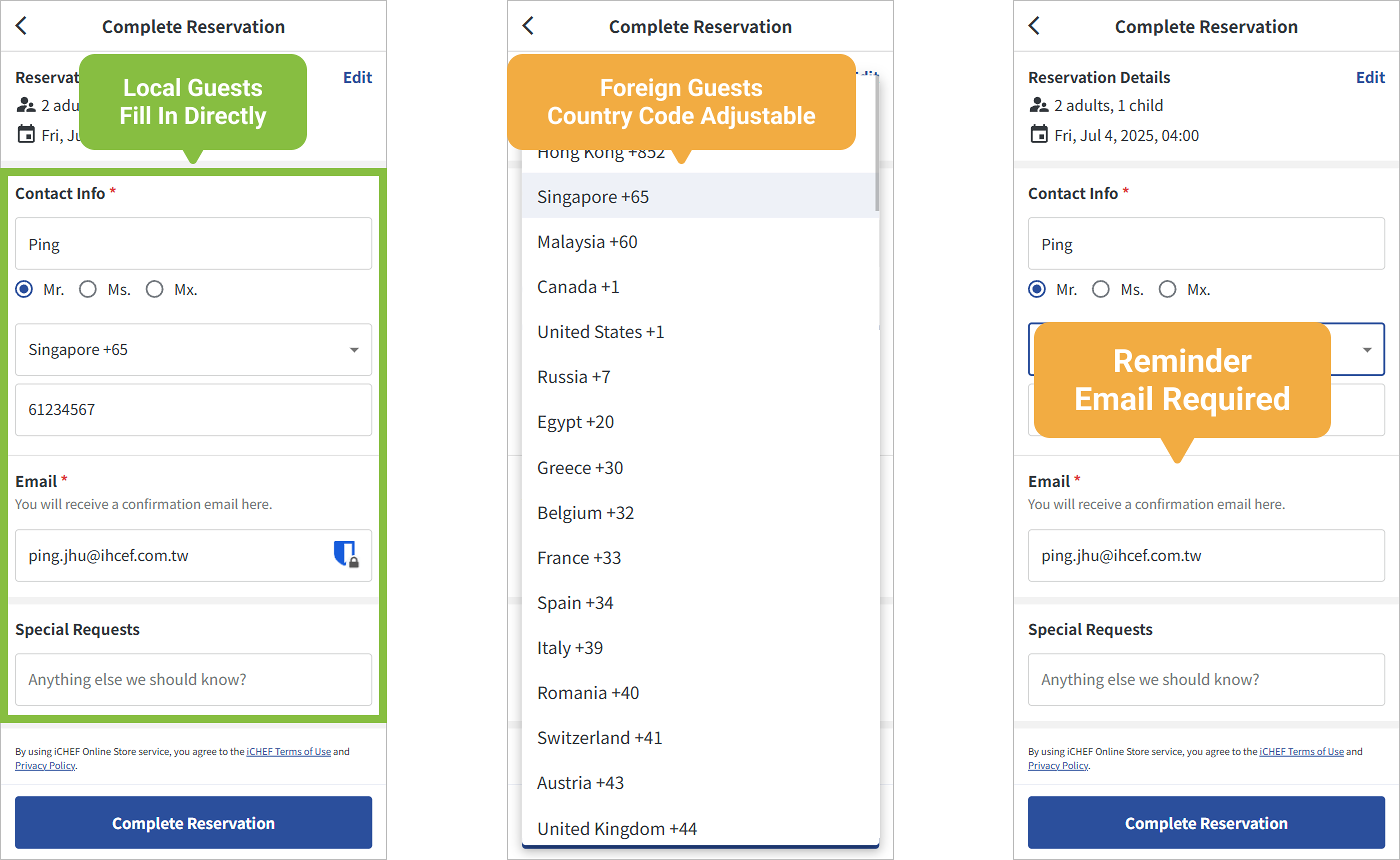
Step 3: Enter Reservation Contact Information & Notes
After selecting your reservation details, tap [Next] to confirm and enter your contact information, which will be used for reservation notifications and by the restaurant. Please ensure the information provided is contactable.
Reservation Successful! Get Your Exclusive Reservation Information
After submitting [Confirm Reservation] and the booking is successful, the system will send two notification reminders, both containing a link to your exclusive reservation information webpage. You can use this page to track your status or modify your reservation anytime.
The delivery method will depend on the information provided during booking, sending either [SMS] or [Email]. Notification content is as follows:
| Delivery Time | Notification Content | |
|---|---|---|
| Notification 1: [Reservation Successful] | Sent immediately upon reservation completion | Date & Time, Guest Count, Reservation Information Webpage Link |
| Notification 2: [Reservation Hold] | Sent at 9:00 AM the day before dining | Date & Time, Reservation Information Webpage Link |

For same-day reservations, the [Reservation Successful] notification will not be sent; instead, the [Reservation Hold] notification will be sent immediately.