
Is your menu too extensive, leading to longer online ordering times, and customers accidentally choosing unavailable items?
Set [Serving Hours] to precisely switch your menu! Design your menu to target demand: introduce light bites for off-peak hours to lower the spending barrier; create combo meals for peak hours to boost Sales per customer and generate new revenue opportunities.

Usage Guidelines
- Applicability: Applies to all online menus, including immediate orders, pre-orders, and menu browsing only.
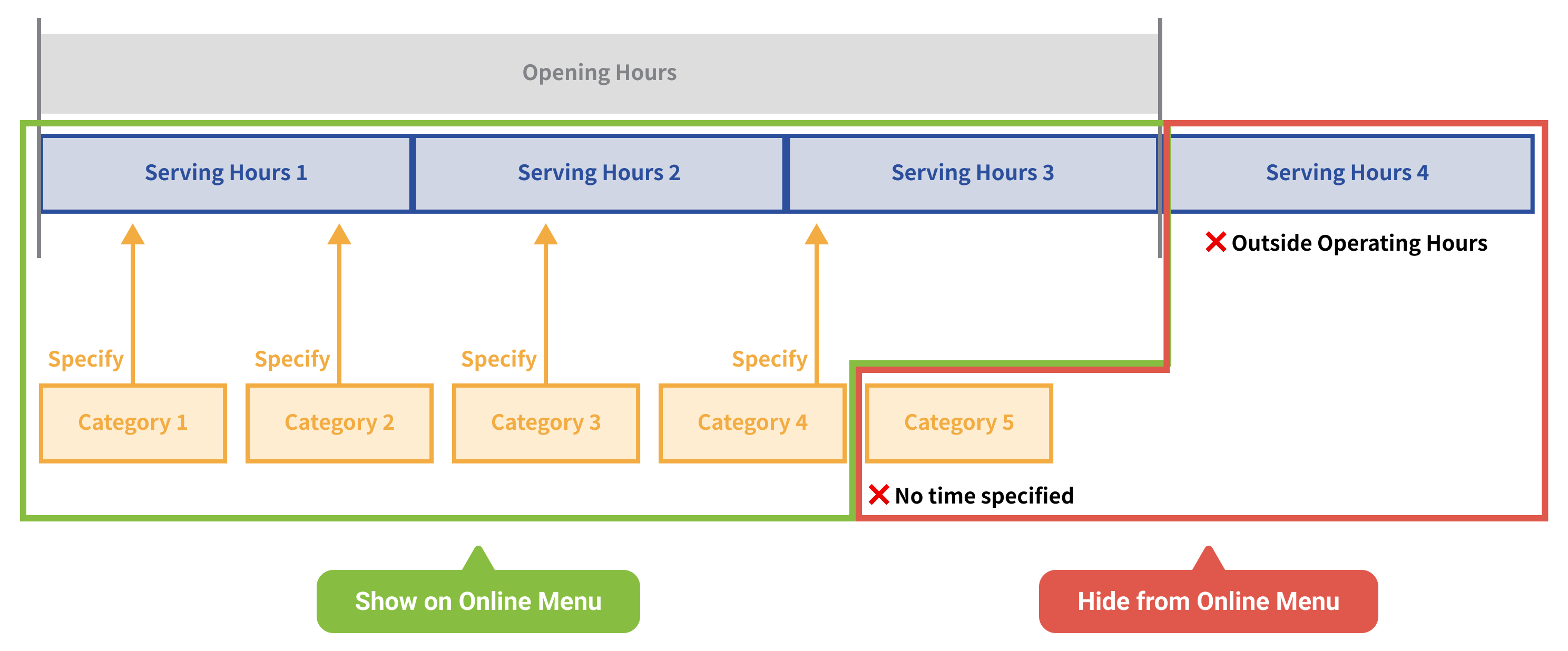
- Display Mechanism: Online menu will show [Item Categories] from Menu Items based on the [Opening Hours] and [Serving Hours] settings.
- Opening Hours:
- Mobile Ordering (Takeout): Based on the Backend Store Information > Opening Hours Settings.
- Mobile Ordering (Dine-in): The Backend has no Opening Hours setting, so it is automatically considered daily / all-day availability.
- Reservation Pre-Order (TW): Based on the Backend Reservation Rules > Reservation Hours.
- Serving Hours: Set in Product/Inventory Mgmt > Menu Settings under [Serving Hours] settings.
- Items Category: Set in Product/Inventory Mgmt > Menu Settings under [Import Items] settings.
- Opening Hours:
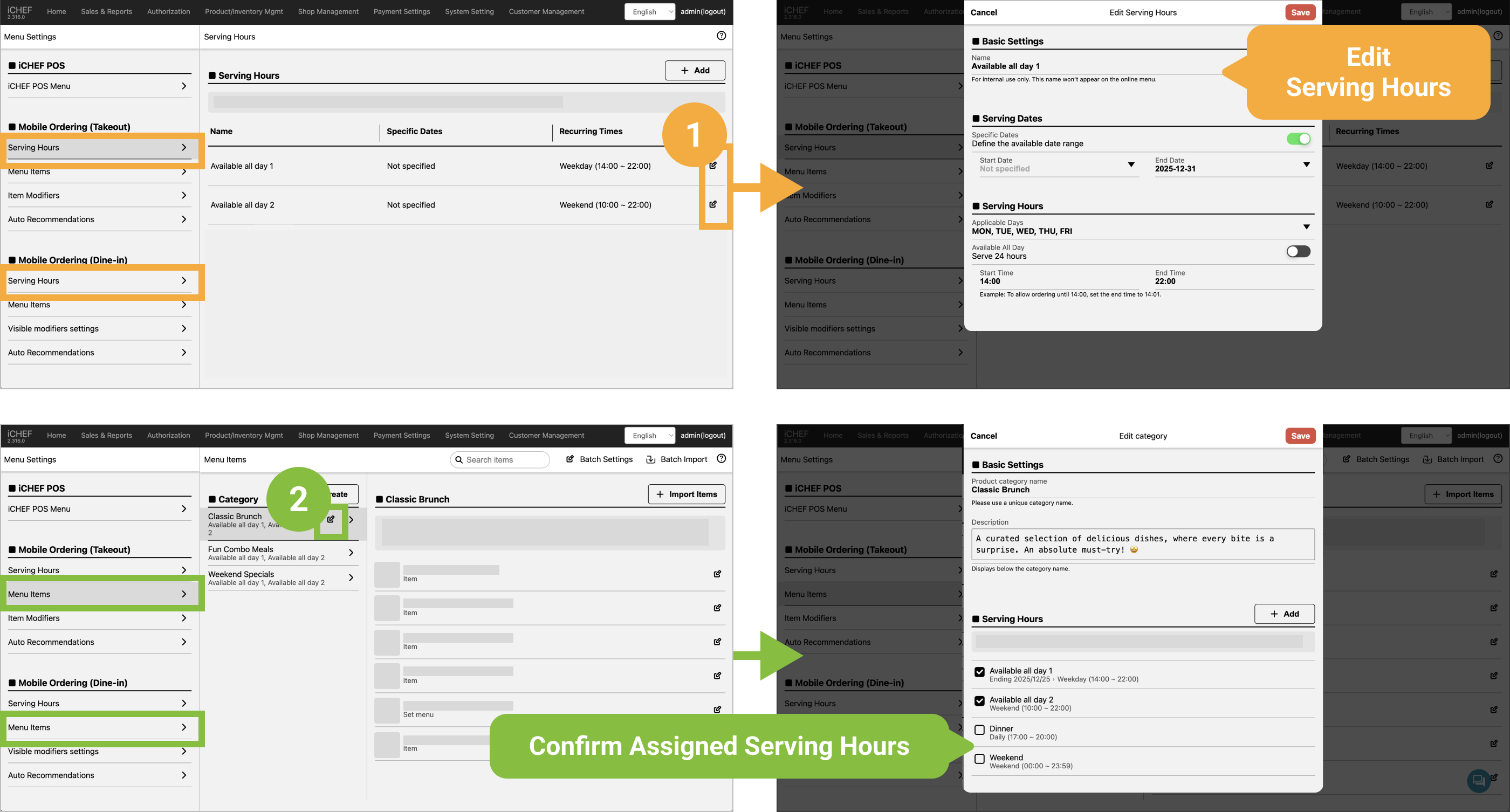
To edit the default period, go to Product/Inventory Mgmt > Menu Settings in the corresponding platform section (Takeout, Dine-in Ordering):
- Enter the [Serving Hours] page to edit the serving period name, date, and time.
- Then, go to the platform’s [Menu Items] page, and confirm the time slots assigned to product categories.
Flexible Time Slot Management
✔︎ Sync Across Pages
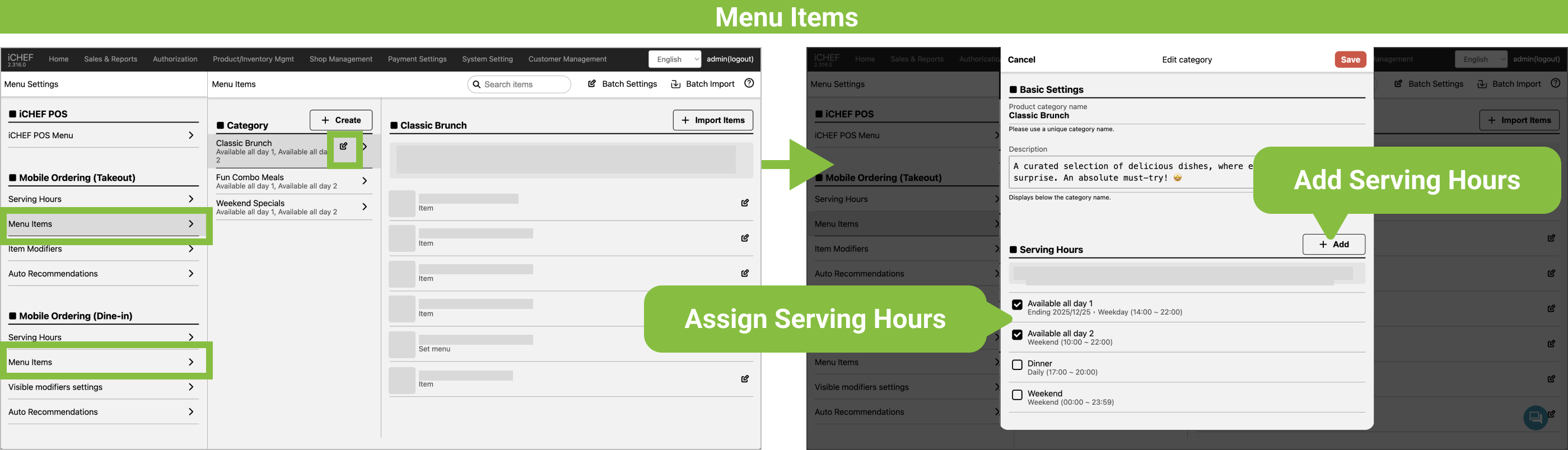
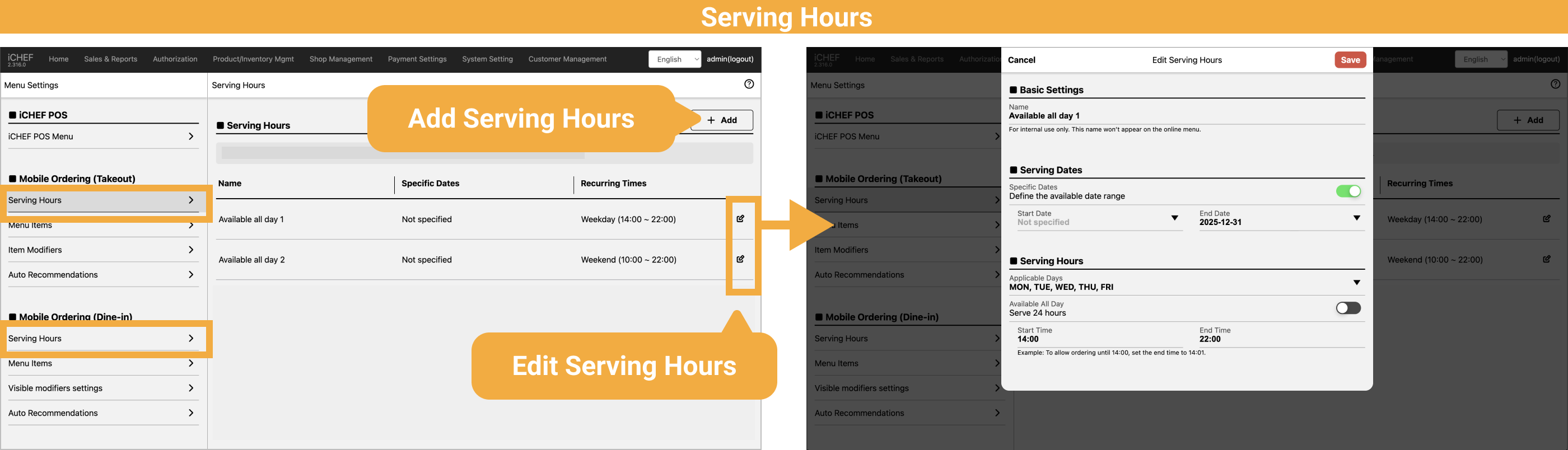
In [Product/Inventory Mgmt > Menu Settings], besides the exclusive [Serving Hours] page where you can see the full schedule, you can also directly add and assign time slots when editing product categories in [Menu Items]. The time slot settings on both pages will automatically synchronize; the differences in what can be done are as follows:
| Page | Add Serving Hours | Assign Serving Hours | Edit/Delete Serving Hours |
|---|---|---|---|
| ❶ Menu Items | ✅ | ✅ | |
| ❷ Serving Hours | ✅ | ✅ |
How Do Settings Take Effect?
After adjusting the Serving Hours, please Update Menu on iCHEF POS App for the changes to take effect.
If you also need to edit items, you can make all adjustments first and then apply the configuration once!
✔︎ Time Slot Templates
Can’t think of how to divide time slots? The Serving Hours feature provides [Regular Templates] and [Holiday Templates]! Automatically importing time slots, weekdays, and holiday dates, allowing for quick creation! Fine-tuning is also an option.

Once Product Categories are specified with Serving Hours in the Backend, the online menu will automatically switch within the Opening Hours, giving priority display to available items and automatically locking items that are not available.
And you don’t have to worry about seasonal menus being revealed too far in advance, as the system will only display the menu for the next business day at most.
✔︎ Prioritize Available Items
Display order: Available today ➜ Coming soon today ➜ Available next business day
Items that are unavailable will only be available for preview, and the webpage will automatically lock the item. No need to worry about customers ordering unavailable items.
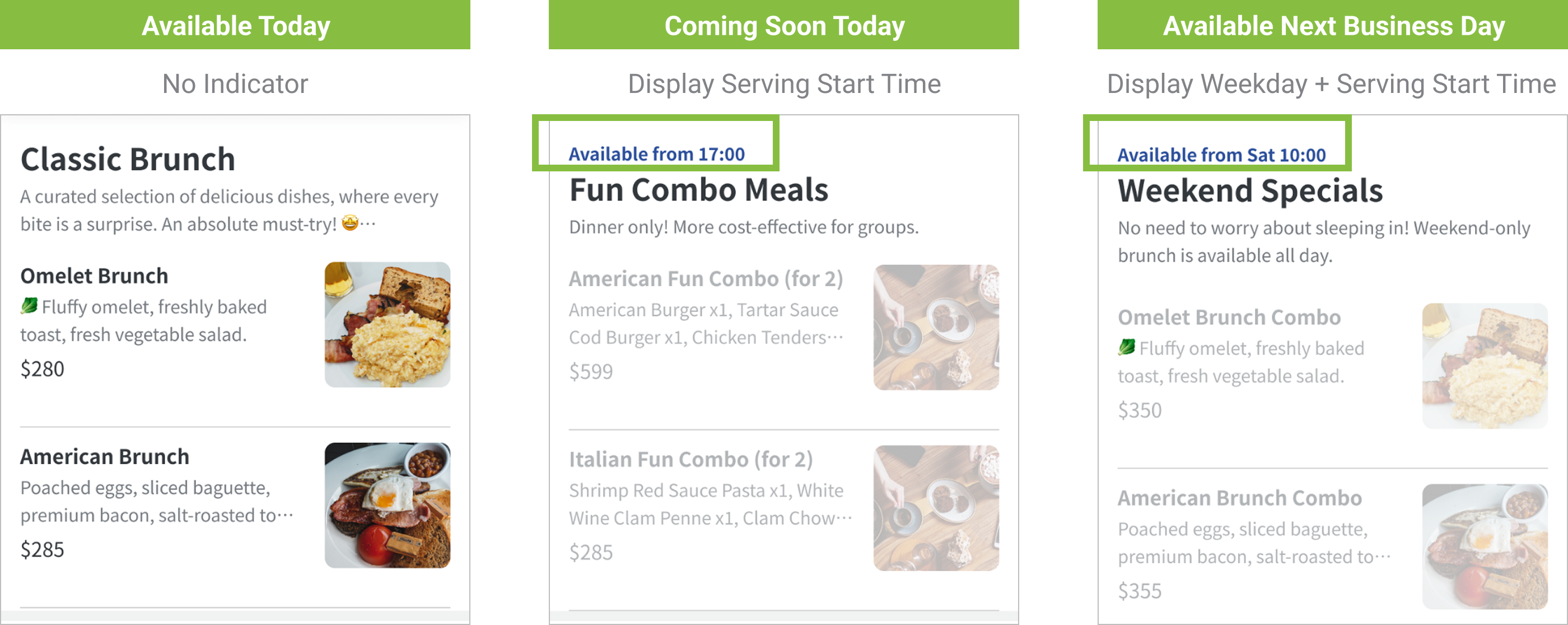
▪︎ Time Basis: Immediate orders are based on the current time; pre-orders are based on the reservation time.
▪︎ Categories with the same availability status (available / unavailable) will be displayed according to the product category order in the backend.