
Before activating the function of Mobile Ordering (Dine-in), please confirm the notice and steps below.
Note before activating the function
Usage is divided into [Menu Browsing Only] and [QR Code Ordering Enabled]. Please confirm the activation method based on your needs.
- Online Menu Browsing: Can be activated directly in all regions.
- QR Code Ordering: In Taiwan, this requires the purchase of the Online Store – Mobile Ordering extension (Trial plan from NT$0) to be activated.
I. Enable Feature
➤ iCHEF Backend: Online Store > Mobile Ordering (Dine-in)
After reading the notice, please click [Get Started] and fill in your store information as prompted by the page. The information will be displayed on your website.

If you have activated function of Mobile Ordering (Takeout), the system will fill in your store information automatically.
II. Website Settings
After the feature is activated, you can begin setting up the content displayed on the website:

➤ iCHEF Backend: Product/Inventory Mgmt > Mobile Ordering (Dine-in)
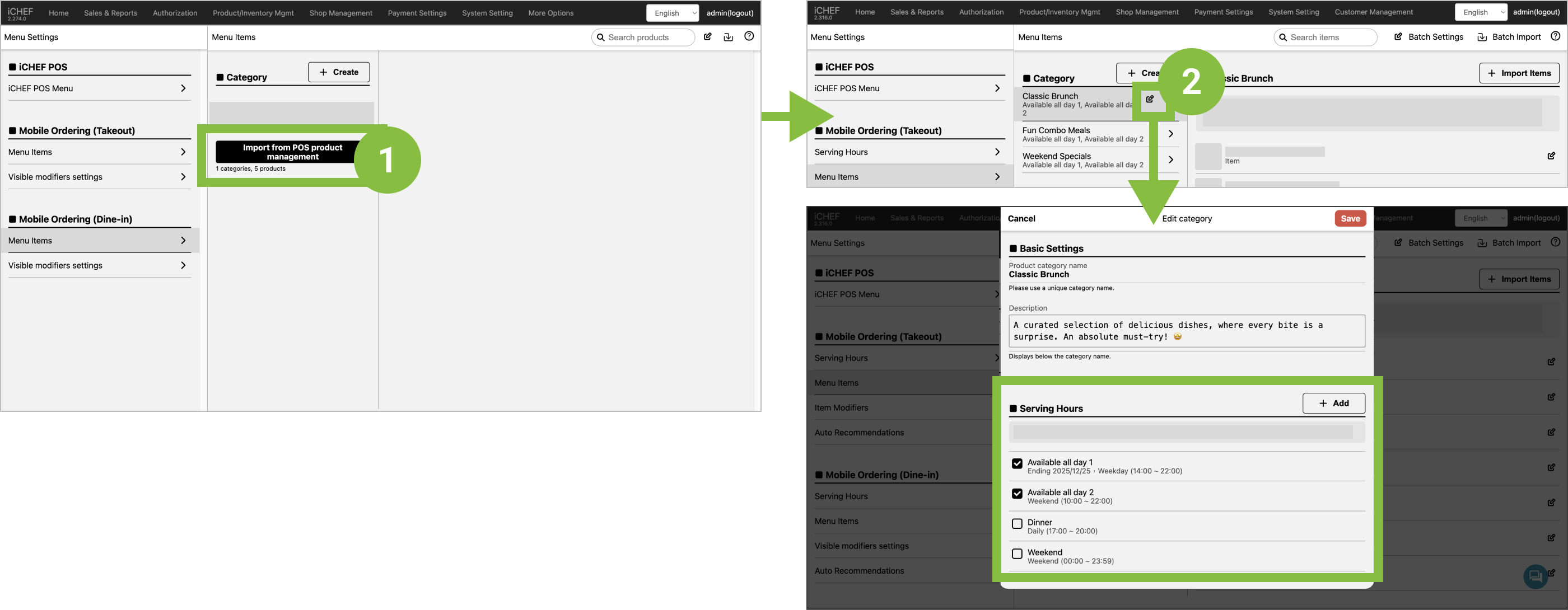
Please complete item listing by either importing with a single tap or selecting manually, and assign Serving Hours to product categories. Items will then be displayed on the online menu according to the assigned time.Learn More
Step 2: Ordering Function Settings
➤ iCHEF Backend: Online Store > Mobile Ordering (Dine-in)

❶ Mobile Ordering Settings (Required)
- Feature Status: Select [Menu Browsing Only] or [ QR Code Ordering Enabled].
- Order Acceptance Mode: Configure the POS auto-accept function and the options for the manual order acceptance screen.
❷ Basic Settings: Basic store information was entered when the feature was activated. You can adjust or add more settings here.
- Store Information: Your store’s contact info, reminder and cover image.
- Checkout Process: Configure the payment timing by selecting [Prepay] or [Postpay], and the checkout instructions.
- Payment Modules: Add payment methods for customers to choose from.
- Dining & Ordering Time Limit: Set time rules and show reminders on the QR printouts, online menu, and auto block late QR Orders with Time Limits.
- Field Visibility: Configure the display of special requests for items, order notes, and utensil request option.
❸ QR Code (Required): You can select a form suitable for the operational mode of your restaurant.
- Static QR Code: Download the exclusive QR Code table card for each table so it can be permanently placed on the table for reuse.
- Dynamic QR Code: The system will generate and print a QR Code after a dine-in order is created. It is exclusively for specific group of customers.
Now, your customers can enjoy a fast and convenient ordering process by scanning the QR Code!