
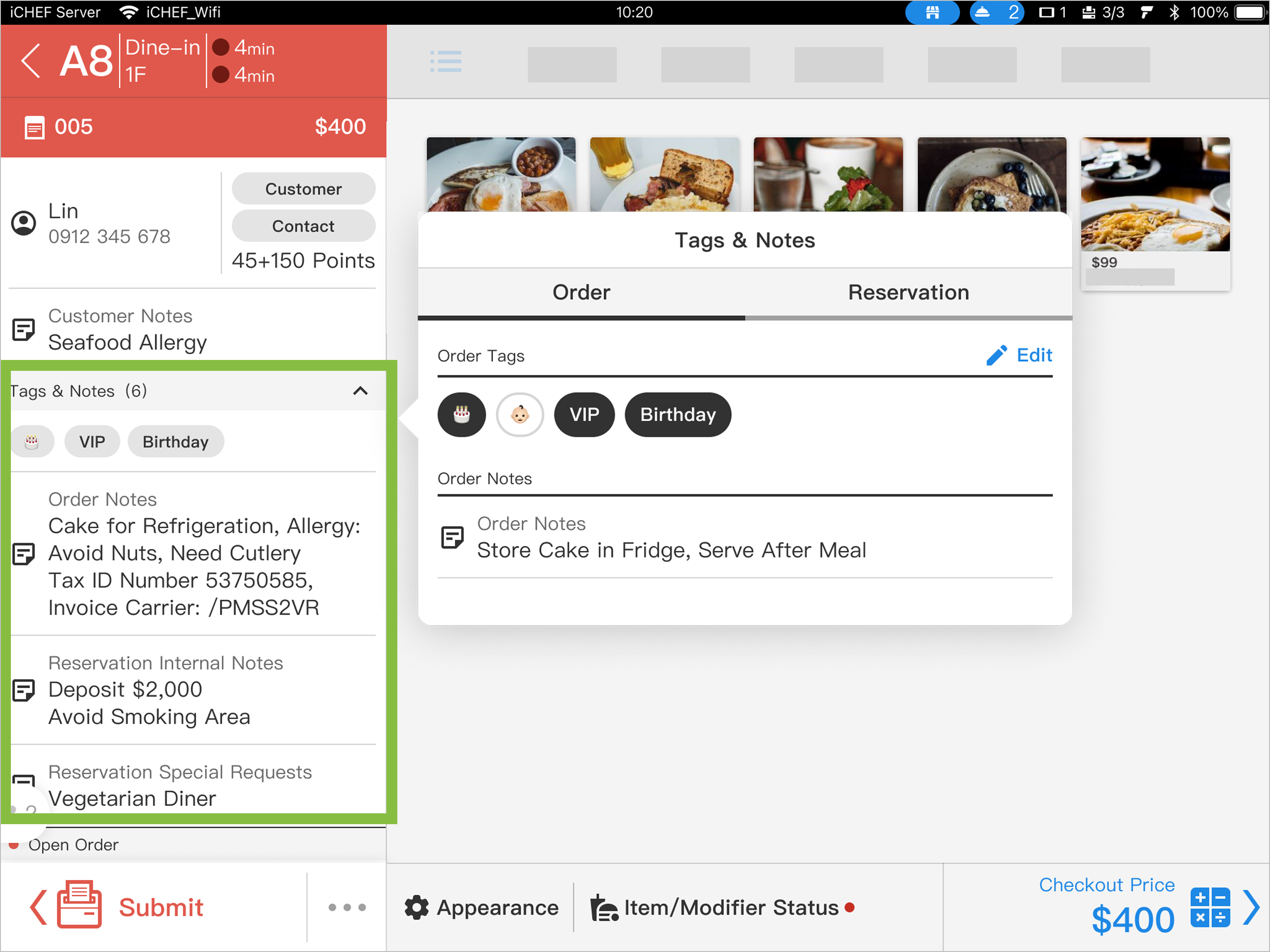
Before checking out an order, on-site staff can use the Tags & Notes feature on the POS Ordering Page to label the customer group. This allows front-of-house staff to quickly align on the service needs and status of that group, ensuring seamless communication and more thoughtful service!
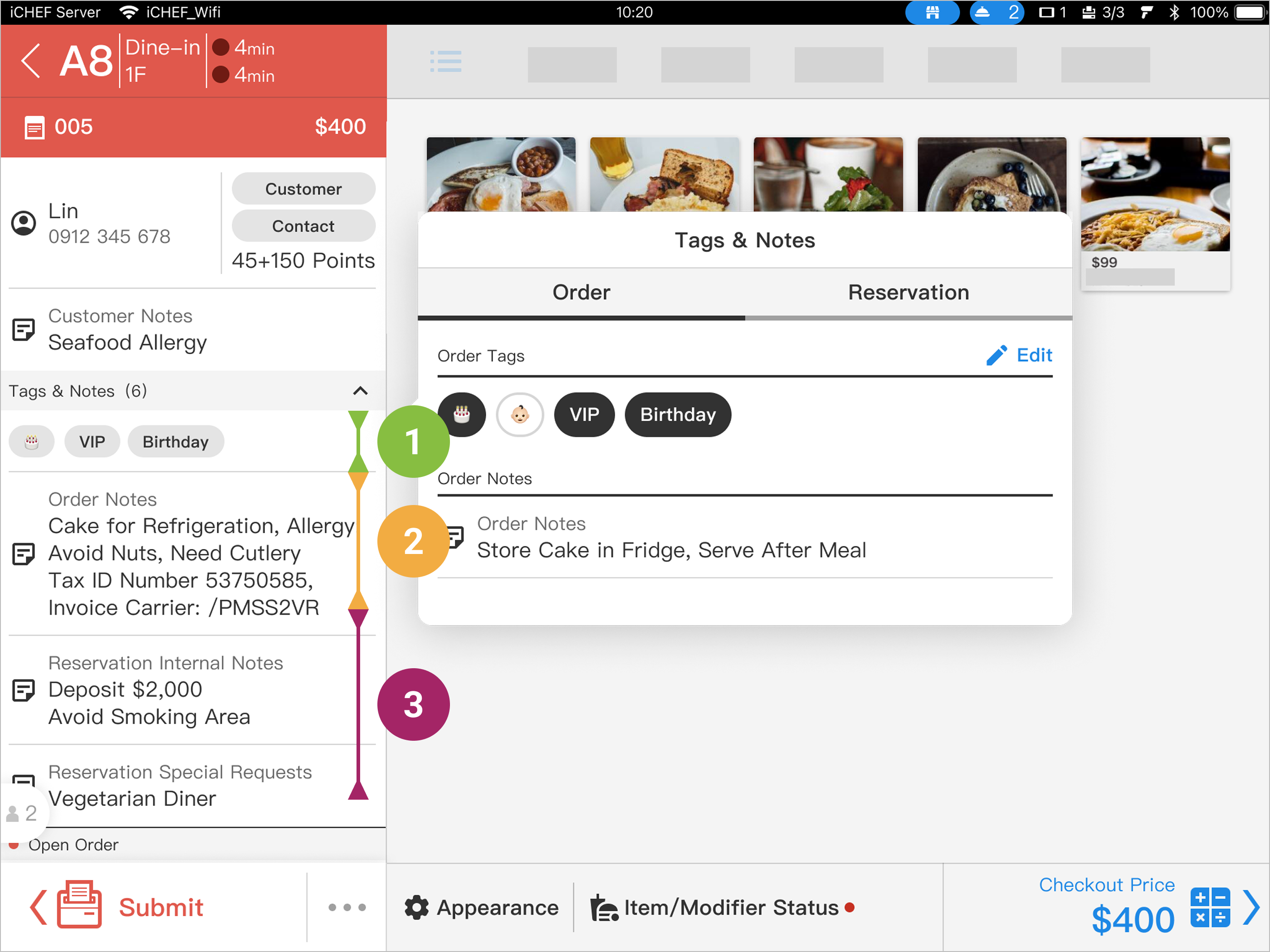
The information source includes notes customers input when placing orders online via the Online Store, as well as Tags & Notes entered by staff on the POS. Any operation originating from the POS is strictly for in-house operational service! You do not need to worry about customers seeing service records.
| Column | Operation Source & Viewing Authorization |
|---|---|
| ❶ Order Tags | • POS Operation: Viewable by store only |
| ❷ Order Notes | • POS Operation: Viewable by store only • Customer Operation: Viewable by both customer and store |
| ❸ Reservation Notes | • POS Operation: [Internal Notes] Viewable by store only • Customer Operation: [Special Requests] Viewable by both customer and store |
Create tags for common services to label orders quickly. Visible only on POS and backend records.
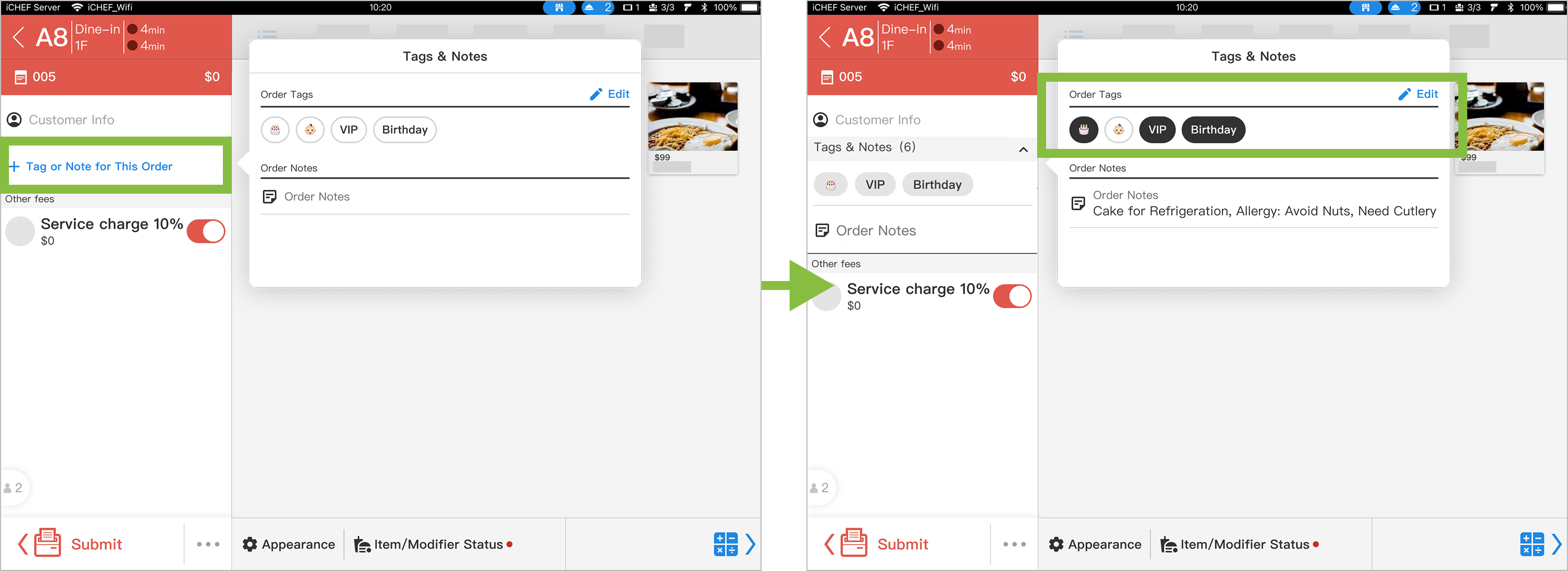
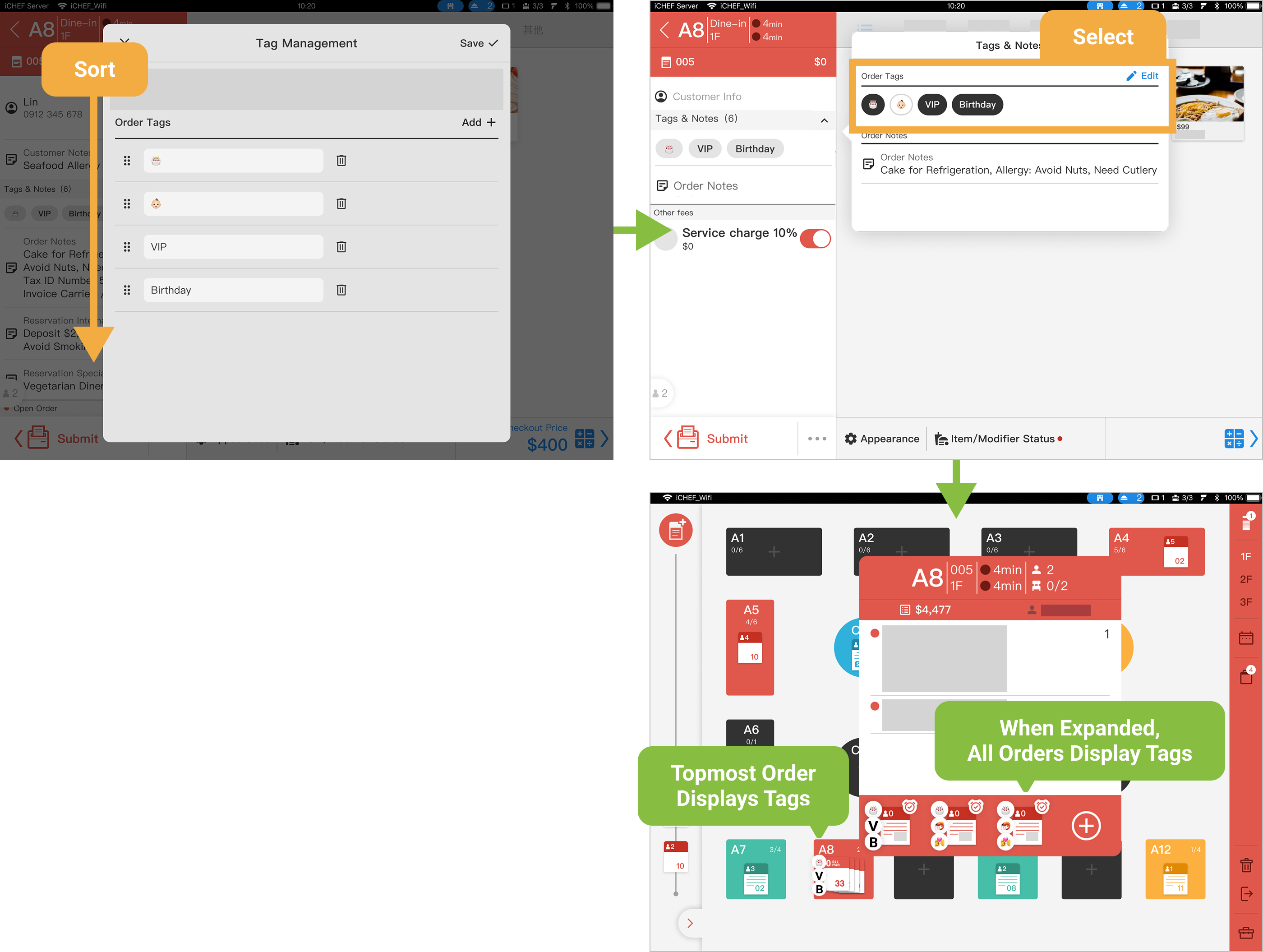
Two default tags are available upon first use; you can adjust them anytime via the management page later. Labeling is simple! Just click [Tag or Note for This Order] to see the created tags. Clicking a tag completes the labeling (selected tags are displayed with a black background).
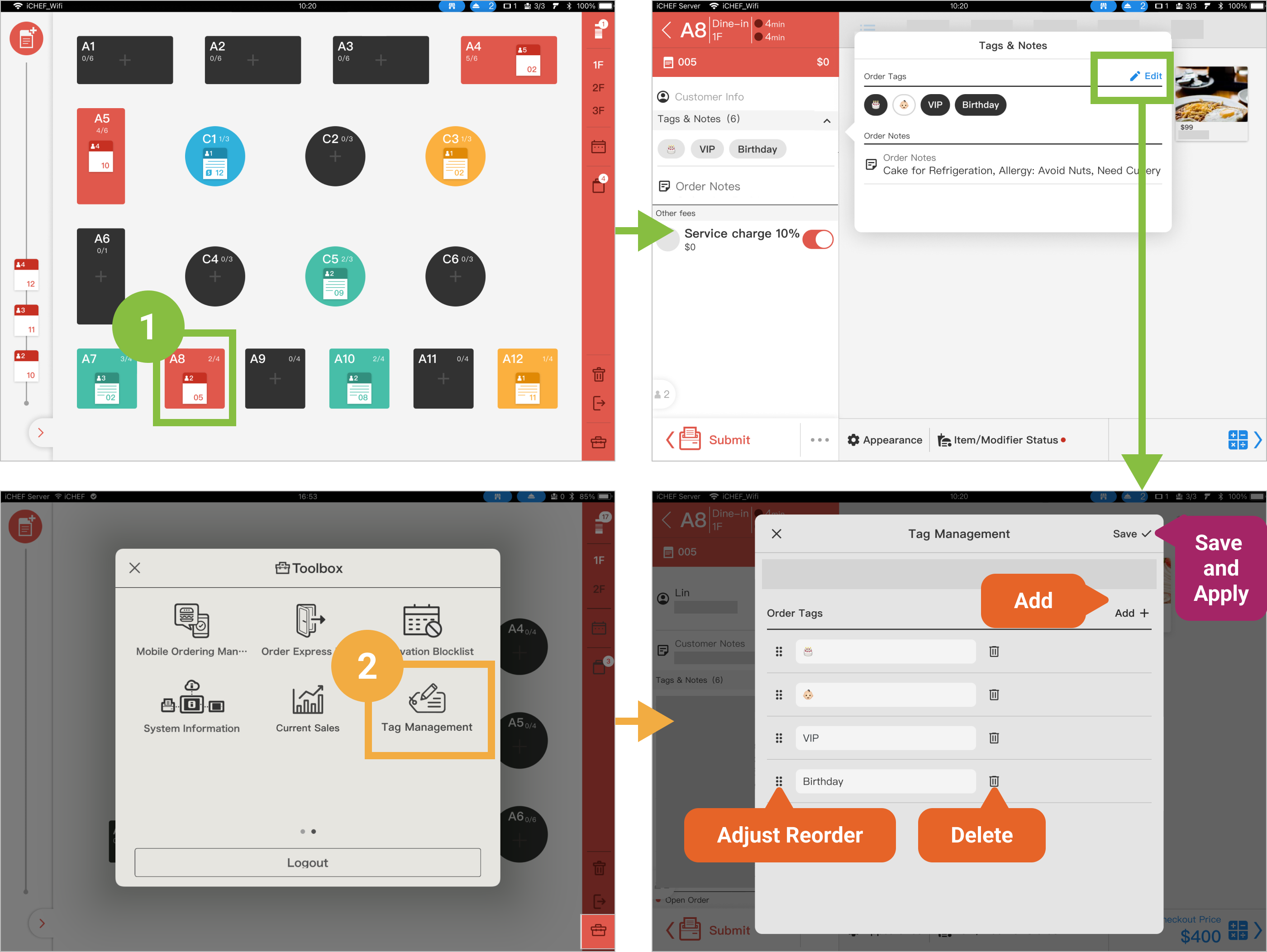
Tag management is restricted to the Cashier iPad (Main Device) and requires an internet connection to use. There are two entry points to the management page on the POS:
- Select any order, go to Ordering Page > Tags & Notes > Tag Management
- Go to the bottom-right Toolbox > Tag Management
Once on the page, you can freely add, edit, remove tags, and adjust the display order. Press [Save] for the settings to take effect.
- Supported Formats: Text, Emoji
- Character Limit: 15 characters (Chinese or English)
- Tag Limit: 30 tags
- Usage Restrictions: Cannot have duplicate names or be blank
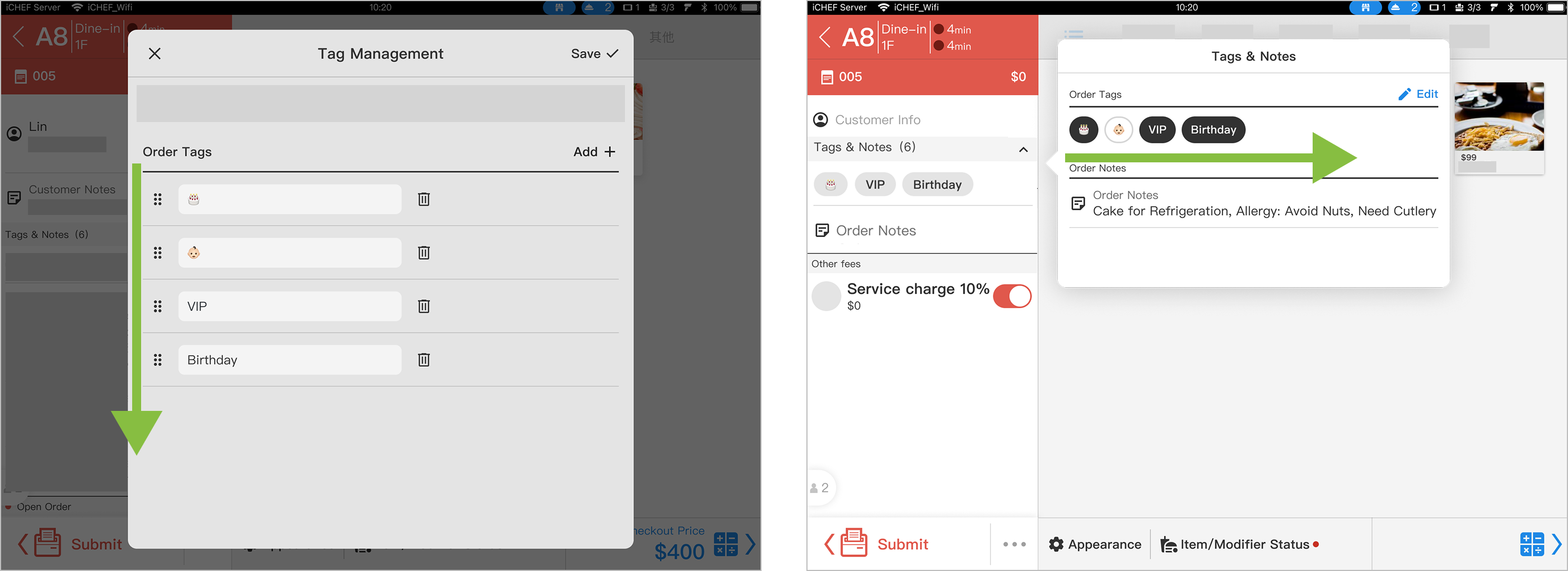
When editing or deleting existing tags, the tag will be automatically removed or updated on [Outstanding orders]; [Paid orders] remain unaffected.
❷ Order Notes
Order Notes will include content input by the customer during online ordering. Staff can also input notes on the POS after accepting the order. Content entered on the POS is only displayed on the POS and in Backend records.
| Operation Source | Information Content | Viewing Authorization |
|---|---|---|
| Customer > Online Store | • Shopping Cart: Order Notes, Utensils Request (only displayed for Takeout) • Checkout Page: Unified Business Number, Tax ID Carrier Barcode | Viewable by both customer and store |
| Staff > POS | • Ordering Page: Order Notes | Viewable by store only |

Regardless of whether notes are added on the POS, the Online Store website and the receipts will only display the content originally input by the customer.
❸ Reservation Notes
For orders created via the Reservation feature, any reservation notes entered when staff create a reservation on the POS or when customers reserve online will be displayed in the [Tags & Notes] section of the order. Reservation Notes are view-only within the order. You can switch tabs to view the notes.
| Operation Source | Information Field | Viewing Authorization |
|---|---|---|
| Customer > Online Store | Reservation Special Requests | Viewable by both customer and store |
| Staff > POS | Reservation Internal Notes | Viewable by store only |

When a reservation includes Reservation Deposit , the pre-payment amount will be displayed in the Reservation In-Store Notes field.
POS Viewing Location
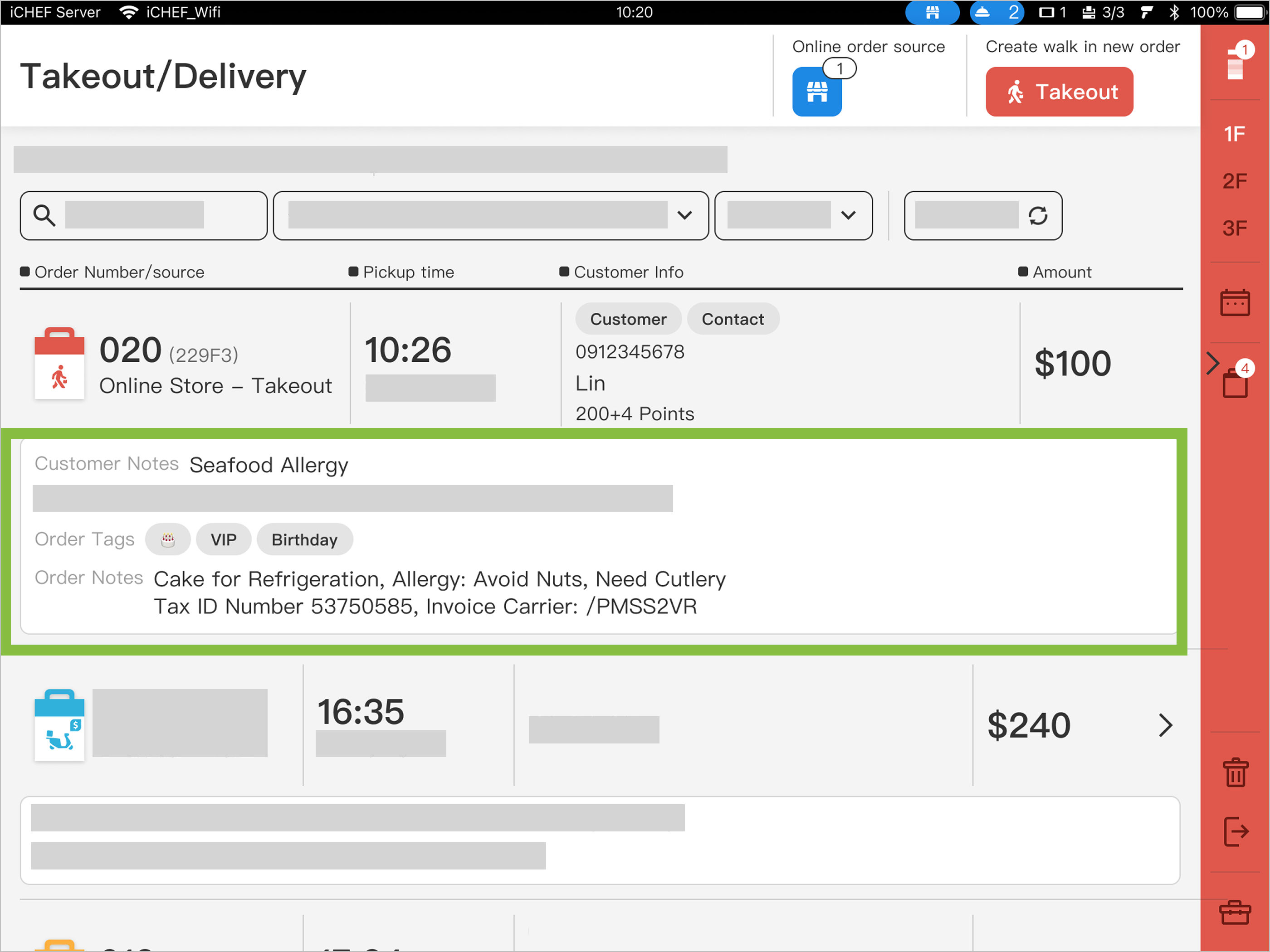
When an order includes Tags & Notes, you can view them on the Ordering Page, Takeout List, and Table Status Page (Waiting Area, Dine-in Area). The display differences are as follows:
| Column | Ordering Page | Takeout List | Table Status Page (Waiting Area/Dine-in) |
|---|---|---|---|
| ❶ Order Tags | ✅ Directly Displayed | ✅ Directly Displayed | ⚠️ Customizable Display |
| ❷ Order Notes | ✅ Directly Displayed | ✅ Directly Displayed | ❌ Not Displayed |
| ❸ Reservation Notes | ✅ Directly Displayed | (Different Order Type) | ❌ Not Displayed |

- Display Content: The first character of the first three tags.
- Display Order: Displays the first three selected tags for the order, according to the order set in Tag Management.
- Special Case: When there are multiple orders on one table, only the tags of the topmost order are displayed. When expanded, you can see the first three tags for each individual order.
Backend Report Record
In the Backend [Payment/Void Record] report, you can view the [Order Tags & Notes] column. Click the top-right button to download the report, then use Excel to filter keywords in this column to further analyze requirement types and other information.
| Column | Payment/Void Record |
|---|---|
| ❶ Order Tags | ✅ Displayed |
| ❷ Order Notes | ✅ Displayed |
| ❸ Reservation Notes | ❌ Not Displayed (Only displayed in the Reservation List in the Backend) |
