
Static QR Code is for specific table. Therefore, you can download and print the QR Code from the backend, and place it on the table for different groups of customers to scan and place orders. Customers can choose their ways for accessing the order. It is applicable to the orders from different groups who share a table as well as the orders from the customers who come in groups.
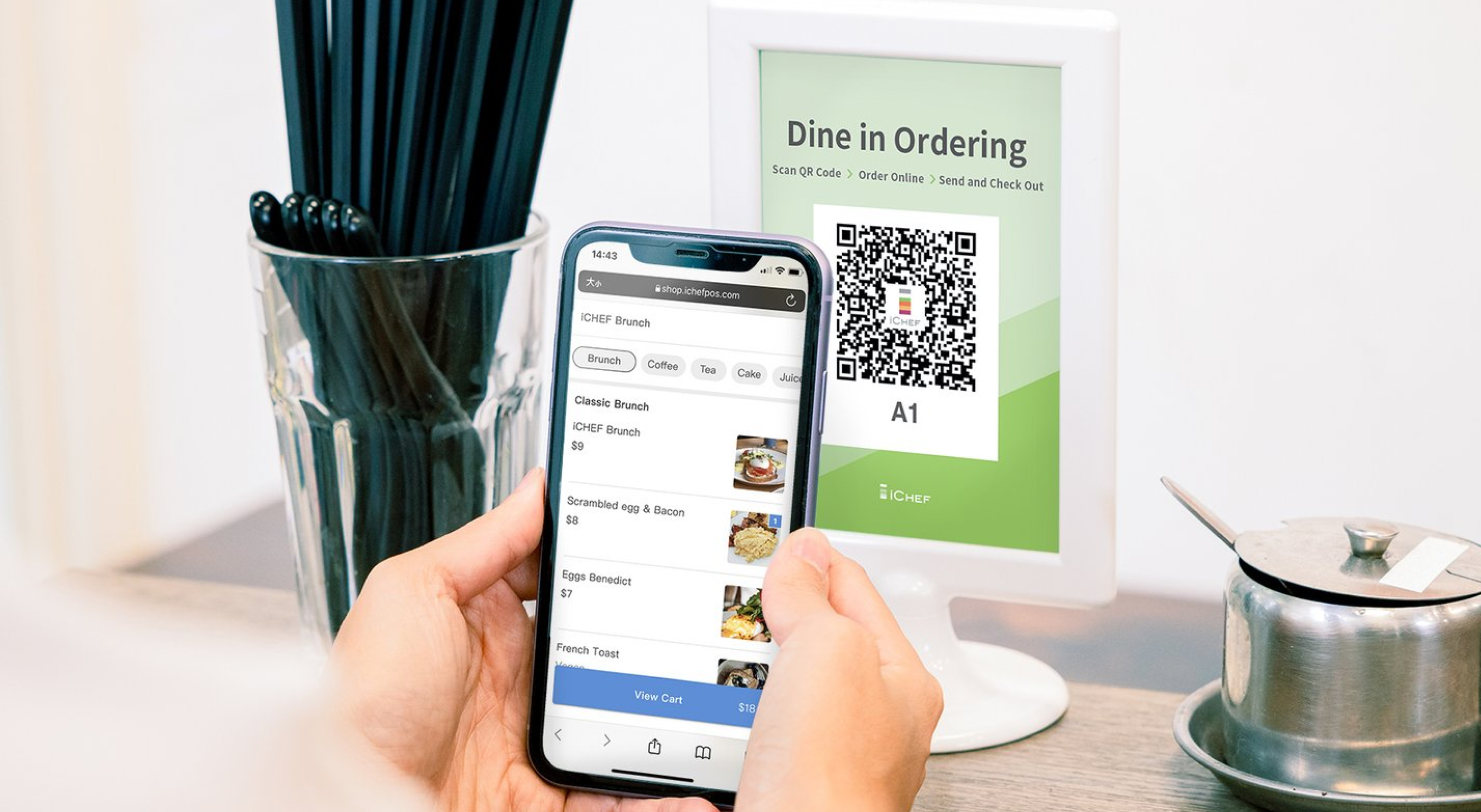
Automatically generate specific table card
In the backend, the system will automatically generate a QR Code according to the table name you configure in [Shop Management] > > [Table Arrangements] for you to download.

If you are using it for the first time or have adjusted the table arrangement, please update menu on iCHEF POS to activate the QR codes.
Apply checkout mode
The generated image of table card specifies the steps for you to guide the customers through the process of Mobile Ordering (Dine-in). The steps displayed automatically depend on the checkout mode you configure in [Checkout Process].

If you have changed the checkout mode, please download the image of table card again to avoid any misunderstanding by customers during the process.
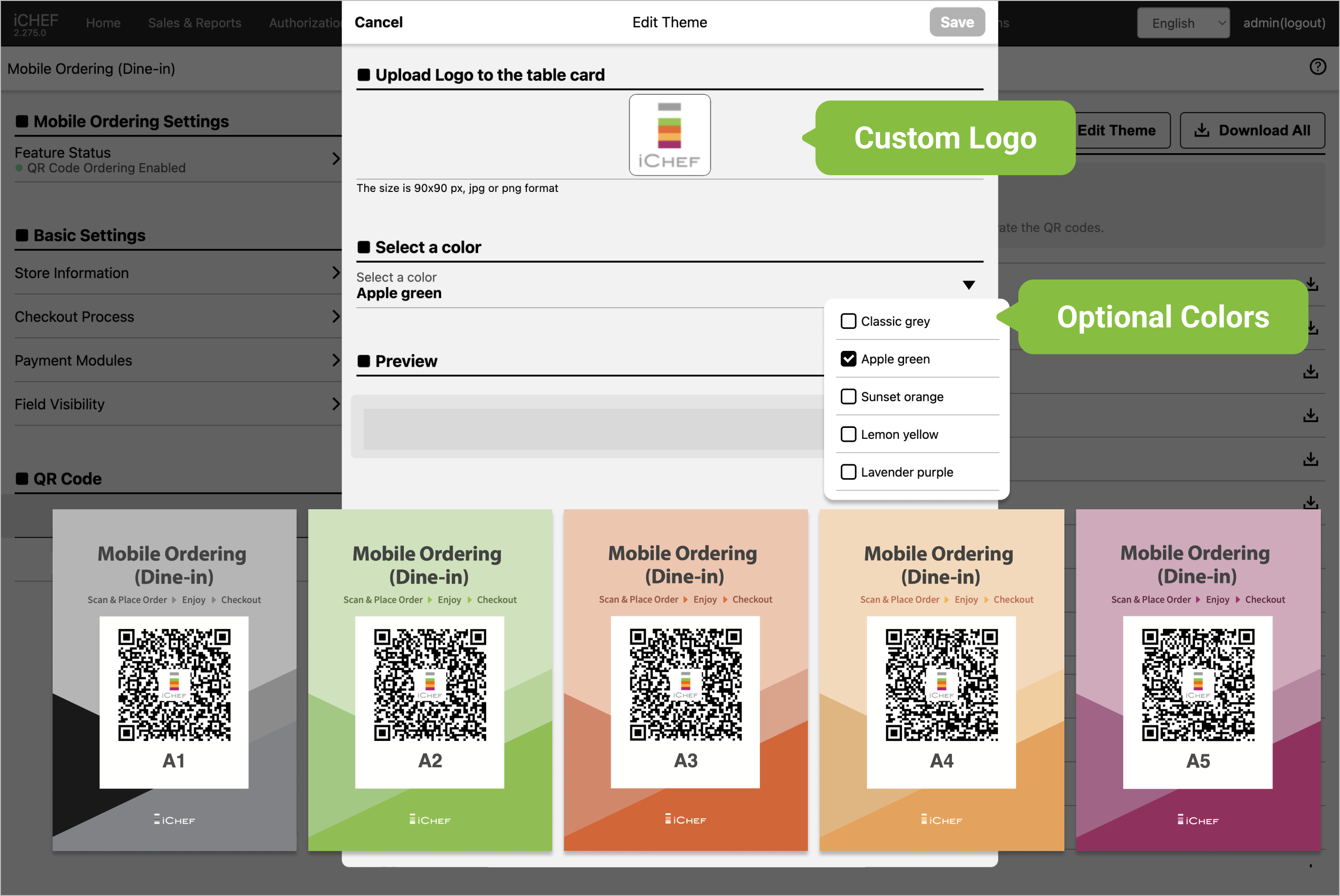
Edit theme
You can select a color and upload a logo for the table card. The settings will be applied to all of the table cards.
Applicable to the circumstances of table sharing or customers coming as a group
Multiple phones can scan the table QR code simultaneously. Once the first customer enters the number of guests, the group can begin ordering. For shared tables, customers can select “Start a New Order” to keep their orders separate.
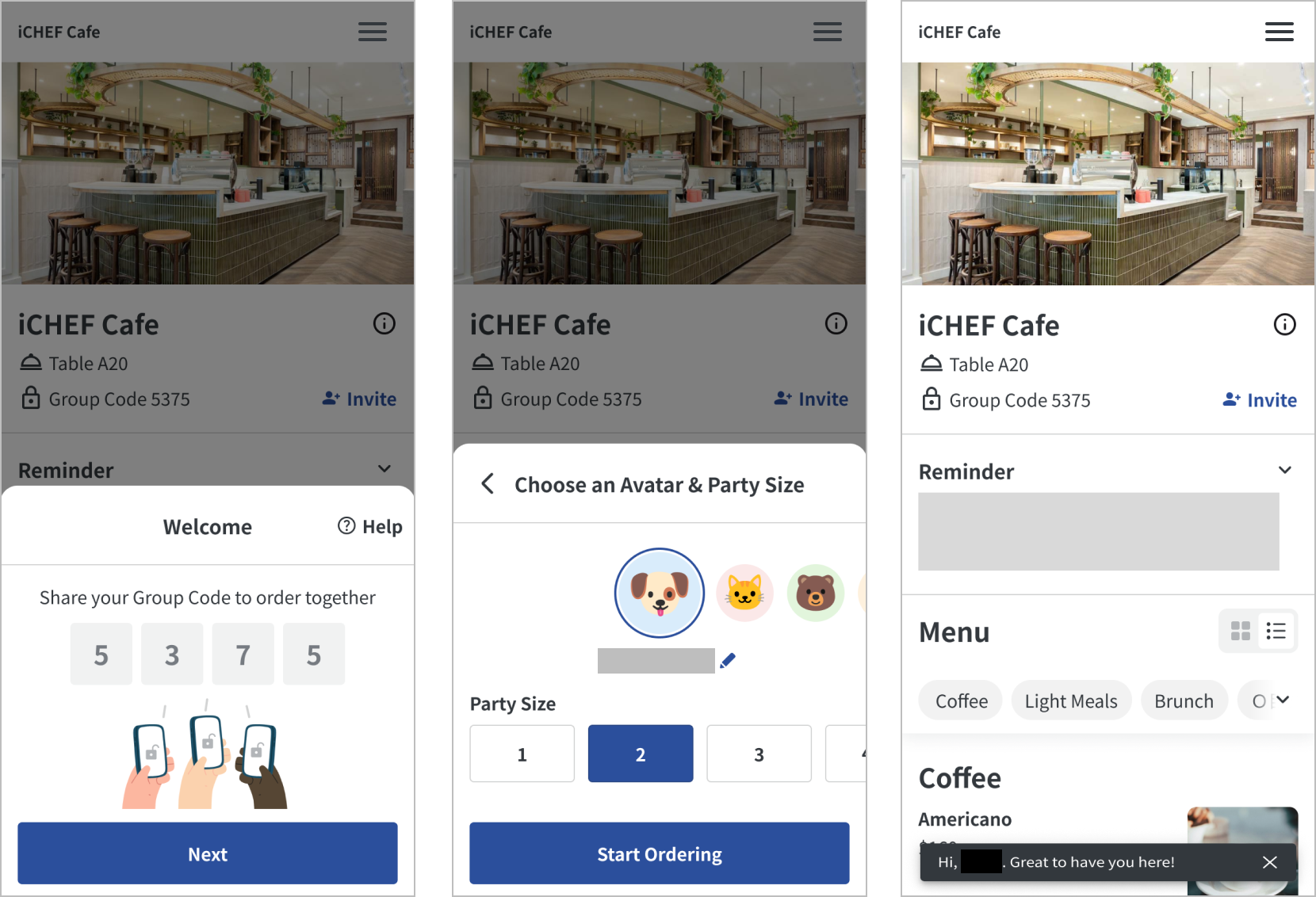
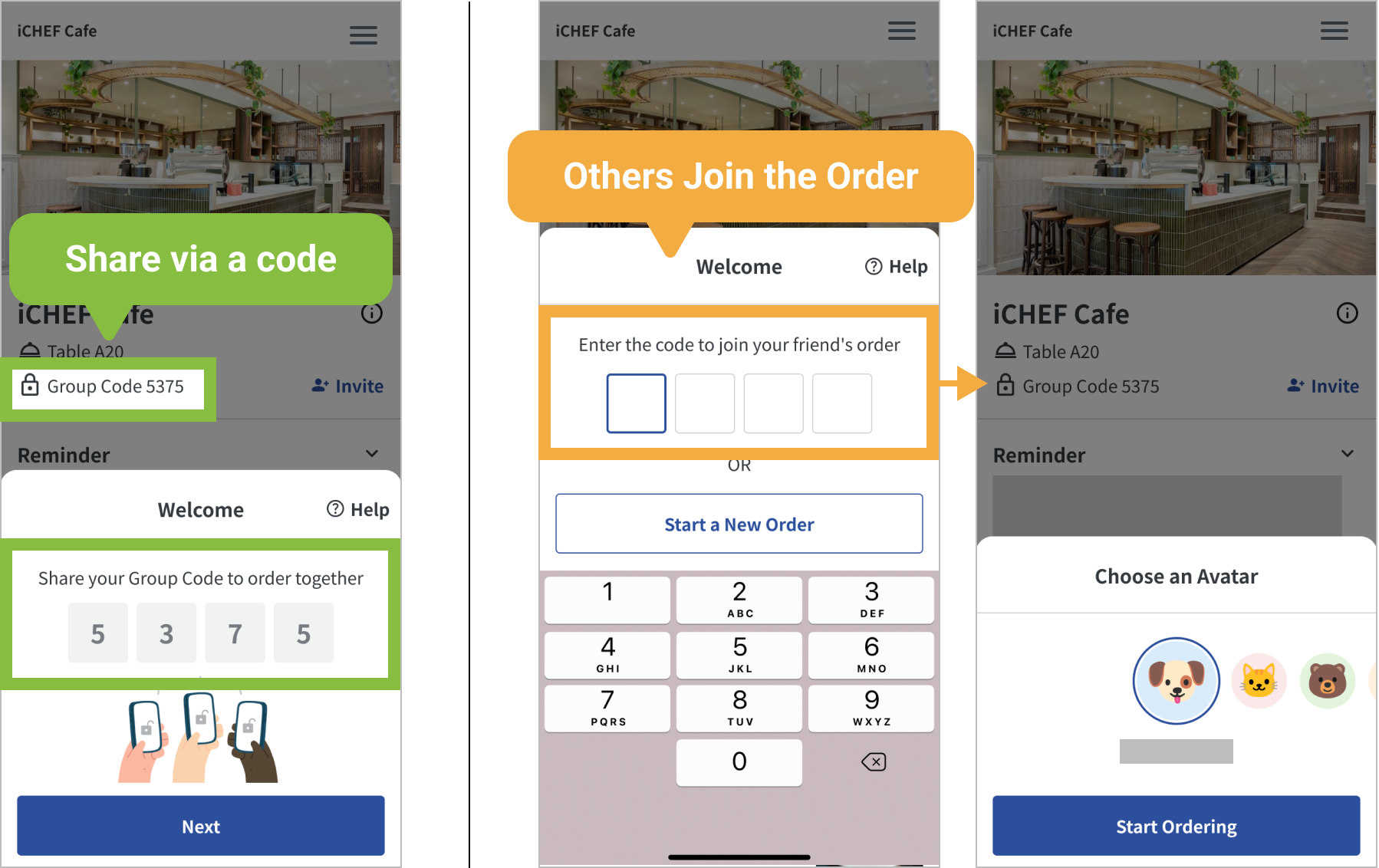
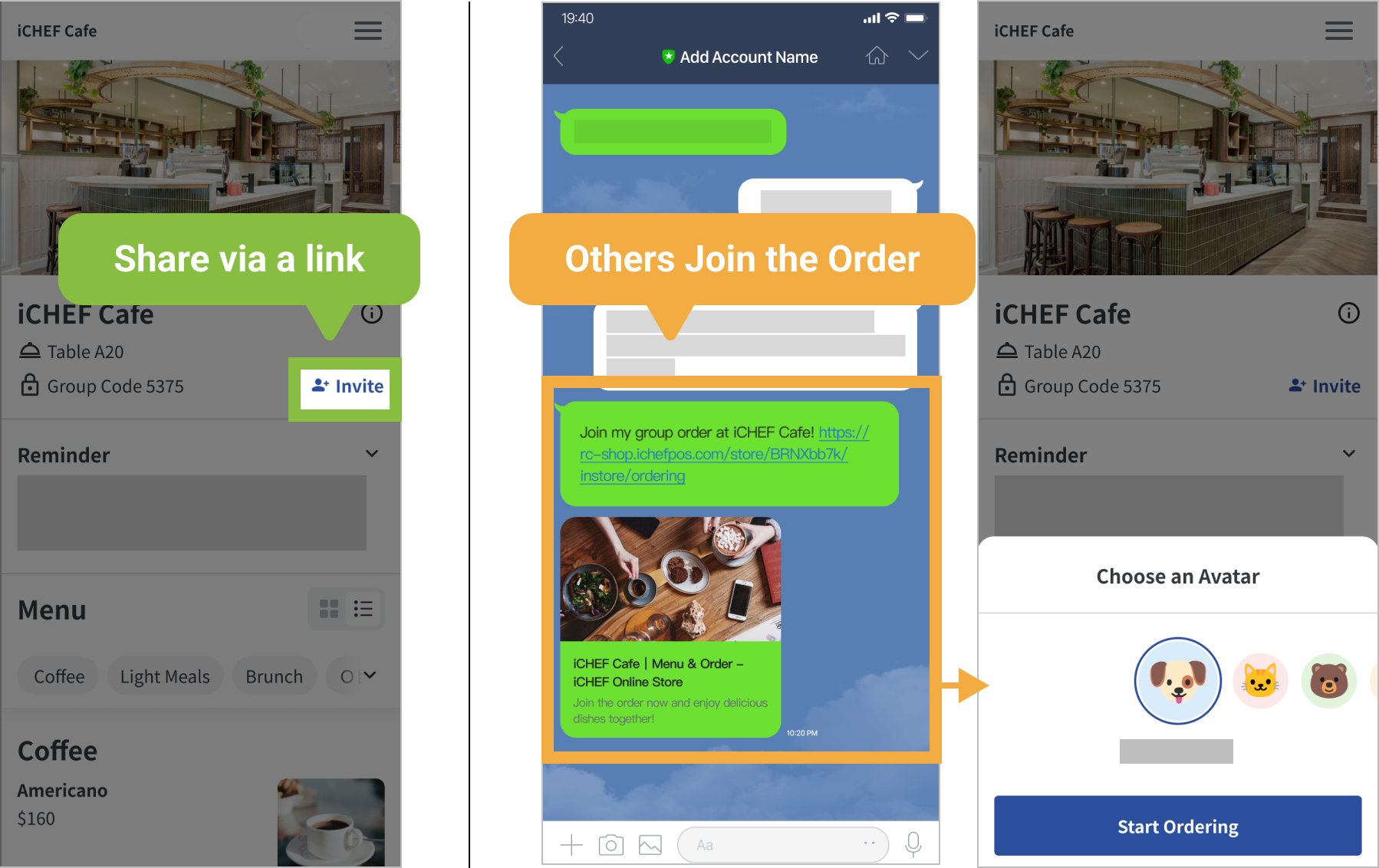
For group dining, customers can share the order with their companions via a code or link.
- Share via a code:
- For the one who shares the order: Check the specific code displayed in the new order or at the top of the menu.
- For the rest of the group: Scan the same QR Code and enter the specific code to order meals.
- Share via a link:
- For the one who shares the order: Click [Invite] at the top of the menu to share the link via messenger Apps.
- For the rest of the group: Click the link to order meals.
| Static QR Code | Order QR Code | |
|---|---|---|
| Form | Table card | Receipt |
| Instruction | It can be placed on the table for different groups of customers to scan and place orders. | It is exclusive for each group of customers. |
| How to print | iCHEF will generate a static QR Code for specific table from the backend. Download and print it, and then place it on the table. | iCHEF POS App will generate a dynamic QR Code accordingly after a dine-in order is created. Print it directly with the printer in your restaurant. |