All items on your ordering page are imported from Product/Inventory Mgmt > Items. If you wish to add new item for online store, please add it in [Product/Inventory Mgmt], then import it to Mobile Ordering (Takeout/Delivery).
Category
Categories can help customers to find what they want on the ordering page.
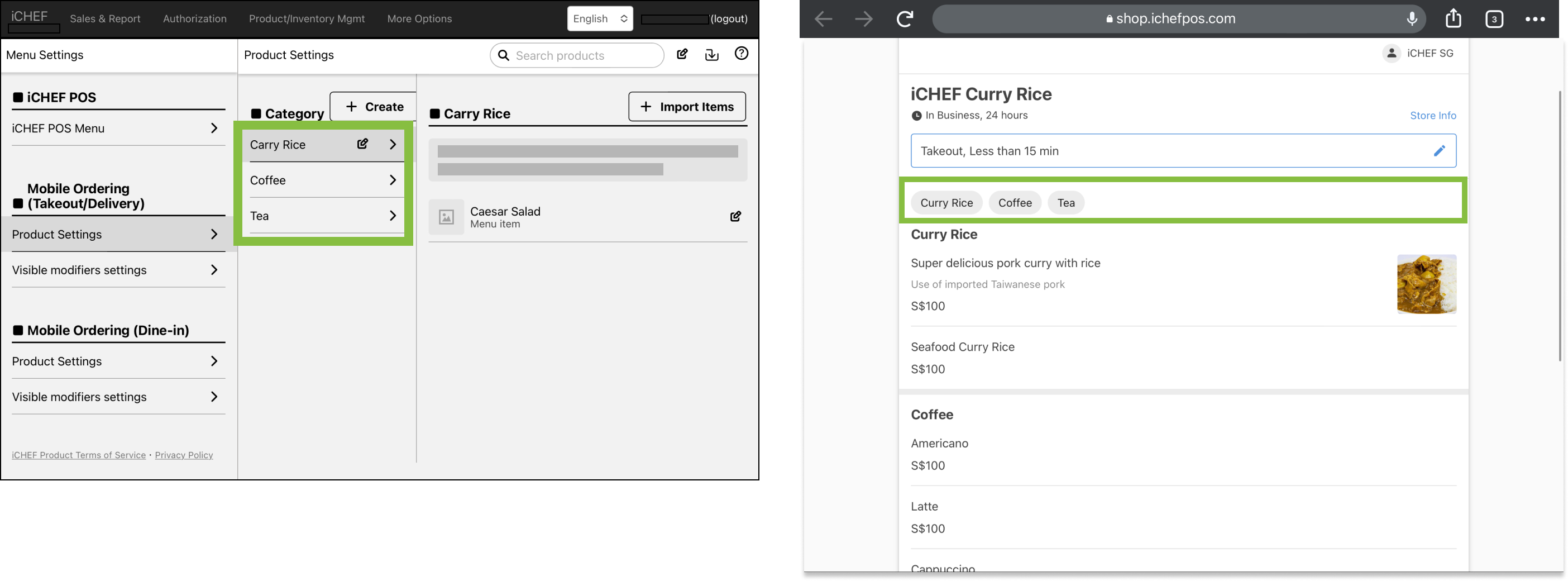
Create Category
- Go to Product/Inventory Mgmt > Menu Settings > Product Settings
- Click [+ Create]
- Enter a new category name

Import Products
You can import an existing item (including item name, price, and modifiers) from Product/Inventory Mgmt > Items to online store, and then customize details.
- Go to Product/Inventory Mgmt > Menu Settings > Product Settings
- Click [+ Import products]
- Select the item you want
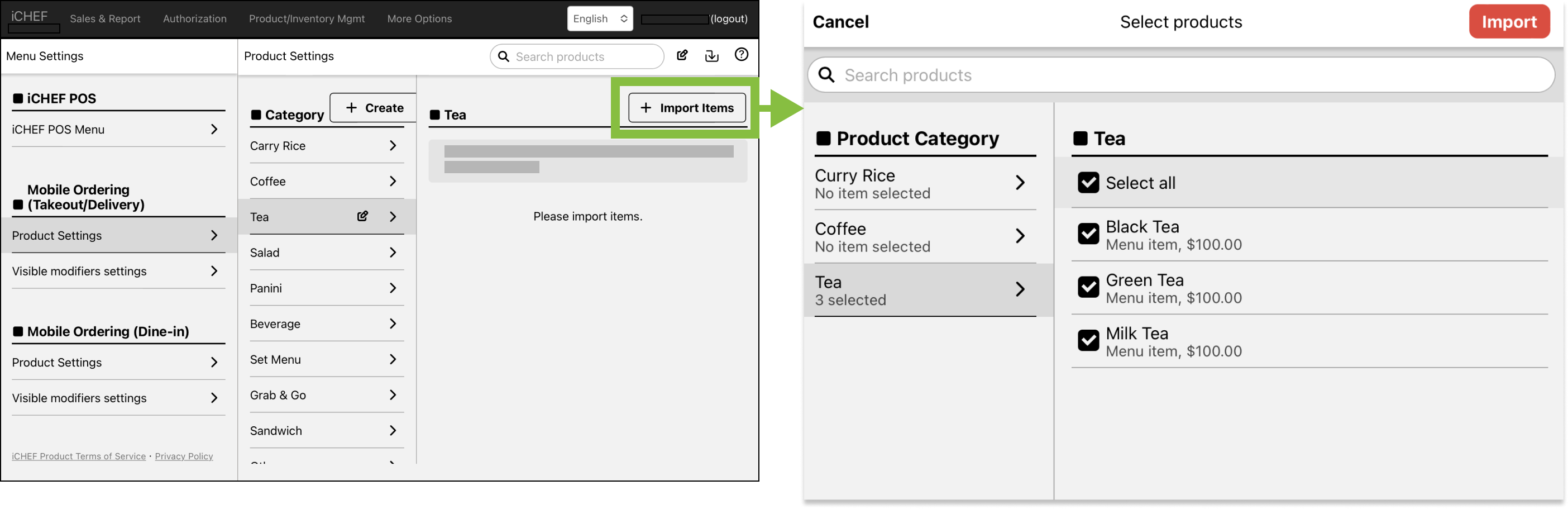
An item can only be imported to one category
Other Settings
Edit
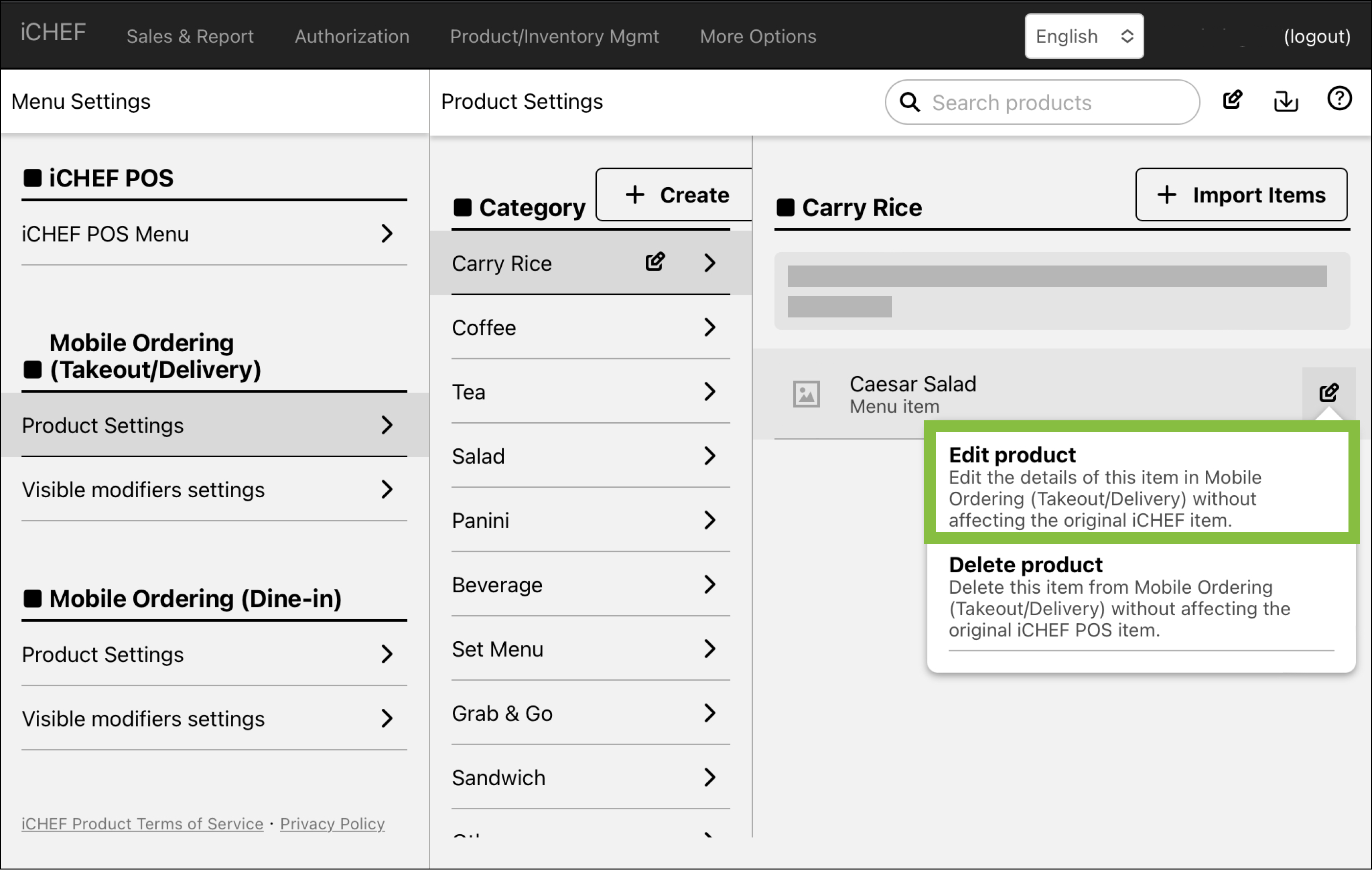
You can customize the name, description, and item image displayed on your ordering page.
Item names shown on reports or printed receipts will remain aligned to the name set up in product management.
If you want to differentiate the price from POS items and Online Store, please create 2 items separately in Product management > Items.
When using both takeout & dine-in ordering page, you can save changes for the other page.
- Check: Save changes for the other page.
- Un-check: Save changes for the current page only.

Category will not be synchronized.
Delete

You’ll remove this item from Mobile Ordering (Takeout/Delivery) page. Items in Product/Inventory Mgmt > Items will not be deleted.
Import All Products
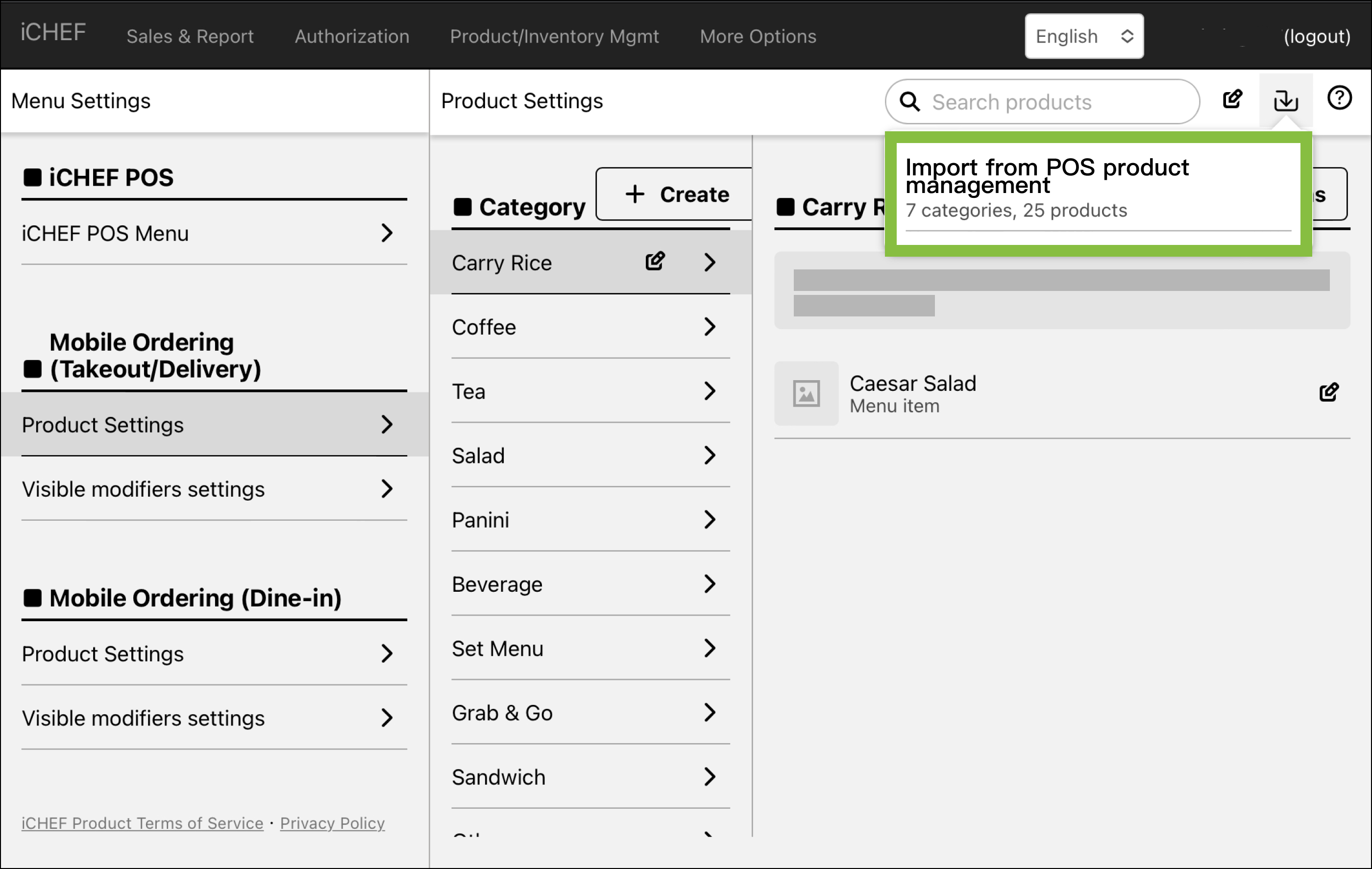
Your menu settings in [Product/Inventory Mgmt], including all items, category, price, and modifiers, can be imported with just one click. It is an efficient way to build or renew your menu for online store. To import all products:
- Go to Product/Inventory Mgmt > Menu Settings > Product Settings
- Click [Import from POS product management]
- Import all items from POS Items. Including name, category, description, modifiers and product image that meets the requiring size.
Size Requirement: 750 x 750 px.
Please notice that if the images in the product management were uploaded BEFORE 2023/03/22, the image size will be too small to import to Online Store.
Those images that are too small will be displayed as default image.

Manage Modifiers
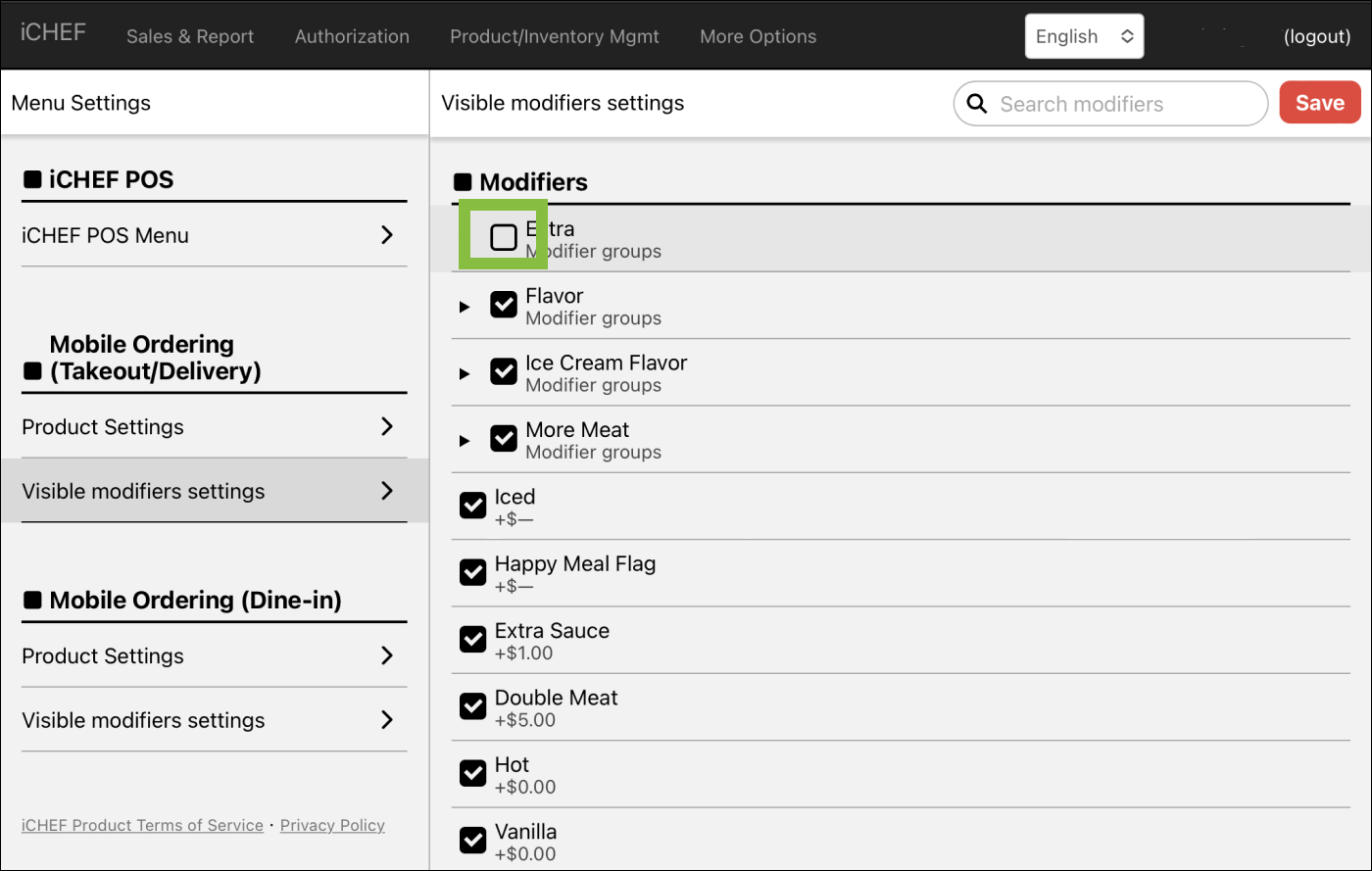
To manage modifier visibility:
- Go to Product/Inventory Mgmt > Menu Settings > Visible modifiers settings
- Check the modifier to display it on ordering page
- Uncheck: Customers will not see/select the modifier.
- Check: Customers will see and be able to select the modifier.
Reorder Item Listings
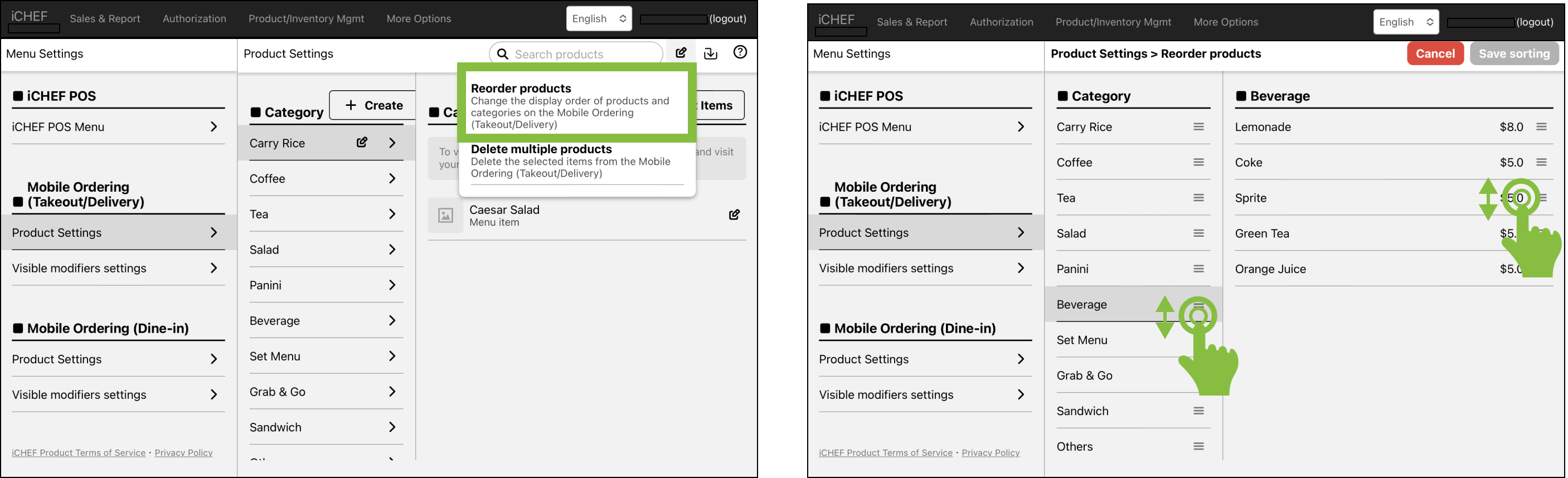
You can reorder the listings of items and categories on your ordering page. Customize your menu and promote popular items to boost sales!
- Go to Product/Inventory Mgmt > Menu Settings > Product Settings
- Click the pen icon beside the search bar, and click [Reorder products]
- Drag categories or items to reorder the listings