
This article guides you on how to flexibly plan the layout and settings of the iCHEF POS order printer according to your restaurant’s workflow. Step by step, it helps you create an operation environment tailored to your restaurant’s rhythm, making the setup intuitive, time-saving, and efficient.
Complete backend setup in 3 steps
➊ Design the in-store order printer layout
To ensure a smoother setup, we recommend planning the in-store order printer placement and main functions first.
- First, sketch the store layout and area distribution
- Mark the location and model of each order printer to aid later setup

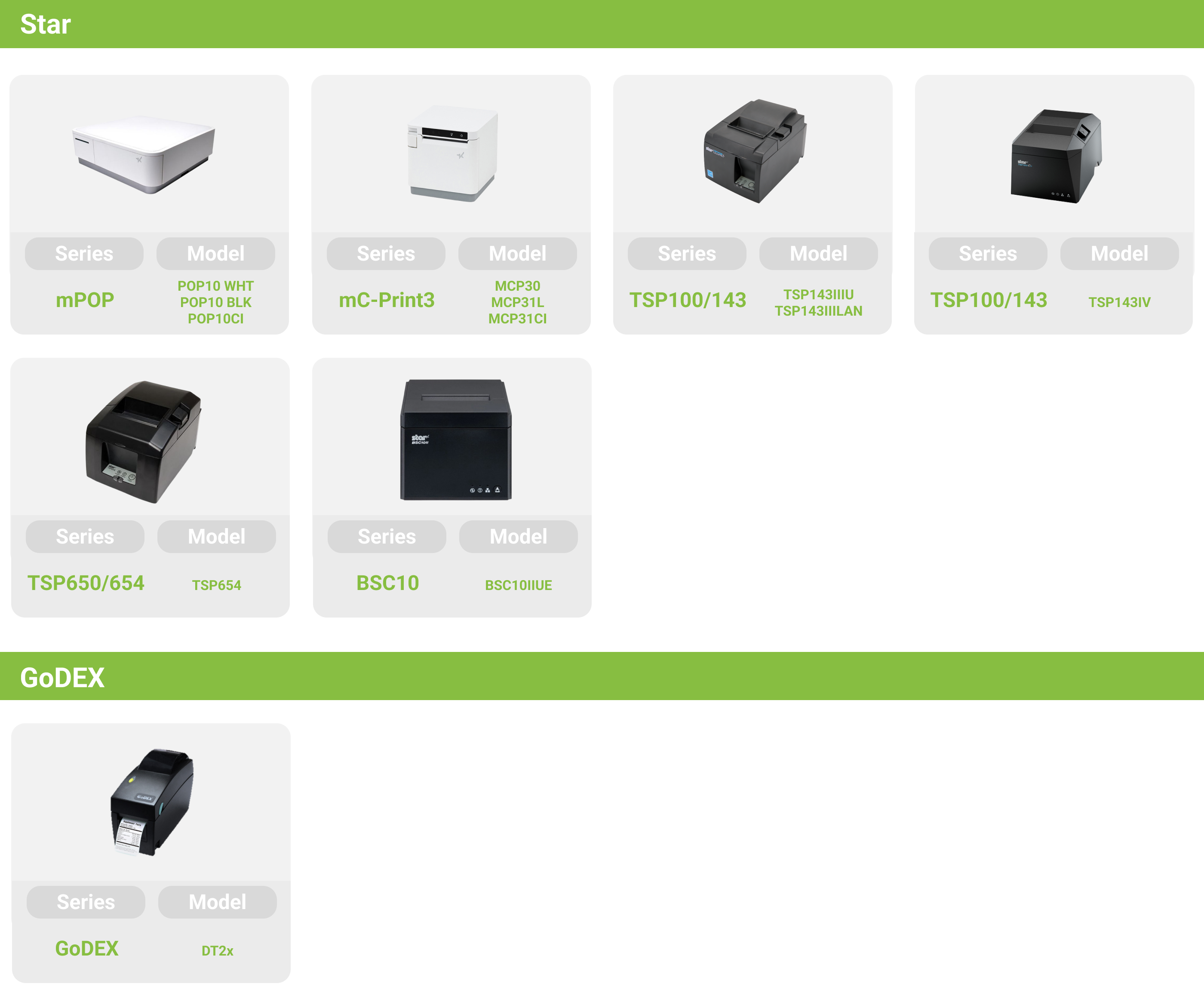
Supported order printer models vary by your restaurant’s location with iCHEF POS.Learn More
➋ Go to the backend to add all order printers
➤ Backend:Store Management > Printer Settings
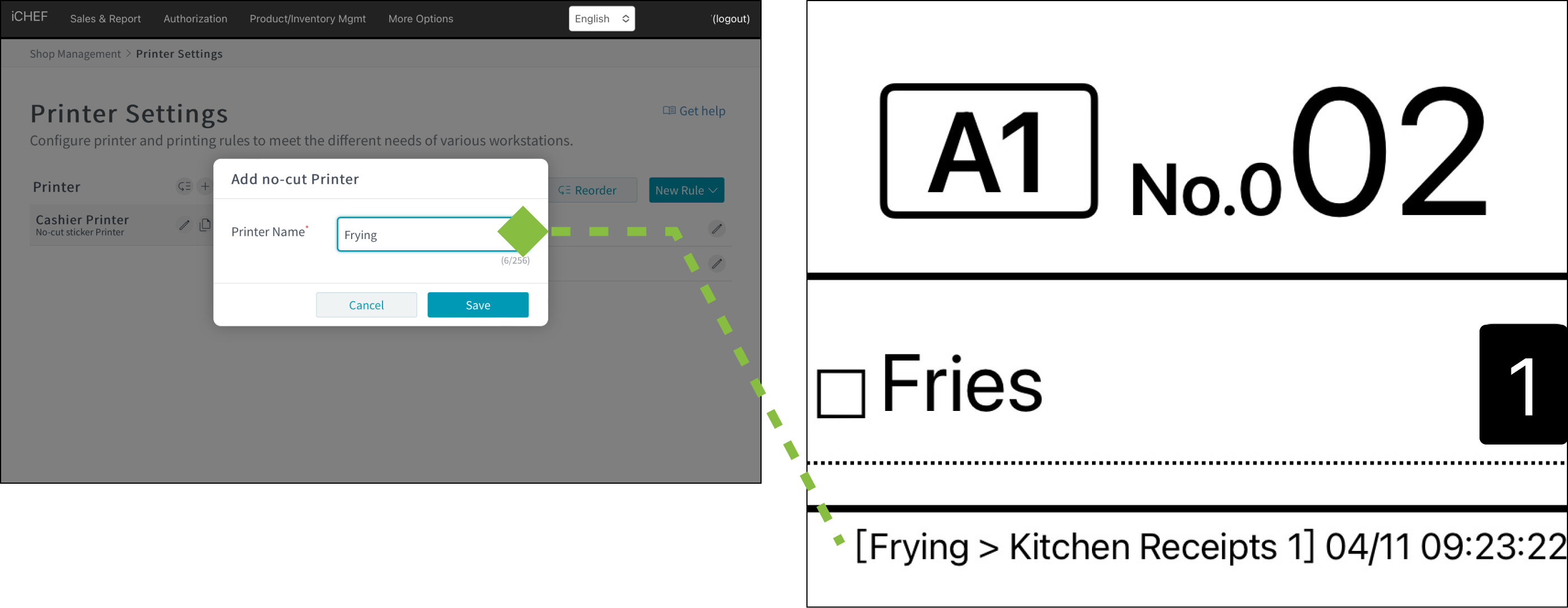
When adding order printers, create each one according to the actual number in your restaurant. We recommend referring to the previously drawn printer layout and assigning an easy-to-recognize name to each printer for convenient management and use.

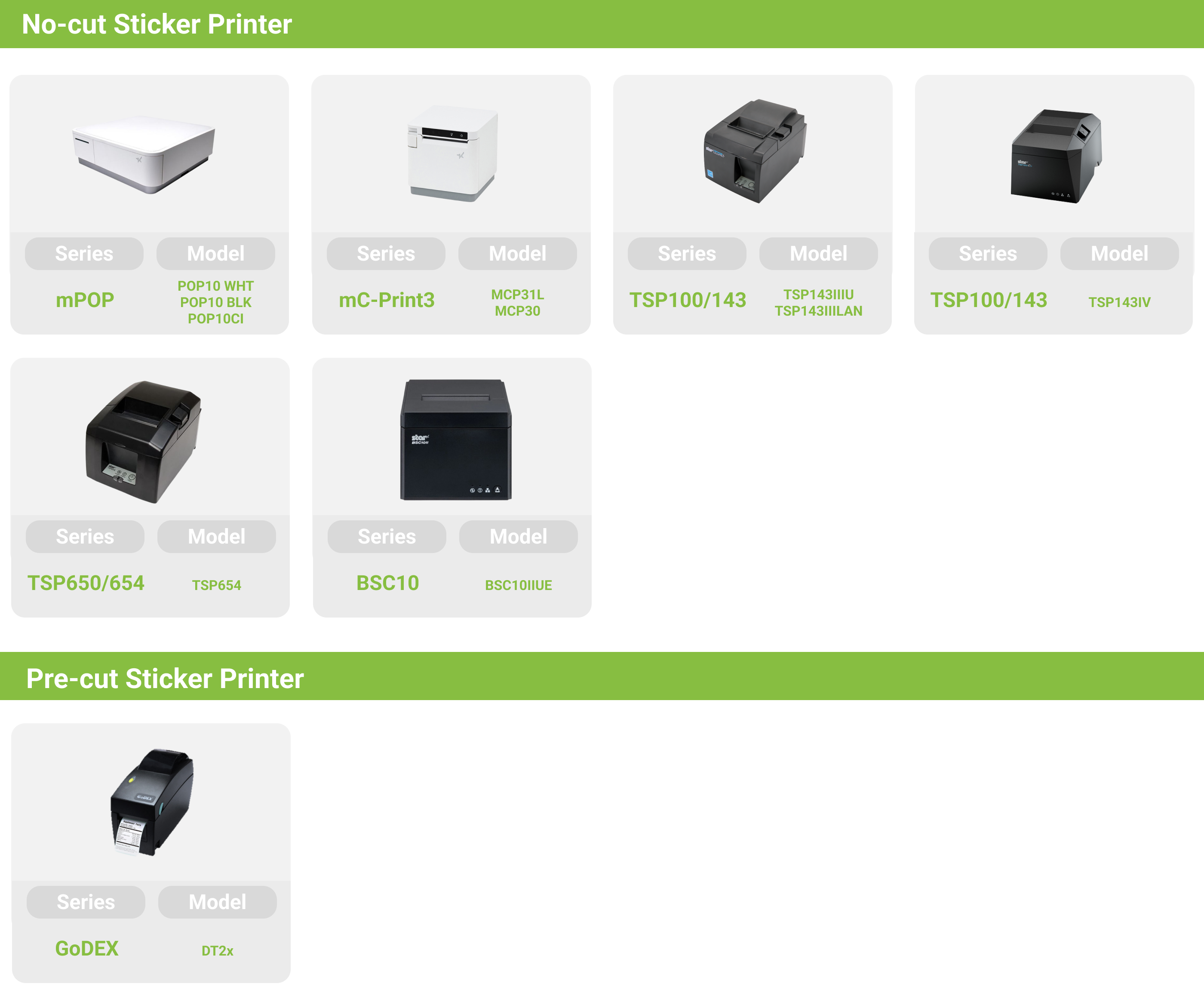
Since order printers use different paper roll types, please choose either “Uncut Paper Roll Printer” or “Cut Paper Roll Printer” when adding. Below is a list of paper roll types used by each printer for quick reference.
Supported order printer models vary by restaurant location with iCHEF.Learn More
➌ Add print rules for each order printer
After adding all order printers, set the printed receipt content according to each printer’s assigned tasks to clarify work division.
Rules applicable for uncut paper rolls
| Ticket Name | Recommended Location | Settings of Rules |
|---|---|---|
| About Payments | Counter | View details |
| Coupons | Counter | View details |
| Kitchen Receipt | Kitchen | View details |
| Guest Check | Kitchen Pass | View details |
| Order QR Code | Counter | View details |
| Adhesive Label | Kitchen Pass | View details |
Rules applicable for cut paper rolls
| Ticket Name | Recommended Location | Settings of Rules |
|---|---|---|
| Pre-cut sticker | Kitchen Pass | View details |

After setup, please select “Login after updating menu” in the iCHEF POS App to start pairing the printer.
