iCHEF POS is a POS system designed for restaurants. No matter it is for on-site orders, mobile ordering or reservations, all of the information is integrated in iCHEF POS App, which allows you to efficiently manage the operation of restaurant with your dedicated backend settings and iPad.

iCHEF Backend
➤ iCHEF Backend Login page: https://login.ichefpos.com/
You can access iCHEF’s backend via the browsers on the devices such as computers, iPads or mobile phones. In the backend, you can set up various functions and checking sales reports, and also catch up with the latest news from iCHEF !
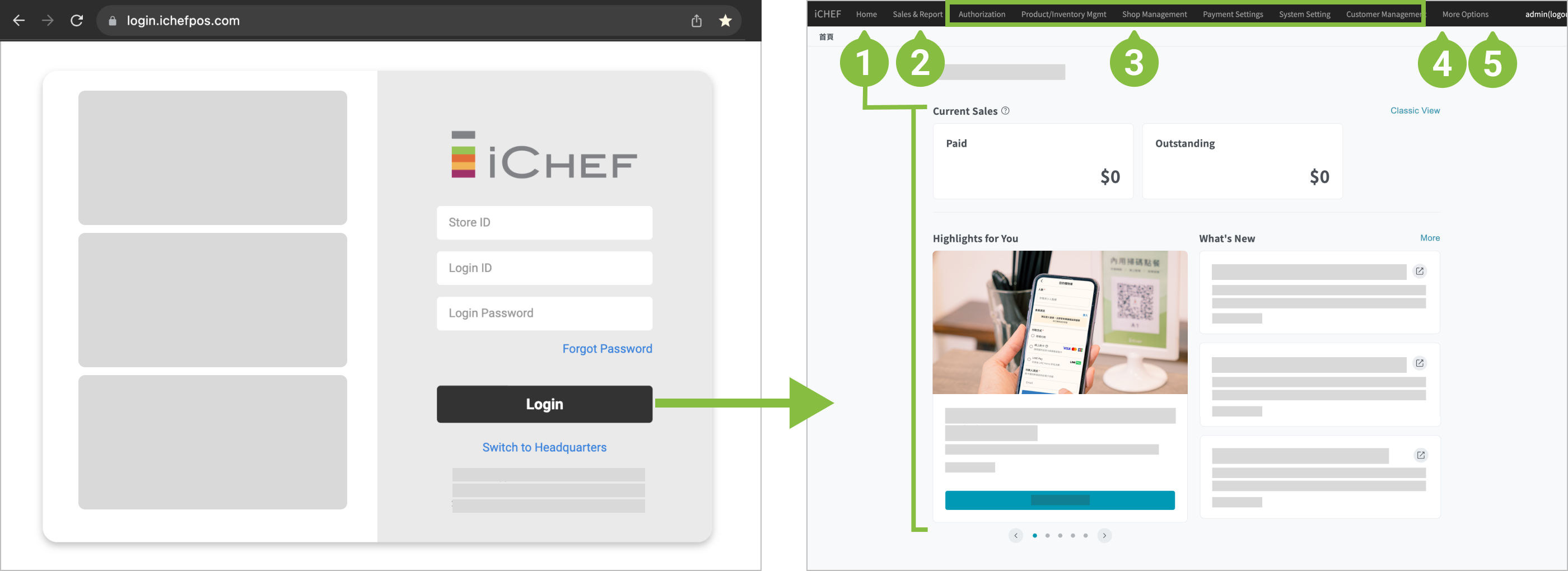
Sections in the backend:
- Home: The default login page, which shows operation overview, new functions with iCHEF and system updates.
- Sales Report: It displays various aspects of business analysis and sales records.
- Functions: Click to enter the settings page for individual function.
- Account: Check or purchase the plans for iCHEF POS system.
- More Options: Other services.
iCHEF POS App
Download iCHEF POS App from the App Store with the dedicated iPad to manage the operation of your restaurant.
➊ Download the App
➤ App Store Download link: https://apps.apple.com/tw/app/ichef-pos/id950523590
You will need to sign in with your Apple ID when downloading the App. We recommend you to use an Apple ID which is exclusive for your restaurant to avoid issues of update or login in case of personnel changes.
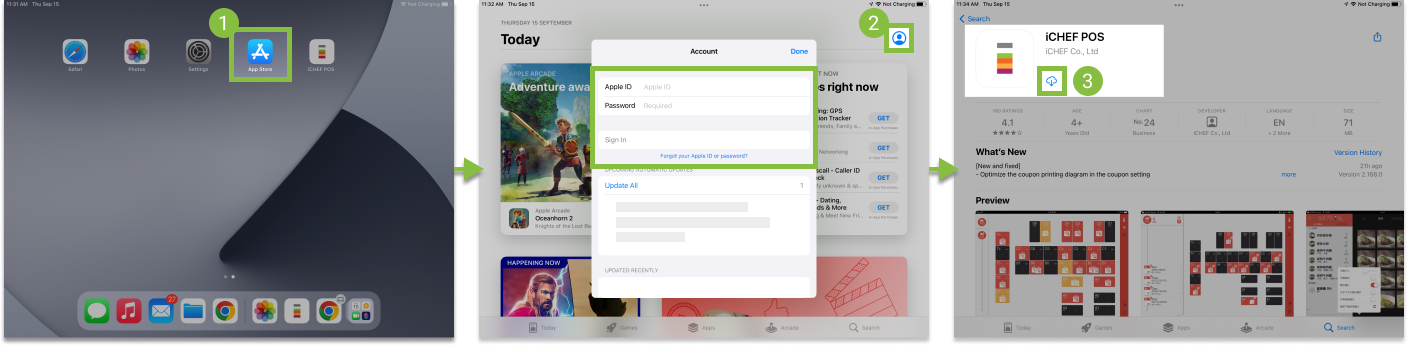
How to download:
- Go to [App Store] on your iPad.
- Click [Account
 ] in the upper-right corner to sign in with your Apple ID.
 - Search and download iCHEF POS App.
- Step 1: Prepare an email account
During the application for an Apple ID, you will need to complete the email authentication. If you do not have any email accounts, please refer to Google’s instruction for Create A Google Account. - Step 2: Create an Apple ID with your email account.
After successfully creating an Apple ID, you can use it to log into the App Store!
➋ Login and get started
For all of the functions by iCHEF, you need to configure them in the backend and then [Update Menu] on the iCHEF POS App before applying the renewed settings.
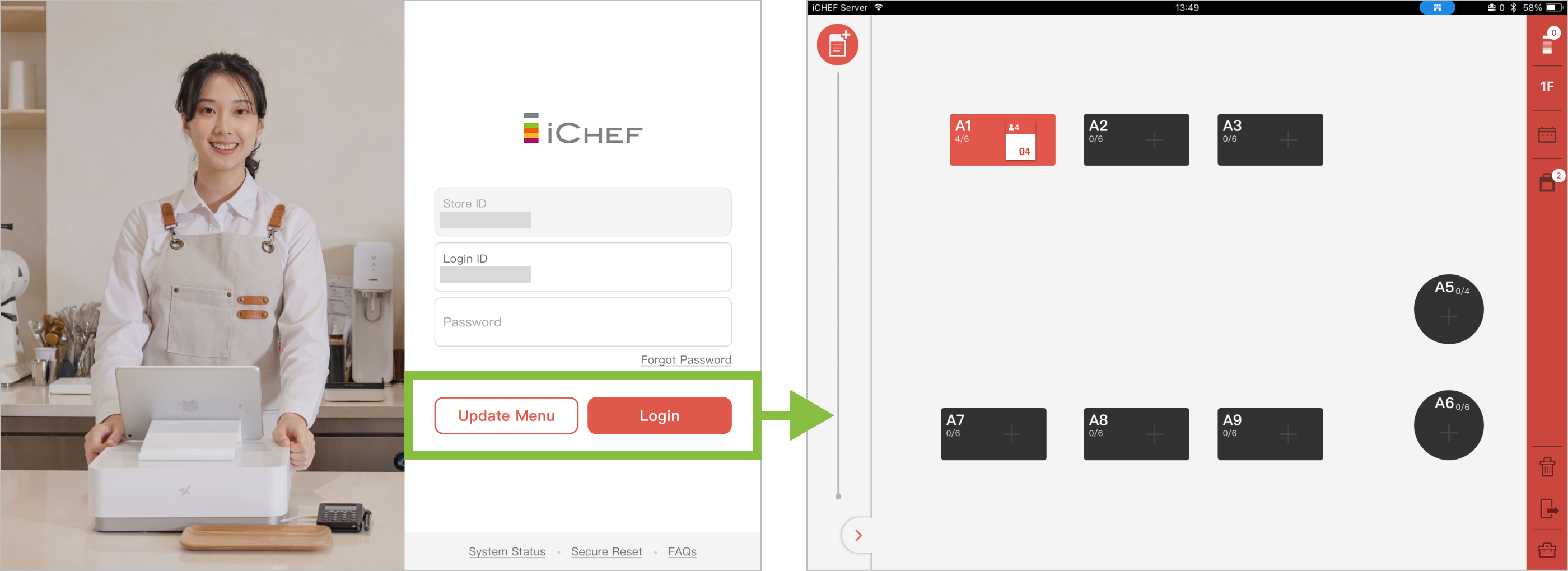
How to do:
- Open the iCHEF POS App on your iPad, and enter your iCHEF Store ID.
- Click [Update menu] to get started!
➌ Update iCHEF POS App
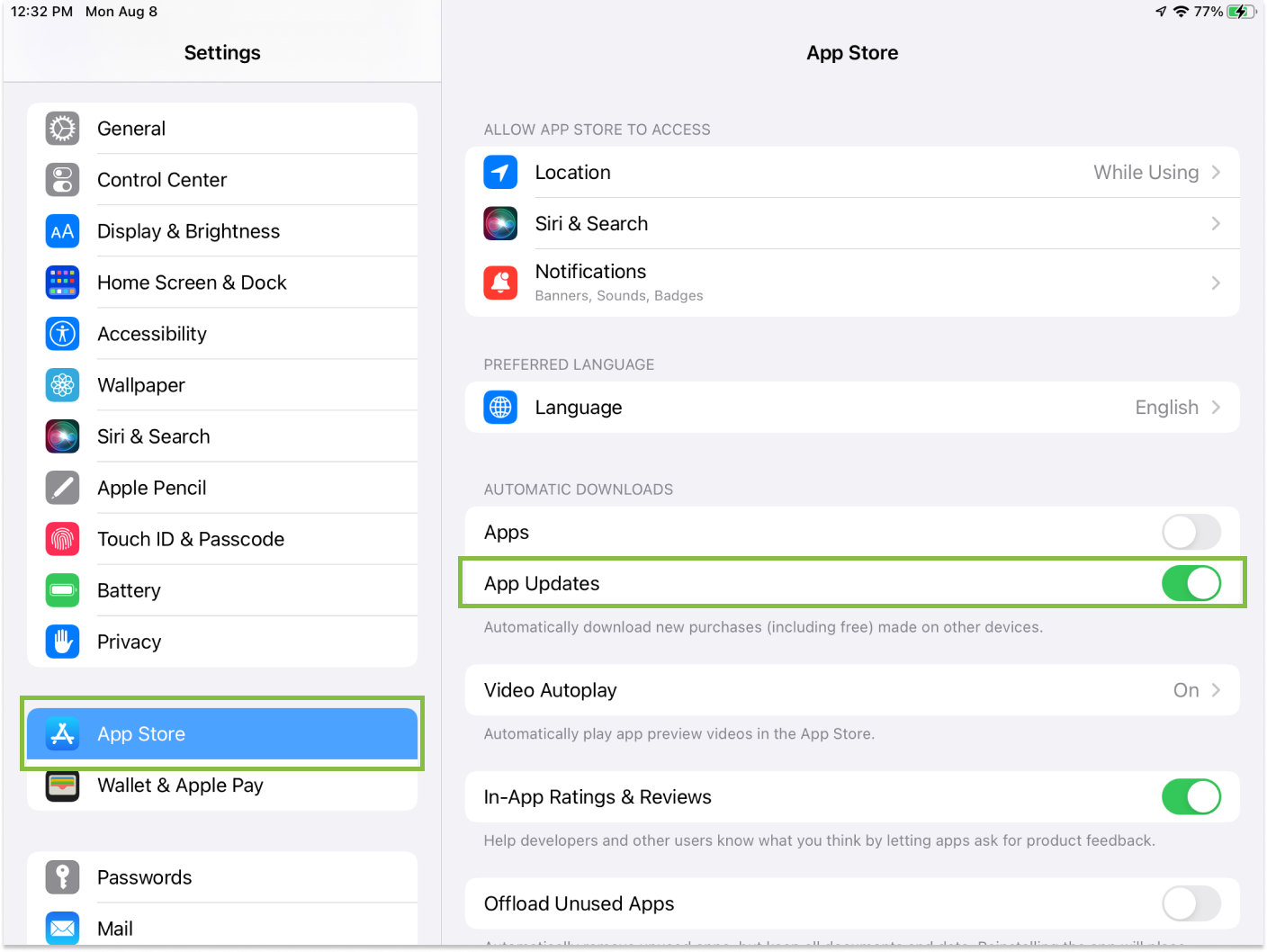
iCHEF regularly releases version update for its App to optimize user’s experience. We recommend you to enable the function of automatic software update to facilitate the original functions and enjoy the latest version of iCHEF POS at all times.
- Go to [Settings] on your iPad.
- Click [App Store] in the left panel.
- Find [Automatic Downloads] and enable [App Updates].
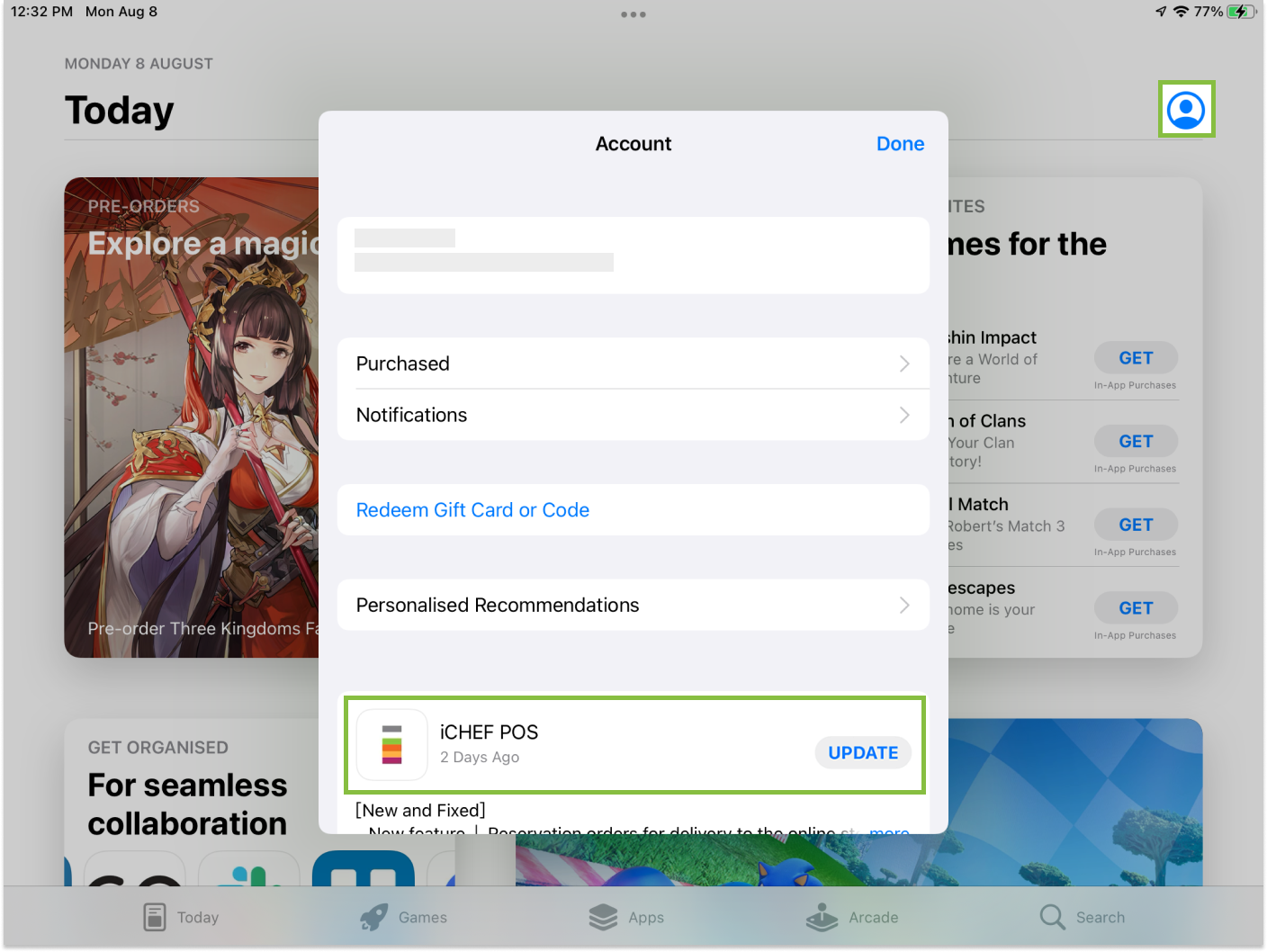
- Go to [App Store] on your iPad.
- Click the account icon in the upper-right corner.
- Slide down, find iCHEF POS and click [Update].