
The Table Status Page is divided into 4 major areas: Waiting Area, Dine-in Area, Takeout/Delivery, and Reservation Management (displayed when this feature is activated). Orders can be added and managed in each area.

Waiting Area
The left section of the Table Status Page is the [Waiting Area] Click the Add Order icon, enter the customer’s mobile number to register for the queue. If the mobile number is already a store member, the system will automatically include the Customer Info. Once a table is available, you can drag the order directly to the table and print the order! Learn More

Dine-in Area

Table Management
Dine-in Area tables can be configured via Backend > Store Management > Table ManagementIt is recommended to match the layout to the actual store layout for staff convenience. Learn More

Switching Areas
Click on the area or floor name on the right side of the Table Status Page to switch views.

Table number

Number of guests

Number of guests for all orders at this table / Max number of seats at this table
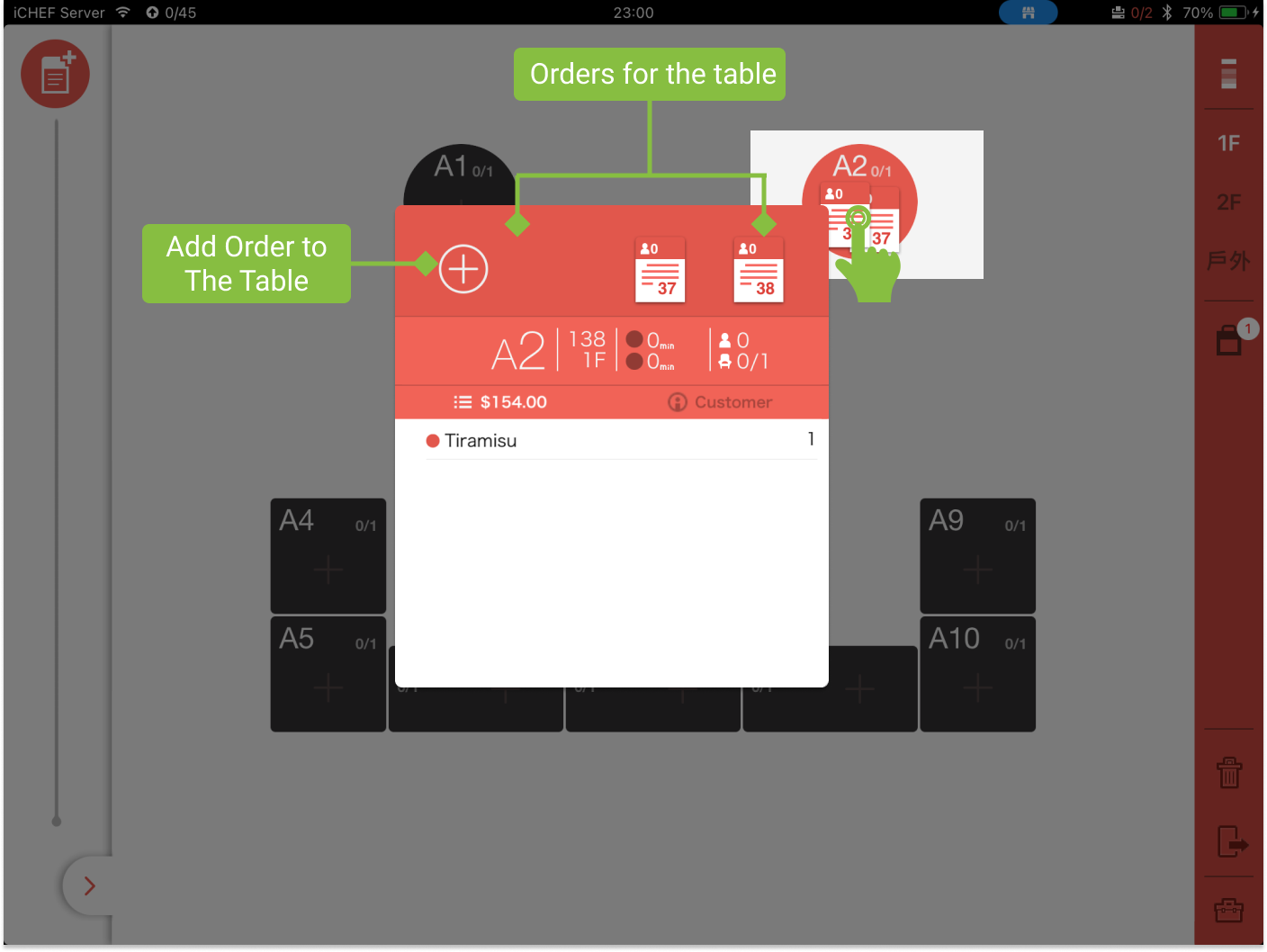
Orders for The Table

Maximum 4 orders per table.
Hold a Table
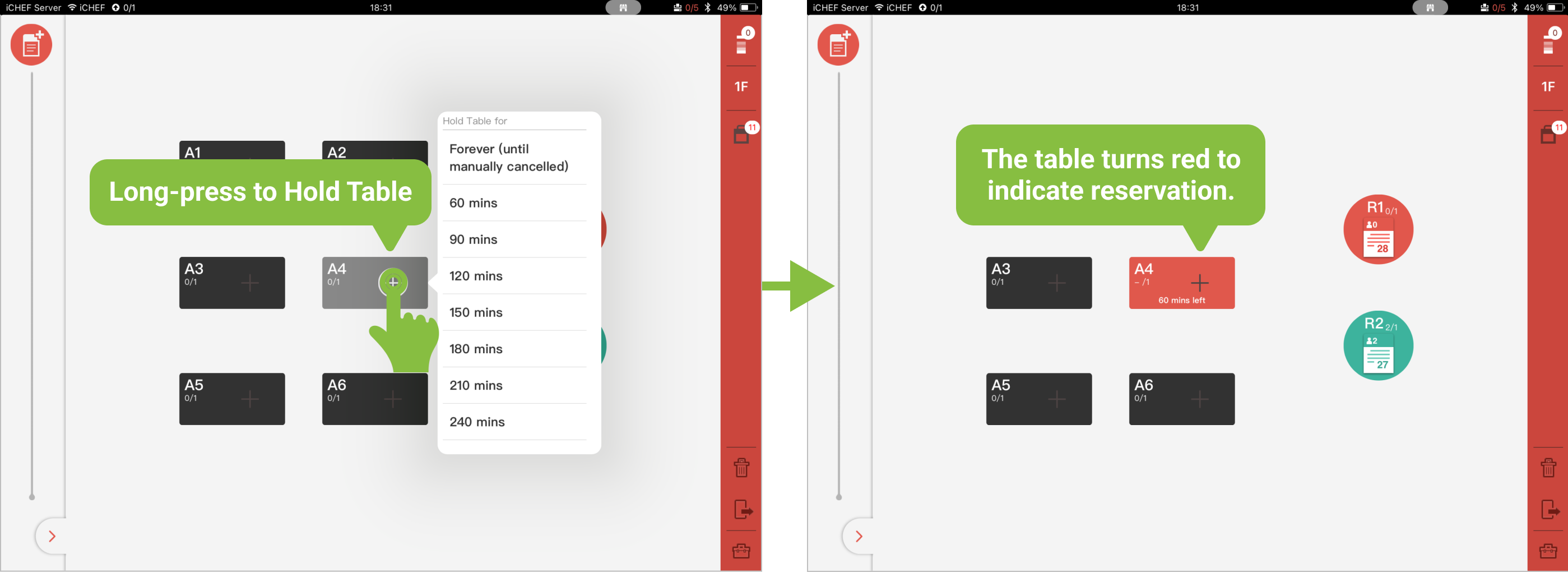
To hold a specific table and mark as occupied, simply long-press on the table and select a duration. The table will turn red, indicating it’s reserved or occupied, making it easy for staff to identify.
When the holding time is up, the table will automatically become available again. You can also manually cancel the holding status by long-pressing the table again. Learn More
Changing Table / Merging Orders
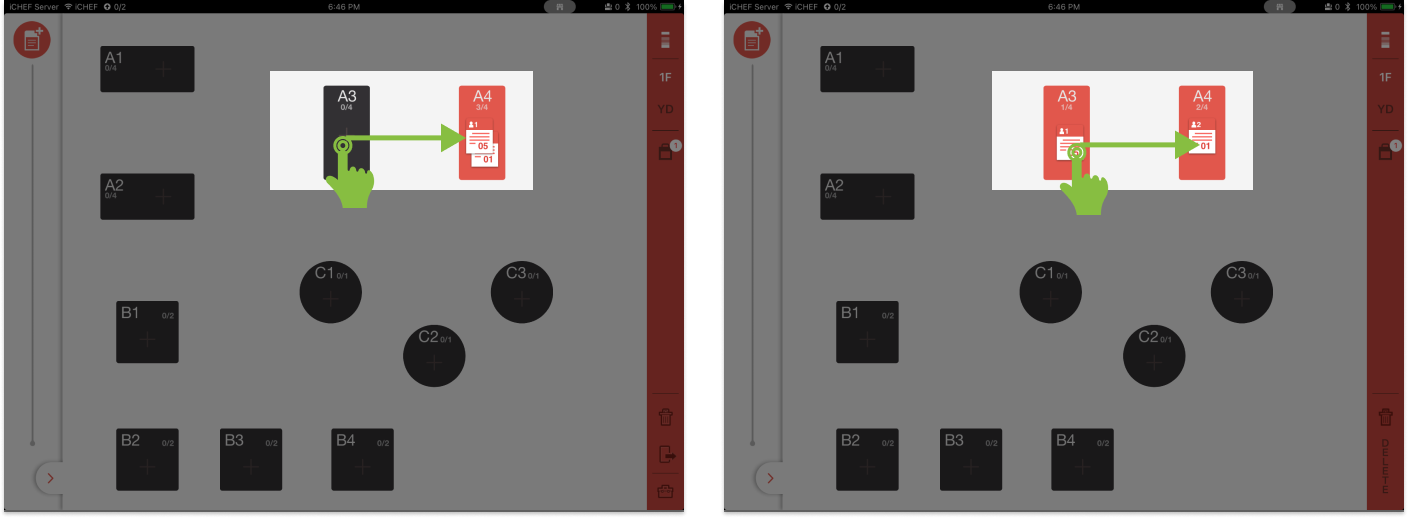
For existing orders, if you need to make temporary adjustments, you can move the table (drag the order to another empty table) or merge the order (combine the order with another existing order) by dragging.Learn More
Order Window
A maximum of 4 orders can be placed on each table. When a table has one or more orders, clicking the table will display the Order Window, allowing you to browse all order information for that table.
Takeout/delivery

Order Filter
You can look up for specific orders by order number, customer’s name or phone number, etc.

Order Filter

You can adjust the sequence of orders in the list using the order filter.
Keywords Searching

Search orders with keywords, such as name, phone number and order number
Time Settings

Sort by pickup/deliver time
Pickup Methods
Sort by ways of picking up the meals
Clear Filter
Clear all of the conditions and reset filter .
Order List
You can adjust the sequence of orders in the list using the order filter.

Order number/source

The color of order and coin symbol indicate the order status. The order’s source and type will also be displayed under the order number.
Pickup/deliver time
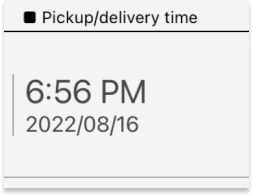
The pickup or deliver time will be displayed on every takeout/delivery order, and it depends on the calculation according to the order type.
Customer Info

This will be displayed if the customer provides his/her mobile phone number.
Amount

The unpaid orders are open for more items and eligible for point collection and discounts, so the amount displayed here should not be considered as the amount for checkout. Please refer to the amount displayed on the checkout page as the final checkout amount.
Reservation Management
The Reservation Management page will only be displayed when the Reservation feature is activated. Orders originating from Reservation Management will be displayed uniformly in this field. You can adjust the viewing mode and filtering conditions yourself. Learn More
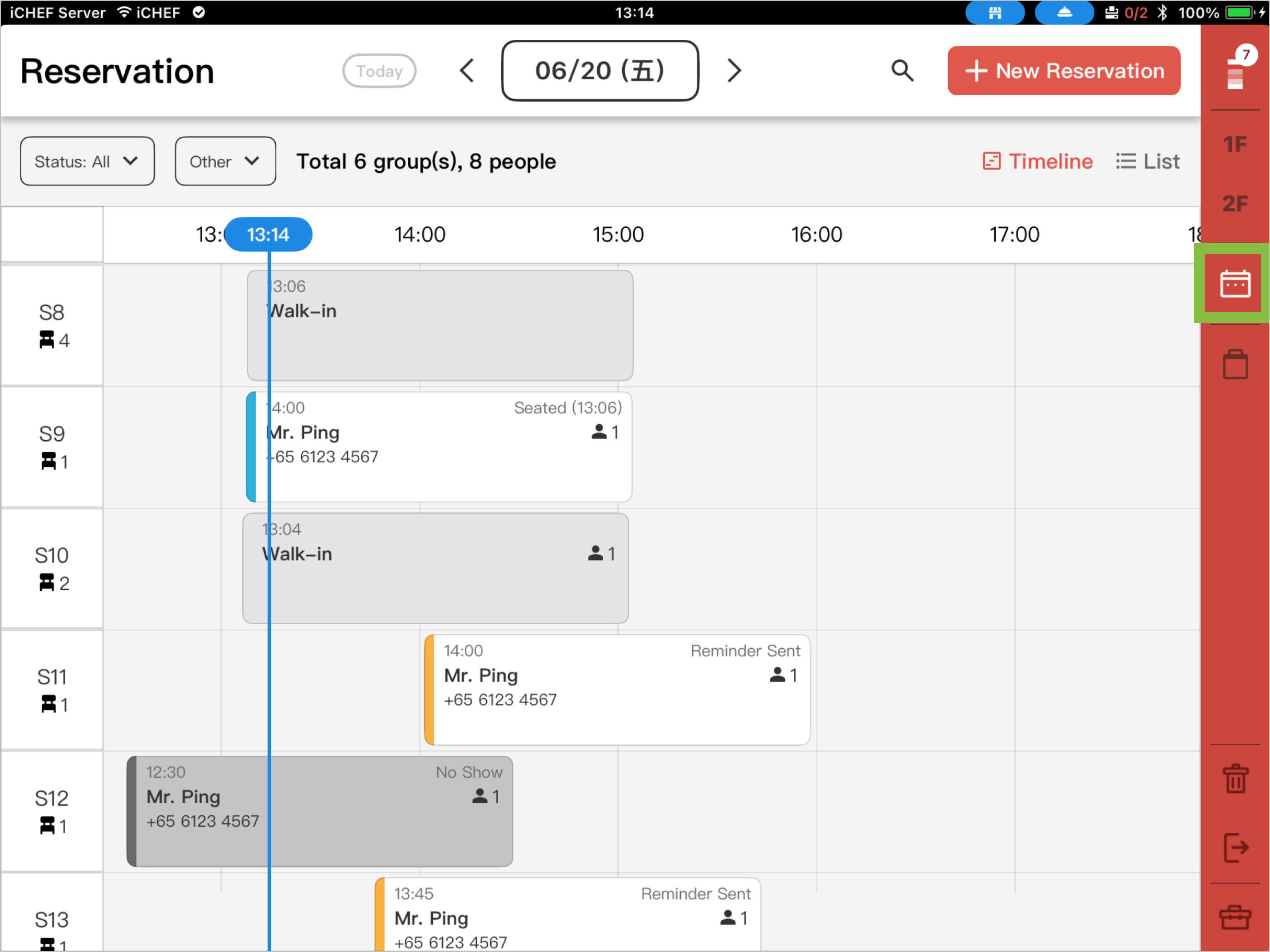
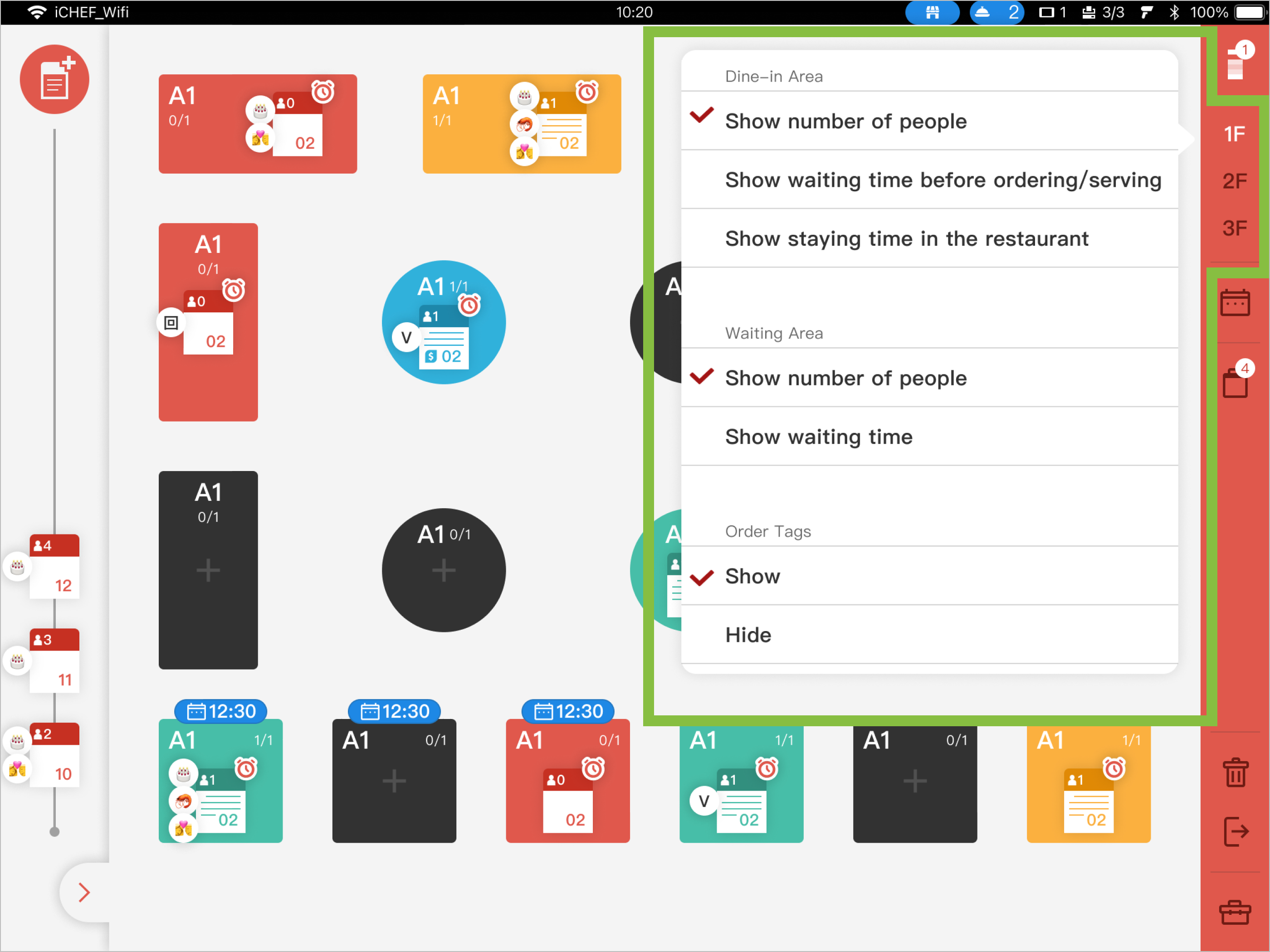
Table Status Page Display Settings
Click the area tag to adjust the display information for the Dine-in Area and Waiting Area.Learn More
Delete Order and Clear Table
- Delete Order (Void): When the order is not yet paid, drag the order to the “Trash Bin” in the bottom-right corner. The order will be deleted and items voided, while a void receipt will be printed to notify kitchen and floor staff.
- Clear Table (Checkout): After the order payment is completed, drag the order to the “Clear Table” icon in the bottom-right corner to complete the clear table action. [Learn More]Learn More

