Add new employee account, POS passcode, Login ID and password. Authorization groups can help you managing sensitive operations in an efficient way.
An account group is the smallest unit for configuring the authorization. We suggest that you divide the groups by positions and responsibilities, such as store manager, full-time employee and part-time employee. The accounts in the same group all share the same operating authorization.
- Go to Authorization
- Click [+ add new group]
- Enter the group name to complete

Create an Account
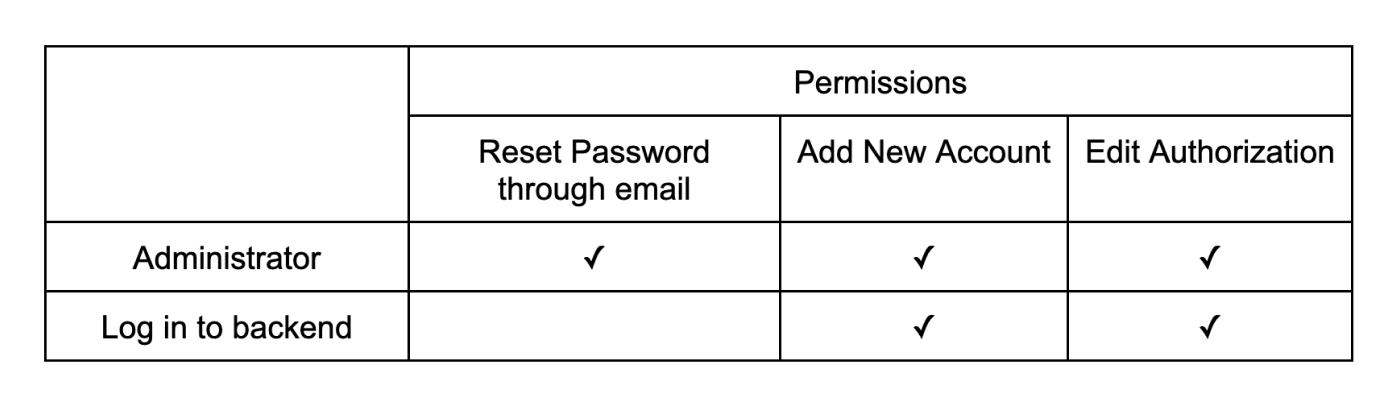
You can create an account for each employee. For each account, you have to configure a set of 4-digit unique POS passcode. Account settings will be different according to the account type you are creating:
| Account Type | POS Passcode | Login ID & Password | Email for Password Reset |
|---|---|---|---|
| General Account | ✓ | ||
| Account with iCHEF Backend Access | ✓ | ✓ | |
| Administrator Account | ✓ | ✓ | ✓ |
- Go to Authorization
- Click [+ add new account] beside the desired account group
- Fill in the account information
- Click [Save] to complete
- [Update menu] on iCHEF POS
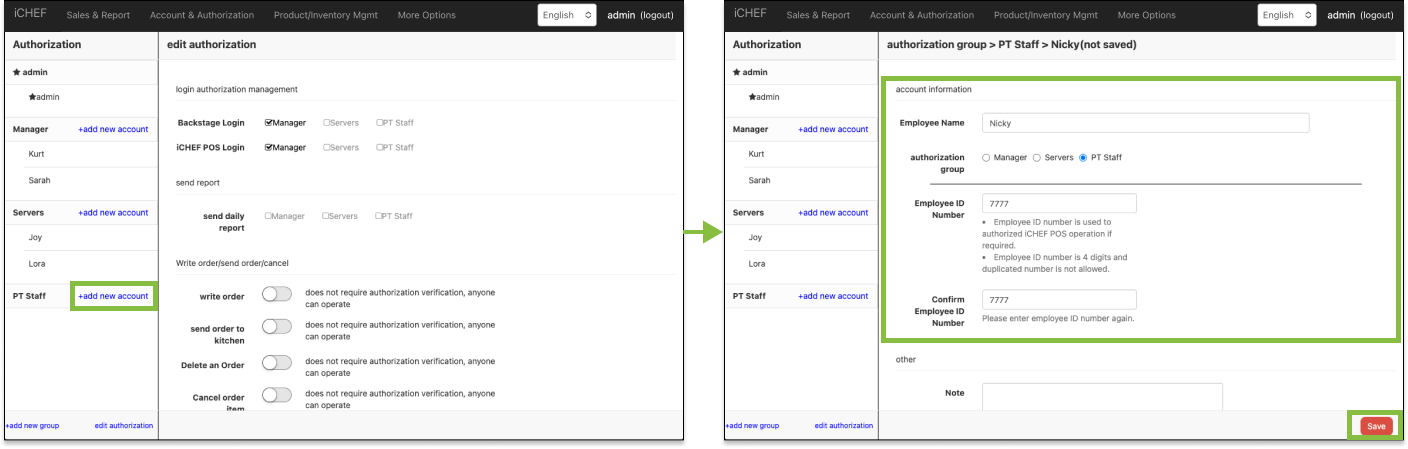
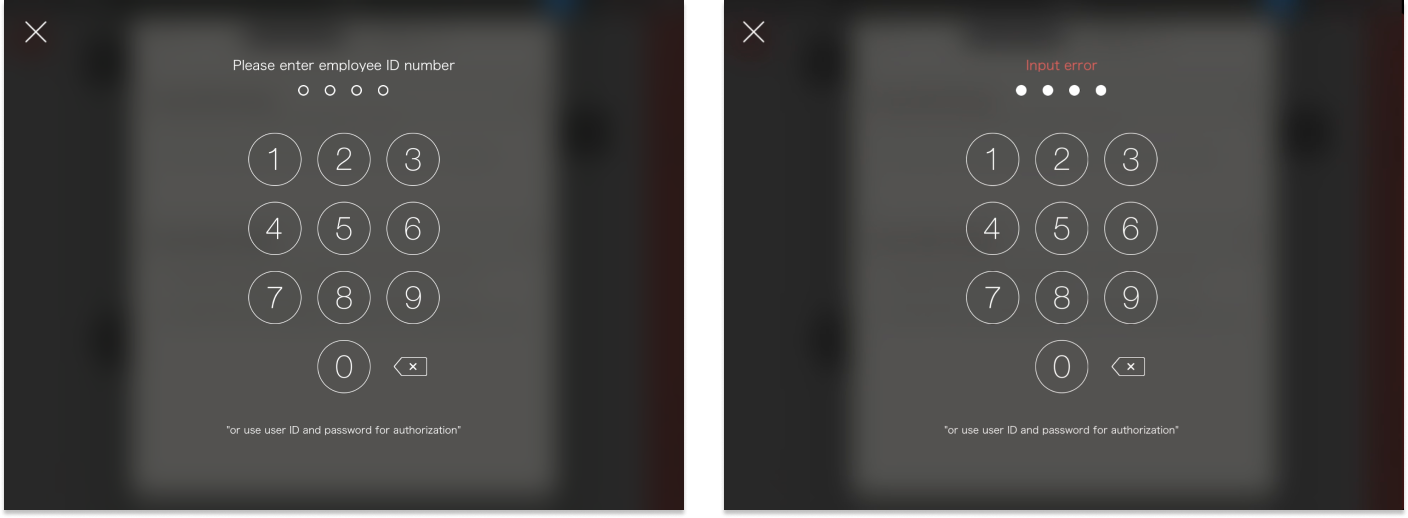
You have to configure a set of 4-digit unique passcode for each account. This passcode will be a dedicated ID for an employee to operate iCHEF POS. Employees need to enter passcode under the following two situations:
Verifying Authorization
When operating the functions that require the authorization verification, the employee needs to enter POS passcode by the popped-up number keyboard on iPad. iCHEF POS will identify if the entered account is authorized for the operation. If not, the system will not allow the employee to perform the operation.
Clocking in/out
When clocking in/out through the toolbox, the employee needs to enter POS passcode for the system to log attendance records.

Set up Login ID and Password
If you authorize the account group to log in to the backend or iCHEF POS, you need to set up a Login ID and password for it.
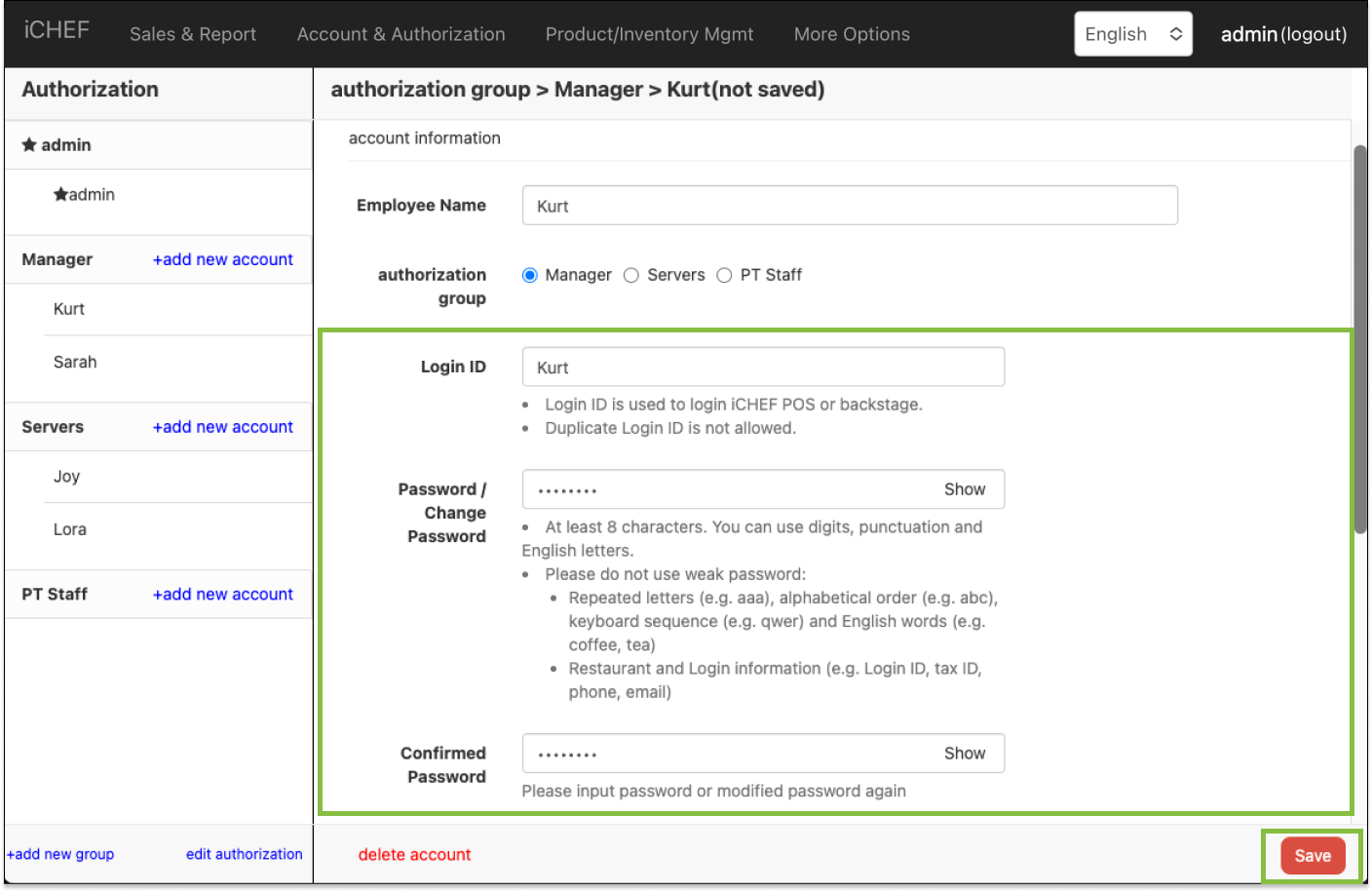

Login ID and password are used to log in iCHEF POS or iCHEF backend.
Administrator (admin)
The administrator has the highest level of authorization to manage iCHEF POS & backend, and can authorize other accounts to access the backend if necessary.
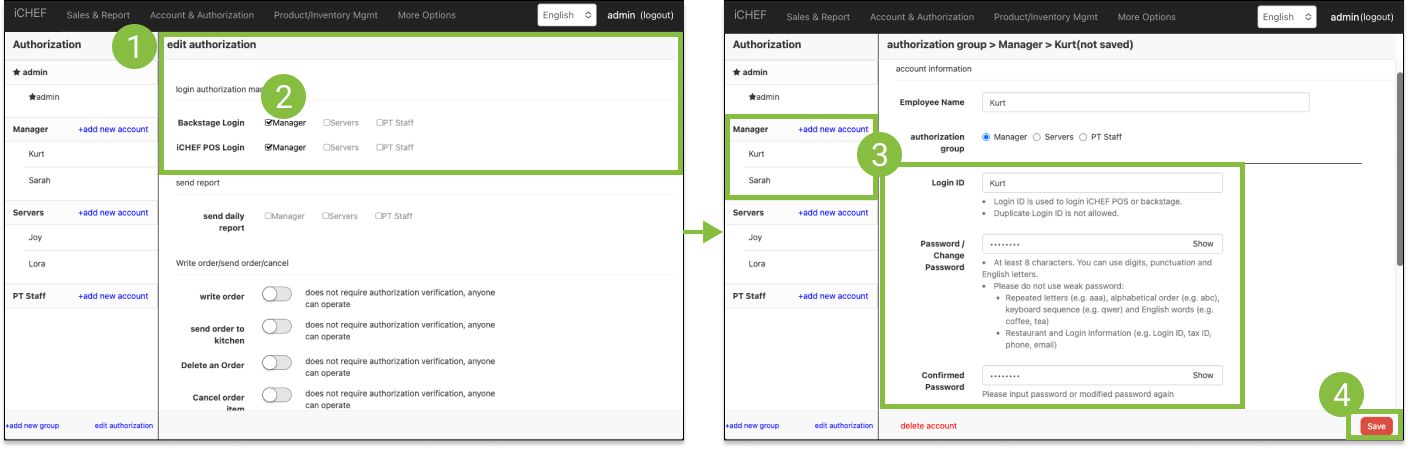
Reset steps:
- Go to Authorization > edit authorization
- Under [login authorization management], select the desired groups for [Backstage Login]
- Go to the selected accounts and configure a Login ID and password
- Click [Save] to complete
Notice
- After you authorize an account to log in to the backend, that account enjoys the same access to the operations as the administrator. It means that this account can add or edit the information of other accounts and configure the authorization of other groups (except for the administrator account).
- When forgetting Login ID, password or POS passcode, ask the administrator with access to backend to configure. If the administrator forgets his/her password, he/she can reset the password through the option of Forgot password on iCHEF POS.