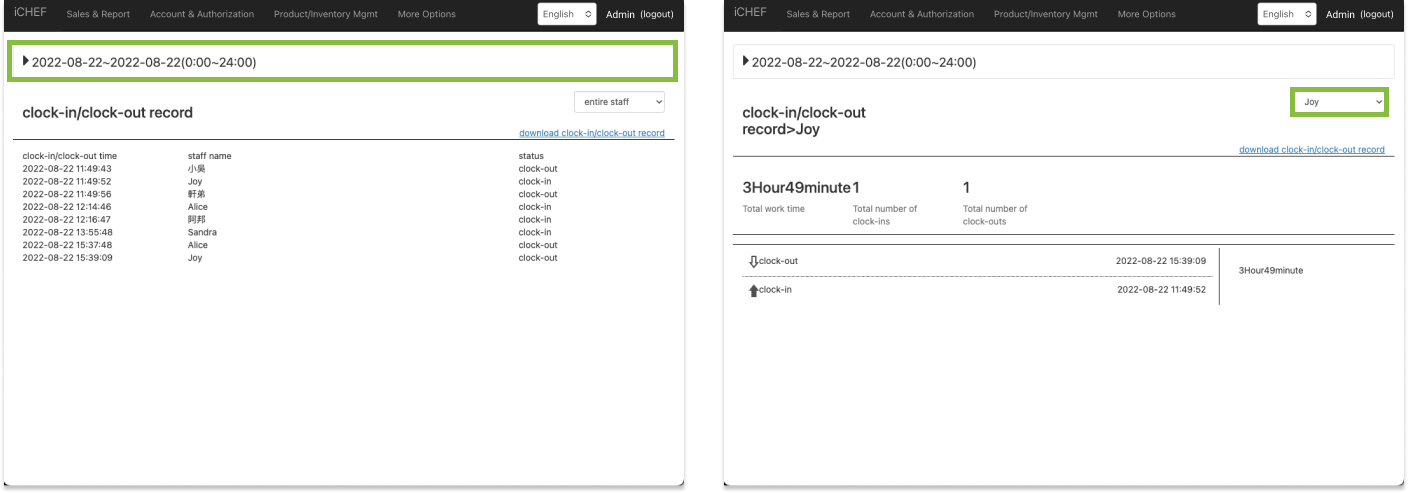
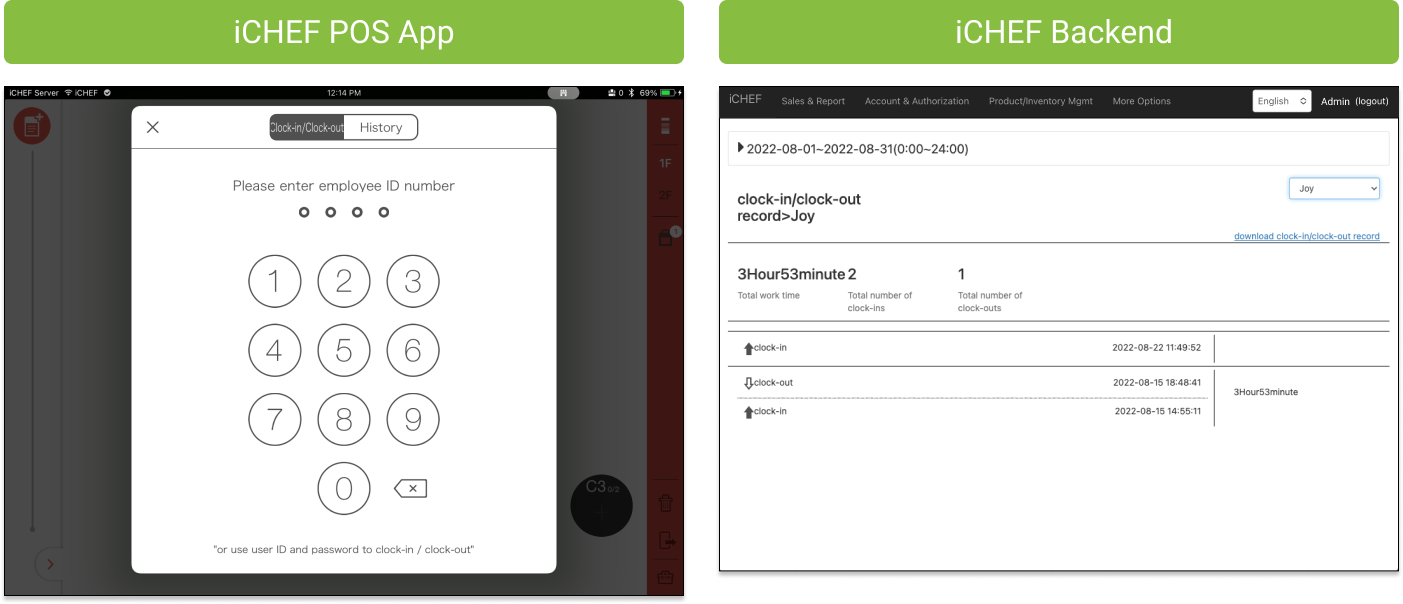
Clock in/out on iCHEF POS is quick and easy. Simply enter your POS passcode, then the system will generate your time sheet and calculate the total working hours.
Learn how to :
- Set up POS Passcode
- Clock in/out on iPad
- Check the Time sheet
Set up POS Passcode
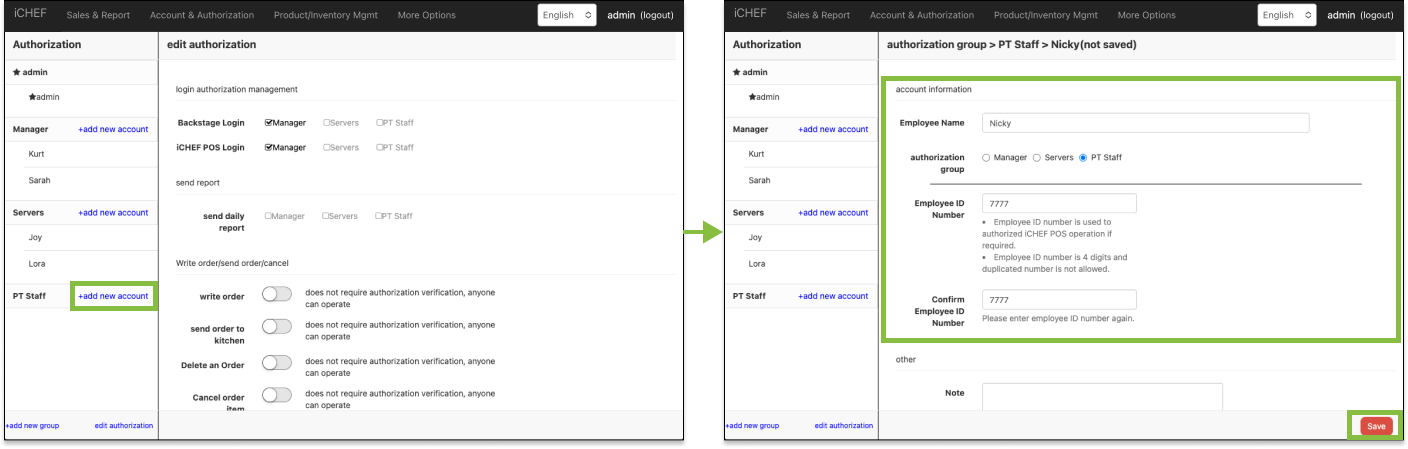
You can create an account for each employee. For each account, you have to configure a set of 4-digit unique POS passcode.
- Go to Authorization
- Click [+ add new account] beside the desired account group
- Fill in the account information
- Click [Save] to complete
- [Update menu] on iCHEF POS
You have to configure a set of 4-digit unique passcode for each account. This passcode will be a dedicated ID for an employee to operate iCHEF POS. Employees need to enter passcode under the following two situations:
Verifying Authorization
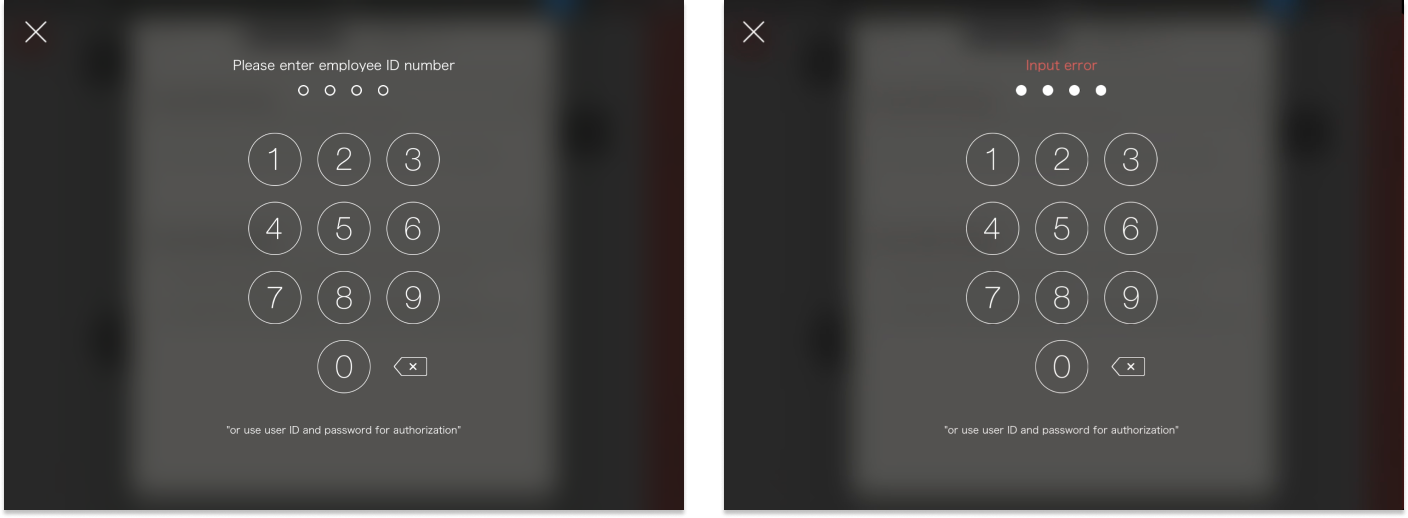
When operating the functions that require the authorization verification, the employee needs to enter POS passcode by the popped-up number keyboard on iPad. iCHEF POS will identify if the entered account is authorized for the operation. If not, the system will not allow the employee to perform the operation.
Clocking in/out
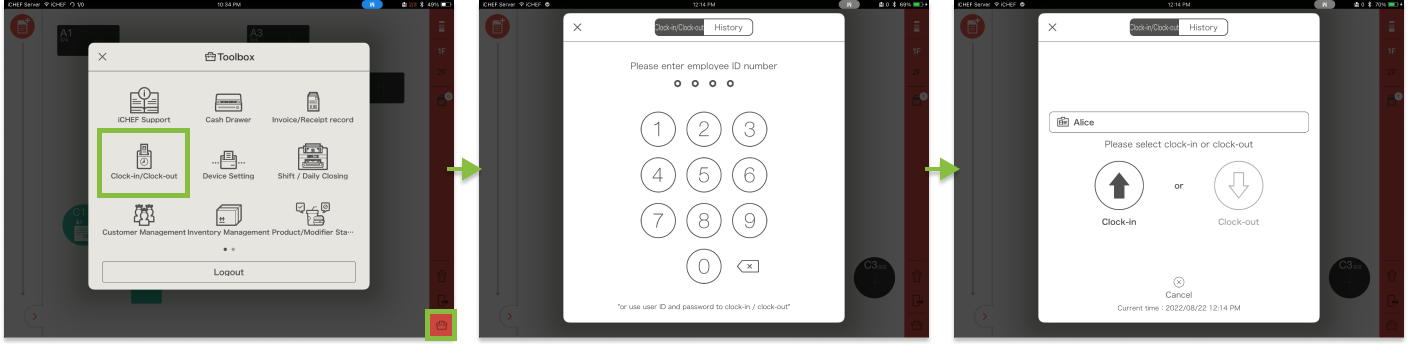
When clocking in/out through the toolbox, the employee needs to enter POS passcode for the system to log attendance records.

Clock in/out on iPad
- Go to Toolbox > Clock-in/Clock-out
- Enter your passcode
- Click [Clock-in] or [Clock-out] to complete
View the Time Sheets
iCHEF POS
- Go to Toolbox > Clock-in/Clock-out
- Tap [History] to view the time sheet for the past 7 days
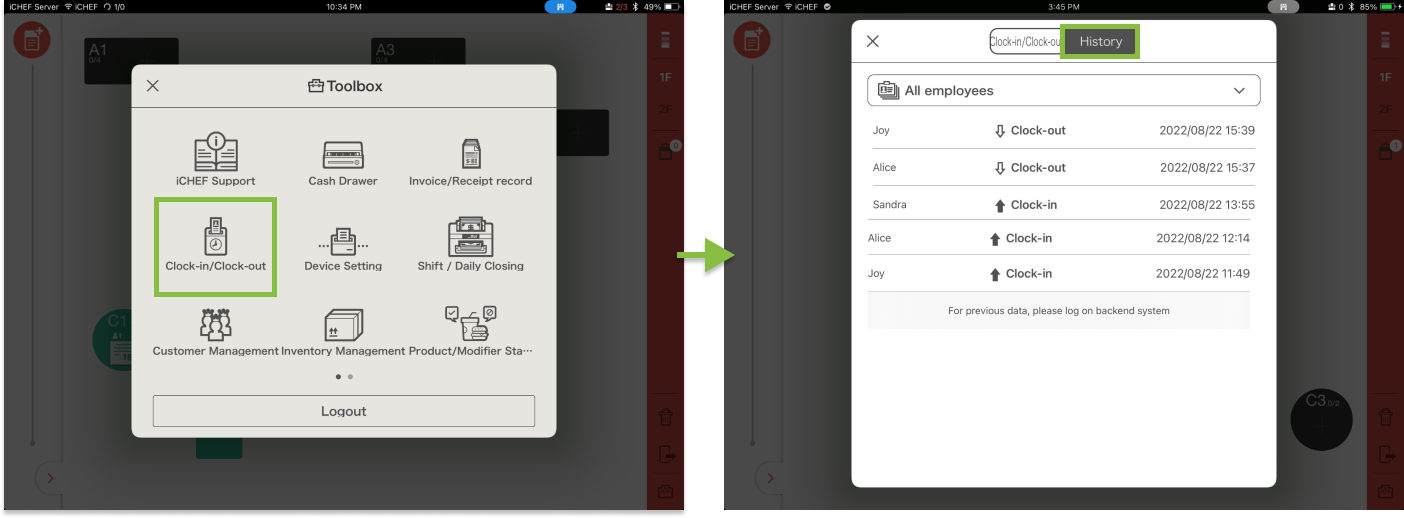
- Or select a specific employee from the drop-down list

You can view clock in/out records for the past 7 days on iCHEF POS. Or visit iCHEF backend to check all records.
iCHEF Backend
- Go to Sales & Report > clock-in/clock-out record
- Filter the data by your desired time range
- View the records of all the employees or select a single employee