
Whenever there is a cash paid in/out for non-transaction reasons (e.g. unexpected expenses), you can record the transfers with the [Cash Float in/out] feature.
Add a Cash Paid in/out Record
- Go to Toolbox > Cash Drawer
- Select [Cash Float in/out]
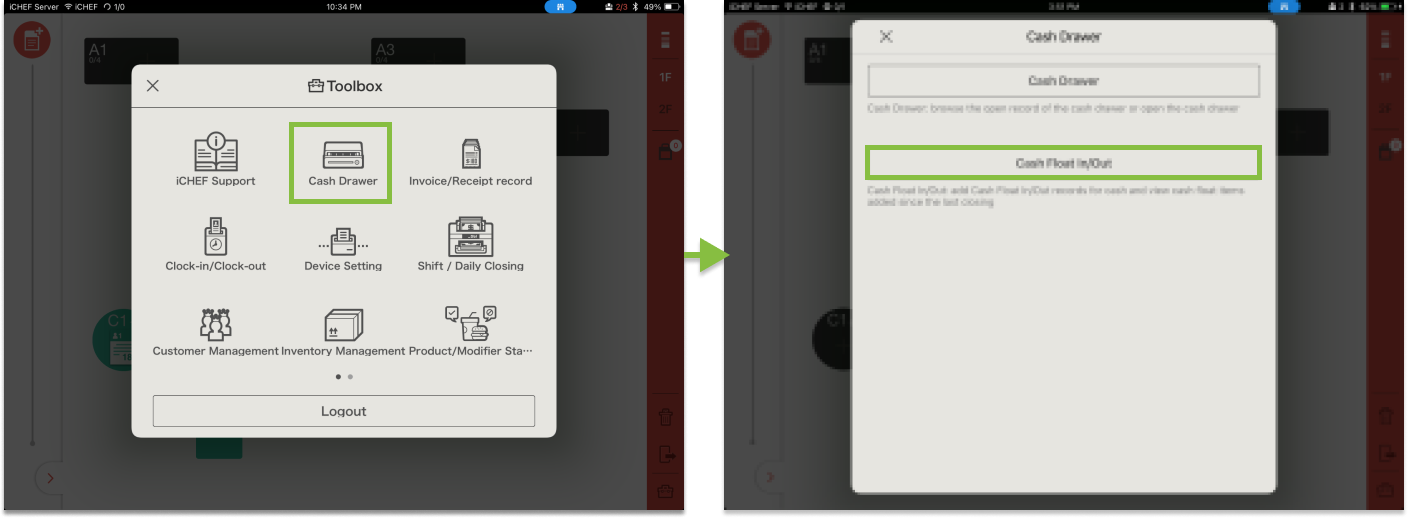
For safety and convenience, the system will ask the operator to enter the employee identification code; only employees with this operating permission can open the cash drawer and enter temporary transaction records.
- Select [Add New Expenditure] or [Add New Cash float in]
- Enter the reason and click [Save]

You can add up to 60 records between daily closings. Once you complete daily closing, the records will be saved and cleared.
Delete a Record
- Go to Toolbox > Cash Drawer
- Select [Cash Float in/out]
- Click the X icon to delete
- Confirm the deletion
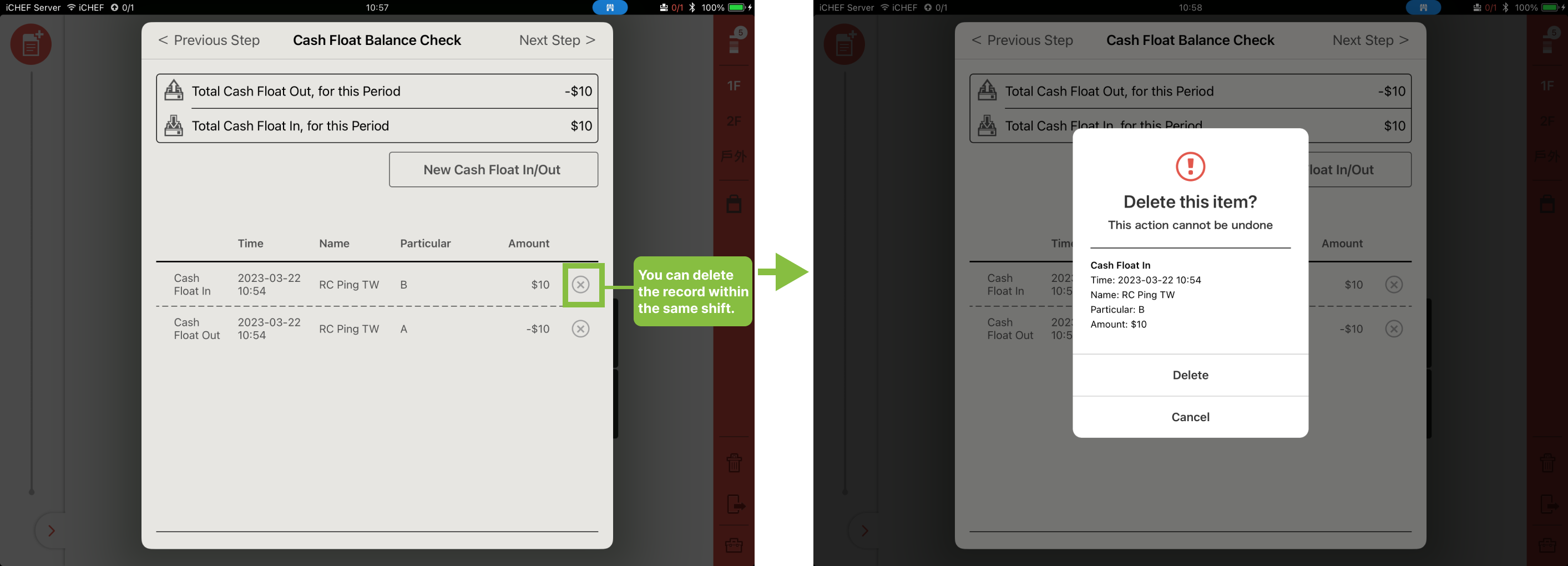
To authorize accounts to edit cash paid in/out records:
- Please go to Accounts & Permissions > Edit Permissions.
- Select the account groups that are allowed to operate

Each Cash Float In/Out is automatically recorded by iCHEF POS. To view the operation details, please go to Sales Reports > Permission Records.

Important Notes
- The cash paid in/out records will be cleared after performing daily closing. To check the record history, you can visit:
- iCHEF POS: go to Toolbox > Shift/Daily Closing > History
- Method B: From the backend, go to Sales Reports > Shift Closing/Daily Closing, select the Shift Closing or Daily Closing to view the income and expense records.
- The cash paid in/out records will be listed under [Cash Payment Module].
- The cash paid in/out records will be cleared after performing daily closing. To check the record history, you can visit: