
Each shift or employee handover can complete the accounting check through Shift Closing, helping stores confirm revenue differences early and print Shift Closing records for paper retention.
Important Notes
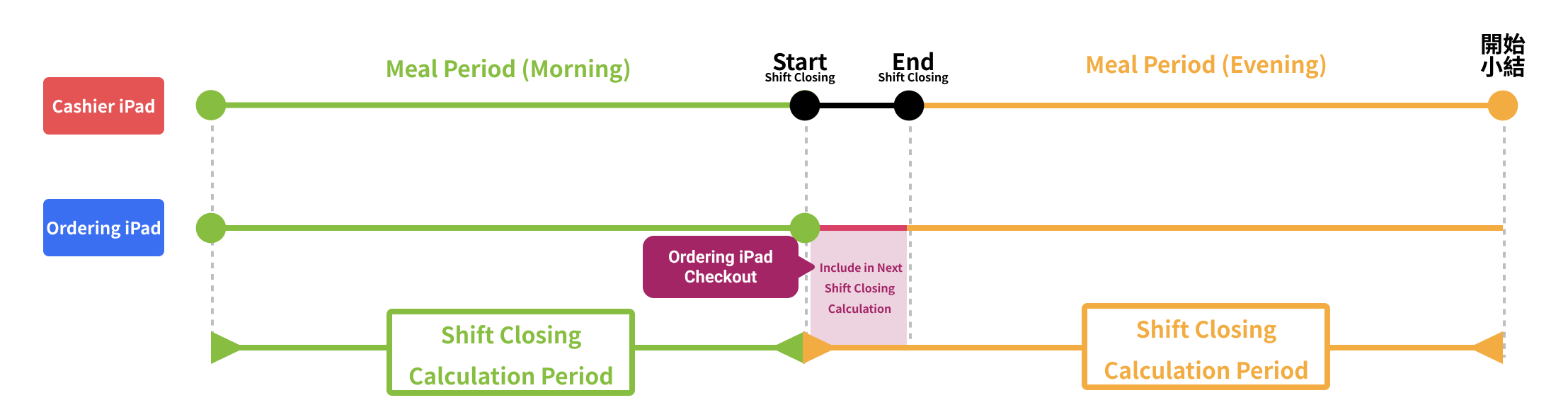
- The calculation period covers the total amount of all completed transactions between the last Shift Closing and the current Shift Closing.
- If transactions before the calculation period are voided, the voided amount will be included in the current Shift Closing calculation.
- For Cloud Restaurant stores, if there are unconfirmed orders in the “Order Window,” please “Accept” them before performing Shift Closing to avoid discrepancies between the Actual Amount counted and iCHEF POS.
- To comply with accounting principles, completed Shift Closing records cannot be adjusted.
When the Cashier iPad enters Shift Closing, other Ordering iPads can continue operating (e.g., ordering, payment). Checkout information will automatically be included in the next Shift Closing.
Start Shift Closing
➤ iCHEF POS App location: Toolbox > Shift/Daily Closing > Shift Closing

iCHEF introduces the “Multiple Checkout Stations” feature, enhancing Ordering iPad permissions to independently pair with printers, cash drawers, Card Readers, and scanning devices. It supports setting up multiple checkout counters in-store. When used, checkout info from different iPads can be recorded in specified Sales ledgers, allowing separate Shift Closings. Learn more.
Step 1: Enter passcode
Each Shift Closing must record the operator. To adjust permissions, please go to Authorization.

Step 2: Shift Closing Overview
Stores can check the Shift Closing Overview to see the revenue status of each payment module for this Shift Closing.

Step 3: Confirm Cash Float In/Out
Shows all Cash Float In/Out records from the last to this Shift Closing. If any are missing, you can add them directly during the Shift Closing process.

Step 4: Count Cash
Cash can be counted by entering the total cash drawer amount or by denomination quantities. The entered amount will be compared with the Actual Amount. If they don’t match, the system shows the over/short amount and requires a reason before proceeding.

Actual Amount includes the previous Float, transactions during the period (including voids), and Cash Float In/Out.
Step 5: Float
This step sets the Float for the cash drawer after this Shift Closing. After entering the Float, the system will automatically calculate the Amount to Take Out. Please be sure to remove this amount from the cash drawer to avoid over/short in the next count.

Step 6: Count Payment Modules
Except for the cash drawer payment module, the count results of other payment modules are shown on the payment module count screen. Merchants must verify the actual received amounts on each platform.

To confirm amounts, compare the system’s calculated Net Revenue with the revenue from third-party payment platforms:
- If the amounts match, please click “Correct”
- If the amounts don’t match, please click “Revise” then enter the actual platform revenue and the reason for the discrepancy.
Step 7: Shift Closing Preview
You can choose whether to print the Shift Closing record. If printing is needed, please enable “Print Out” first, then click “Confirm.”

➤ iCHEF POS App location: Toolbox > Shift/Daily Closing > View Records

Step 8: Shift Closing Preview
After completing Shift Closing, if today’s business has ended, please click “Continue Daily Closing” to proceed directly to the Daily Closing process.
If today’s business is not finished, please click “End Counting” and return to the Table Status page.

Recommendations for Handling Shortages and Overages
If shortages or overages are found during Shift Closing counting, you can go to the Sales Report > Void Transaction Records to download the report. Then, compare by order source and payment method to identify possible causes.
