
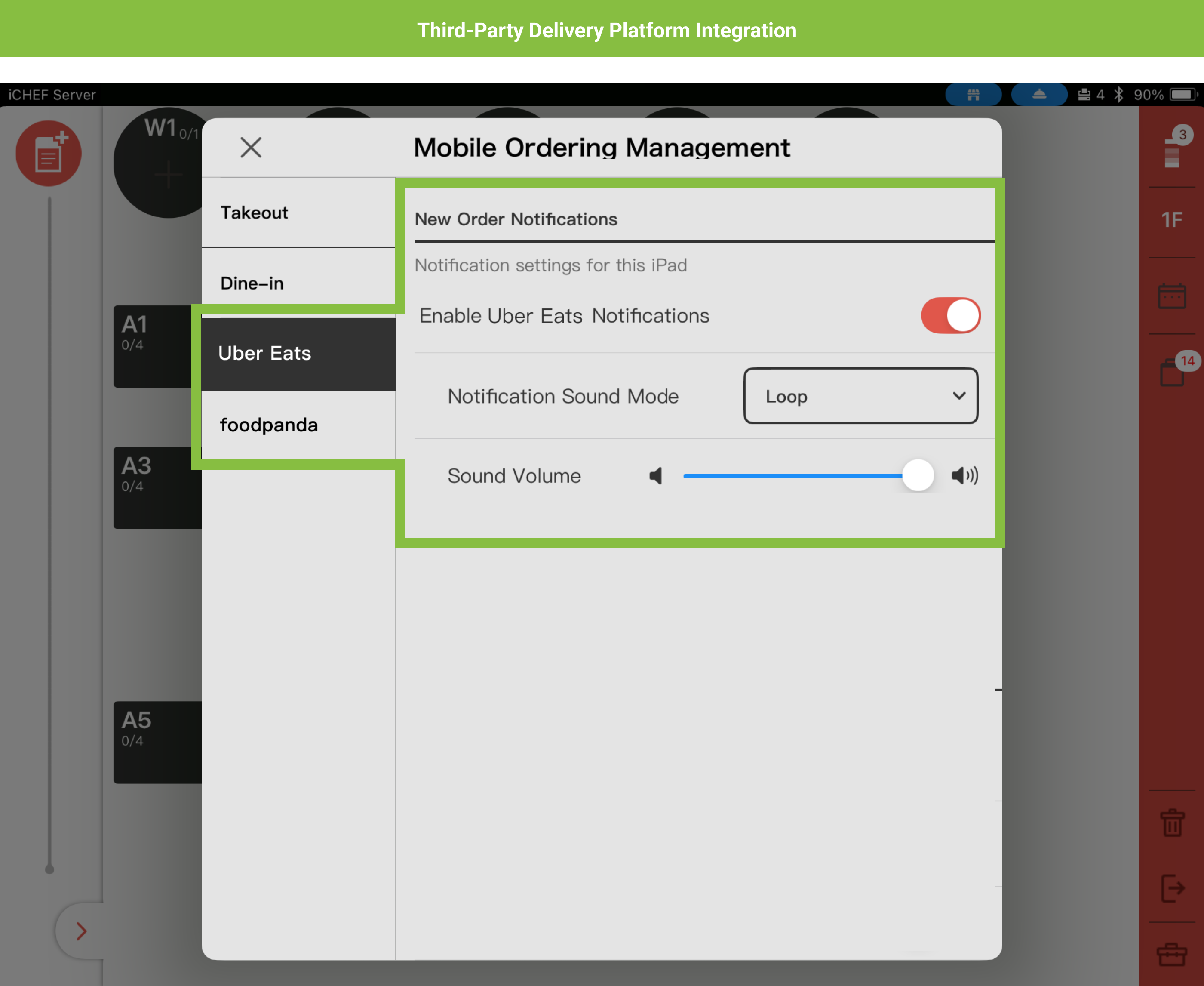
In the POS toolbox, you can adjust the operating status and new order notifications for online ordering features such as [Mobile Ordering (Takeout)], [Mobile Ordering (Dine-in)], and [Third-Party Delivery Platform Integrations] at any time. This makes the workflow better suited to your on-site situation!
➤ iCHEF POS App Path: [Toolbox] > [Mobile Ordering Management]
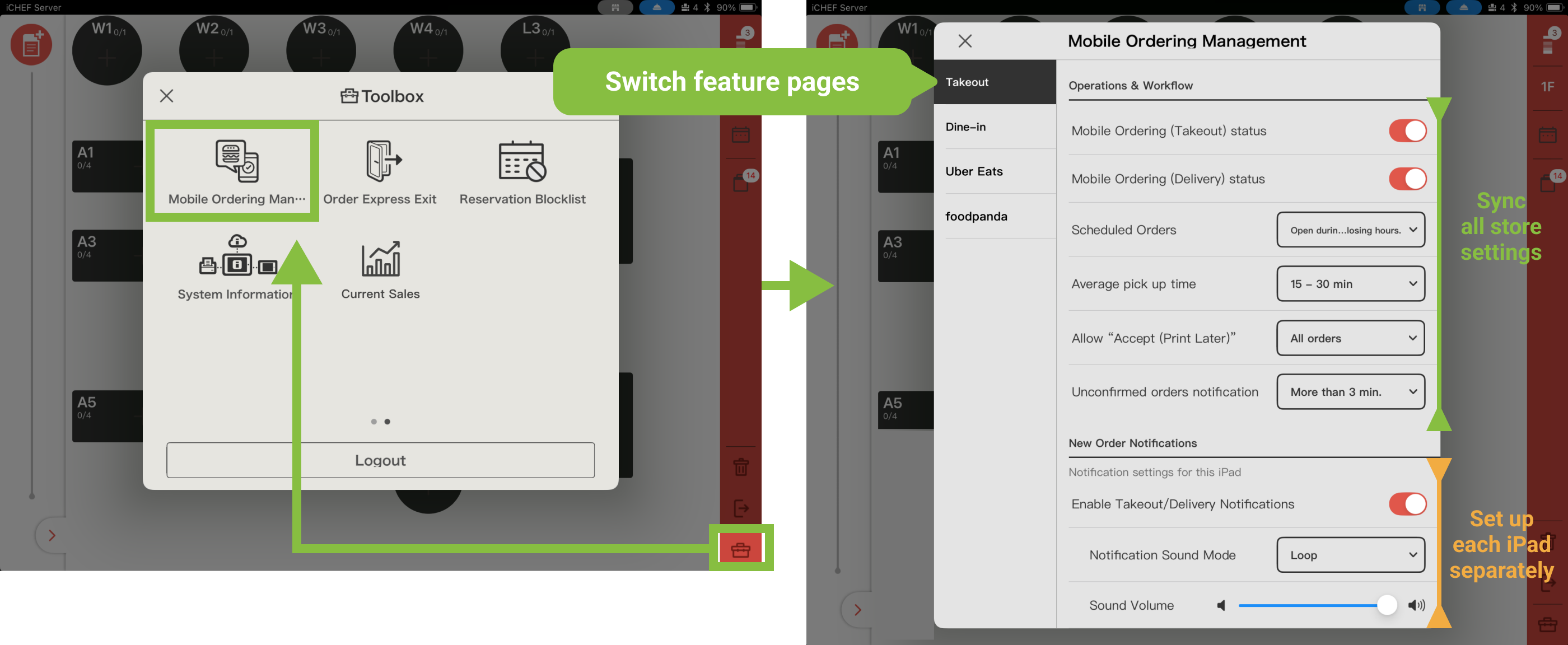
| Adjustable Items & Features | Mobile Ordering (Takeout) | Mobile Ordering (Dine-in) | Third-Party Delivery Platform Integration |
|---|---|---|---|
| Operations & Workflow (Sync all store settings) | ✅ | ✅ | |
| New Order Notifications (Set up each iPad separately) | ✅ | ✅ | ✅ |
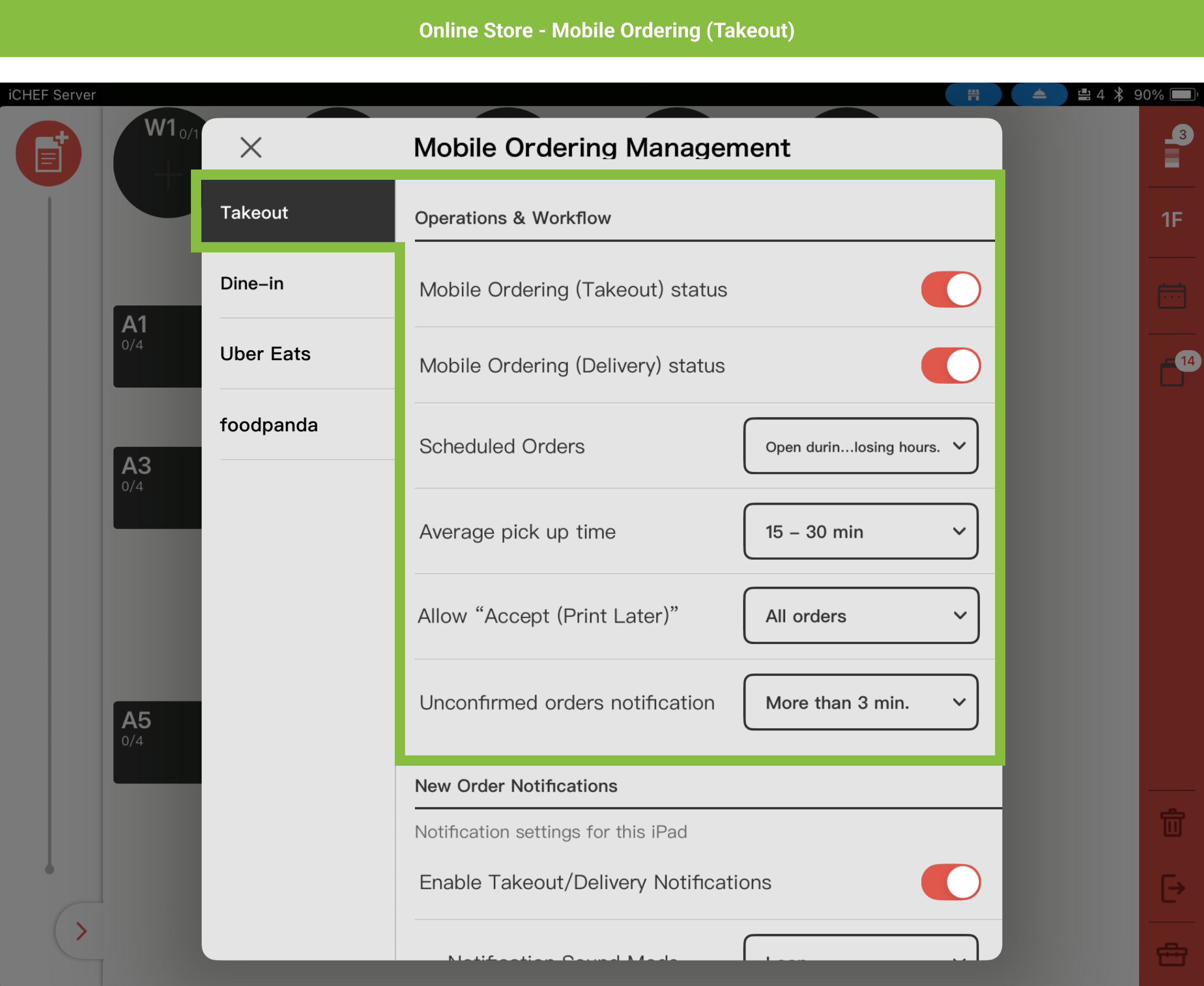
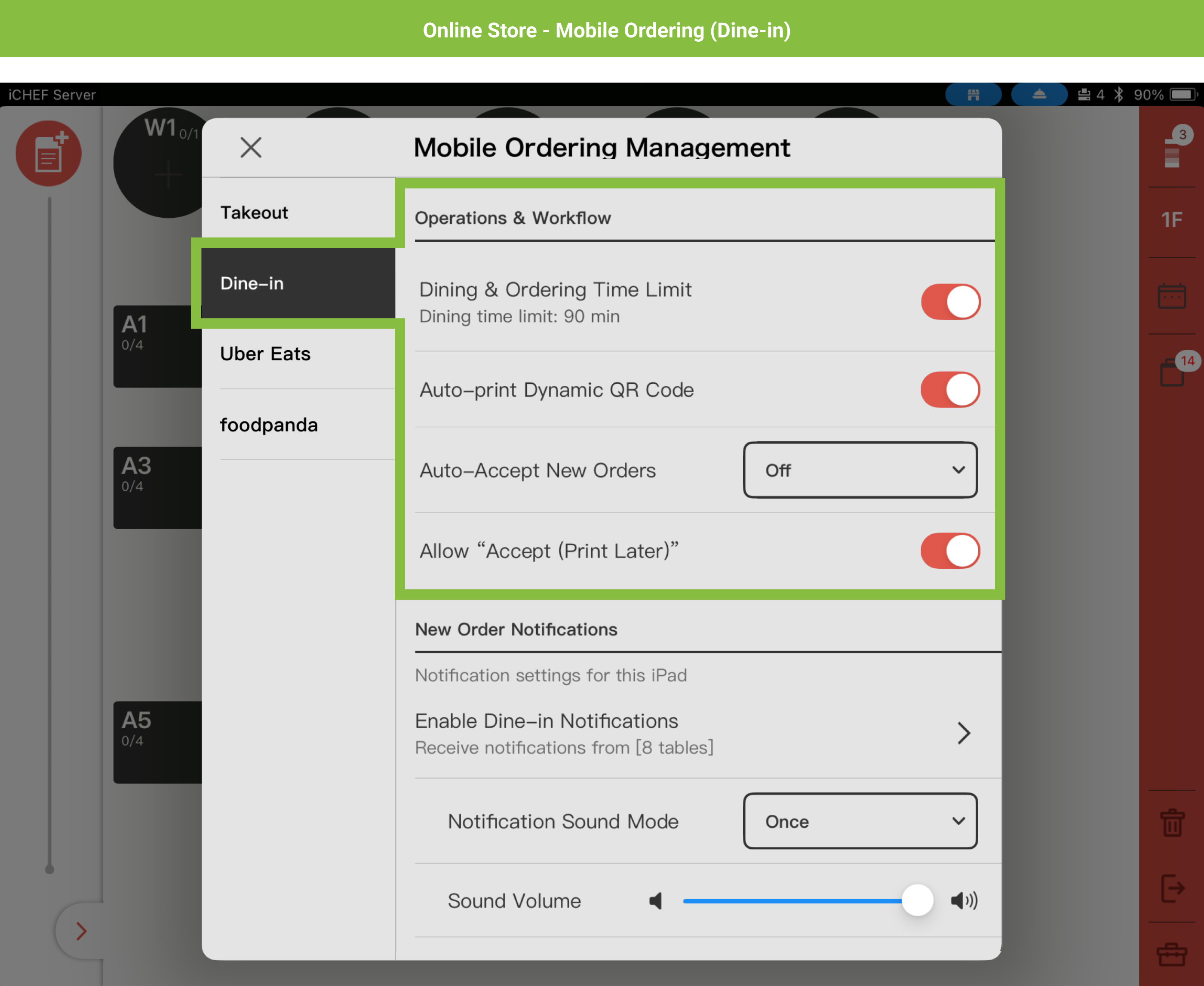
Operations & Workflow
You can preset the operational status of features in the iCHEF Backend. However, to allow on-site staff to adjust the status for sudden situations, you can also change it anytime in the POS Toolbox! (e.g., temporarily stop accepting online orders if you are too busy). These settings will instantly sync across every iPad in the store and the Backend.
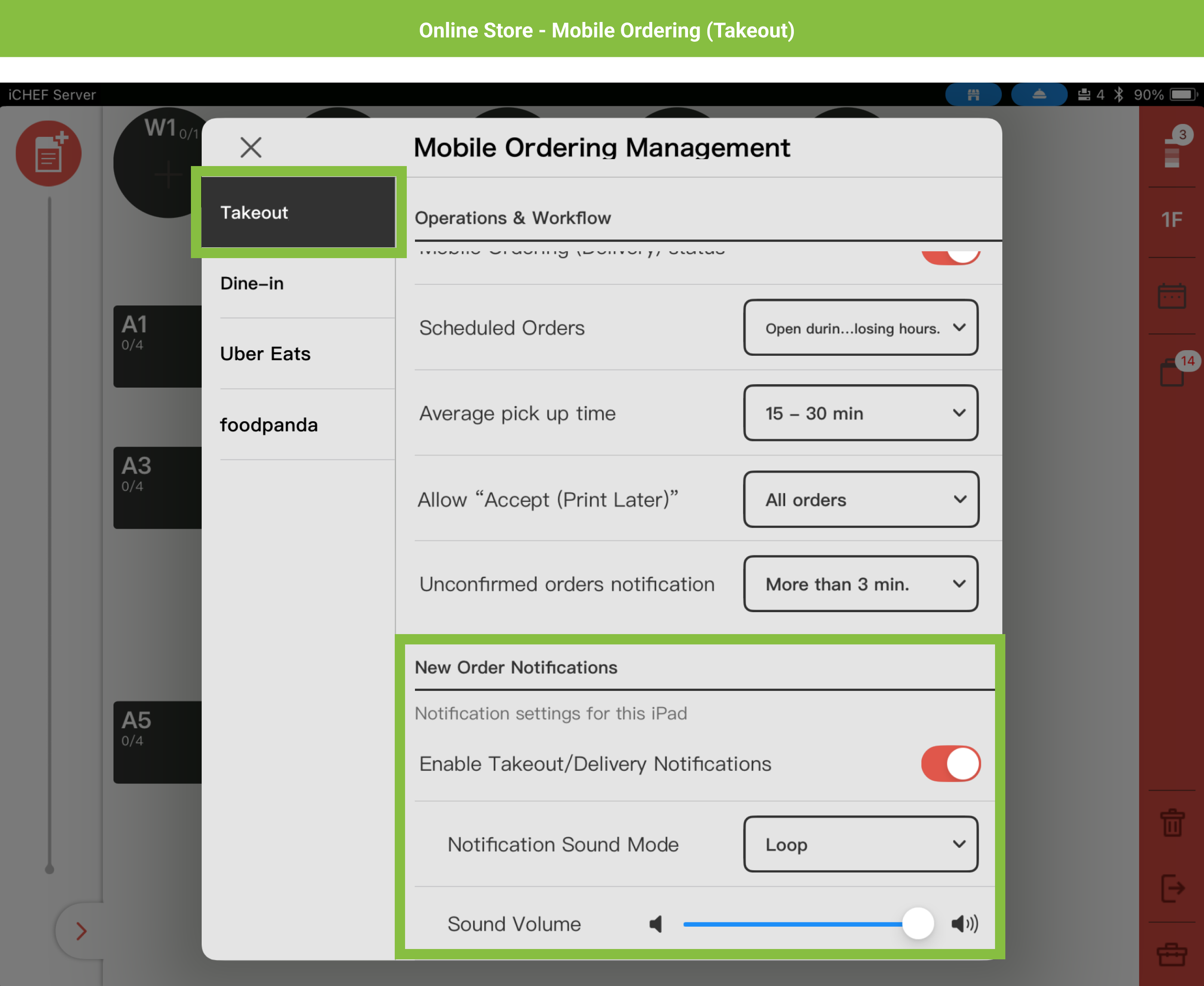
New Order Notifications
When a new order is received, the iPad will automatically push a notification. With this feature, you can independently turn on or off the order notifications for each iPad based on your on-site staff’s assigned areas (e.g., first floor, second floor; takeout, dine-in), and set the alert sound mode and volume.

Select Tables for Notification (Dine-in)
For [Mobile Ordering (Dine-in)], you can not only turn notifications on and off but also select specific tables! Notifications will only appear for the selected areas, allowing on-site staff to have clearer divisions of labor and provide more focused service. After saving, the number of enabled tables will be directly displayed on the outer layer.

FAQs
Push notifications and alert sounds use the iPad’s built-in notification feature. Please set iCHEF POS to [Allow Notifications] and check your iPad’s sound settings.
- Set iCHEF POS to [Allow Notifications]:
- Open the iPad’s built-in [Settings] and go to [Apps > iCHEF POS > Notifications] to turn on [Allow Notifications].
- Check your iPad’s sound:
- You must turn off [Silent Mode] or [Focus] for the iPad to receive notifications properly.
