
On iCHEF POS, you can mark the service phases of orders with different colors and set up icons for reminder to track how long it takes for arranging the seats, place orders and serve meals for each order in real time, thoroughly controlling the operational efficiency of your store.
Order Statuses
The orders on iCHEF are displayed in red, yellow, green and blue according to different service phases.
| Icon | Status |
|---|---|
 | Not ordered |
 | Ordered |
 | Preparing |
 | Served |
 | Paid |
- Red: There are items to be sent to the kitchen.
- Yellow: The order is sent to the kitchen and hasn’t been labeled as Served yet.
- Green: Meals are served, and the order hasn’t been paid yet.
- Blue: The order has been paid and can be closed directly.
Time Info Calculation
The system will record the processing time for an order at different phases. You can check the average time spent at each phase in the reports under Sales & Report > Sales Analysis > Time efficiency as a reference for improving the operational efficiency of your store. (More about Reports of Time efficiency)

How long does it take to arrange the seats
- Start: When the order is created in the waiting area
- End: When the order is moved to the dine-in area
How long does it take to send an order
- Start: When the order is created in the dine-in area/When the order is moved from the waiting area to the dine-in area
- End: When the staff clicks [Submit] in the order
How long does it take to prepare the meals
- Start: When the staff clicks [Submit] in the order
- End: When the staff marks the items as [Served] in the order
How long does it take for an order to complete
- Start: When the order is created
- End: When the order is closed
If there are some items in an order being marked as [Hold] or [Served], the time for sending the order and preparing the meal will be calculated respectively according to the statuses of individual items.
Check the Time Info
Waiting Area
Click [>] to expand the waiting area, or click the order and enter the ordering page to check.

Dine-in Area
Click the order to expand the window of orders, or click the order and enter the ordering page to check.
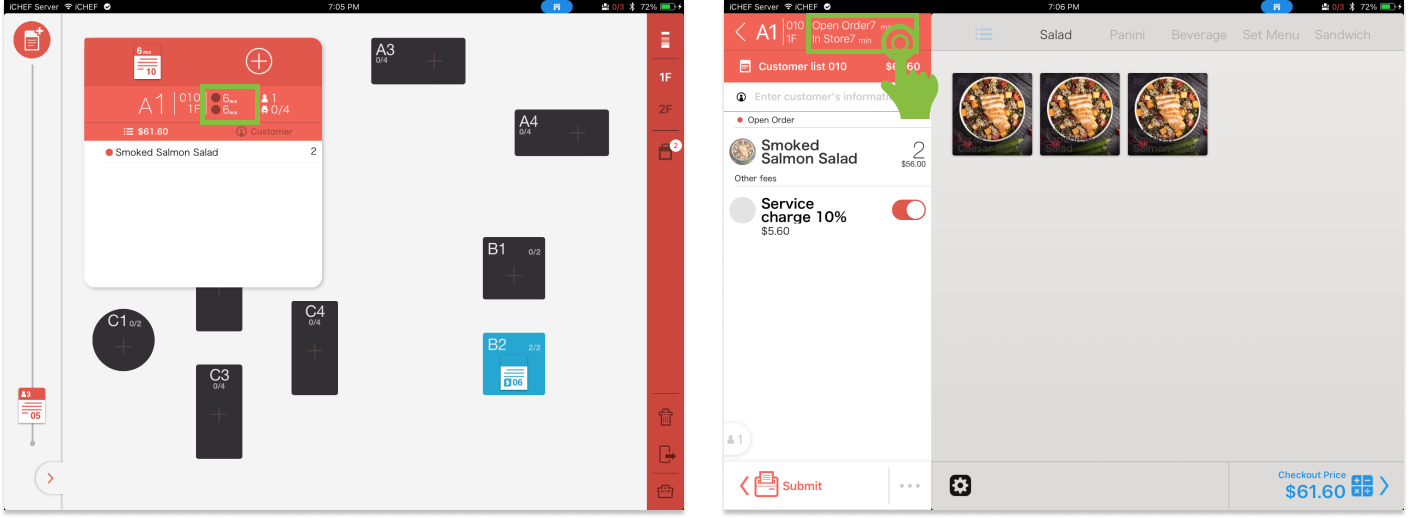
Takeout/Delivery Area
Click the order and enter the ordering page to check. Click the time info again to switch to different display.

Order Icon Settings
Order Icons on the Table Status Page
The order icons on the table status page indicate specific order information, such as number of guests and the time of waiting. This function allows you to manage the tables easily and quickly.
- Click a label of the dine-in area in the right panel.
- Select the information to be displayed.


Waiting Time Alarm
You can set up an ideal processing time for every service phase, such as the time for preparing meals should be less than 20 minutes, and the mealtime is limited to 90 minutes, etc. After completing the settings, please toggle on [Waiting time alarm]. If the processing time exceeds the specified number, an alarm icon will be shown on the order in the table status page.
- Go to Shop Management > Restaurant Flow Setting.
- Toggle on [Waiting time alarm] for a certain service phase.
- Enter the processing time (in minutes) in the column of [Time setting].
- Click [Save] to complete.
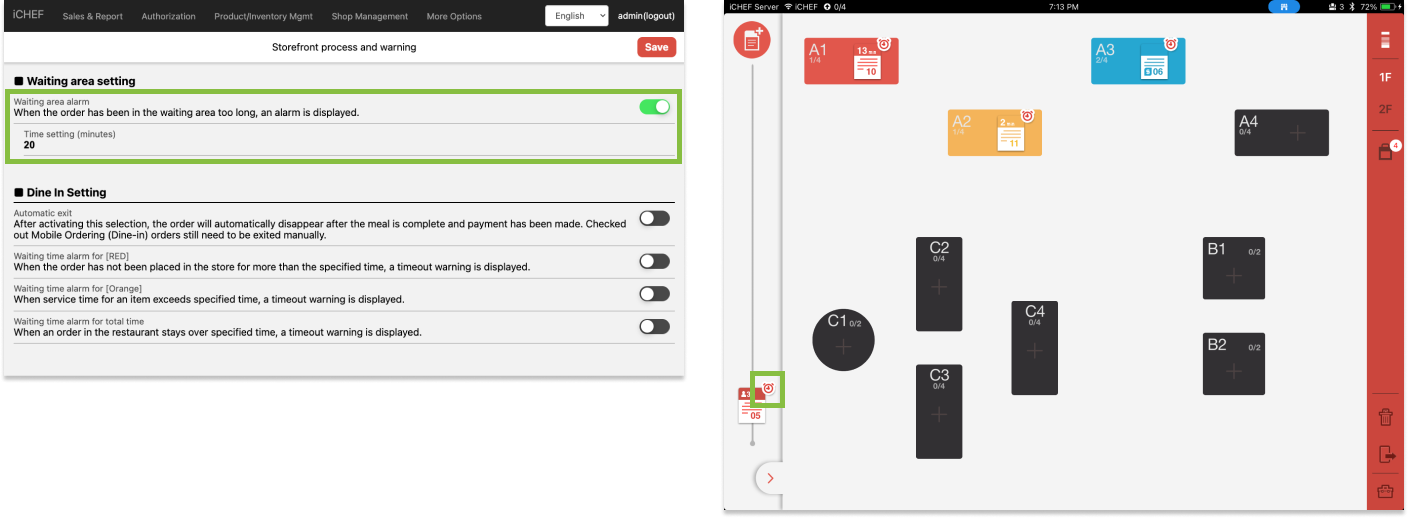
The available waiting time alarms include:
| Waiting Time Alarm | Description | Waiting Area | Dine-in Area | Takeout Area |
|---|---|---|---|---|
| Arranging the seats | The duration from registration to seating. | V | ||
| Sending the order | The duration from seating/order creating in the takeout area to order sending. | V | V | |
| Preparing meals | The duration from order sending to meals serving. | V | V | |
| Staying at the store (Delivery waiting time alarm) | The duration from seating/order creating in the takeout area to order closing. |
If Mobile Ordering (Dine-in) > Dining & Ordering Time Limit is enabled, the time limit will override the alarm for total time setting.
The system will mark all of the items as [Served] by default after the order is sent. To track the waiting time for meals serving, go to Shop Management > Restaurant Flow Setting and toggle on [Service confirmation] to manually confirm that meals have been served. (More about Service Confirmation)
Reminder for Order Pick-up
The system sets up the time for picking up/delivering the meals for every takeout/delivery order. You can set up a reminder for this. When the pick-up time is approaching, a reminder icon will be shown in the order.
(More about: Adjust the time of default pick-up time)
- Go to Shop Management > Restaurant Flow Setting.
- Toggle on [Preset takeout time will expire reminder].
- Enter the time for reminding (in minutes) in the column of [Time setting].
- Click [Save] to complete.
