The more member information you have, the more effective your marketing events could be. Learn how to manage member information on iCHEF POS.
Edit Member Info
When creating an order
Enter customer’s phone number to identify the membership.
- Open the window of customer information.
- Click the […] icon in the upper-right corner and select [Edit customer information].
- After editing in the information, click [Save].

Under other situations
You can search or edit member info through [Toolbox > Customer Management].
- Go to Toolbox > Customer Management
- Enter the phone number in the search column and select the desired member.
- After editing in the information, click [Save].

Delete Member
You can delete member info from iCHEF POS or the backend. Please note that the data cannot be restored after being deleted. If the customer signs up as a member with the same mobile phone number, he/she will be viewed as a new member on the system.
Delete from iCHEF POS
- Go to Toolbox > Customer Management
- Enter the phone number in the search column and select the member you wish to delete.
- Tap [Delete member].
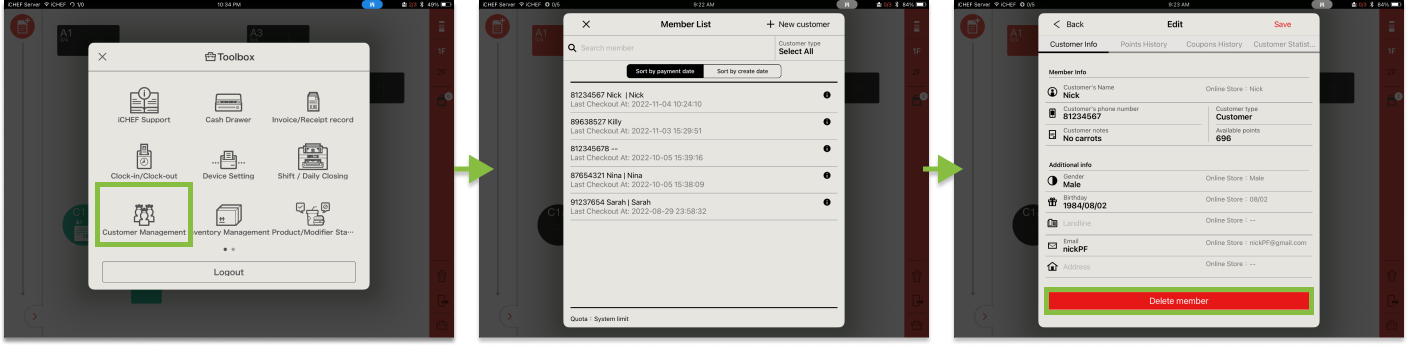
If the customer signs up as a member with the same number on the online store, you cannot delete his/her member info.
How to know if the customer has already signed up as a member on Online Store?
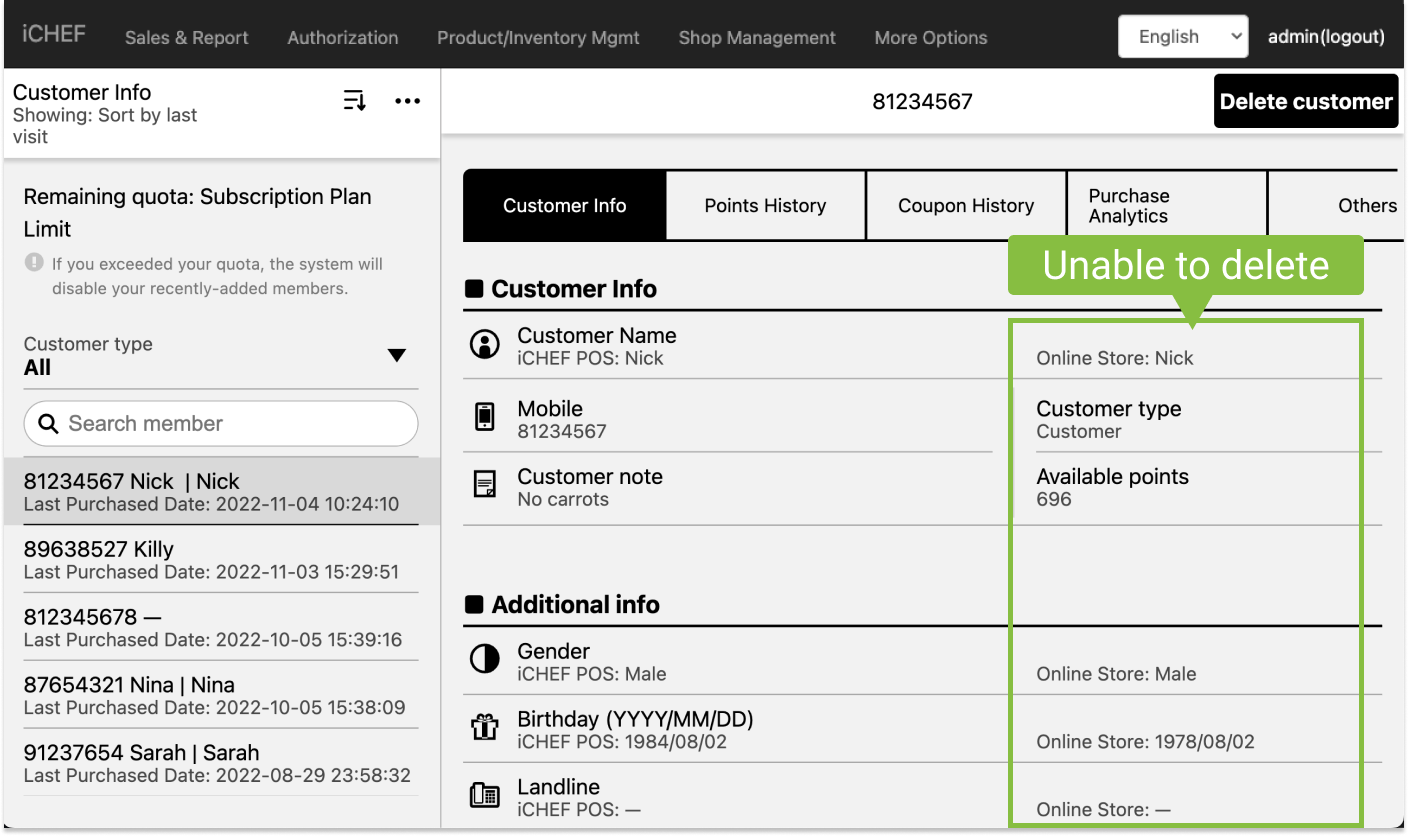
Check the page of member info, and see if there are data under the section of Online Store. If you see customer info for Online Store, that means you are unable to delete this member.

Delete from iCHEF Backend
- Go to Customer Management > Customer Info.
- Enter the phone number in the search column and select the member you wish to delete.
- Tap [Delete member].

If the customer signs up as a member with the same number on the online store, you cannot delete his/her member info.
How to know if the customer has already signed up as a member on Online Store?
Check the page of member info, and see if there are data under the section of Online Store. If you see customer info for Online Store, that means you are unable to delete this member.