
To void an order and refund the customer, you’ll need to issue a credit note. Here’s how you can find the transaction records and how to issue a credit note.
Search Transaction
The transactions will be listed chronologically in the iCHEF POS app.
- Go to Toolbox > Invoice/Receipt Record
- Tap the dropdown list to select a filter
- Search the order by keywords

The iCHEF POS app will clear the record list under these situations:
- After performing [Daily Closing]
- After performing [Deregister cashier iPad]
- When the records lasted more than 7 days
You can search the records by the following keywords:
| Filter | Keywords |
|---|---|
| Invoice/Receipt Number | e.g. BJVV00003610 |
| Table | e.g. A8 |
| Online Order Number | e.g. PE2C9 or #160 |
| Carrier Barcode (TW Only) | e.g. /AB12345 or 1995 |
When there’s no data on the list, you can still search the transaction by COMPLETE Invoice/Receipt Number.
Void Transaction
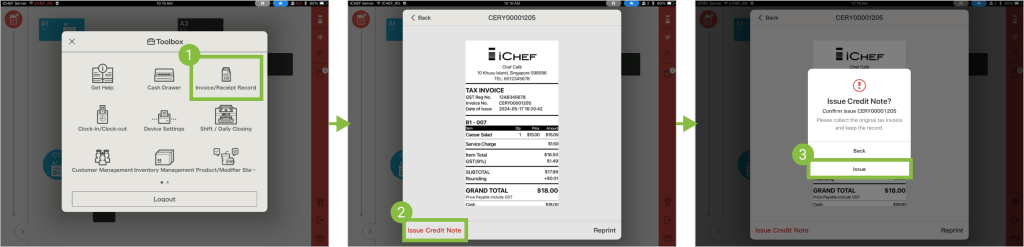
If the order was paid via Stripe, the payment will be refunded directly by Stripe after issuing the credit note.
➤ iCHEF POS app: Toolbox > Invoice/Receipt Record
- Go to Toolbox > Invoice/Receipt Record
- Select the transaction you want to refund and tap [Void Transaction]
- Tap [Issue]
- Enter the reason for the refund and tap [Confirm]
- After printed, sign for both parties

➤ iCHEF POS app: Toolbox > Invoice/Receipt Records
- Select the invoice/receipt of the order
- Tap [Reprint]

- More about: Void Transaction|Invoice & Receipt