
The iCHEF-supported printers use thermal print heads and require special thermal paper rolls with heat-sensitive coating to print properly. Paper roll sizes and installation methods vary by printer model, so please place the paper roll correctly according to the corresponding model.
How to Set the Paper Roll and Replacement
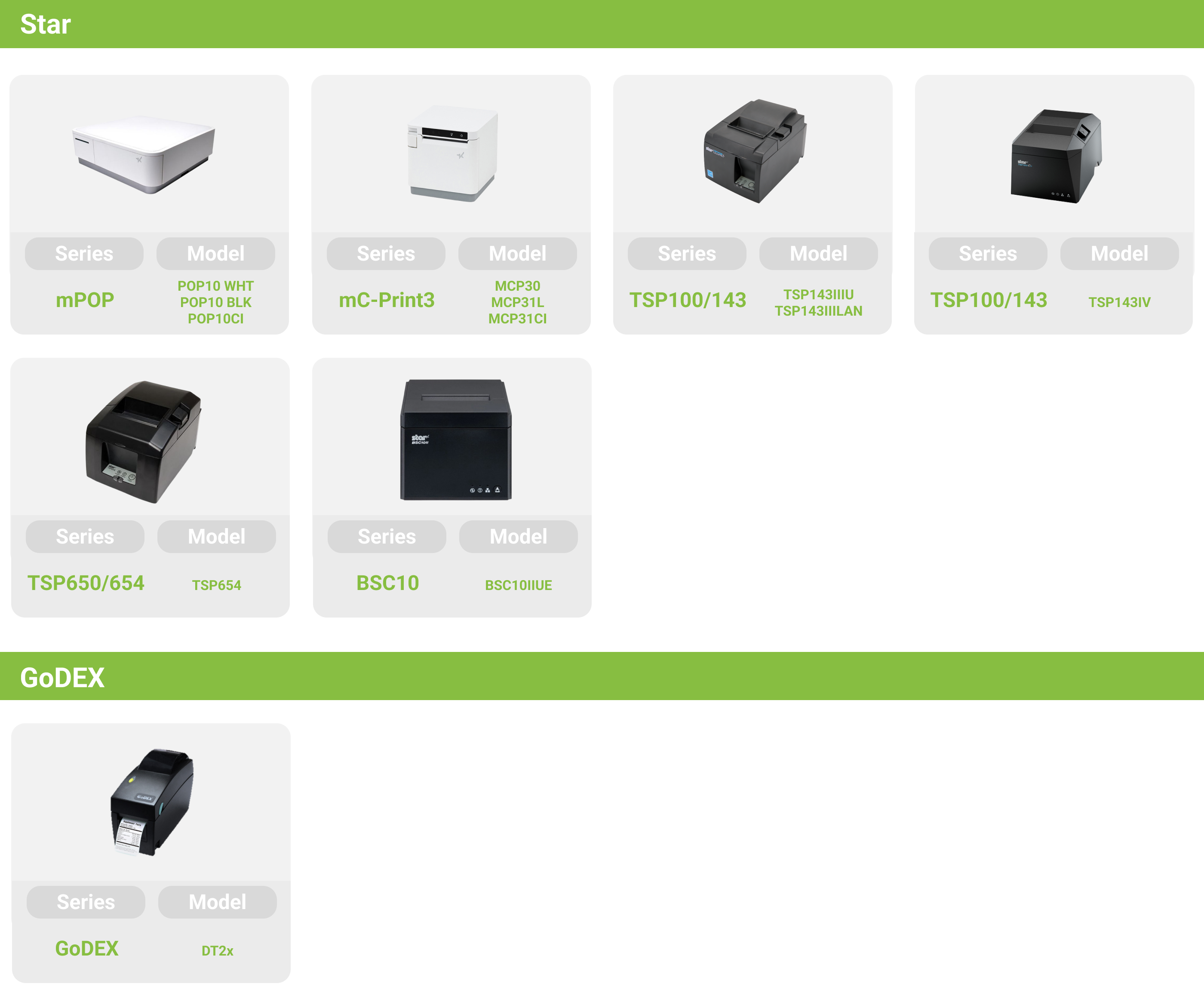
Supported order printer models vary by restaurant location with iCHEF.Learn More
Out of Paper LED Signal

When the red light is blinking, it means that the printer has run out of paper. To replace the paper, you do not need to turn off the printer.
Label Roll Specifications
- Paper Roll width : 58 mm / 80 mm
- Paper Roll diameter : 80 mm
- Paper Roll length : 68 m
- Paper Roll thickness : 0.073 mm ± 0.005 mm
- Core diameter : 20.4 mm
How to Place the Label Roll.
- Gently open the paper cover of the printer by lifting the lever on the left side of the printer.
- Load the paper roll with the print side facing up like a whistle.
- Pull out a suitable paper length, ensuring that the paper cover can hold the paper in place when it is closed.

Paper Roll Guide
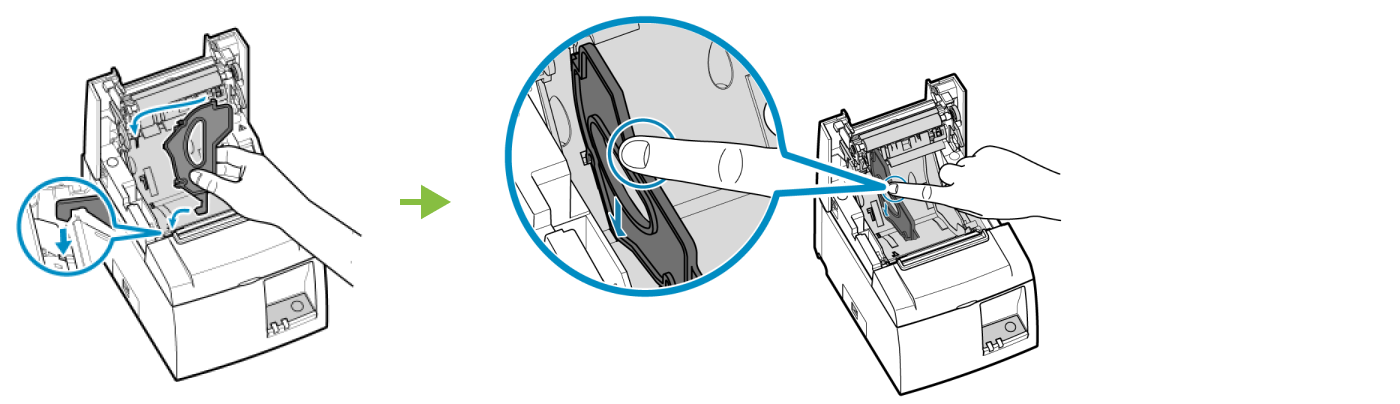
The receipt printer supports paper widths of 58mm and 80mm. Please notice the paper roll is moving inside the paper slot. If using a 58mm paper width, install the paper roll guide in the paper slot.
- Angle the paper roll guide to the right and insert it to avoid the silver shaft, then align the bottom of the paper guide with the 58mm hole and stand it vertically.
- Press the paper roll guide until hearing a click sound.

Out of Paper LED Signal

When the printer’s LED is [ blue light constantly on and red light blinking quickly ], it means running out of paper and there is no need to turn off the printer when replacing the paper roll.
Label Roll Specifications
- Paper Roll width : 58 mm
- Paper Roll diameter : 50 mm
- Paper Roll length : 22 m
- Paper Roll thickness : 0.064 mm ± 0.005 mm
- Core diameter : 20.4 mm
How to Place the Label Roll.
- Gently withdraw the paper drawer, and open the paper cover on the top.
- Load the paper roll with the print side facing up like a whistle.

- Pull out a suitable paper length, ensuring that the paper cover can hold the paper in place when it is closed.

The paper does not need to be placed through the paper output, please sandwich the paper and close the printer cover. If the printer is on then the setting will be completed with the paper cut automatically.
- Please close the paper drawer.

Out of Paper LED Signal

When the printer’s LED is [ blue light constantly on and red light blinking quickly ], it means running out of paper and there is no need to turn off the printer when replacing the paper roll.
Label Roll Specifications
- Paper Roll width : 58 mm / 80 mm
- Paper Roll diameter : 80 mm
- Paper Roll length : 68 m
- Paper Roll thickness : 0.073 mm ± 0.005 mm
- Core diameter : 20.4 mm
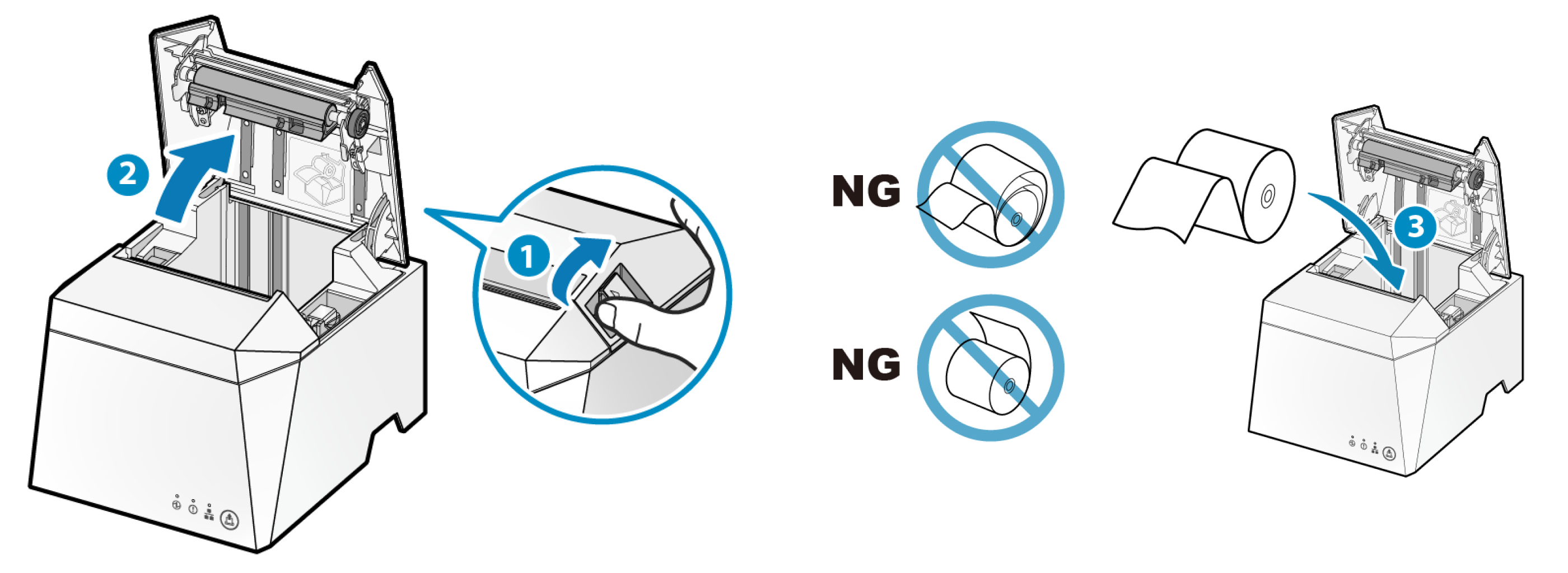
How to Place the Label Roll.
- Gently open the paper cover of the printer.
- Insert the paper roll into the printer with the thermal side facing down.
- Pull out a suitable paper length, ensuring that the paper cover can hold the paper in place when it is closed.

Paper Roll Guide
The receipt printer supports paper widths of 58mm and 80mm. Please notice the paper roll is moving inside the paper slot. If using a 58mm paper width, install the paper roll guide in the paper slot.
- Align the bottom of the paper roll guide with the 58mm hole.
- Press the paper roll guide until hearing a click sound.
Out of Paper LED Signal

When the printer indicator shows a steady blue light and a flashing red light, it means the paper roll is finished. There is no need to turn off the printer when replacing the paper roll.
Label Roll Specifications
- Paper Roll width : 58 mm / 80 mm
- Paper roll diameter: 80 mm (maximum)
- Paper Roll length : 68 m
- Paper roll thickness: 0.049 mm to 0.085 mm
- Paper core diameter: inner diameter 12 mm / outer diameter 16 mm
How to Place the Label Roll.
- Gently open the paper cover of the printer.
- Insert the paper roll into the printer with the thermal side facing down.
- Pull out a suitable paper length, ensuring that the paper cover can hold the paper in place when it is closed.
Paper Roll Guide
The printer supports paper roll widths of 58mm and 80mm. When using 58mm paper rolls, please install a paper roll guide inside the paper slot to prevent printing misalignment.
- Align the bottom of the paper roll guide with the 58mm hole.
- Press the paper roll guide until hearing a click sound.

Out of Paper LED Signal

When the printer’s light is [Greenlight stays on, red light keeps blinking for 0.5 seconds], it means running out of paper and there is no need to turn off the printer when replacing the paper roll.
Label Roll Specifications
- Paper Roll width : 58 mm / 80 mm
- Paper Roll diameter : 80 mm
- Paper Roll length : 68 m
- Paper Roll thickness : 0.073 mm ± 0.005 mm
- Core diameter : 20.4 mm
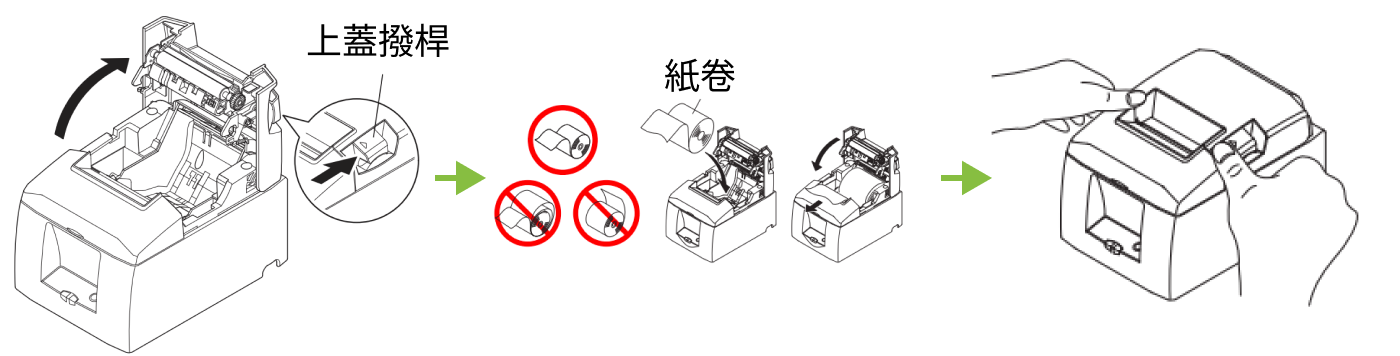
How to Place the Label Roll.
- Gently open the paper cover of the printer.
- Insert the paper roll into the printer with the thermal side facing down.
- Pull out a suitable paper length, ensuring that the paper cover can hold the paper in place when it is closed.
Paper Roll Guide
The receipt printer supports paper widths of 58mm and 80mm. Please notice the paper roll is moving inside the paper slot. If using a 58mm paper width, install the paper roll guide in the paper slot.
- Align the bottom of the paper roll guide with the 58mm hole.
- Press the paper roll guide until hearing a click sound.

Out of Paper LED Signal

When the printer’s blue light is steady and the red light flashes every 0.5 seconds, it indicates the paper roll is finished.
Label Roll Specifications
- Paper Roll width : 58 mm / 80 mm
- Paper roll diameter: 83 mm (maximum)
- Paper roll thickness: 0.049 mm ± 0.005 mm
- Paper core diameter: inner diameter 12 mm / outer diameter 18 mm
How to Place the Label Roll.
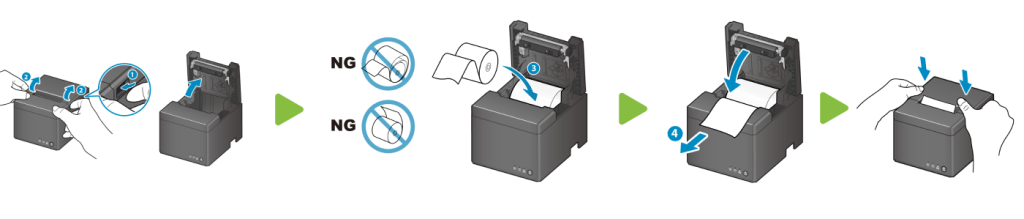
When replacing the paper roll, there is no need to turn off the printer power. After closing the paper roll cover, the printer will automatically cut the paper roll, indicating that the replacement is complete.
- Gently open the paper cover of the printer by lifting the lever on the left side of the printer.
- Insert the paper roll into the printer with the thermal side facing down.
- Pull out a suitable paper length, ensuring that the paper cover can hold the paper in place when it is closed.
Paper Roll Guide
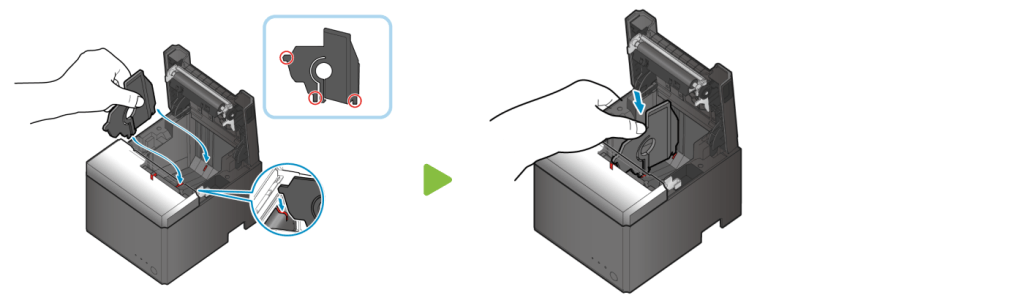
The receipt printer supports paper widths of 58mm and 80mm. Please notice the paper roll is moving inside the paper slot. If using a 58mm paper width, install the paper roll guide in the paper slot.
- Align the paper roll guide with the groove inside the paper slot.
- After inserting the guide plate, press down until you hear a clicking sound.
Out of Paper LED Signal

When the printer’s Red light stays on and there are 2 sounds of “beep”, it means that the printer has run out the paper.
The GoDEX cover is transparent, you could observe the amount to replace the paper roll in advance.
Label Roll Specifications
- Label Width : 40 mm
- Label Height : 30 mm
- Interval Between Labels : 3 mm
- Two Sides of Label from Bottom Paper : 1 mm
- Label Thickness : 0.082 mm ± 0.01 mm
- Amount of Labels : 1000 Labels
How to Place the Label Roll.
- Turn off the printer.
- Open the paper holder cover and lift the spindle upwards.
- Place the label roll onto the spindle, ensure that the labels are facing up.
- Pull out a suitable label length, and let the label go through the [ Label guides ] ensuring that the paper cover can hold the label in place when it is closed.

- Press and hold the “FEED” button, and turn on the power until the printer beeps, then release the button.
- Wait until the test label has finished printing, then press the ‘FEED’ button once to position the label.
Preventing Paper Jams and How to Handle it
Once the printer receives a paper feed command, it will immediately start the printing process. It is recommended not to place any objects in front of the paper outlet, and to take the receipt only after the printer has finished cutting. In case of paper jam, the printer may activate the cutter lock (an error indicator will light up). Do not force open the paper roll cover at this time. For detailed instructions, please refer to: Printer Cutter Lock Release.