
To ensure print quality and system stability, iCHEF only notifies you to update printer firmware during major version upgrades. If print content shifts or skews, try restoring the printer to factory settings and check if the issue improves.
Printer Firmware Update
iCHEF only notifies you during major version updates to ensure print quality and system stability.
Restore Printer Firmware to Factory Settings
If the print content shifts or skews abnormally, try restoring the printer to factory settings to resolve the issue.
Printer Firmware Update
Please choose the update method according to the printer brand.
Supported order printer models vary by restaurant location with iCHEF.Learn More
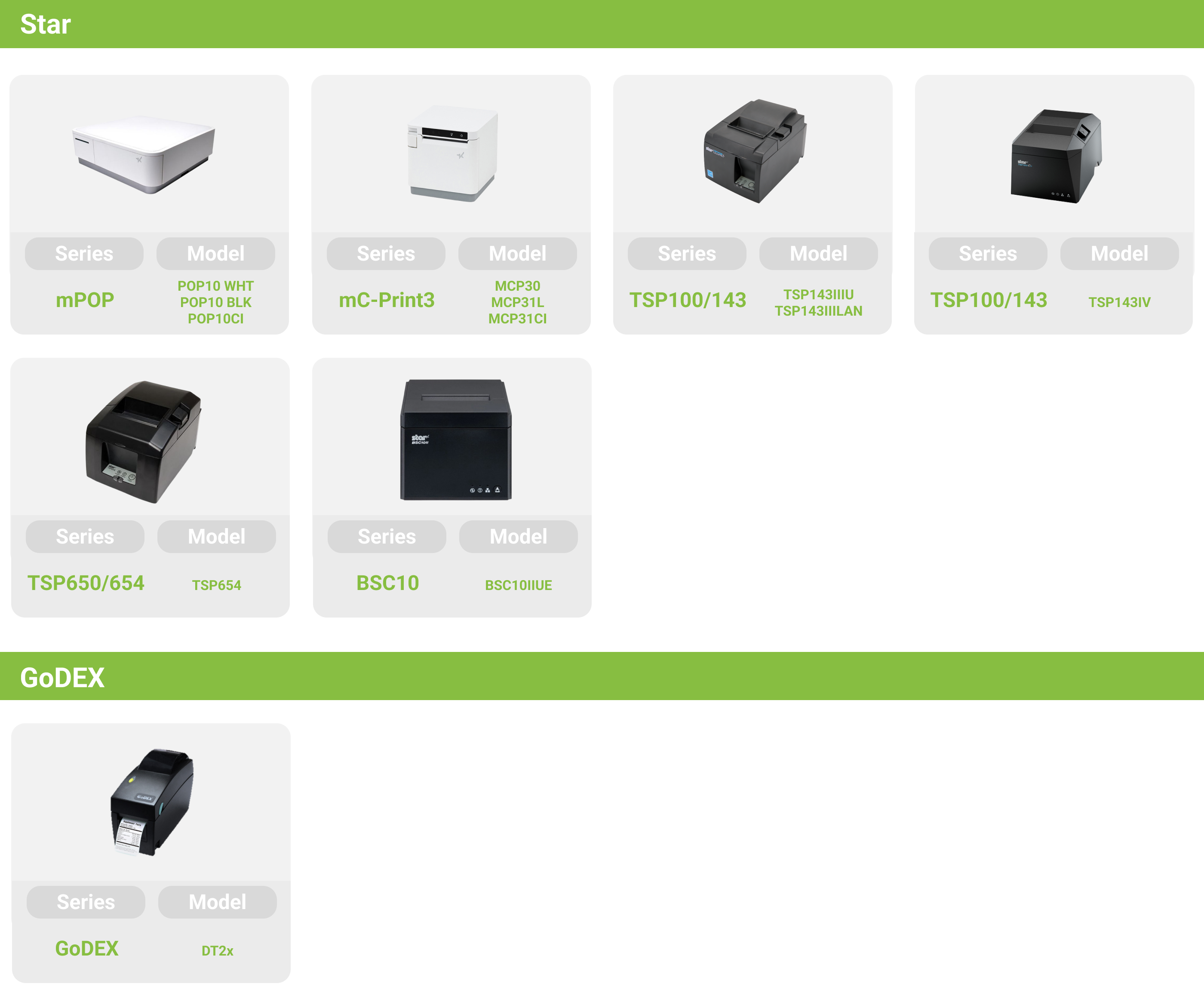
Use an iPad to open the App Store, search for “Star Quick Setup Utility,” and install it.

Open Selected Printer in Star Quick Setup Utility; the official tool will automatically search for printers that are successfully connected.

When using for the first time, please allow the official tool to access Bluetooth and local network permissions.
From the list of detected printers, select the printer that requires firmware update.

When there are multiple printers connected via LAN in the store, you can select the correct device by its IP address.How to obtain the IP address
Please navigate to Printer Settings > Firmware Update in sequence. The system will automatically check for available new firmware. If an update is available, click Update to upgrade.

[Important Reminder]
he firmware update process takes some time. Please wait patiently until the iPad screen displays the Success message.
To ensure the update completes successfully and protect the printer, please pay attention to the following during the update:
。Do not turn off the printer’s power during the update.
。Do not unplug any network cables or power cords.
Before starting the setup, please complete the following three preparations:
1. Connect the printer: Use a network cable to connect the printer to the in-store router.
2. Install the software: Download and install the NetSetting official tool on a Windows computer.
3. Confirm network connection: Ensure that both the computer and the printer are connected to the same local area network.
Open the NetSetting official tool on the Windows computer, click the magnifying glass icon, and select the printer you want to configure.

After entering the software update page, click the browse button to upload the latest GoDEX firmware file to the official tool, then click to start downloading and updating the firmware to complete the update process.

[Important Reminder]
The firmware update process takes some time, please be patient.
To ensure the update completes successfully and protect the printer, please pay attention to the following during the update:
。Do not turn off the printer’s power during the update.
。Do not unplug any network cables or power cords.
Restore firmware to factory settings
Please choose different restoration methods according to the printer brand.
Supported order printer models vary by restaurant location with iCHEF.Learn More
Use an iPad to open the App Store, search for “Star Quick Setup Utility,” and install it.
Open Selected Printer in Star Quick Setup Utility; the official tool will automatically search for printers that are successfully connected.
When using for the first time, please allow the official tool to access Bluetooth and local network permissions.
From the list of detected printers, select the printer that requires firmware update.
When there are multiple printers connected via LAN in the store, you can select the correct device by its IP address.How to obtain the IP address
Please sequentially select Printer Settings > Memory Switch Settings > Factory Default to restore the printer to factory settings.

[Important Reminder]
The firmware restoration process takes some time. Please be patient.
To ensure the update completes successfully and protect the printer, please pay attention to the following during the update:
。Do not turn off the printer’s power during the update.
。Do not unplug any network cables or power cords.
Before starting the setup, please complete the following two preparations:
1. Connect the printer: Use a network cable to connect the printer to the in-store router.
2. Confirm network connection: Please ensure that both the computer and the printer are connected to the same local network.
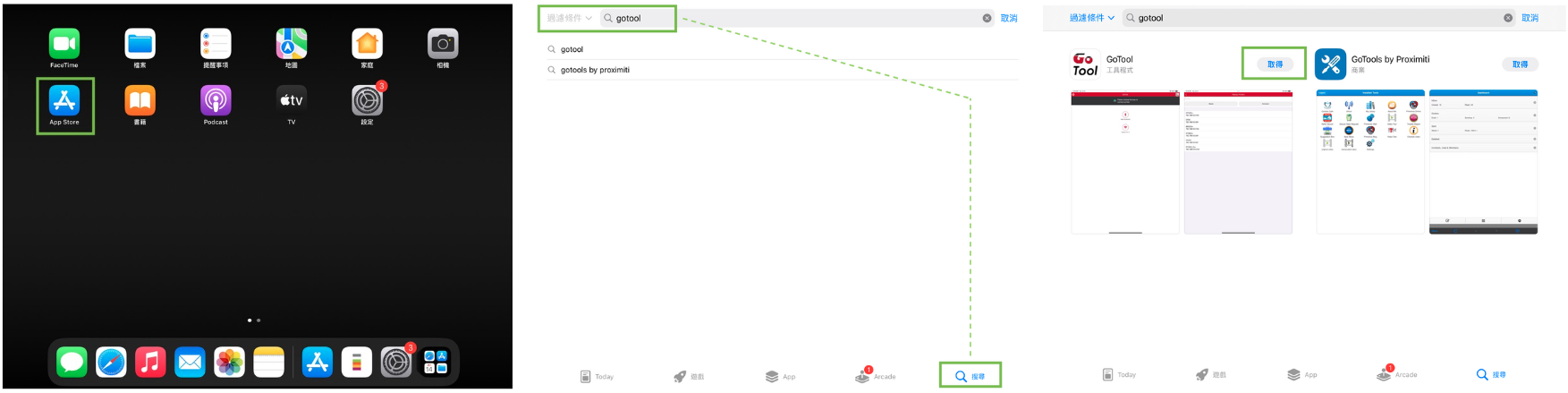
Use an iPad to open the App Store, search for “GoTool,” and install it.
Open GoTool, tap on Nearby Wi-Fi, and the app will automatically search for printers on the same local network.

When using for the first time, please allow the official tool to access Bluetooth and local network permissions.
In the search results list, select the printer you want to configure, then tap Connect to complete the connection.

When there are multiple printers connected via LAN in the store, you can select the correct device by its IP address.How to obtain the IP address
Next, select GoDoctor > Factory Default. After confirming the reset operation, choose Yes to start restoring the factory settings.

[Important Reminder]
The firmware reset process takes some time, please be patient. When the printer emits a beep sound, it indicates the reset is complete.
To ensure the update completes successfully and protect the printer, please pay attention to the following during the update:
。Do not turn off the printer’s power during the update.
。Do not unplug any network cables or power cords.