
Overwhelmed by reservation calls? Considering offering online reservation for your customers? After activating the feature of online reservation, you will obtain a reservation website of your own. Just go to the settings page of [Feature Status], follow the two steps as illustrated below, and you can let your customers make their own reservation online.

➤ Backend Path:Online Store > Reservation > Feature Status
Step 1: Activate Online Reservation
In the page of [Feature Status], enable the function of [Online Reservation], and the status of your own reservation website will be updated in real time. If you need to deactivate the function of [Online Reservation], simply disable it here, and the settings will take effect immediately.
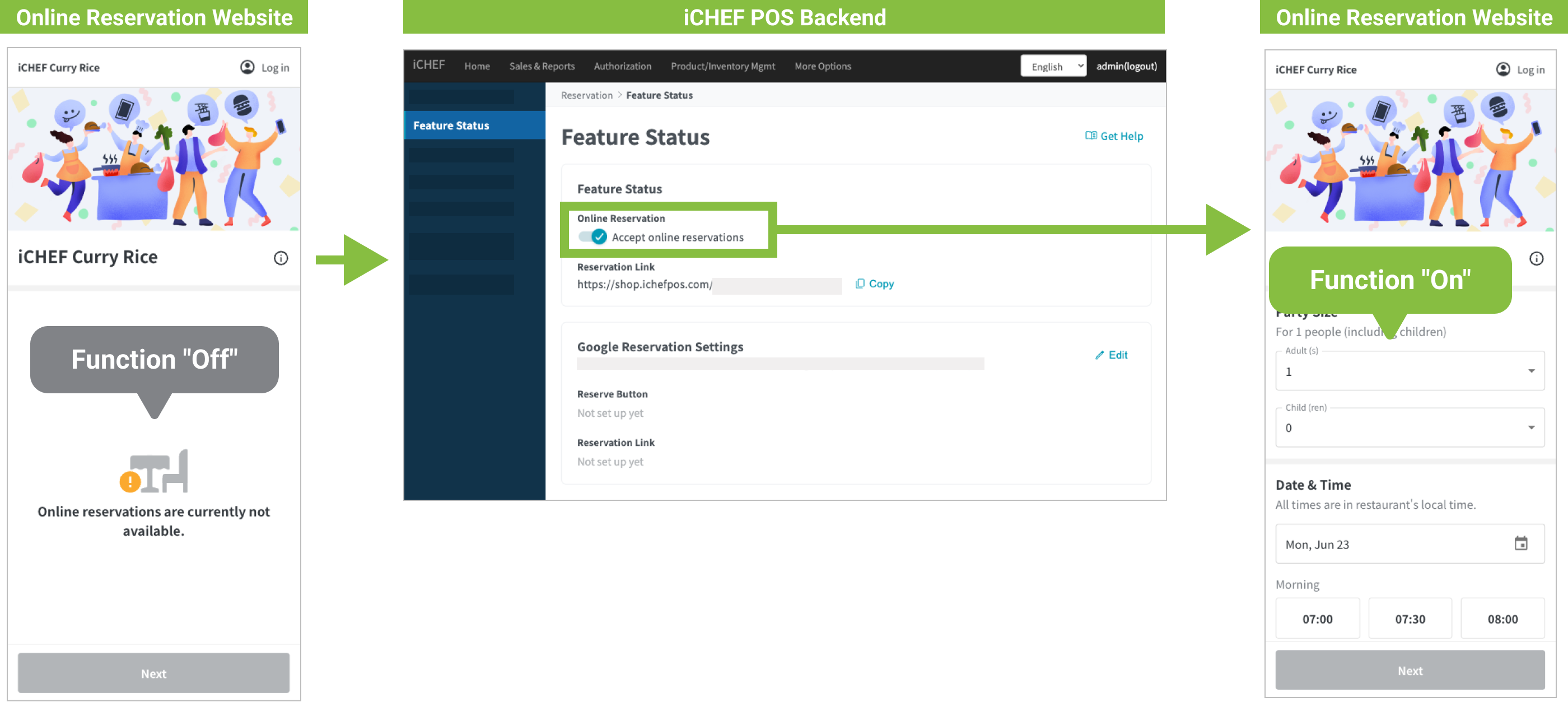
Step 2: Activate Online Reservation
After enable the function of [Online Reservation], you will have a reservation website of your own. Promote this website as best as you can to let your customers know they can choose to make online reservation in advance. There are two ways to do this in the backend:
- 1. Copy the link and promote it as you want
Click [Copy] next to the reservation link, and post the link on the social media platforms of your restaurant, such as LINE, Instagram or Facebook, to promote it to your customers. (References: Checklist for Free Exposure of Mobile Ordering)
- 2. Add a reservation portal to your profile of Google My Business
As long as you have bound your iCHEF POS account with your profile of Google My Business, you can add a reservation portal directly from iCHEF backend! In this way, your customers can make online reservation by finding your restaurant on Google Map or in the search results. Learn More
