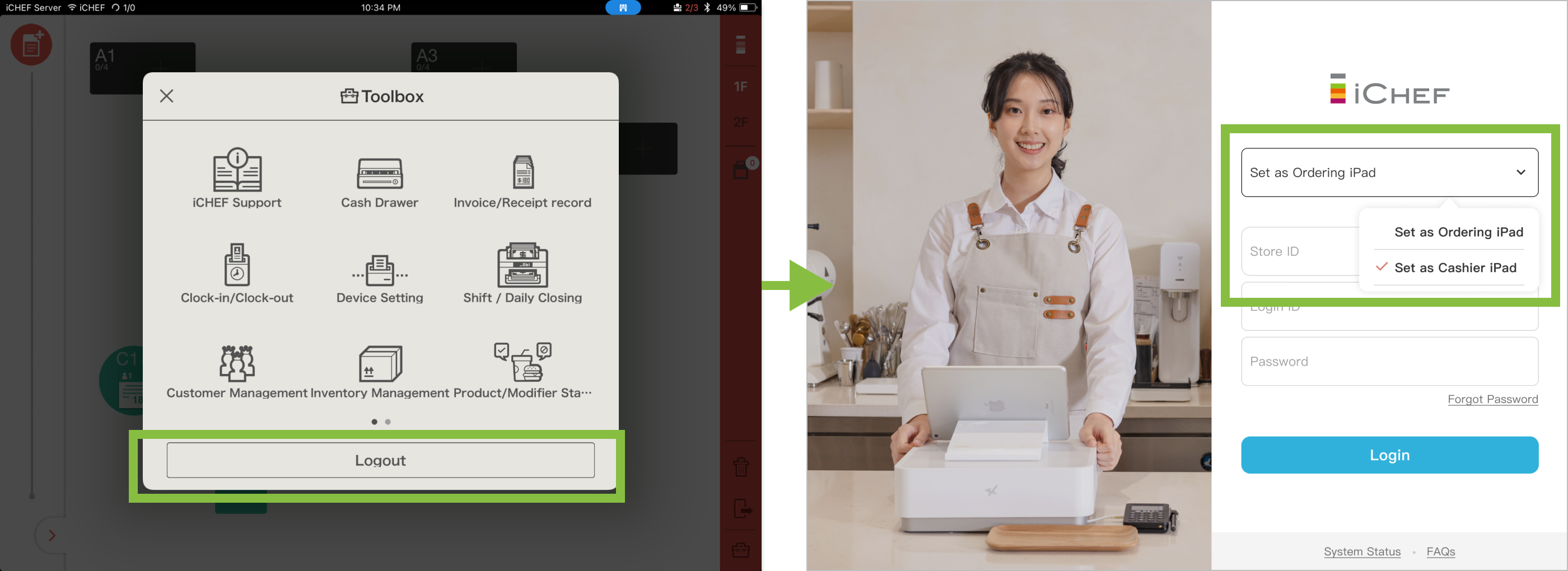
You can log into iCHEF POS App on the iPad you set as Cashier iPad or Ordering iPad. Each iCHEF Store ID supports 1 Cashier iPad only. If your store allows ordering through multiple iPads, you can log into iCHEF POS App by setting the iPads you’re using as Ordering iPad for all of the business data to sync in real time.

The number of Ordering iPad available for your store is subject to the “Number of Available Ordering iPad” in your iCHEF POS system contract.
Notice
To enable the uploading of data and proper functioning of system, please make sure that:
- The iPad is connected to the Internet.
- If you are using multiple iPads:
- All of the iPads are connected to the same Wi-Fi.
- The version of iCHEF POS App on all of the iPads is consistent.
Operation Mode
One system contract supports one Store ID. iCHEF will sync the business data on your POS according to the Store ID. You may consider additional contracts if needed.

Cashier iPad
Each iCHEF Store ID supports 1 Cashier iPad only. The first iPad you log in with your Store ID will operate as Cashier iPad. If you’ store is using multiple iPads, please set the other iPads as Ordering iPad.
Ordering iPad
The system data of Ordering iPad is provided by Cashier iPad. Therefore, please make sure you have logged into iCHEF POS App on Cashier iPad before using the Ordering iPad(s).
Usage Difference
| Operation Mode | Number of iPad | Usage | Update Menu | Functions in Toolbox |
|---|---|---|---|---|
| Cashier iPad | Each iCHEF Store ID supports 1 Cashier iPad only | Independently | Available | All |
| Ordering iPad | Each Store ID: up to 5 devices (According to the system contract plan) | Must be connected to Cashier iPad | Unavailable | Only available: • Cash Drawer • Invoice/Receipt Record • Device Settings • Shift Closing • Mobile Ordering Management • Reservation Blacklist |
- Before login, you can launch iCHEF POS App and check the color of button on the login page. It is red on Cashier iPad and blue on Ordering iPad.
- Click [System Status] at the bottom of the login page and check the operating mode label next to the title.
- After login, you can check the system status bar. It shows [Server] on Cashier iPad and [Client] on Ordering iPad.


FAQ
If the network connection fails and cannot be restored immediately, you can log into iCHEF POS App on Cashier iPad in offline mode by clicking [Offline Mode Login].
In offline mode, you cannot access the Ordering iPad(s), ordering on the online store and third-party delivery platforms, settings of item/modifier status, third-party payment integration, and membership-related functions.

Notice
- You cannot update menu in offline mode. The system will load the settings from the last login.
- Receipts or invoices can still be issued in offline mode, with a maximum of 400 for each.
- In offline mode, all of the business data will be stored temporarily in (displayed in the upper-left corner in the App), so please do not delete the App.
– To upload the business data to the backend, please make sure that you connect the iPad to the Internet and log into the App again when closing for the day.
– If you are issuing Taiwanese e-invoices, the data of invoices must be uploaded within 48 hours from the date of transaction according to the Regulations Governing the Use of Uniform Invoices.

Please click [Forgot My Password] under the password column on the login page and follow the instructions.
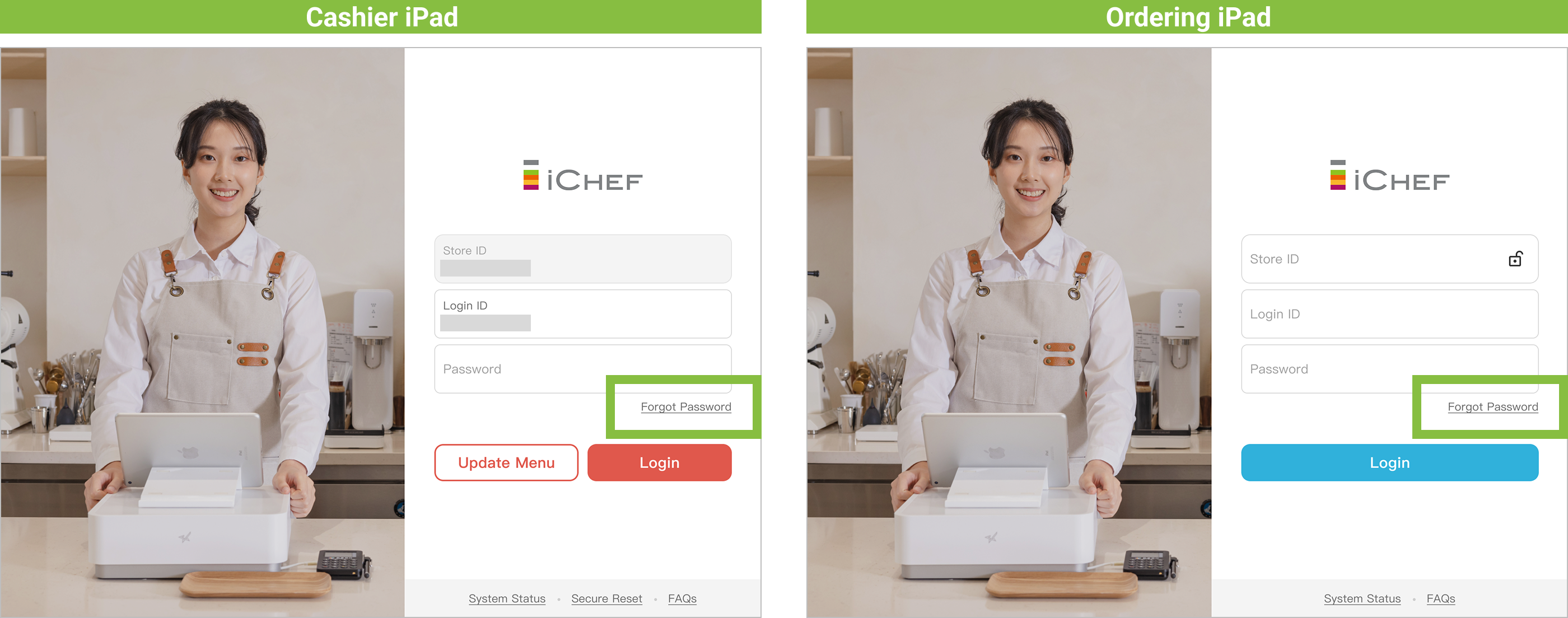
If you are changing Cashier iPad, please click [Secure Reset] on the login page first to ensure data uploading.
- Return to the login page on Cashier iPad you have logged into.
- Click [Secure Reset] at the bottom of the login page.
- Log into iCHEF POS App on the desired iPad and set it as Cashier iPad.

Please do not delete iCHEF POS App without prior consultation. Doing so may cause the loss of your business data. If you encounter any operating issues, please contact iCHEF customer service.
To set the Cashier iPad you have logged into as Cashier iPad, please log out and then select [Set as Cashier iPad] on the login page.