
Before activating Mobile Ordering (Takeout), please confirm the following notes and steps to successfully activate and use it.
Note before activating the function
Usage is divided into [Online Menu Browsing] and [Online Ordering]. Please confirm the activation method based on your needs.
- Online Menu Browsing: Can be activated directly in all regions.
- Online Ordering: In Taiwan, this requires the purchase of the Online Store – Mobile Ordering extension (Trial plan from NT$0) to be activated.
Enable Feature
➤ Backend Path:Online Store > Mobile Ordering (Takeout)
After confirming the service description, please tap [Get Started] and fill in the basic business information according to the page instructions. This information will be displayed on the website for customers to view.

You can choose to import iCHEF contract data or Google Business Profile data that has been integrated with iCHEF.
How to set up your website
After the feature is activated, you can begin setting up the website content:

➤ Backend Path: Product/Inventory Mgmt > Mobile Ordering (Takeout)
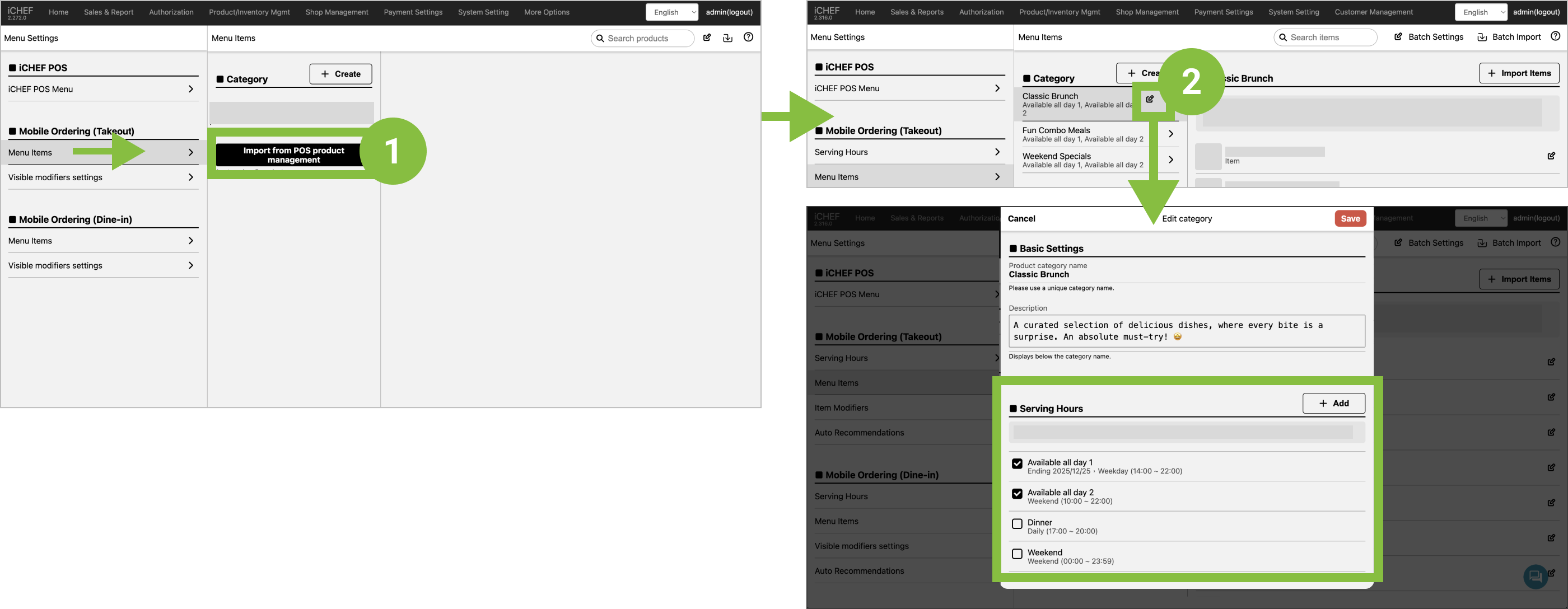
Please complete item listing by either importing with a single tap or selecting manually, and assign Serving Hours to product categories. Items will then be displayed on the online menu according to the assigned time.Learn More
Step 2: Ordering Function Settings
➤ Backend Path:Online Store > Mobile Ordering (Takeout)
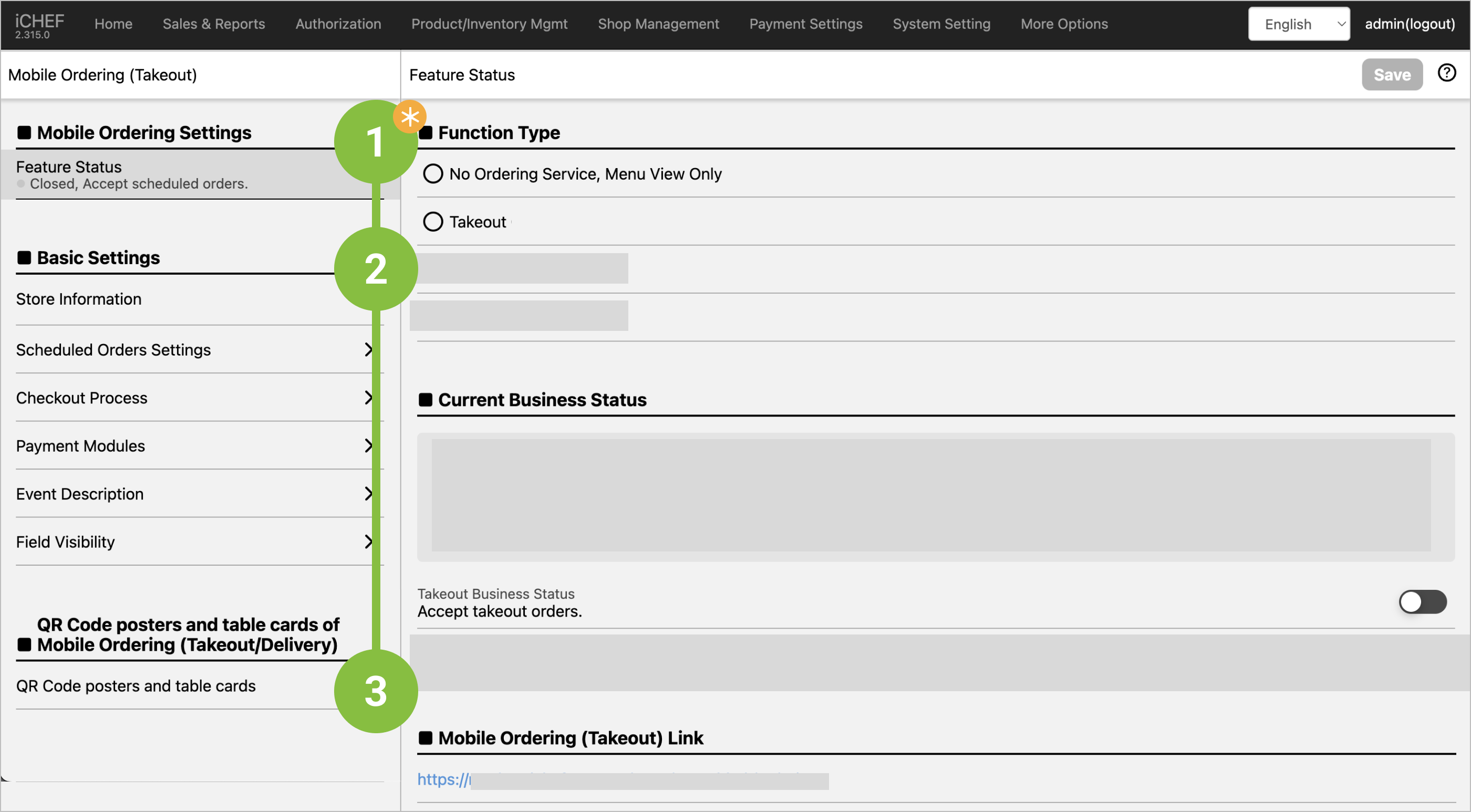
❶ Mobile Ordering Settings (Required)
- Feature Status: Choose either Menu Browse Only or Online Ordering.
- Current Business Status: No setting required, it will automatically switch according to your operating status.
- Mobile Ordering (Takeout) Link : No setting required, this is the restaurant’s dedicated ordering website.
❷ Basic Settings: The basic store information has been filled in when you activate the function. To adjust or add more settings, please configure in the columns below.
- Store Information: Your store’s contact info, reminder and cover image.
- Delivery Fee Rules Settings (TW Only): Required when [Delivery] is enabled.
- Scheduled Orders Settings: You can decide here whether to offer pre-orders to customers.
- Checkout Process: Set the descriptions displayed during checkout and information for invoice-related fields.
- Payment Modules: Add payment methods for customers to choose from.
- Event Description: You can display relevant descriptions for promotions and points events.
- Field Visibility: Configure the display of special requests for items, order notes, and utensil request option.
❸ QR Code posters and table cards of Mobile Ordering (Takeout): In addition to promoting the ordering service through the [Mobile Ordering (Takeout) Link] in Online Ordering Settings, you can also use this page to create posters and table cards.
Now, you can start letting customers order online!