This article explains “Pairing Physical Devices” in the multi-cashier feature. Before reading, please ensure that your in-store iCHEF POS meets the requirements.Learn More
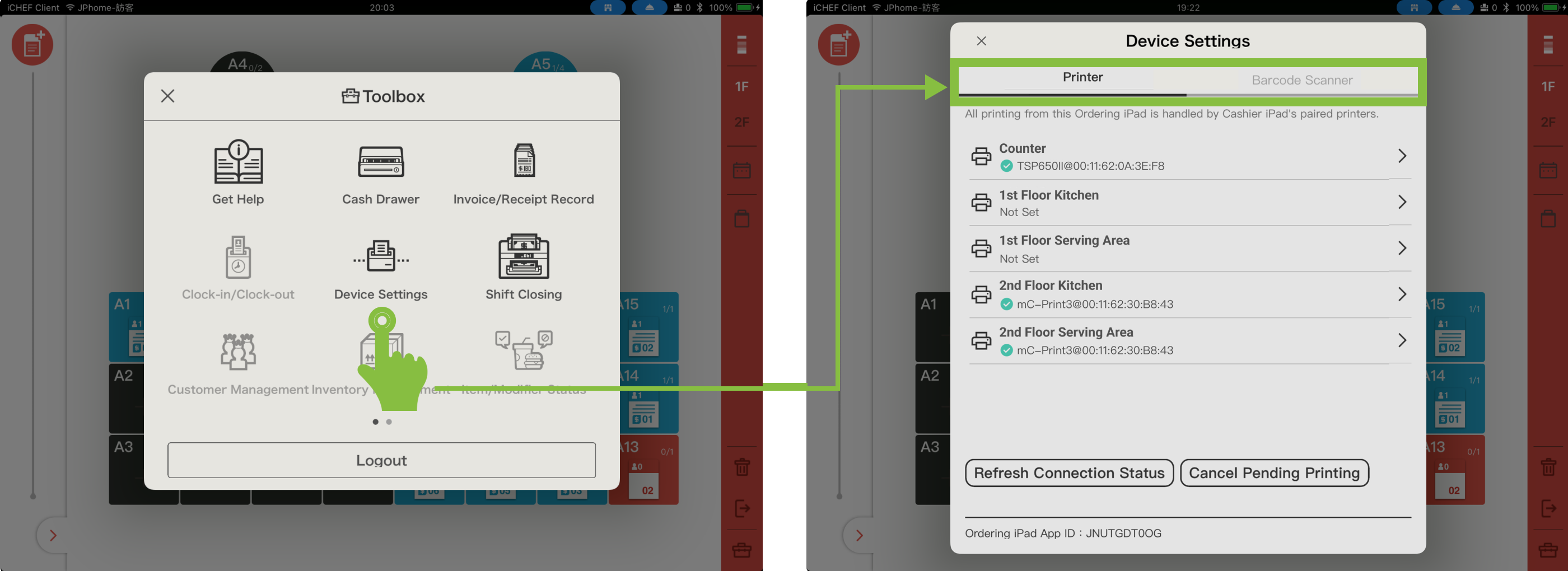
The Ordering iPad can also access Device Management in the Toolbox to pair printers, Card Readers (Taiwan only), and scanning devices as needed.
Ordering iPad paired with printer(s)
When pairing any printer, printing and cash drawer opening will follow the printer pairing settings of that iPad. If no printer is paired, printing and cash drawer opening will follow the Cashier iPad’s settings.
➤ iCHEF POS App Location: Toolbox > Device Management > Printers
The printer list in Device Management matches the Cashier iPad’s, but printers can be paired per Ordering iPad to trigger printing and cash drawer opening. Pairing follows the same method as the Cashier iPad. For detailed pairing instructions, see: [Printer Management] Printer and iCHEF POS Pairing.

Each Store ID can have only one set of checkout rules, which is used for printing billing details and receipts/invoices. It is also the only rule that can trigger the cash drawer to open. Please make sure to pair each iPad used for checkout with its corresponding printer.
Ordering iPad paired with Card Reader(s) (Taiwan only)
➤ iCHEF POS App Location: Toolbox > Device Management > Card Reader(s)
The Card Reader list in Device Management matches the Cashier iPad, but both Ordering iPads and the Cashier iPad can pair with different Card Readers. During checkout, the paired Card Reader will be used to complete the payment. For detailed pairing instructions, see: KGI mPOS, Taishin mPOS.
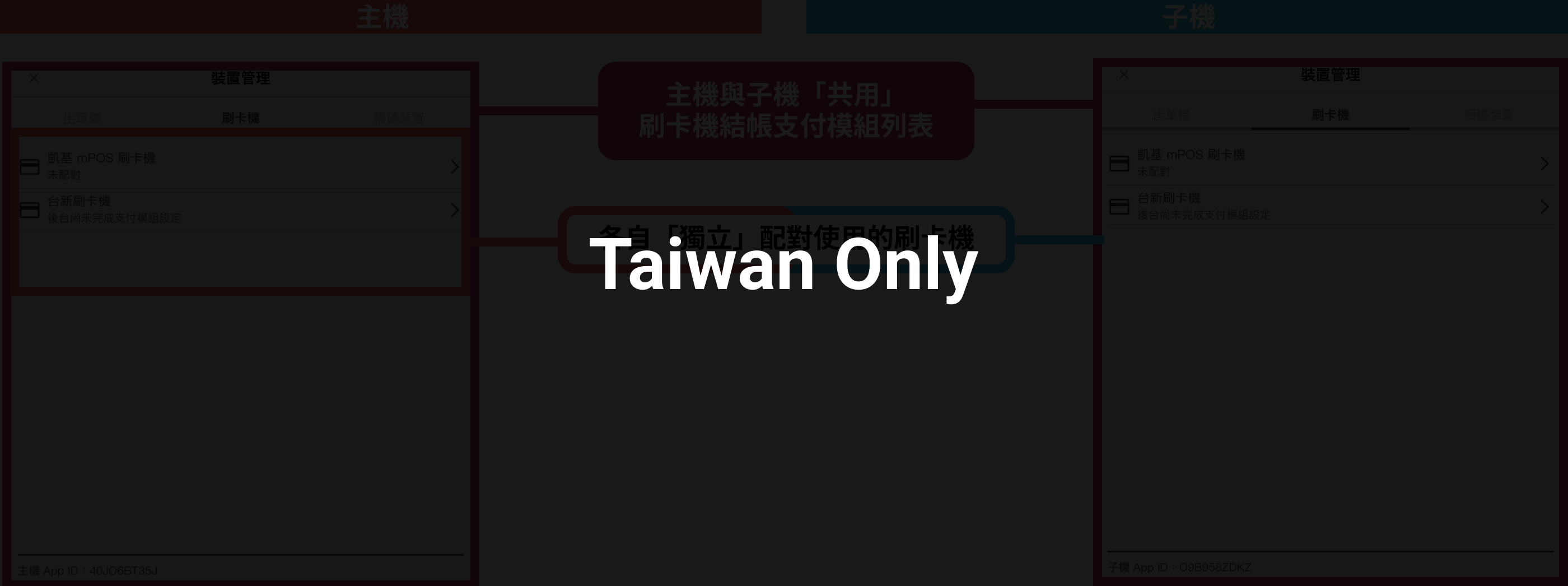
Checkout and void actions will use the Card Reader paired with that iPad. Therefore, voiding a transaction must be done on the iPad used for the original checkout.
Ordering iPad paired with barcode scanner(s) (Taiwan only)
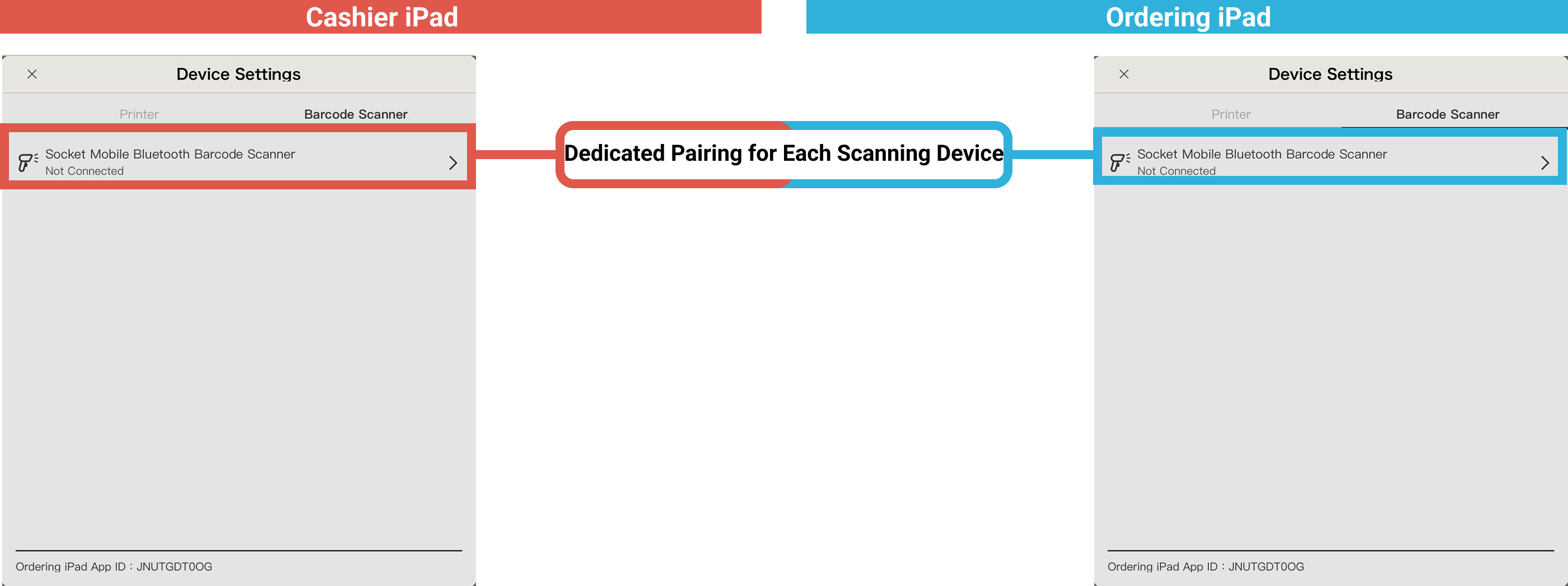
➤ iCHEF POS App Location: Toolbox > Device Management > Barcode Scanner(s)
Ordering iPad can also pair with barcode scanners to scan customers’ electronic invoice carrier barcodes and mobile payment codes. For detailed pairing instructions, see: Socket Mobile Wireless Bluetooth 1D Scanner.