
To help in-store staff quickly respond to and assess table and reservation statuses, the iCHEF POS App will provide three types of alert indicators: [Reservation Time Slot], [Table Status], and [Arrival Status].

1. Reservation Time Slot
Based on the [Reservable Dining Time Slots] in your Reservation Rules, the Reservation management page will display the following indicators:
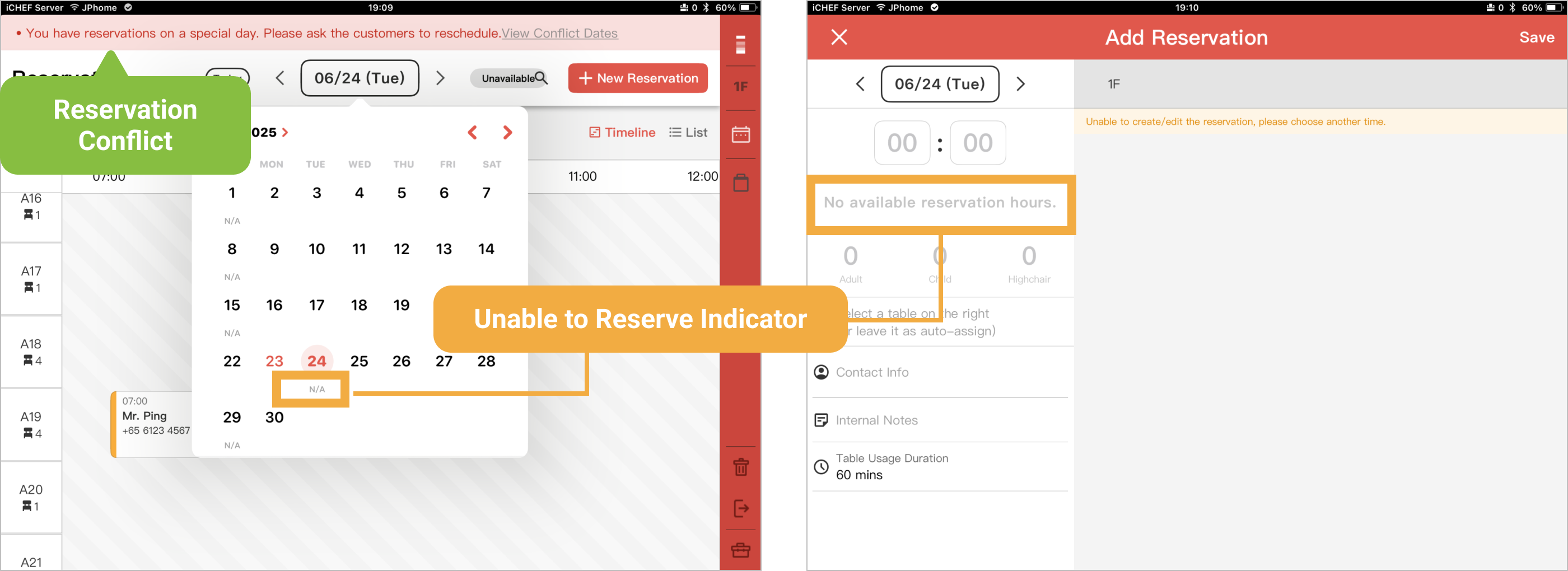
- Reservation Conflict: Displayed when an existing reservation conflicts with a [Special Reservation Date], appearing at the top of Reservation management.
- Date Tag: Displayed to the right of the date.
- Special Reservation Date: Dates where [Custom Time Slot Reservation Availability] has been added in the backend.
- Not Available for Reservation: Dates with default backend unavailable slots or where [Full Day Unavailable for Reservation] has been added.
- Unavailable for Reservation Indicators:
- Calendar: Unavailable for Reservation Dates will be marked as [Unavailable].
- Timeline: Unavailable for Reservation Slots will be marked with a [Gray Diagonal Line].
- Edit Screen: Unavailable for Reservation Slots will be marked as [No Reservable Slots].
2. Table Status
The system assesses table status alerts based on your arranged tables and guest count rules, but to allow for on-site flexibility (e.g., adding chairs or combining tables), the alert indicators will not affect subsequent operations; you can still proceed to [Seat Guests].
- Reserved Table:
When seating guests for a reservation arranged with two or more tables, the system will create the customer order on the first table and automatically reserve the second and subsequent tables based on the “Dining Time”. This prevents you from overbooking guests when receiving new reservations or adding them. Based on the on-site situation, you can still “long press” to cancel the reservation.

- Insufficient Seats:
Displayed when the selected table’s capacity is less than the reservation’s guest count. Simply move the reservation to a table that matches the guest count, and the alert will disappear.

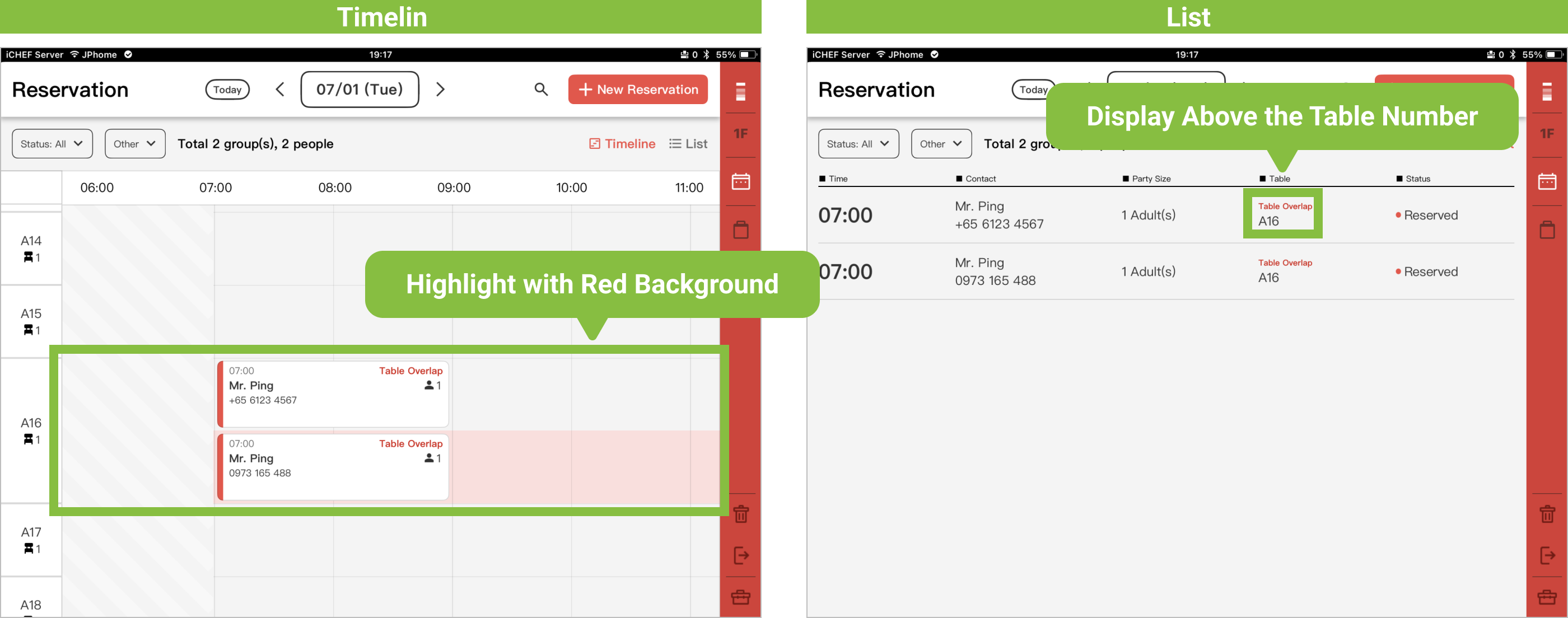
- Table Overlap:
Displayed when the same table is booked simultaneously. Simply move the reservation to another available table, and the alert will disappear.
3. Arrival Status
- Next Reservation Time Indicator:
On the Table Status page and Reservation page, the next arranged reservation time will be displayed as a blue time indicator above the table. It disappears when the reservation time has passed.

- Late Reservation Indicator:
The Late Reservation indicator appears on the reservation after the customer’s reservation time plus the grace period has passed. If the reservation time and status are not modified after being late, the system will automatically change the status to [No Show] at 01:00 AM two days later.
