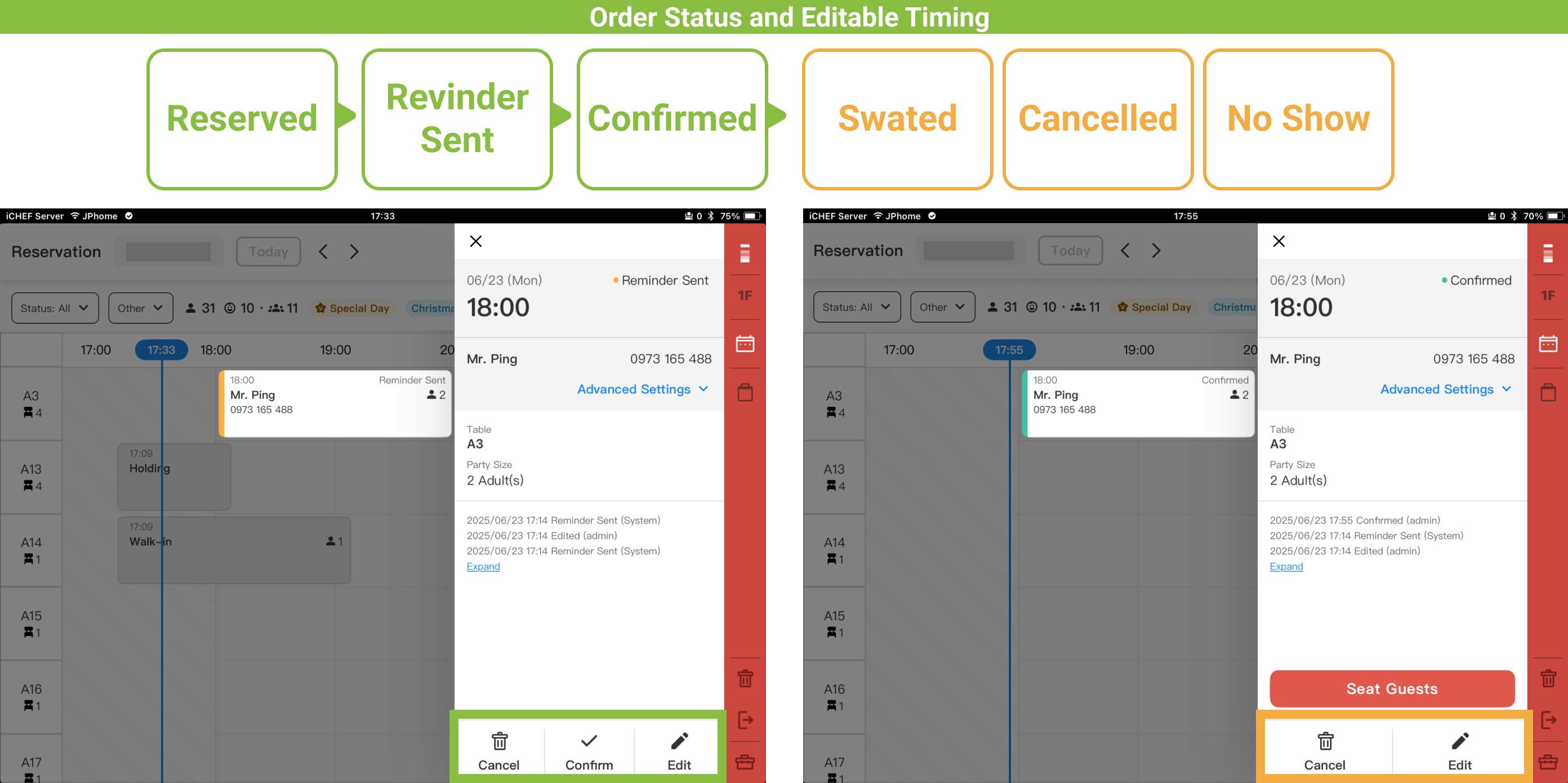
After activating the [Reservation] feature, a new [Reservation] page will be added to your iCHEF POS App. Ensure you are operating with an internet connection when using it, as all reservation slips will be centrally displayed here.
For existing reservations, you can perform three main operations here: from viewing to Seat Guests, allowing you more flexible table management and arrangement.
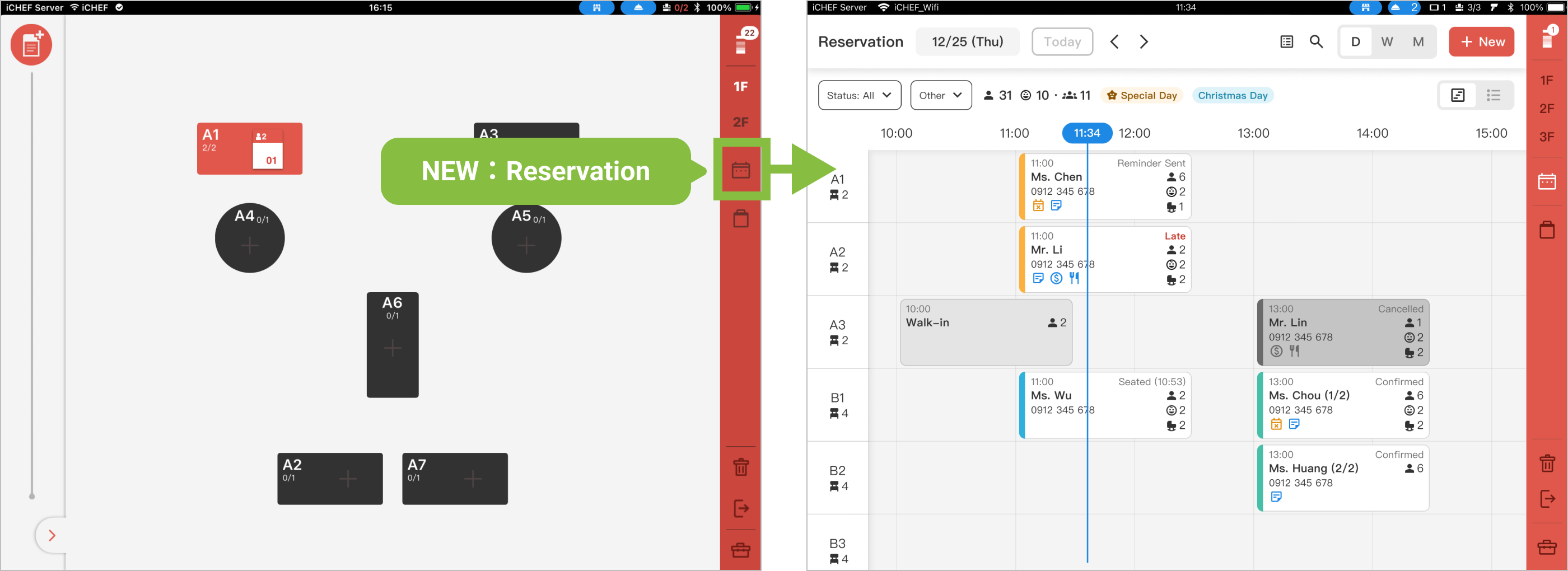
1. View Reservation Details
Reservation data updates automatically. You can also pull down to refresh the page manually. There are three ways to view your reservations, helping you focus on the data you need more quickly.
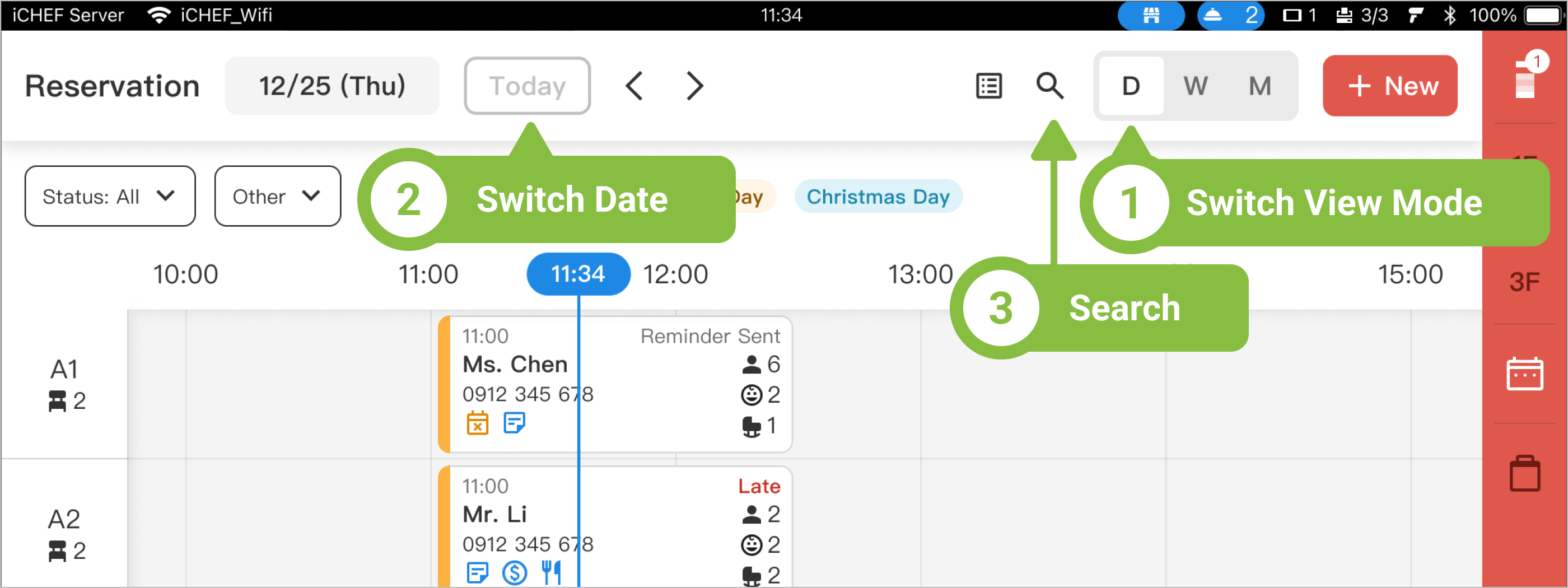
➊ Switch View Mode
There are 3 modes: Day, Week, and Month, which you can switch between freely. The data and display differences are as follows:
| Day | Week | Month | |
|---|---|---|---|
| Content | View detailed reservation info by time slot and table for each date. | View daily summaries of total guests and reservation counts by week. | View daily summaries of total guests and reservation counts by month. |
| Exclusive Features | ✅ Filter reservation status and criteria ✅ Switch between List/Timeline styles | ✅ Booking Rate labels ✅ Holiday labels * Valid Reservations Only | ✅ Booking Rate labels ✅ Holiday labels * Valid Reservations Only |

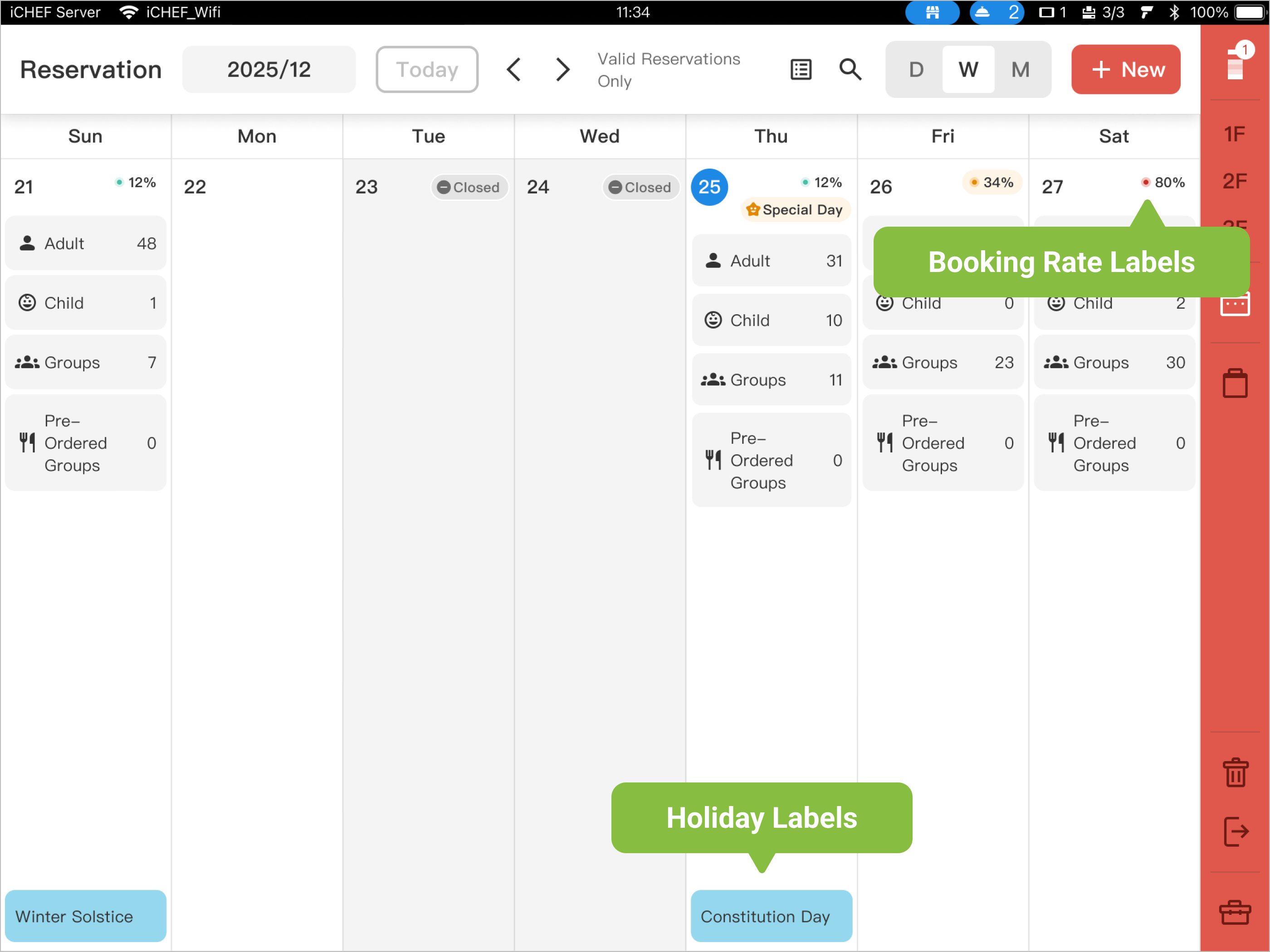
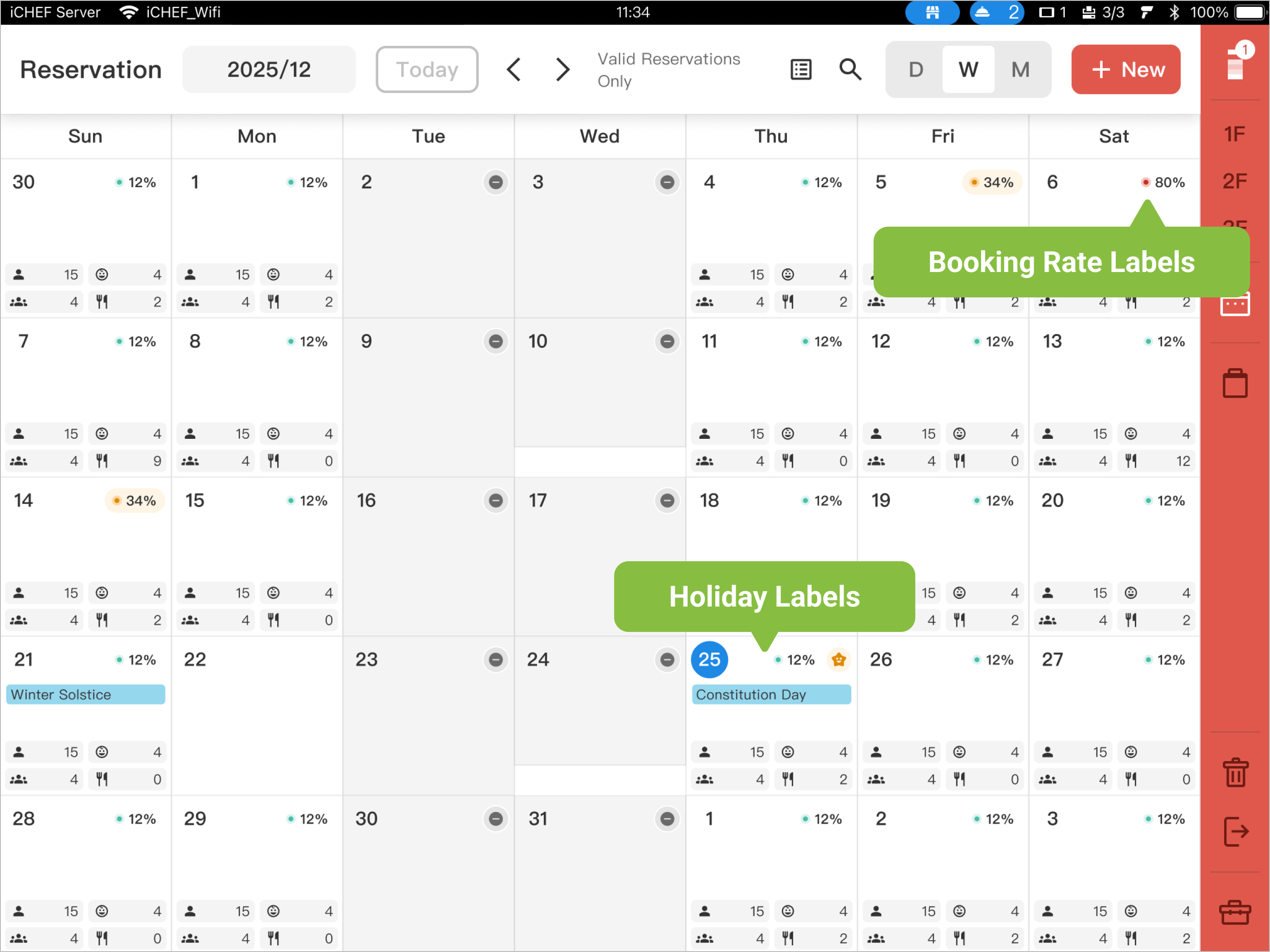
In Week and Month views, the system only Valid Reservations Only, which include the following statuses:
- Unpaid
- Reserved
- Reminder Sent
- Reservation Held
- Seated
In Week and Month views, the percentage shown in the top-right corner of each date block is the Booking Rate.
Booking Rate: :It calculates the percentage of the reserved tables to the tables available for reservation online.(The percentage of “Total Reserved” out of “Total Available for Booking “).
Color Indicators: 0% – 10%: Green Light|11% – 50%: Yellow Light|51% – 100%: Red Light.
Examples:
The available amounts = The number of tables available for reservation online x The number of available hour options
- Reservation rules settings:
- Table Usage Duration: 120 minutes
- Tables available for reservation online: 2 (A1, A2)
- Reservation hours:
- 09:00 ~ 11:30, spaced 30 minutes between each (6 options)
- 13:00 ~14:30, spaced 30 minutes between each (4 options)
- Amounts of available table:2 tables x 10 options of available hours = 20

- Tables available for reservation online: The tables for which the [Available Online] option is enabled under the settings of [Table Availability].
- Available hour options: The options generated by customizing the time slots under the settings of [Reservation Hours].

The amounts of reservation = The number of tables reserved x (Table usage duration/spaced time)
- Reservation:
- Group 1: 09:00, 1 table (A1)
- Group:2 09:00, 1 table (A2)
- Group:3 13:00, 2 table (A1, A2)
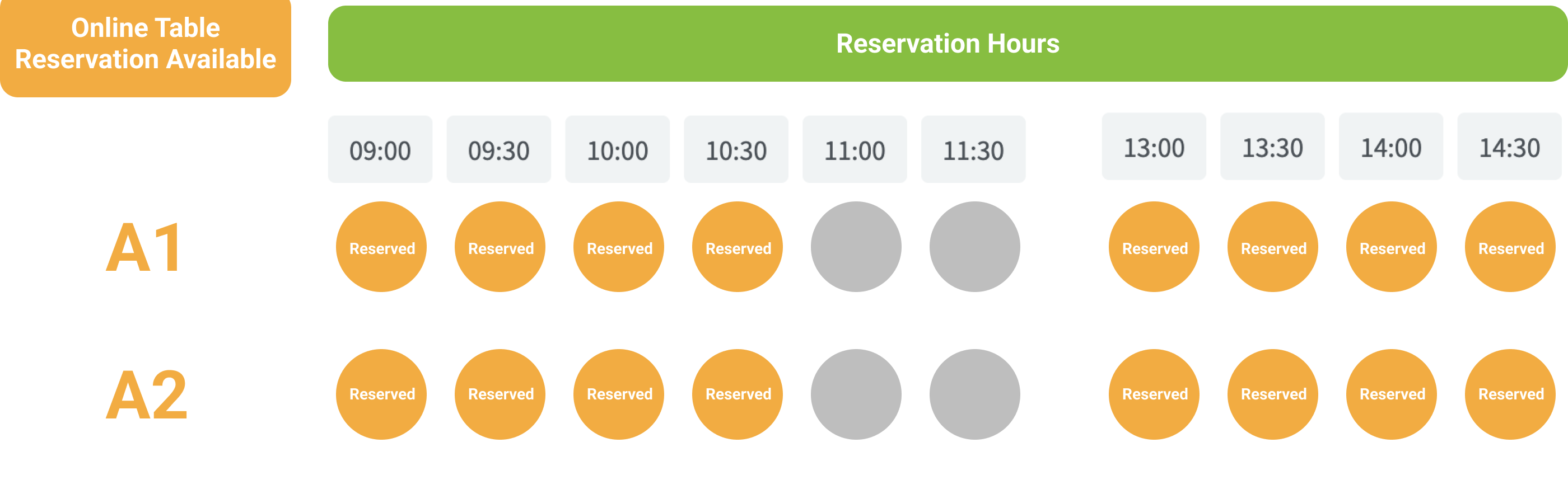
- The amounts of reservation= 4 (The number of reserved time slots of Group 1) + 4 (The number of reserved time slots of Group 2)+ 8 (The number of reserved time slots of Group 3)= 16
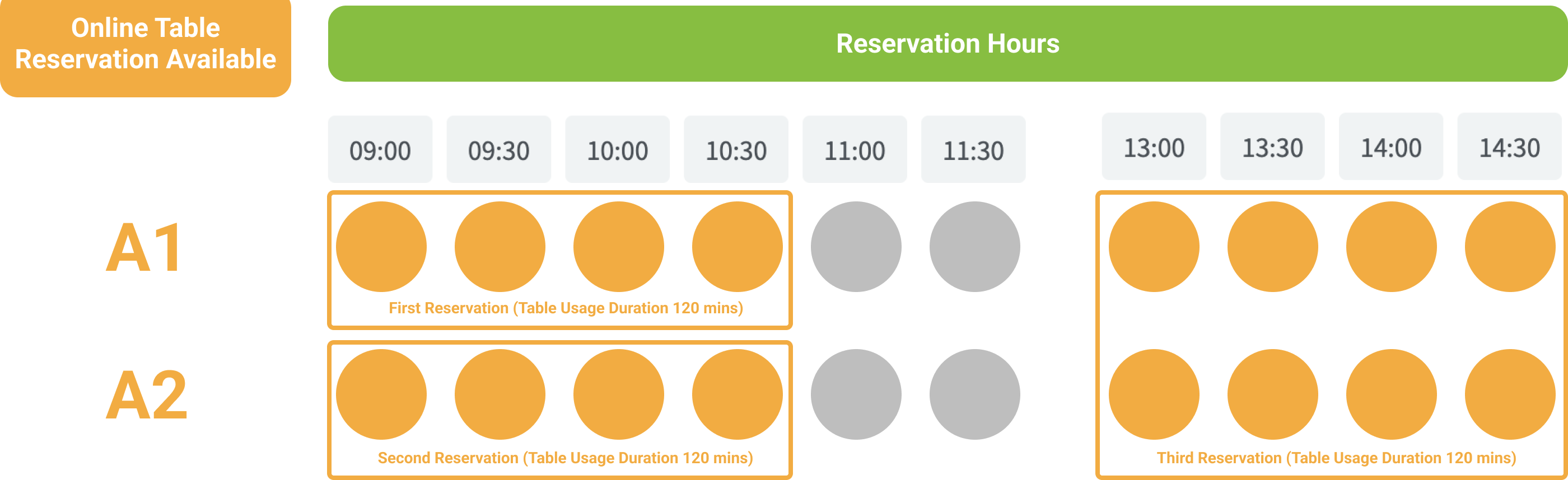
- Table usage duration: The duration configured in the settings of [Reservation Rules] for the system to reserve a table accordingly.
- Spaced time: The time interval between each option configured in the settings of [Reservation Hours].

In this case, the reservation rate =The percentage of the reserved amounts of 16 to the available amounts of 20 = (¹ ⁶ ⁄ ₂ ₀) is 80% .
➋ Switch Date
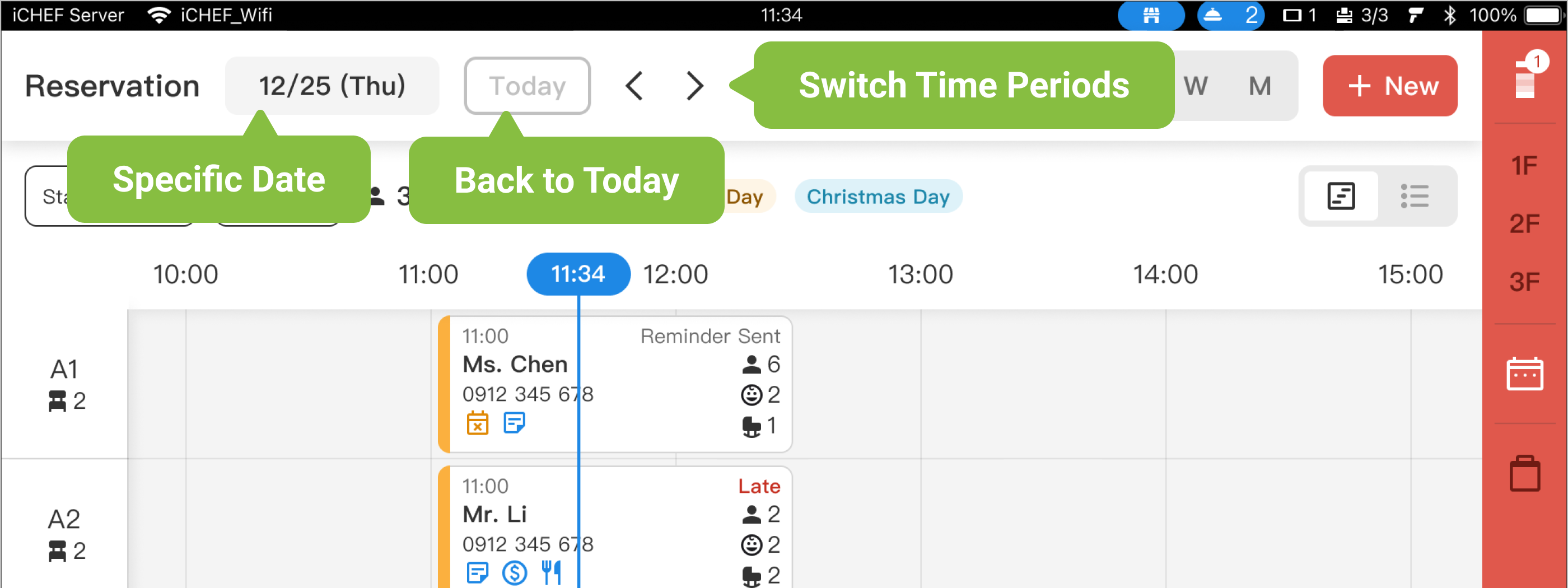
The system defaults to the current date’s range. You can switch dates as follows:
- Tap “Date”: Select a specific date.
- Tap “Today”: Back to today immediately.
- Tap “Left/Right Arrows”: Switch to the previous or next Day/Week/Month.
➌ Search Reservations
Tap the “Magnifying Glass” icon in the top right and enter the customer’s phone number or email. You can search for reservation records from the past 6 months to the next 2 years.

After tapping the [>] in the search list, the filter status will switch to [All Orders], and jump to the reserved date.
2. Modify and View Change History
Modify Reservation Information
Before customers arrive at the store or before the reservation day ends, restaurants can modify reservations on the iCHEF POS App reservation page; customers can modify their reservations on the reservation information website before [Reservation Hold].
- Restaurant modifies in iCHEF POS App
- Any View Mode: Tap a reservation slip, select [Modify Reservation] to enter the reservation slip and edit all information.
- Timeline Mode: Directly drag a reservation slip to change time and table.
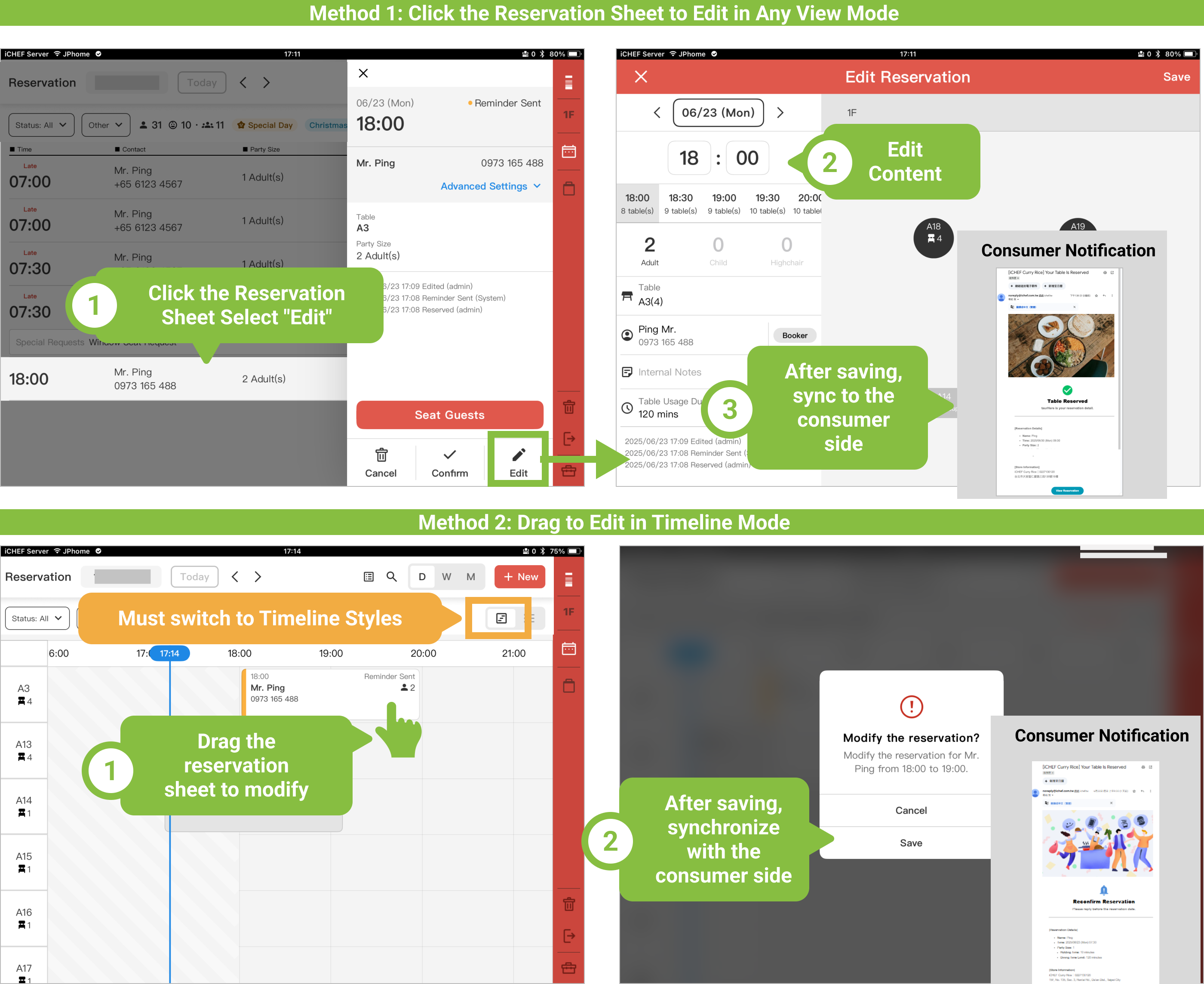
After editing and saving, it will instantly synchronize to the customer’s reservation information website.
- Customer modifies on the reservation information website
The reservation notification sent to the customer will include a link to their exclusive [Reservation Information Webpage]. Customers can modify reservations through this page.
When the modified reservation affects “today’s” arrangements, the iPad using iCHEF POS will display a real-time notification, allowing in-store staff to quickly grasp the day’s situation.
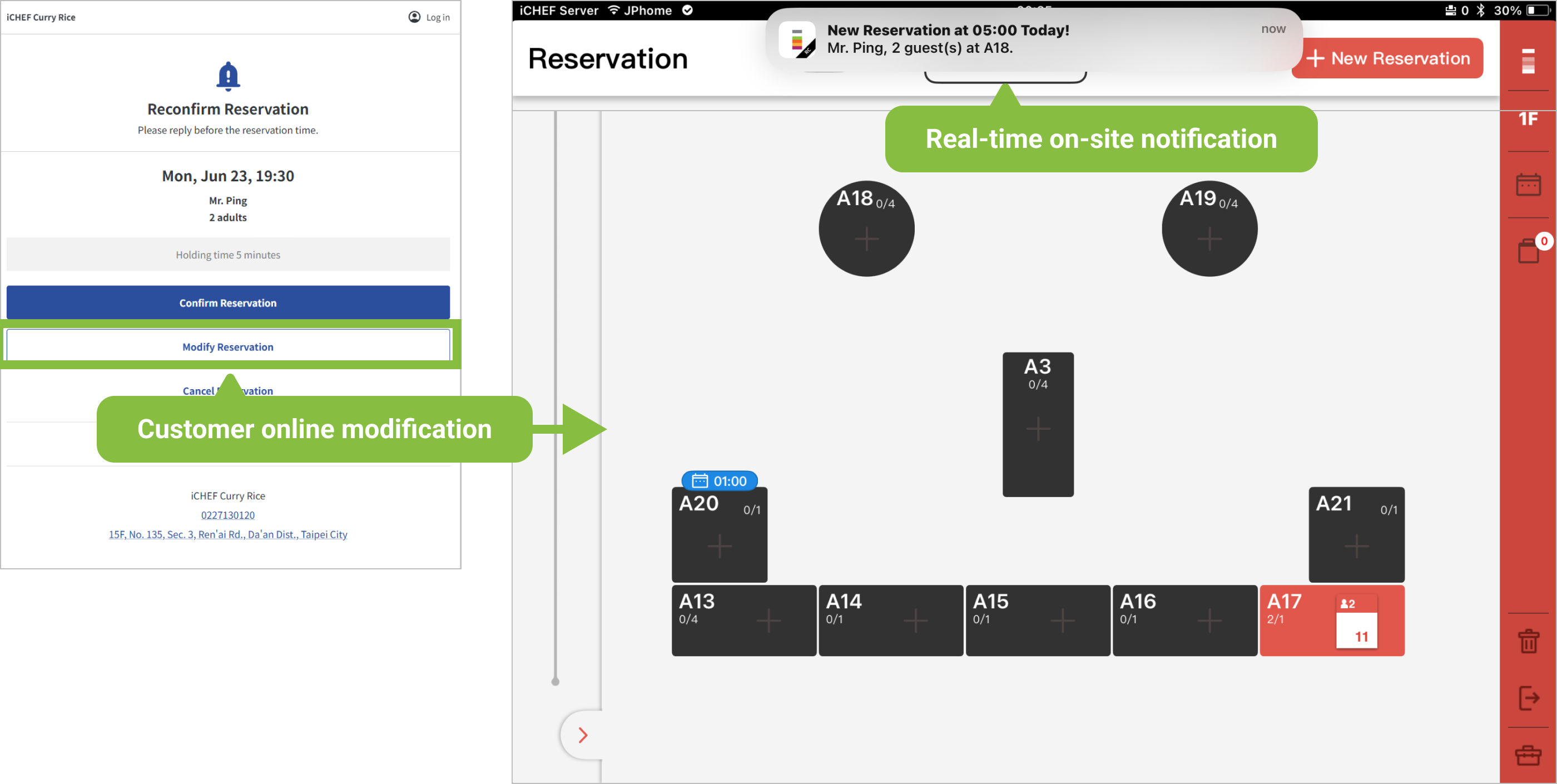
This notification is pushed through the iPad’s built-in [Notification Center], so you must first enable [Allow Notifications] for the iCHEF POS App to start receiving notifications. Learn more: Same-Day Reservation Change Notifications
View Change History
Whether it’s modifying reservation information or changing reservation status, all change records will be displayed in the reservation details.
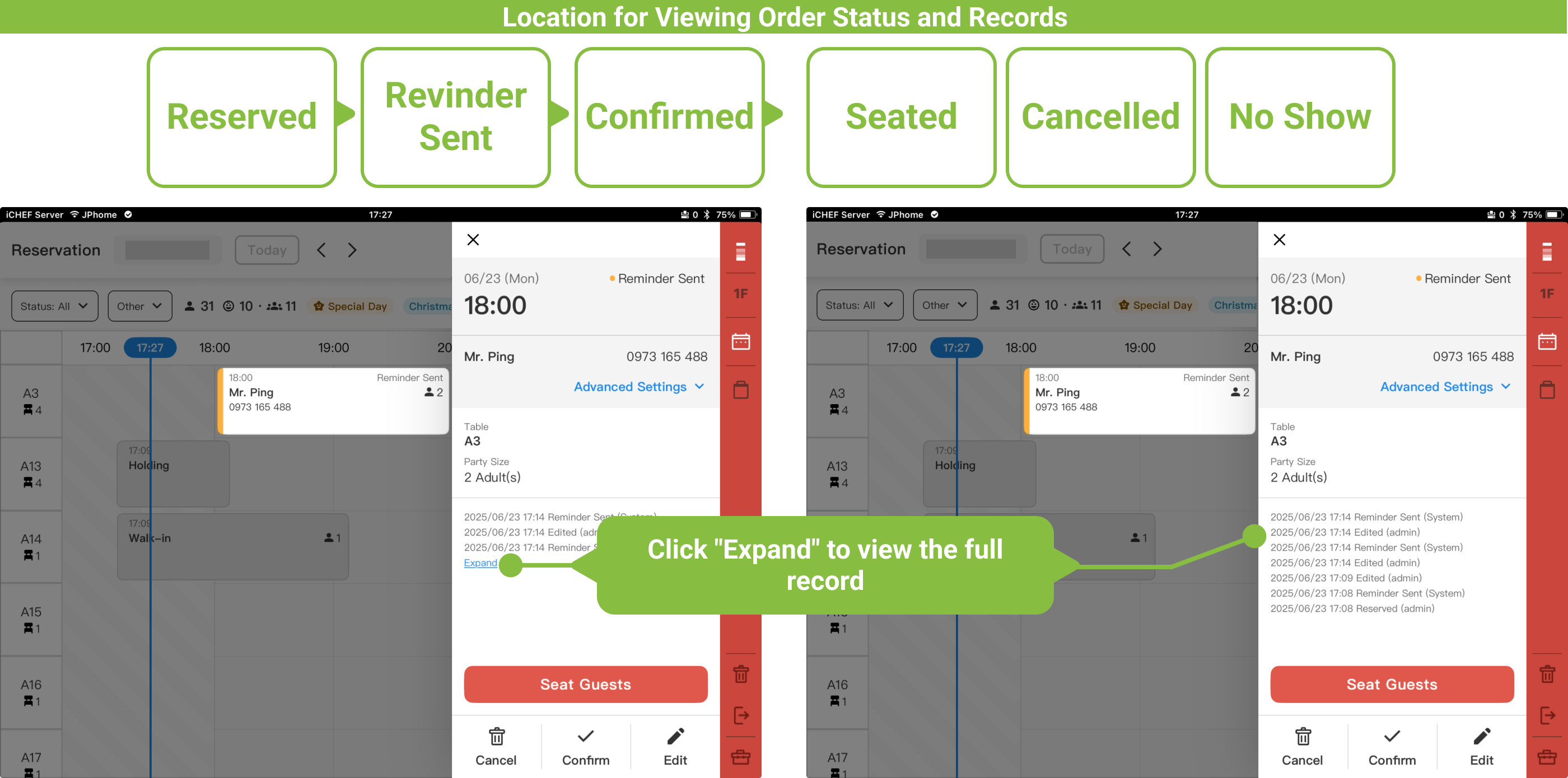
Learn more about [Modify Reservation] >
3. Change Reservation Status
Before guests arrive and are seated for dining, or before the reservation day ends, on-site staff can change the reservation status in any mode on the iCHEF POS App reservation page. After changing, it will instantly synchronize to the customer’s reservation information website.
- Hold Reservation:
Customers will automatically receive a [Reservation Hold] reminder at 09:00 AM the day before the reservation. After the restaurant confirms attendance with the customer through other means, they can tap [Hold Reservation] for this reservation slip. - Cancel] / No Show:
After completing a reservation, customers can cancel their reservation anytime via the reservation information website. If the restaurant receives a cancellation request from the customer via phone or other means, they can tap [Cancel Reservation] for this reservation slip. - Seat Guests:
When customers arrive at the store for check-in and are ready to dine, they can tap [Seat Guests]. The system will record the order creation time on the reservation slip, and automatically open a customer order at the reserved table, allowing on-site staff to directly proceed with ordering.- Can [Seat Guests] earlier than reservation time: The order time will start from the [Seat Guests] time, until the end of the [Table Usage Duration]. This allows your table to be used earlier and released earlier. (Learn more: Seat Guests)