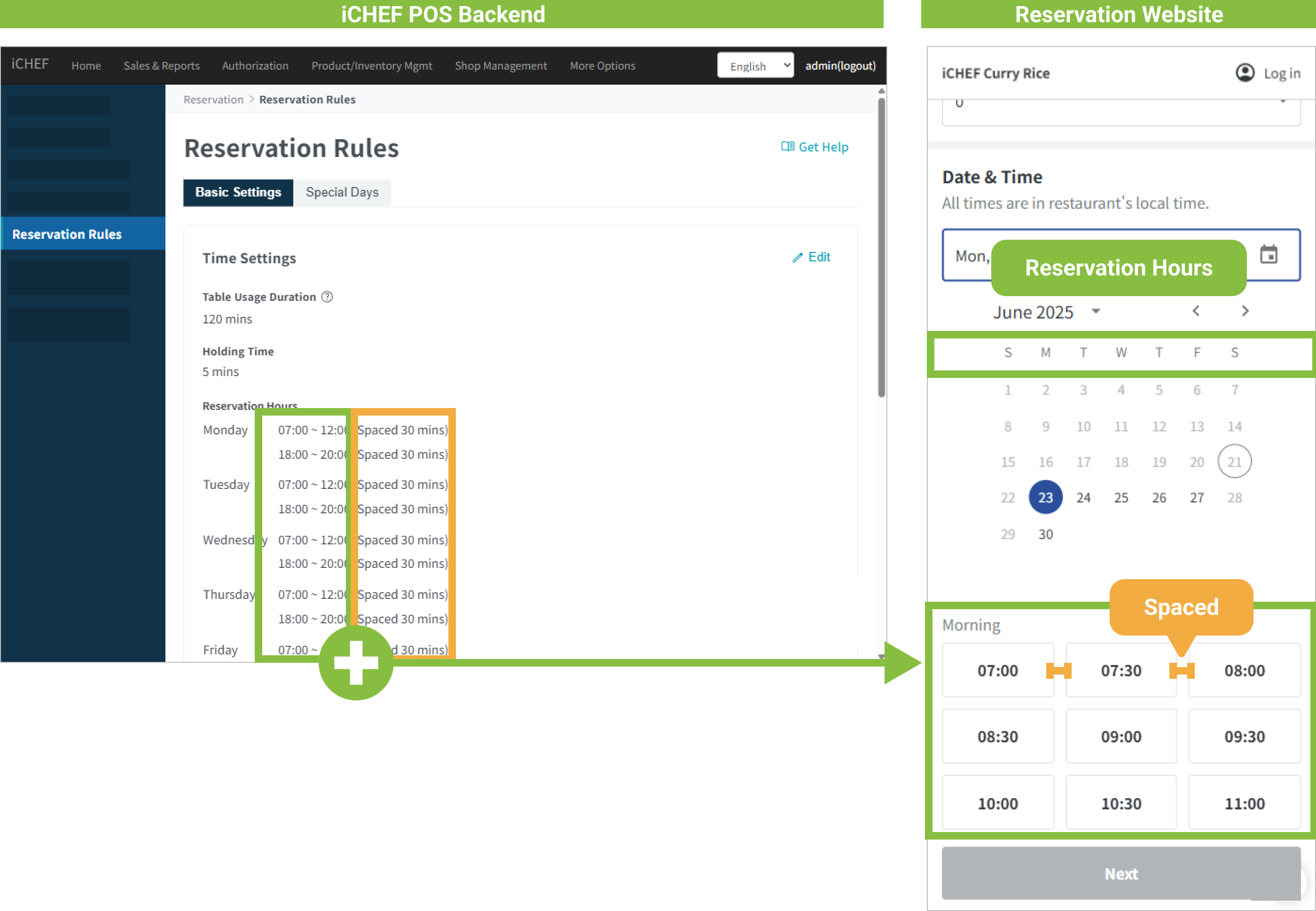
[Reservable Dining Time Slots] are not linked to [Business Hours] settings, so restaurants can set specific open reservation slots. For example, only opening reservations on weekdays, and walk-ins only on holidays, is perfectly fine!
➤ Backend Path: Online Store > Reservation > Reservation Rules
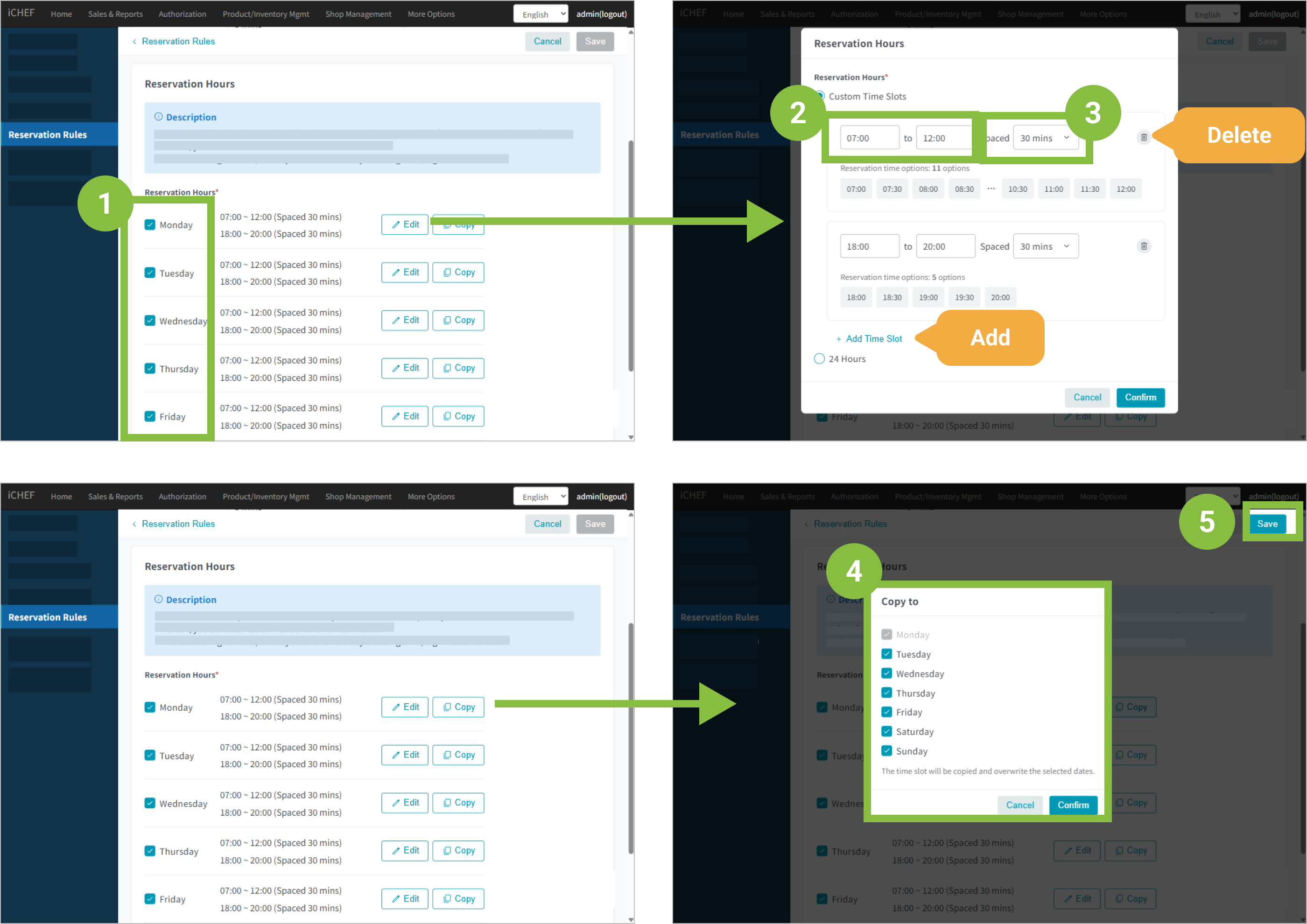
Enter the [Reservation Rules] sub-page, tap [Edit] to the right of Time Settings to begin setting your [Reservable Dining Time Slots] + [Option Interval]. This will form the [Dining Time] options on the reservation website.
Reservable Dining Time Slots
This is the open reservation time range for each week (from the time the first group of guests starts dining ~ to the time the last group of guests starts dining).
- You can set up to 6 time slots per week.
- Using the [Duplicate] button, you can copy time slots from one week to other weeks.
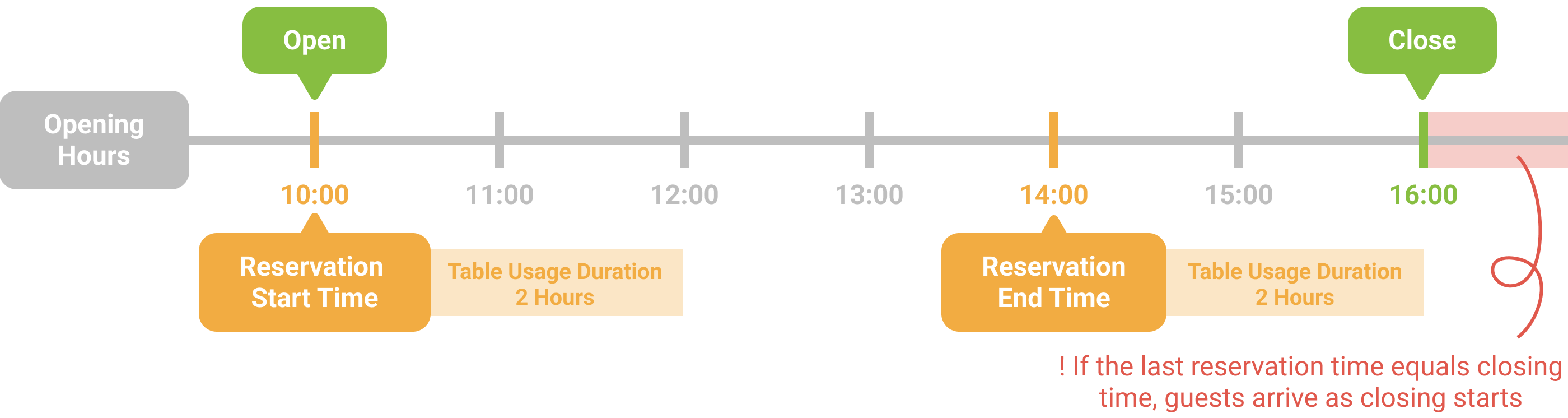
Within “Business Hours”, setting “[Reservable Dining Time Slots]” example is as follows: Business hours 10:00-16:00, dining time 2 hours.
- My start reservation slot (= start business hour): 10:00
- My last reservation slot (= end business hour – dining time 2 hours): 14:00
If you are using [Pre-Ordering] for a reservation with a pre-payment, please note the following when adjusting your [Reservation Hours]:
Items must comply with both the [Reservation Hours] and [Serving Hours] to be displayed on the online menu. After making adjustments, please re-confirm [Menu Settings > Serving Hours] to ensure the menu displays correctly.
Non-Reservable Dining Time Slot
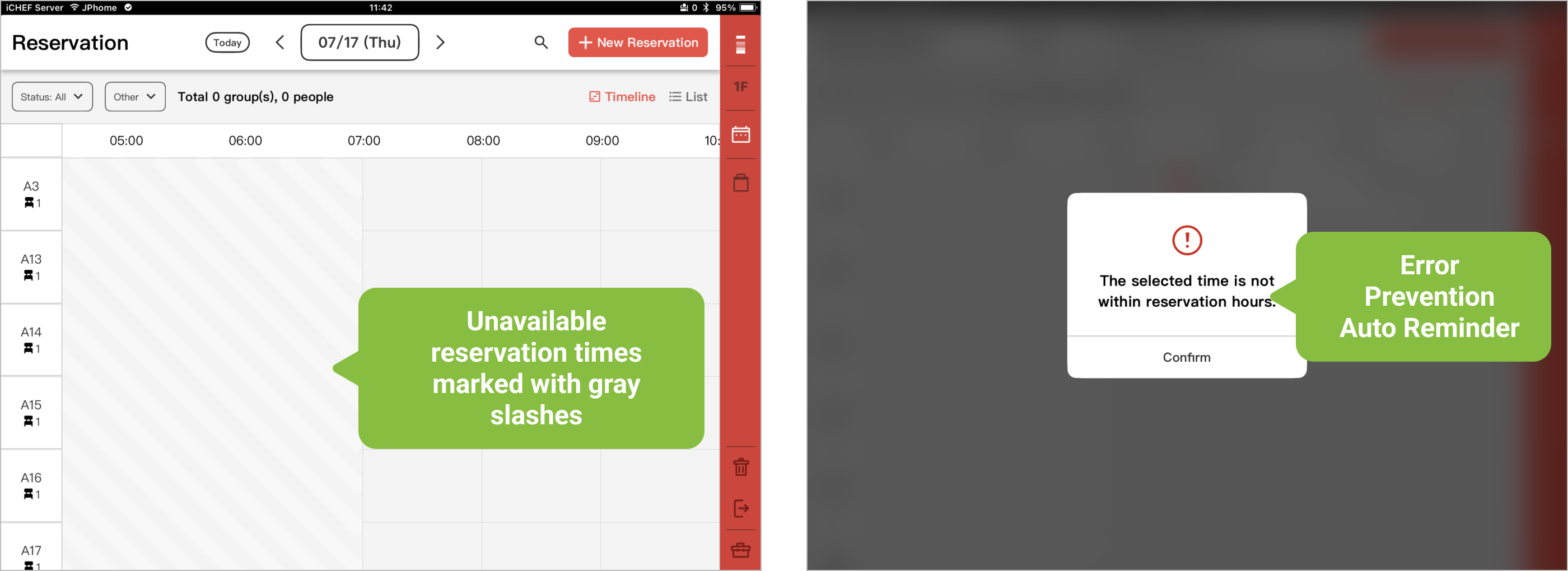
In the iCHEF POS App, all [Non-Reservable Dining Time Slots], including [Store Holidays], will be marked with a gray diagonal line. If this area is inadvertently altered, the system will also provide error-proofing automatic reminders, so you don’t have to worry about booking mistakes.