Click the hyperlink to jump to the relevant section:
Newland BS80 Bluetooth Scanner can be ordered via iCHEF Backend > Purchases The package includes: scanner, 2 lanyards (wrist strap & neck strap), charging cable, iCHEF setup guide card, and the original manual.
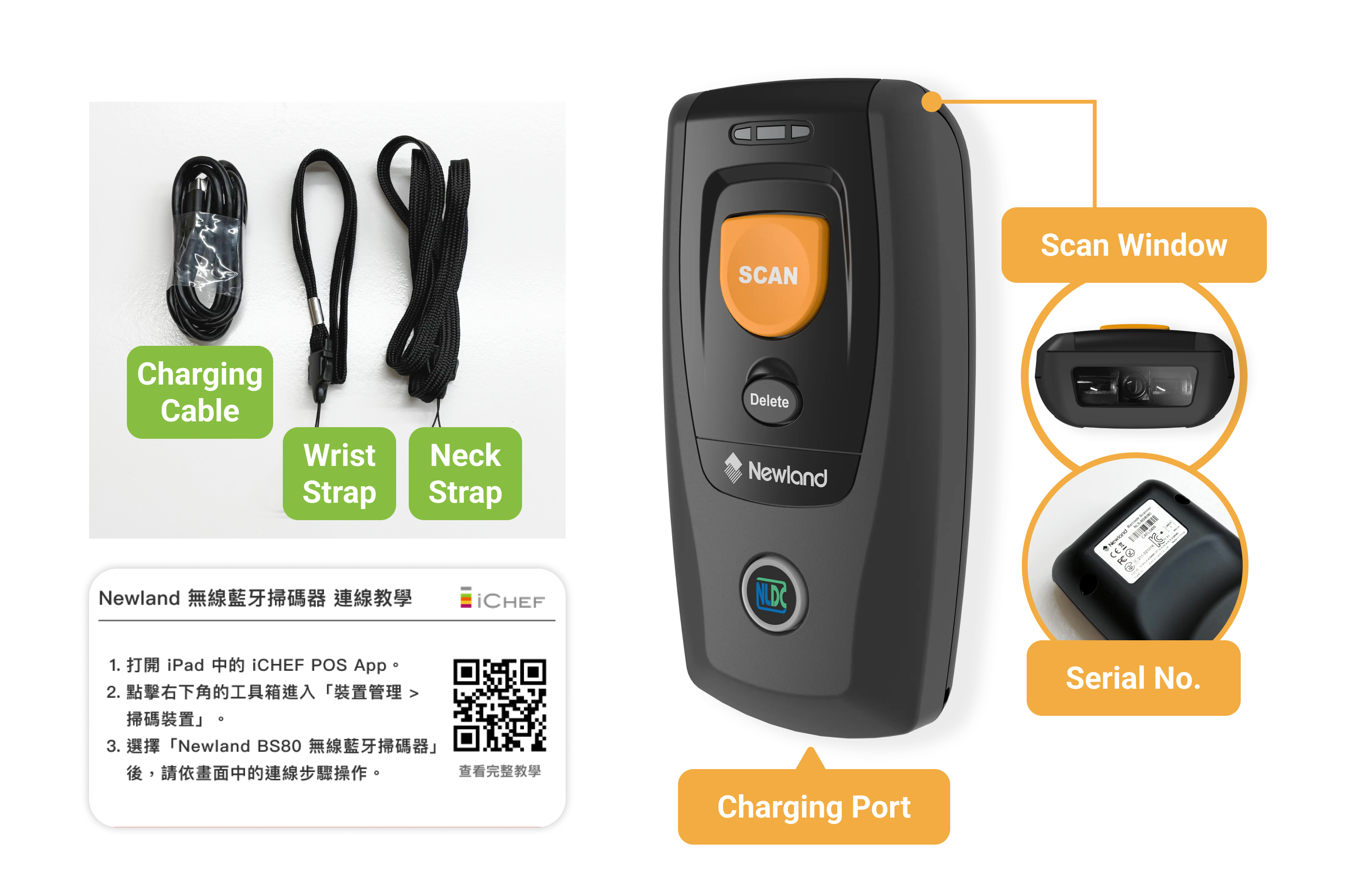
As the official manual illustrates multiple ways of connection, please refer to our connection guide and UI instructions.
Connection Guide
Prepare your scanner and update the iCHEF POS App to the latest version to begin setup.
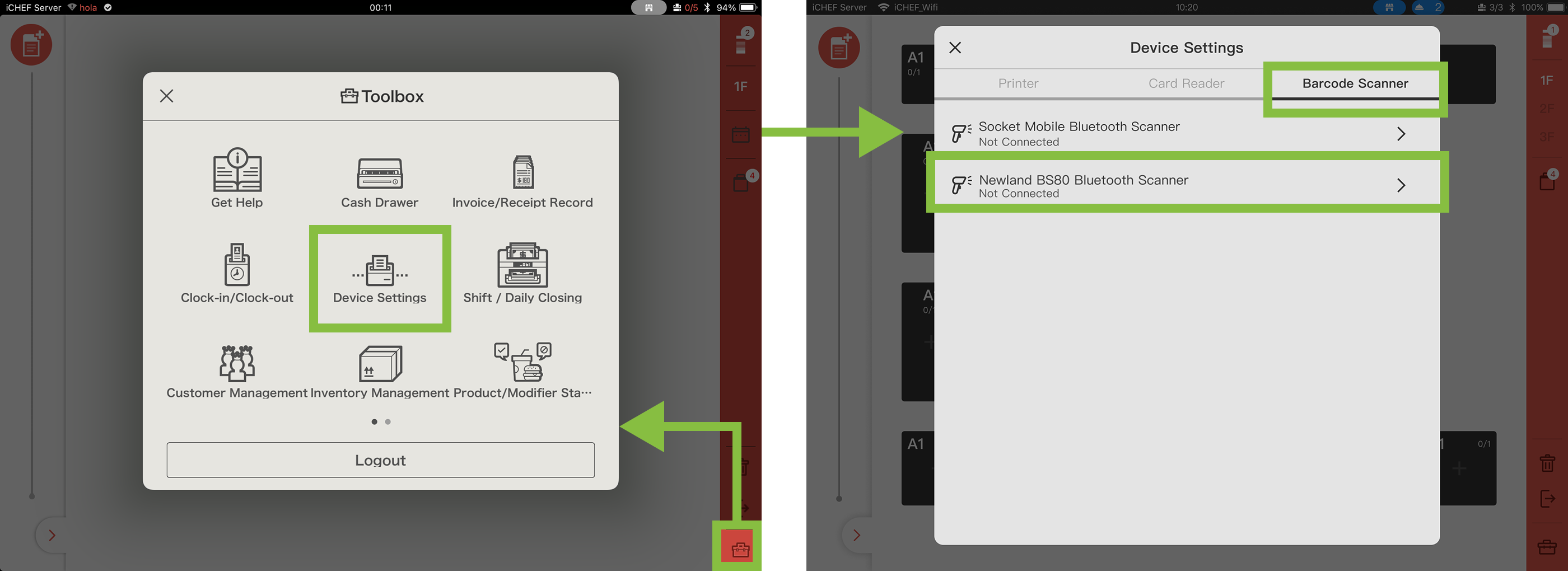
➤ iCHEF POS App Path: Toolbox > Device Settings > Barcode Scanner > Newland BS80 Bluetooth Scanner
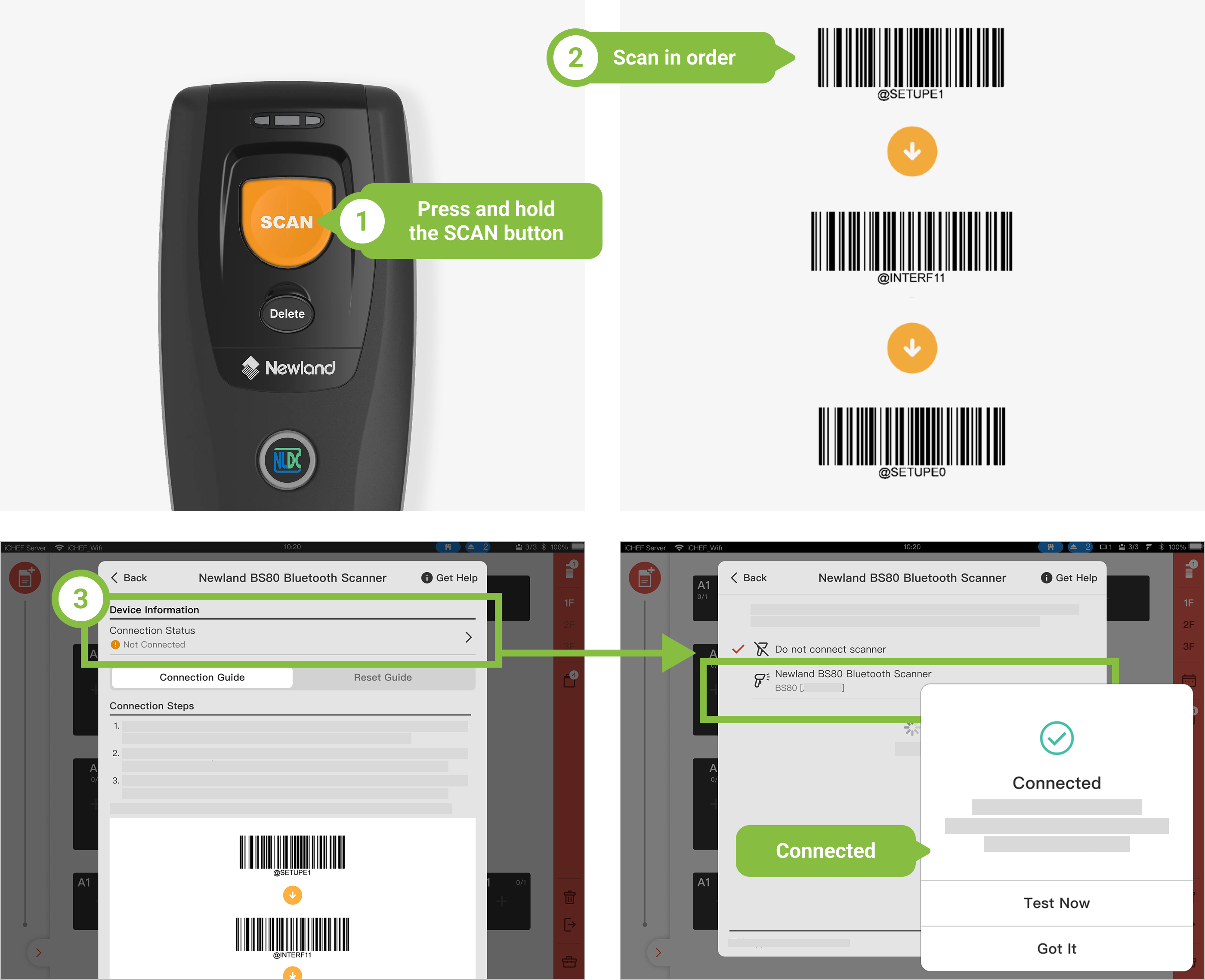
Please follow the steps below to complete the connection:
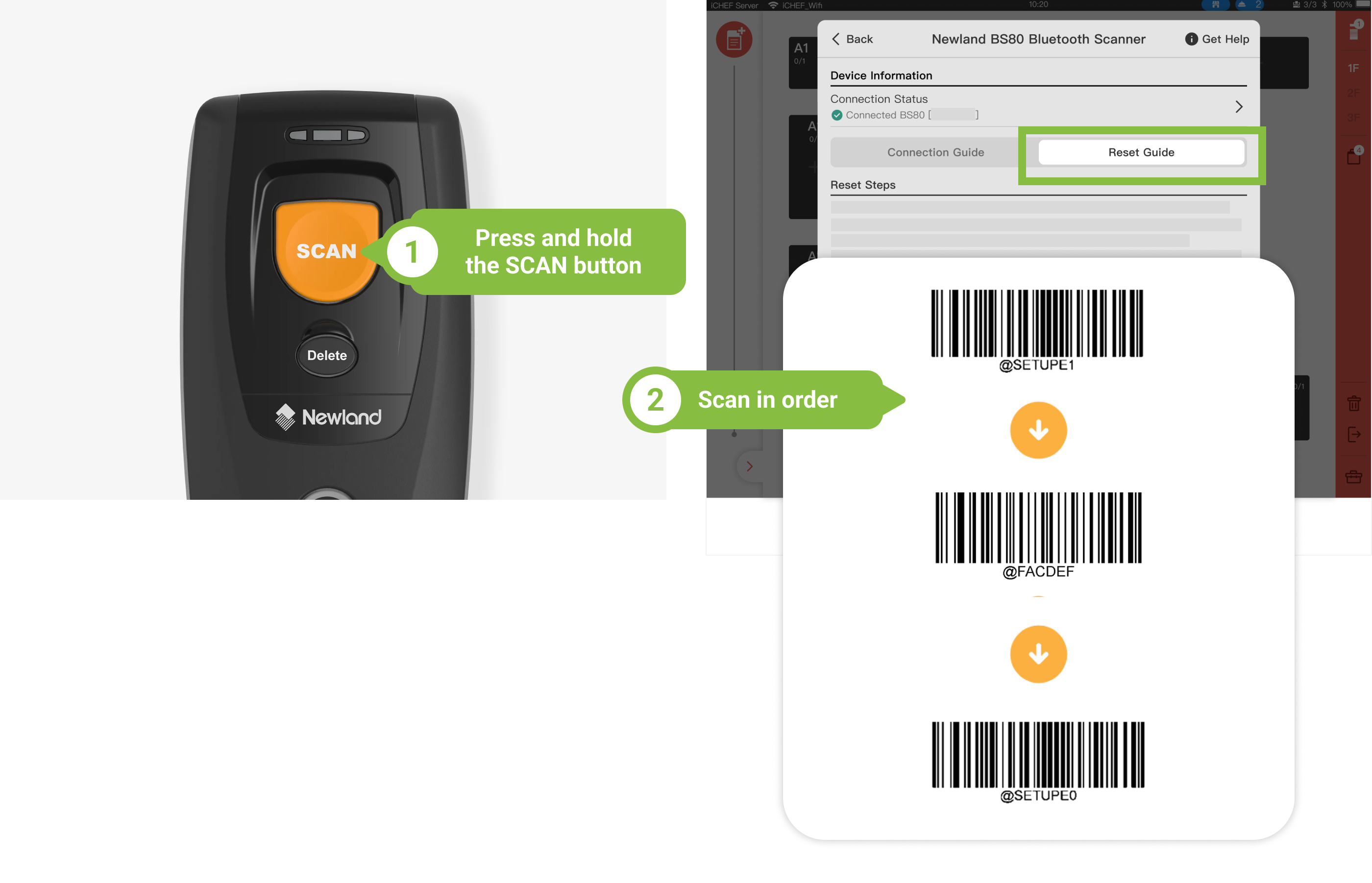
- Press and hold the SCAN button to power on the scanner. Release after hearing the sound effect.
- Scan the three barcodes below in order (you can proceed to the next one once you hear the sound effect).
- After scanning, tap “Device Information > Connection Status” at the top and select “Newland BS80” to connect.
You can proceed to the connection test under the settings page to confirm if the barcode scanner is working properly.
Once connected, the barcode scanner will automatically reconnect in the future.
Reset
If the scanner is not working properly, follow these steps to to reset and reconnect.
- Press and hold the SCAN button to power on the scanner. Release after hearing the sound effect.
- Scan the three barcodes below in order (you can proceed to the next one once you hear the sound effect).
- After scanning all barcodes, the reset is complete. (Follow the Connection Guide to reconnect.)
Connection status & Specifications
Connection status
The connection status of barcode scanner is shown on the system status bar at the top of the screen in iCHEF POS App as well as the section under [Toolbox > Device Settings].
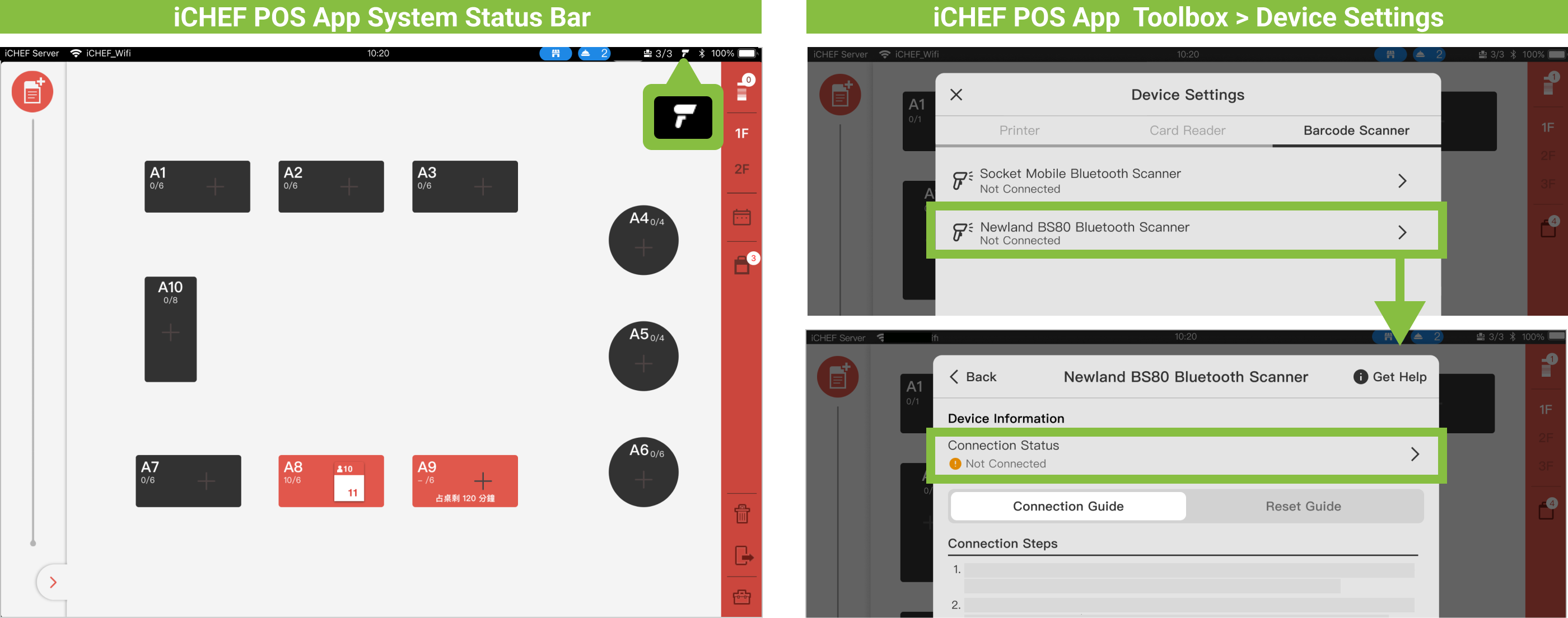
| Status | System Status Bar | Status under [Device Settings] | Instructions |
|---|---|---|---|
| Not connected |  |  | Not connected with iPad |
| Connected |  |  | Connected with iPad |
The connection may fail due to one of the following reasons. The barcode scanner will reconnect automatically after the troubleshooting:
- The barcode scanner is turned off: Please turn on the barcode scanner, and it will reconnect automatically.
- The barcode scanner is too far from the iPad: Please keep the distance under 50 meters.
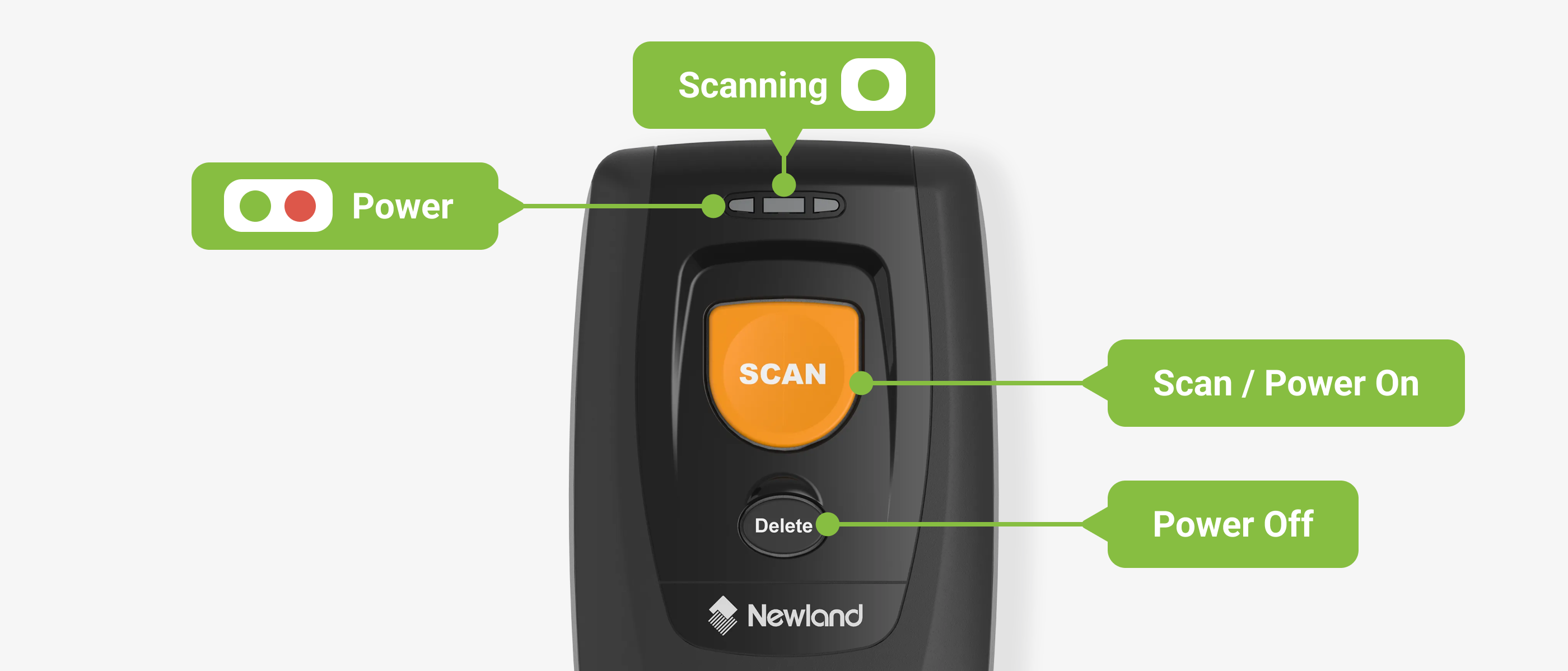
- Power
| Light | Instructions |
|---|---|
| Red|Always On | Charging |
| Green|Always On | Fully Charged |
| Red|Flashing | Low Battery Alert |
When the battery is low, the LED will flash red with an alert sound. Please charge immediately.
- Scanning
| Light | Instructions |
|---|---|
| Green|Flashing | Successful |
By default, the device beeps upon a successful scan.
- Button Functions
| Button | Instructions |
|---|---|
| SCAN Button | – Press to scan – Hold for 3 seconds to Power On |
| Delete Button | Hold for 7 seconds to Power Off |
Defaults to 30 minutes of Auto Power-off.
Steps:
- Scan the “Enter Setup” barcode.
- Scan the Function barcode(s) (supports continuous scanning for multiple settings).
- Scan the “Exit Setup” barcode.

Getting Started
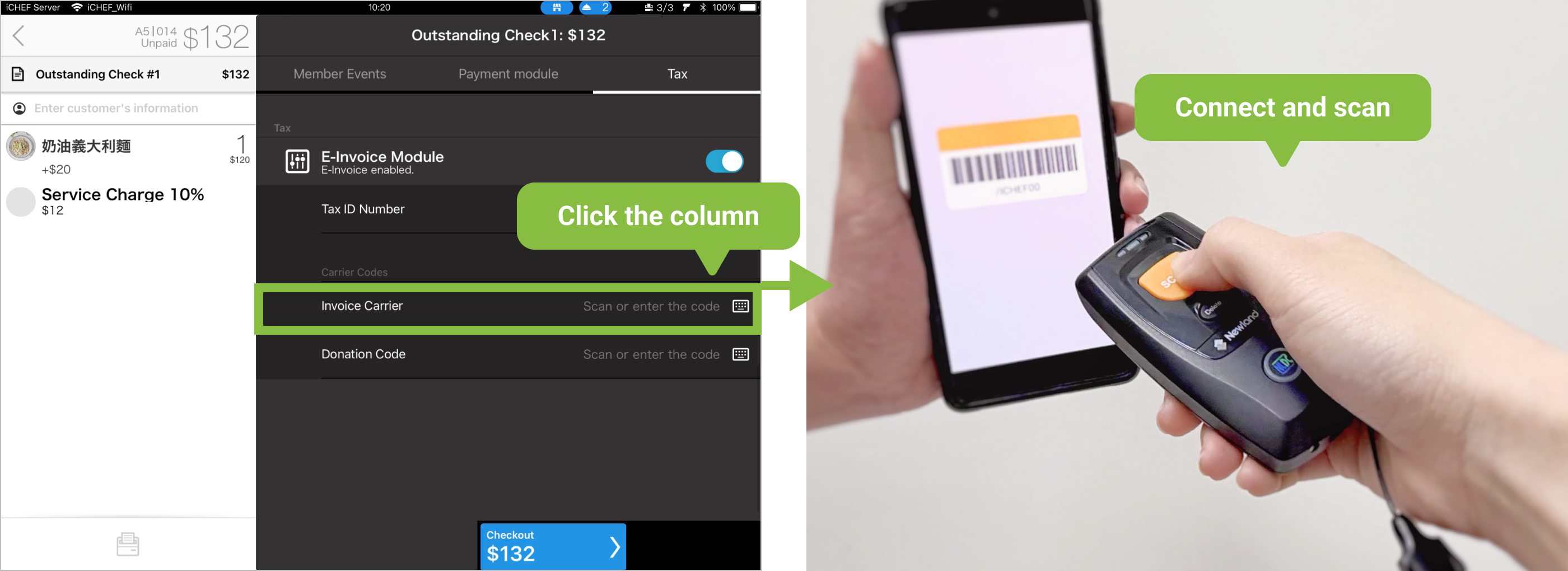
After the connection is complete, you can use the scanner to scaninvoice carrier and mobile payment codes at checkout.
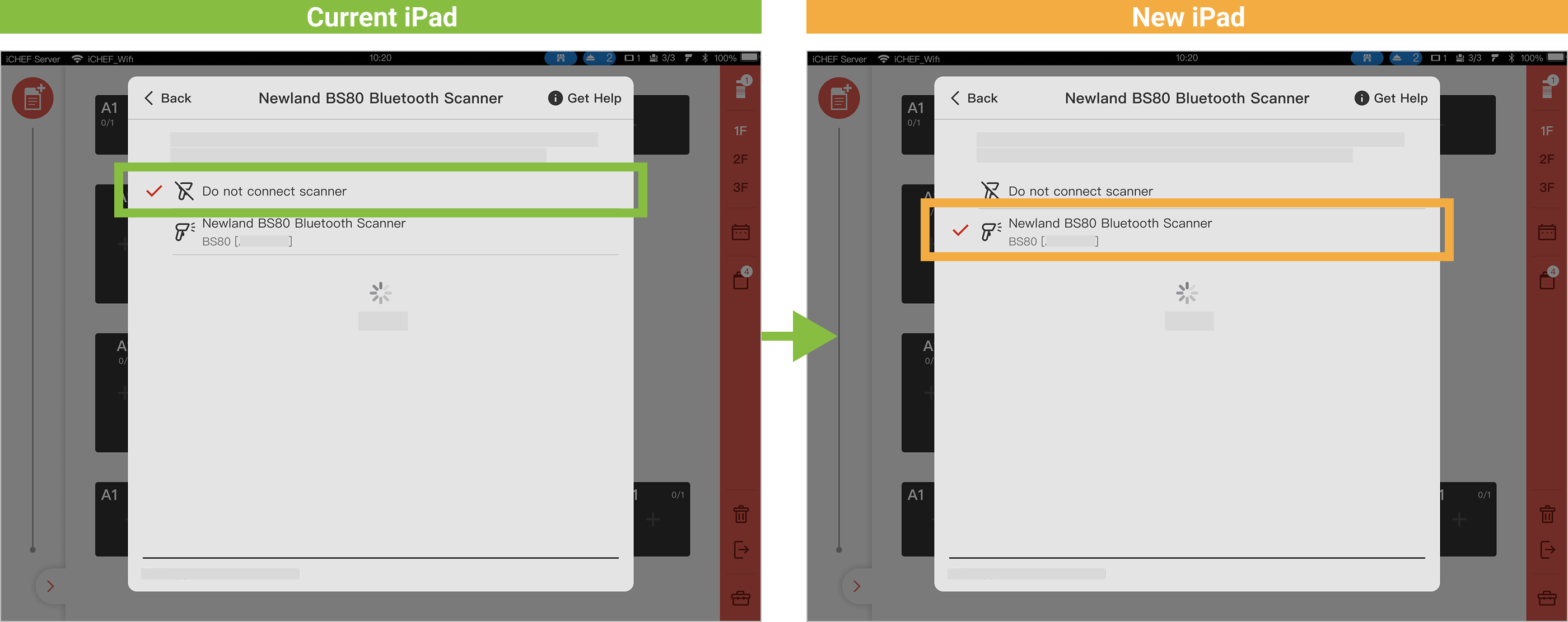
- On the currently connected iPad, set the scanner status to “Do not connect scanner”
- On the new iPad, go to “Device Information > Connection Status” and select Newland BS80 to connect.